
Finding a call
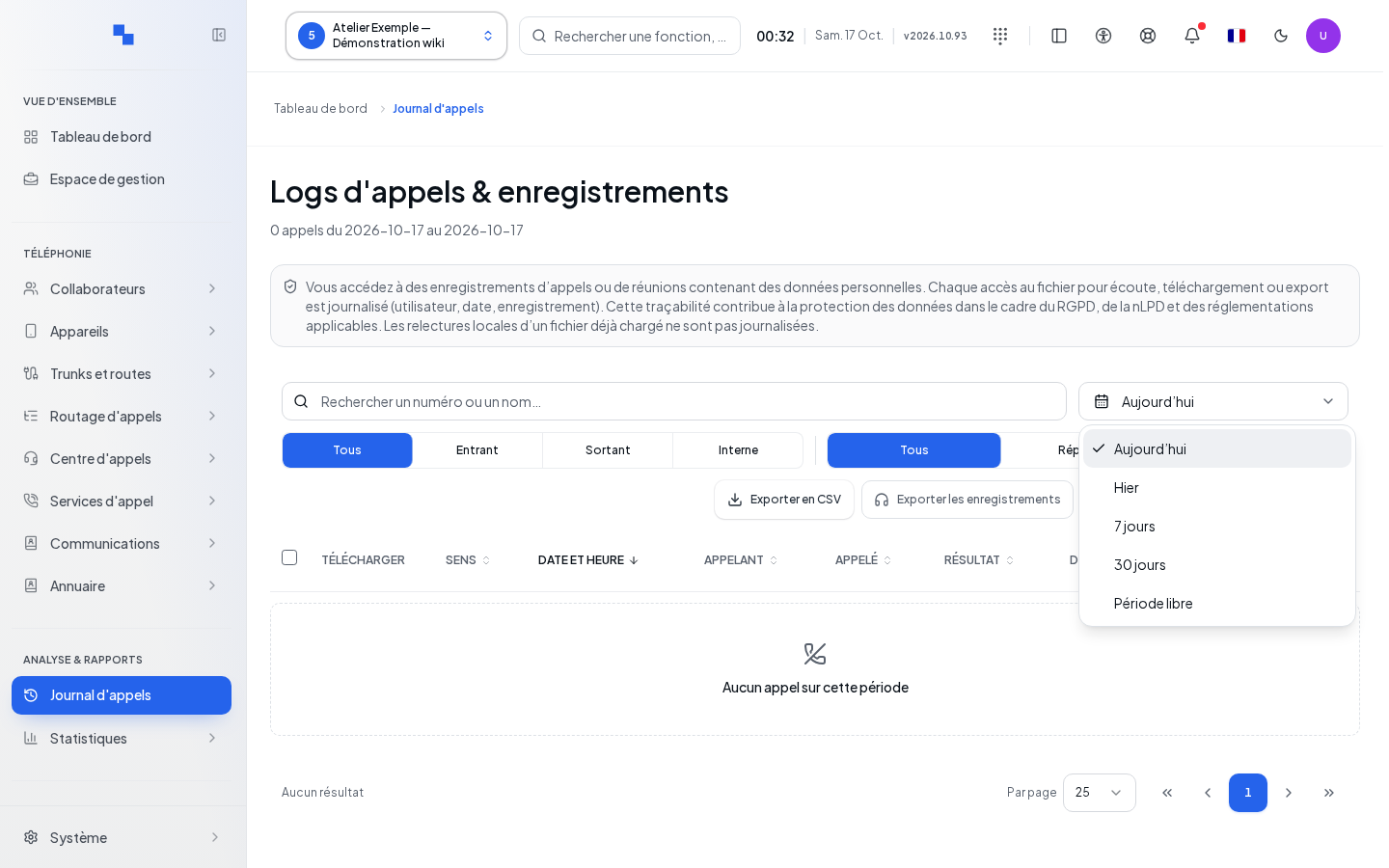
Open Call Logs for the selected customer. The log provides the context for each call and access to its available media. Read permissions for the log, listening, export, and deletion are distinct: viewing a row does not authorize all of its actions.
The header displays Call Logs, without a numerical summary of the period or a link to the identification log.
The Callback chip identifies a call linked to a queue callback request or a scheduled callback. It indicates its origin, even if no one answered; read the status to find out the outcome. It is not inferred from the called number alone.
Choose a predefined period or enter From and To. Refine by search, direction, and status. The log filters are sent to the server; pagination browses through their results. Check the time zone used for the times, especially for a call near midnight. Clear a filter if no results match.
The columns show, among other things, start time, caller, callee, status, and duration. A total duration should not be confused with conversation time. Open the row to view the details before concluding that a call reached the right person.
Reading the details and the call path
In the detail view, check the source, destination, and requested numbers, direction, status, dates, and durations. Technical Details presents the identifiers useful for support. A call may have several recordings: choose the one you wish to listen to.
The call path reconstructs the available events. Expand the number of events and Call Data to complete the review. The absence of a detailed trace does not allow missing steps to be reconstructed; note the time, numbers, and call identifier for support.
The PCAP capture commands visible in this panel are disabled with the indication not available. Neither the duration selector, nor Start Capture, nor Download PCAP allow a capture to be started from this screen. A later capture could not, in any case, reconstruct a past call.
Checking the network of each leg
A leg is the part of the call that connects a participant or a carrier to the switchboard. In the technical detail of the call path, expand Call Data: the network information for the legs, when collected, supplements the participants and durations.
| Information | What it is used for |
|---|---|
| Network | Identifies the outbound path used for this leg |
| Local Address | Address of the switchboard used on this network |
| Advertised Address | Address communicated to the other party to reach the switchboard; it may differ behind a firewall that translates addresses |
Faced with a call with no audio, compare each leg to the expected network: a carrier on a private link must use its intended outbound path, while the customer's device may use a different interface. Send the support team the call identifier and the observed values. This data describes the recorded call; changing the network plan does not rewrite its history. Missing information may result from an observation that was not collected and does not prove the use of a different outbound path.
Refer to the network plan and the trunk outbound path to compare the configuration.
Listening and downloading
Open an available recording, start playback, and use the player controls to pause or skip forward. Download retrieves this audio if your permissions allow it. The presence of the log entry does not guarantee that the audio still exists: it may have been deleted or may never have been recorded.
For multiple media files, check the eligible rows and then use the download bar. Check the selection after changing a filter or page. A row with no media should not be considered a selected file.
Transcribing, summarizing, and analyzing
In the player, the Transcribe, Summarize, Analyze Sentiment, and Assess Quality commands allow you to request the corresponding results. Saved results are played back; opening them does not trigger their generation. Read, write, and file access permissions determine which commands are available.
Review the results and compare the transcript to the audio. The transcript can be copied or exported; translation of the transcript or summary depends on permissions. In case of an error, use Retry after reading the diagnostic.
The AI Integrations › Call Transcription page also offers a list of recordings, with expandable rows, playback, and analyses. The AI guide explains the actions and their states.
Exporting the log and managing files
The CSV export of the log includes the calls matching the filters, beyond just the displayed page. Therefore, check the period and criteria before starting the export, then open the downloaded file to verify its dates and content.
The export or deletion commands for recordings on the page apply to the available media of the visible calls. They are not equivalent to the global CSV export of the log. Read the number stated in the confirmation. Deletion removes the affected audio files, not the log entries. The required write and deletion or export permissions are checked separately.
After deletion, reload the detail view: the call remains viewable, but the removed file can no longer be played. To find only the audio recordings, open Call Recordings.