Finding audio announcements
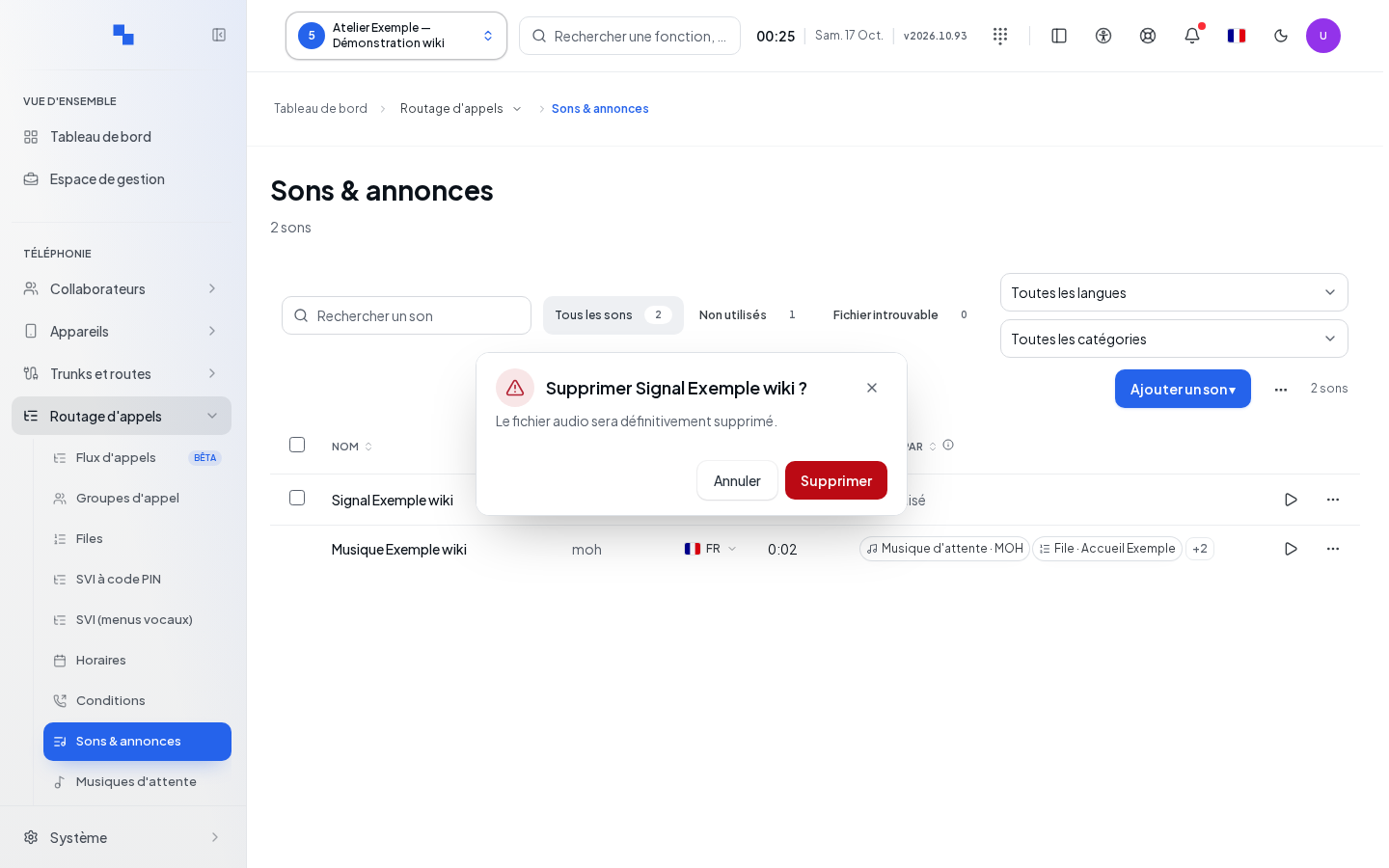
In Sounds, select the client. Announcements are used for greetings, menus, closing messages, and other services. The list groups together the variants of a given sound. Search by name, filter by category or status, and review the available languages. A protected category can be viewed but not modified.
Listen to a variant before assigning it to a call flow. Duration, usage, and variants help distinguish between two similar files. Unmeasured usage is not a guarantee that the file is unused. Click on an accessible usage to locate the related resource.
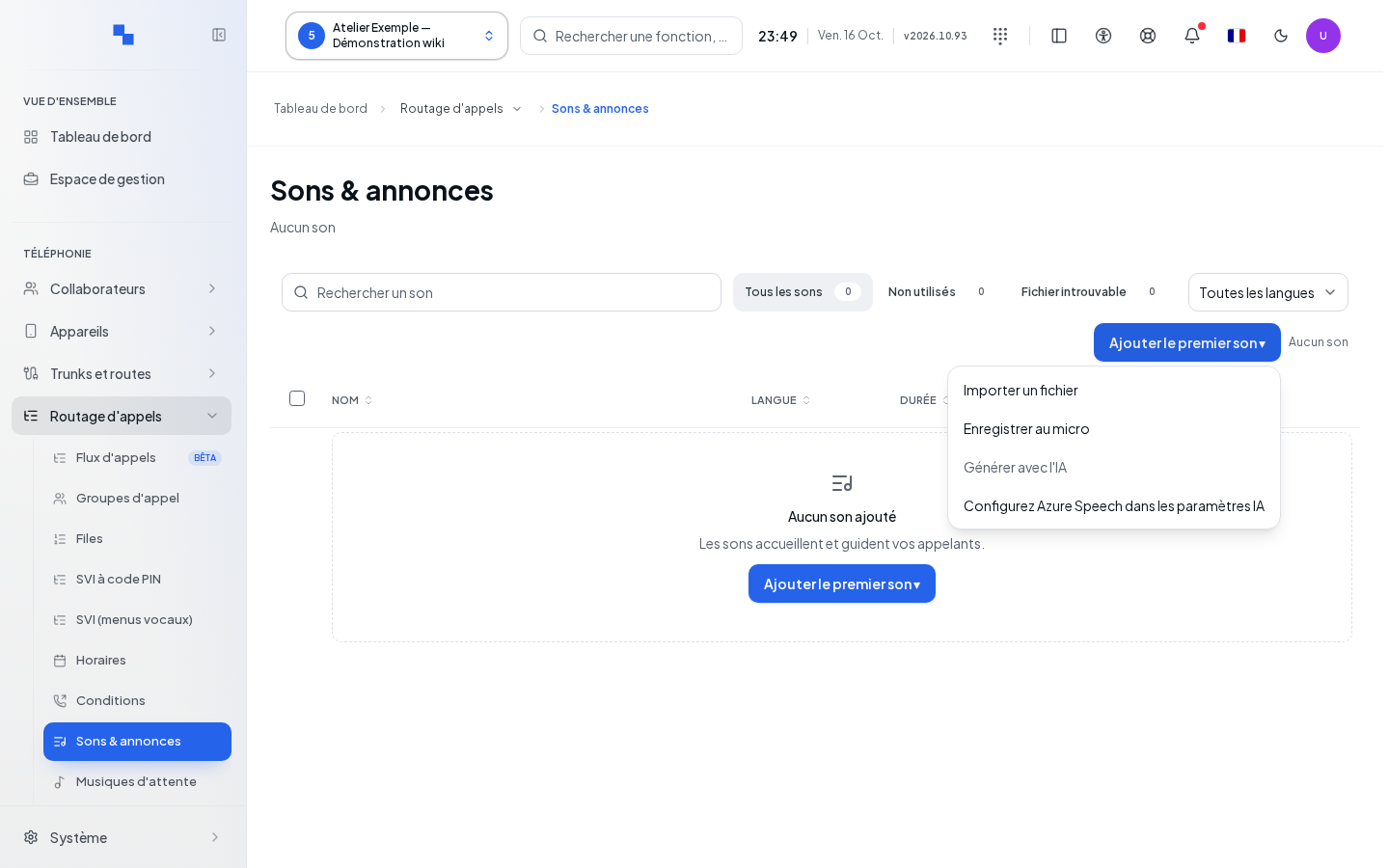
The add menu offers import, microphone recording, and text-to-speech. Sound writing permission is required to record them. Text-to-speech also requires a compatible service to be available for this client.
Importing a file or batch
- In the add menu, choose Import.
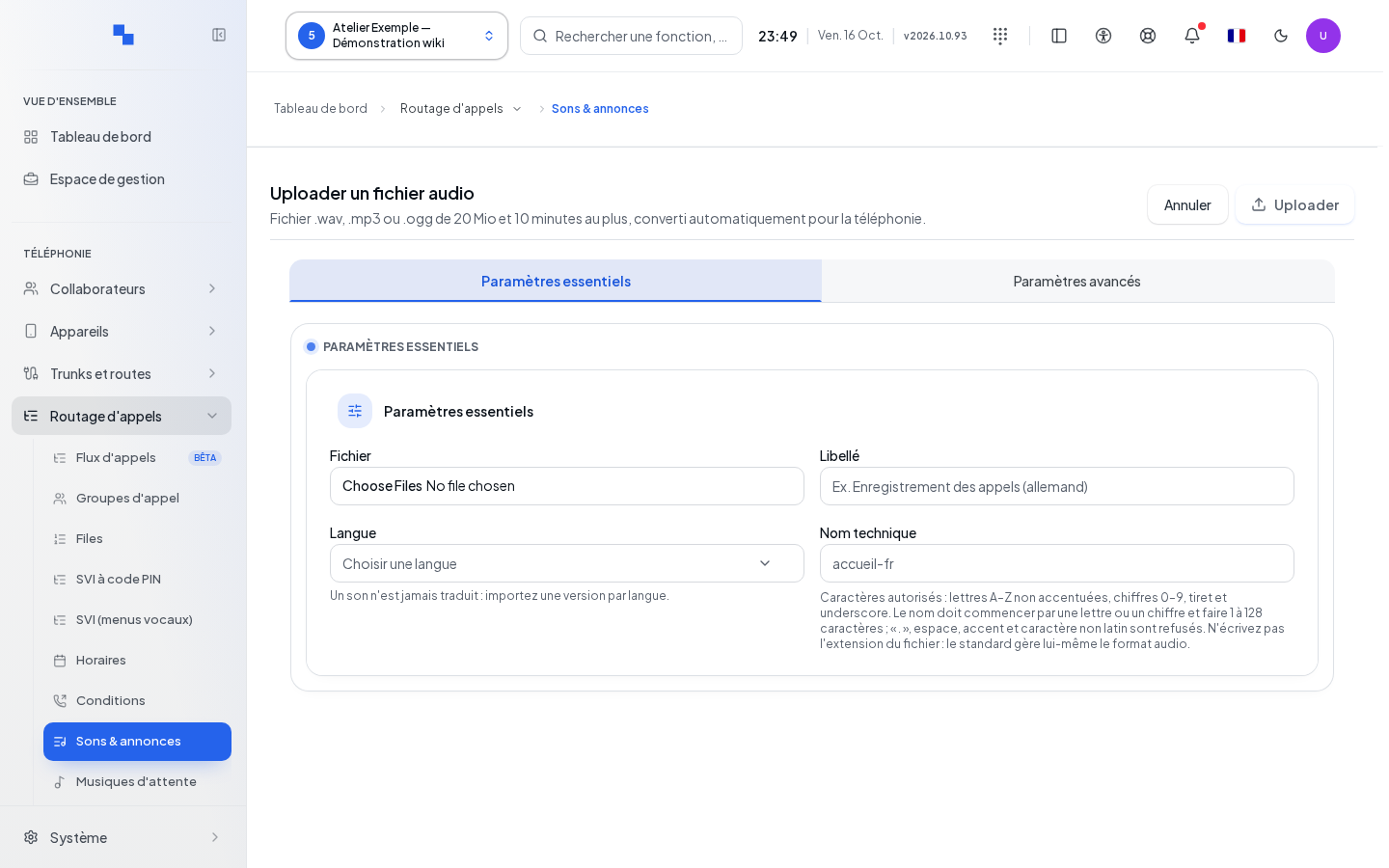
- Select one or more WAV, MP3, or Ogg files. Each file is limited to 20 MB and 10 minutes.
- For a single file, wait for conversion, then listen to the preview and check its duration.
- Choose the required language and, if desired, a readable label.
- Check the suggested file name, then start the import.
- For a batch, review each result. Fix errors in rejected files without re-importing those that already succeeded.
| Field | Purpose | Possible values | Example |
|---|---|---|---|
| File name | Technical identity of the sound | 1 to 128 characters, letter or digit at the start, followed by letters, digits, hyphens, or underscores | greeting_en |
| Label | Readable name in lists | Text, 120 characters maximum | Daytime greeting |
| Language | Associates the variant with its language | One of the offered languages; required | English |
| File | Audio source to convert | WAV, MP3, Ogg within the stated limits | A greeting recording |
The browser converts the file to the telephony format before sending. A file that is too large, too long, or unreadable must be replaced or shortened. A successful conversion does not mean the upload succeeded: wait for the import result and check the list. Closing during upload does not cancel that upload.
Recording with a microphone
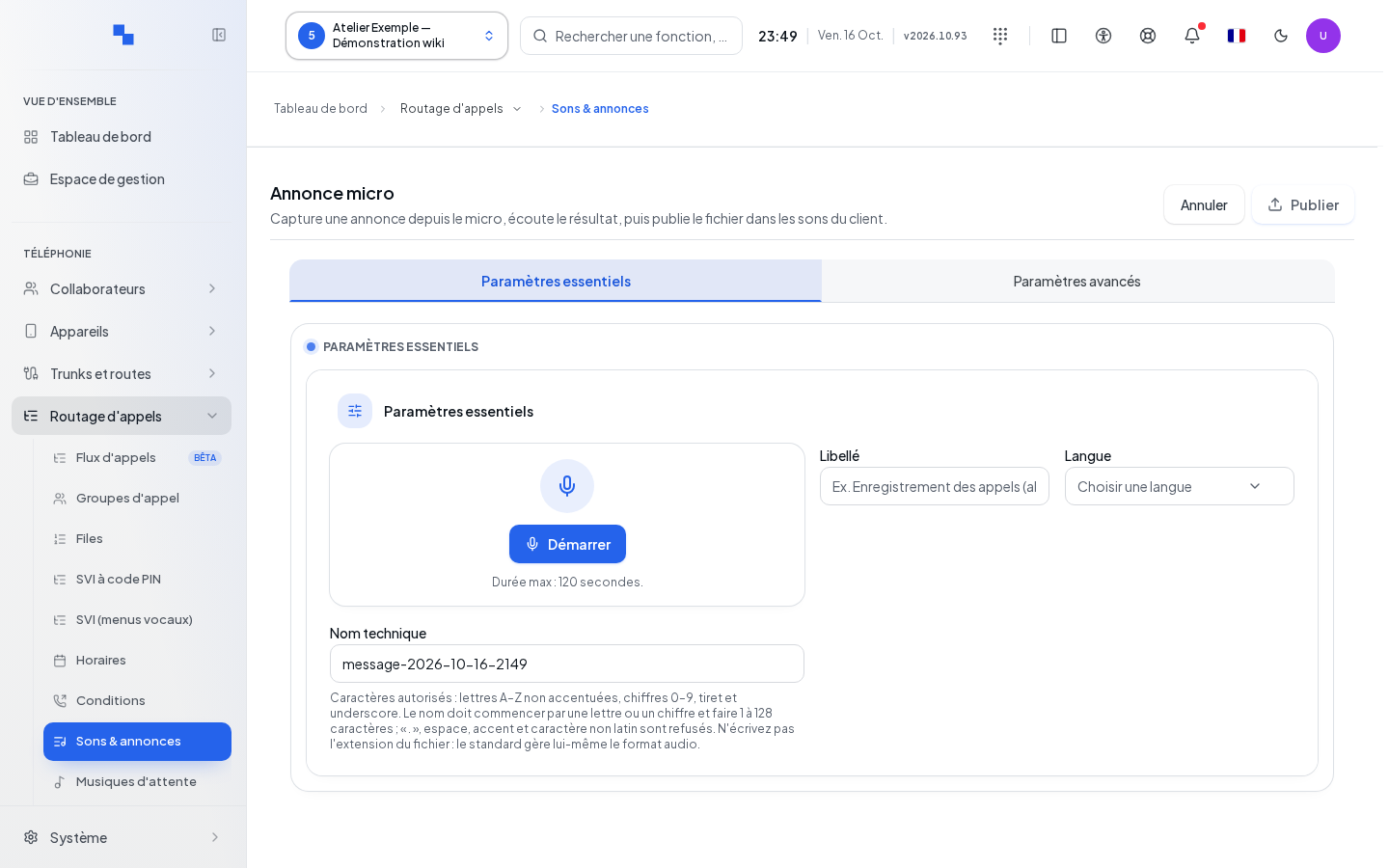
Choose recording from the add menu, then allow microphone access when the browser requests it. Start, speak the announcement, then stop. Listen to the recording before saving it; redo it if the volume or wording is not right.
Enter the file name, optional label, and language. Saving remains unavailable without a recording, without a language, or while recording is in progress. A denied permission can be corrected in the browser settings. If the upload fails, the recording may remain available in the dialog: check it before trying again. Closing before saving does not create a sound in the catalog. However, Closing during an upload does not cancel it: check the list before trying again.
Generating an announcement via text-to-speech
Open text-to-speech from the add menu. Choose the available provider, the language, the file name, and the text. The text is limited to 3,000 characters. If the service is unavailable, check its configuration for the client before trying again.
With a configured voice, the form uses the service's setting. Catalog voices or a custom voice must match the provider and language. Explicitly choosing a voice may make the gender setting have no effect: read the displayed notice. For Azure, the panel shows the voices and the test playback allowed by the configuration; it does not modify the service credentials.
The studio offers background music when a compatible item is available. Select it, adjust its gain and fades within the limits shown by the catalog. Music marked as non-mixable cannot be used. The opening and closing silences accept 0 to 5 seconds. Without music, the mixing settings do not apply.
Start generation only once, wait for the result, then listen to the audio. Options ignored by the provider are flagged: adjust the configuration rather than assuming they are applied. Check the pronunciation, volume, and ending of the message before selecting this sound in a resource.
Renaming, replacing, and duplicating
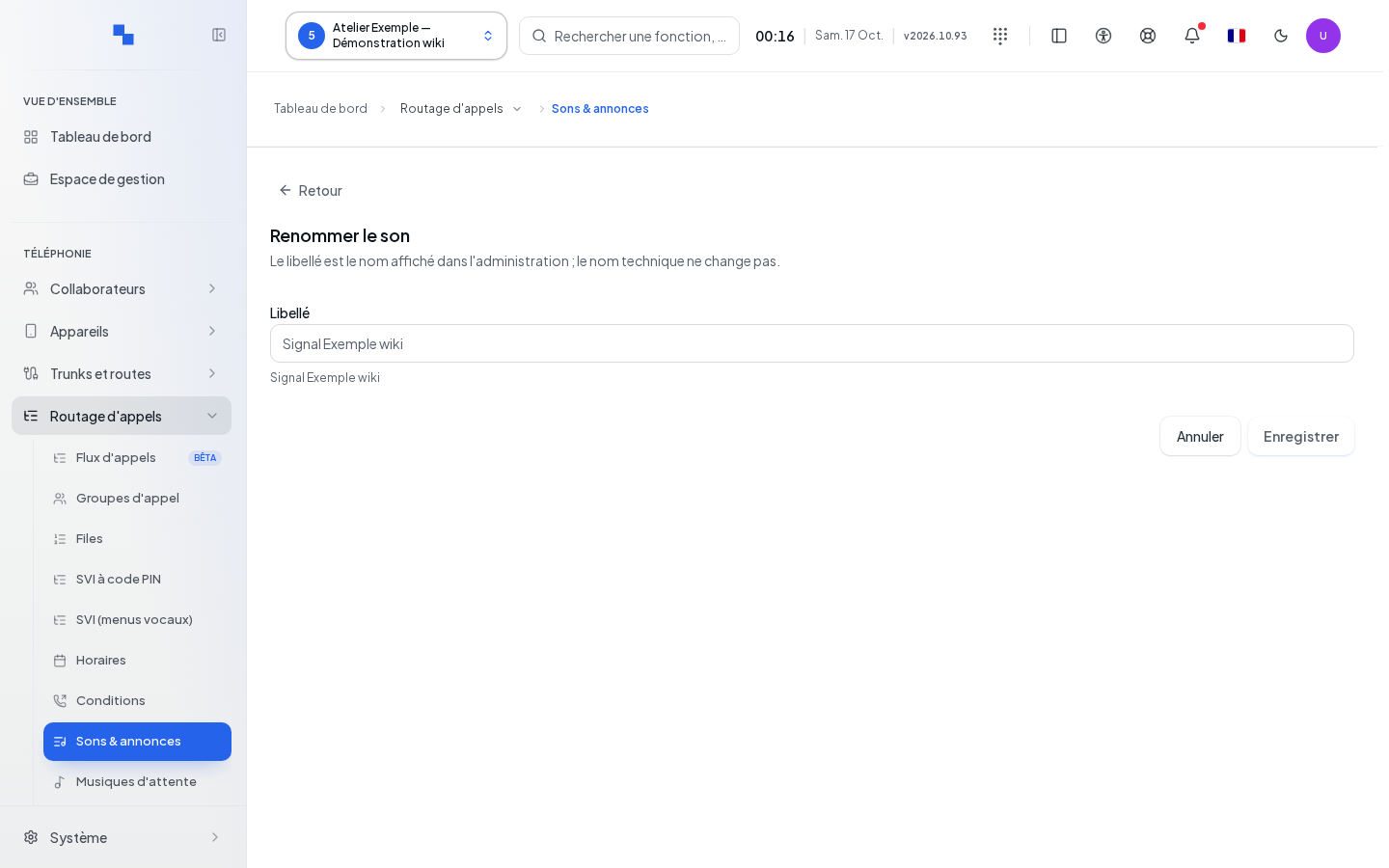
In a variant's actions, Rename changes its label, not its technical identity. Enter the new label and save. Changing the language is a separate action: choose the language actually spoken in the audio.
Replace opens the import for this variant. Check the target sound: resources using it will hear the new audio without any change to their selection. The target's name is kept; listen to the result after replacement.
Duplicate creates another entry. Choose an available file name, an optional label, and a language. A name already in use blocks creation. To add a variant, use the intended language selection and then check the grouping in the list.
Download retrieves the available file. A reference with no available media may prevent playback, download, or duplication.
Deleting and verifying announcements
Deletion is disabled for a protected or in-use sound. Review usages, replace the sound in the affected resources, then return to its row. Click Delete, re-read the name, and confirm. The categories menu also offers deletion of an authorized category. Re-read its name and the confirmation before acting on this set of sounds. Bulk selection actions apply to the current selection; check the individual results.
A refused deletion may reveal a usage that appeared since the list was last loaded. Reload and address the indicated dependency. To verify a newly assigned announcement, call its flow in the expected language and listen to the entire message.