
Selecting the agent
Agent schedules limit the reception of calls from queues. They do not replace the opening hours of an incoming number. Select the client and open Agent schedules. You must have read access to users; editing requires write access to users.
Search for the agent on the left. The Agents, Schedule, and Unrestricted filters help you find their status. Click on their name or on the summary of their time slots: the week opens on the right. Open profile takes you to their user profile.
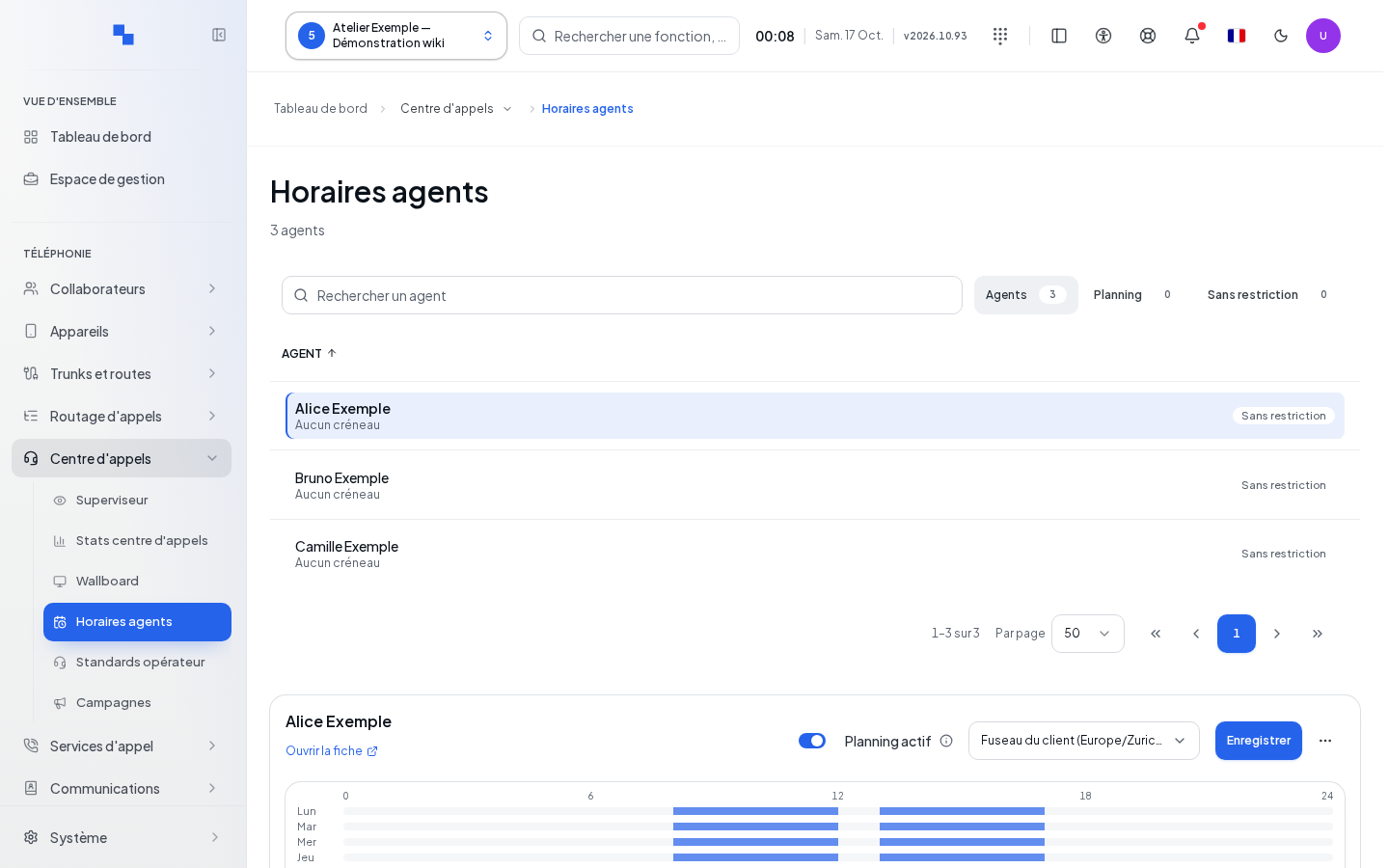
Building the week
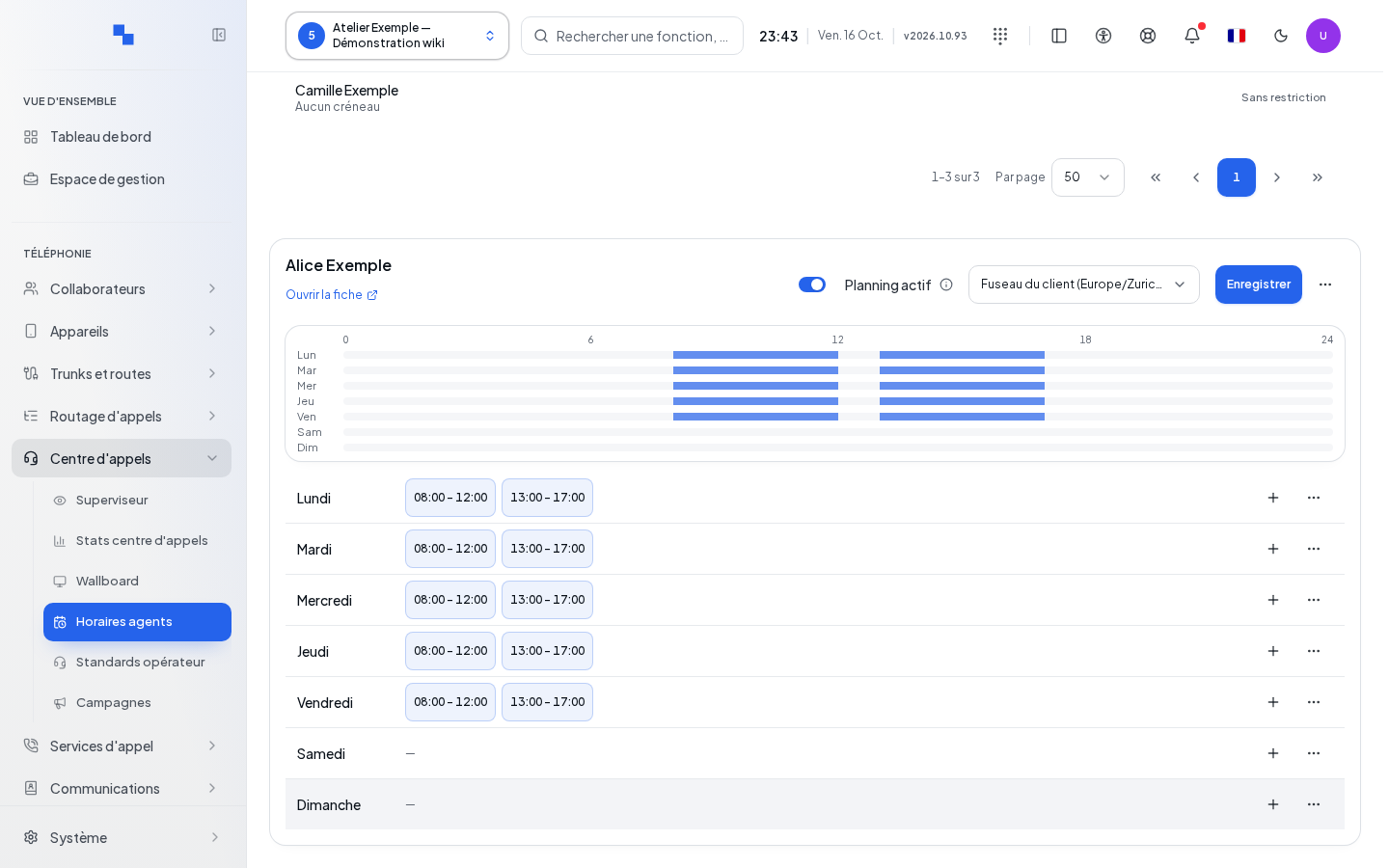
- Check the time zone. The inherited choice uses the client's time zone; changing the time zone applies the choice to the draft's time slots.
- On an empty week, choose the Monday–Friday 8:00 AM–12:00 PM / 1:00 PM–5:00 PM shortcut, the 8:00 AM–5:00 PM shortcut, or Empty to hide these suggestions.
- Add a time slot on the desired day. Click on a time slot to adjust its values.
- Use the copy of a day to replace the target days with its time slots. Clearing a day removes its time slots from the draft.
- Click Save to apply the changes.
| Field | Purpose | Possible values | Example |
|---|---|---|---|
| Active schedule | Applies scheduled restrictions | Enabled or disabled; disabled keeps the time slots | Temporarily disable without clearing |
| Start / End | Delimits the time slot within the day | End after start; suggested times in the lists | 8:00 AM–12:00 PM |
| Available / Break | Sets the type of time slot | A new time slot is available | Lunch break |
| Break reason | Explains a break; shown only in Break mode | Up to 500 characters | Meal |
| Queues | Limits the time slot to selected queues | No selection means all their queues | Support Queue |
| Label | Optional name | Up to 200 characters | Morning |
| Active | Allows keeping a time slot without applying it | Enabled by default for a new time slot | Disable a provisional range |
Close closes the time slot editor without saving it to the server; its changes remain in the draft. Delete removes the time slot from the draft. Two active time slots of the same type cannot overlap on the same queues. A break can cover an available time slot: it takes precedence.
Copying or clearing everything
In More actions, Copy schedule from another agent… opens the source agent selection. Select it then click Copy. Its time slots replace those of the current week; this does not copy the general schedule toggle. If the source has no time slots, the screen indicates this.
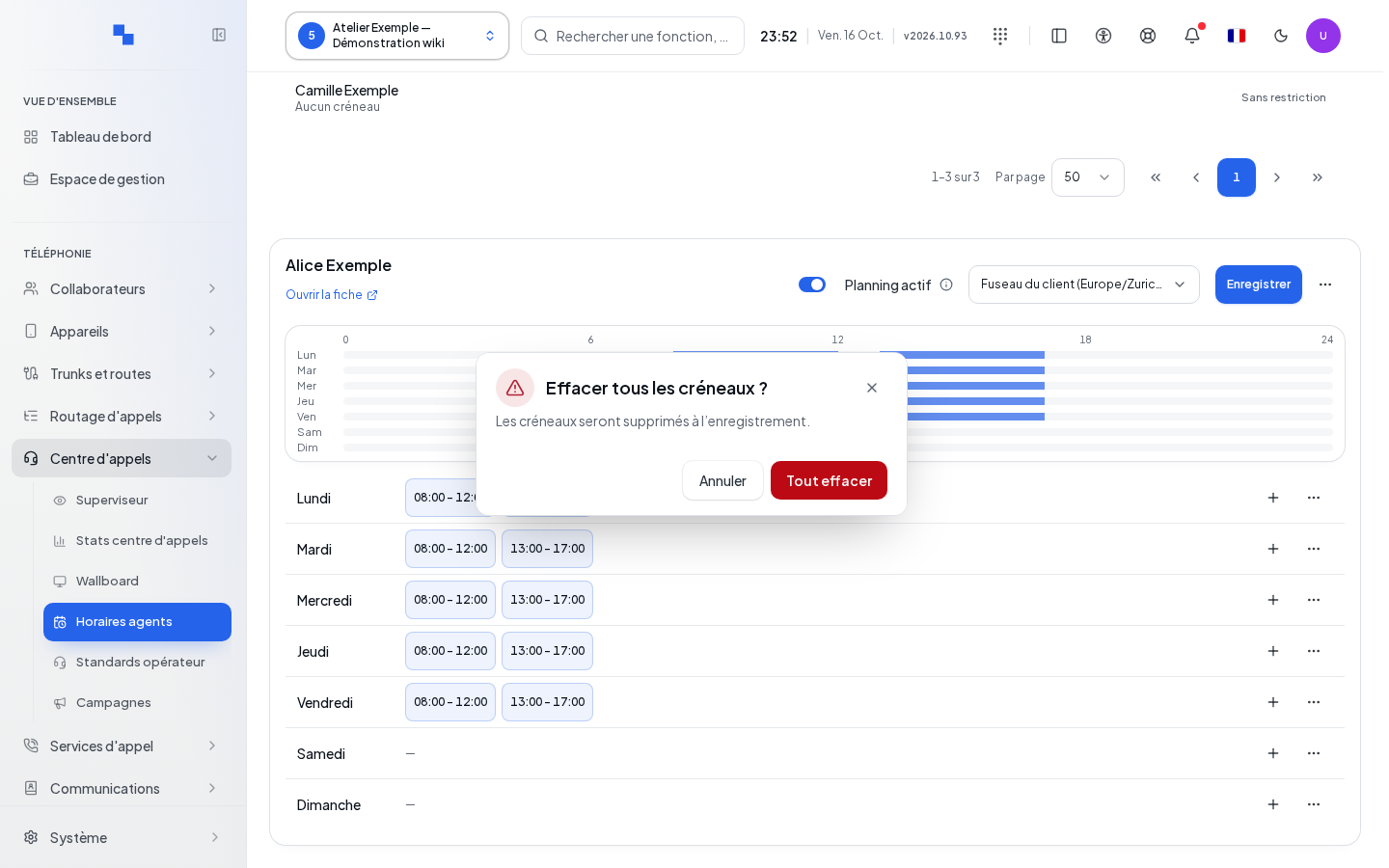
Clear all requires confirmation. Time slots are deleted only on the next save. Cancel the confirmation to keep the week. After a copy or a clear, check the week before Save.
Checking the result
The message "Schedule saved" confirms the success of all changes. With the schedule disabled, the agent is no longer limited by their time slots or by their scheduled breaks; their other availability conditions remain to be considered.
If it doesn't work
Save remains unavailable if nothing has changed, while sending, or if a time slot is invalid. Correct the reported times and overlaps. The screen may indicate that some changes were not saved: successes are already applied, and only operations still in failure remain to be redone. Do not recreate the entire week. If you change agents with a draft, handle the prompt regarding unsaved changes.