
Understanding shared numbers
Open Shared Numbers to make an inbound number available as an outbound caller ID to all customer users. A direct external number is also called a DID. It must already exist in DID Numbers. This sharing does not create a line with the carrier and does not replace the configuration of its inbound routing.
The search accepts a number or a label. The All, With label, and Without label filters apply to shared numbers. Click a column to sort and use pagination.
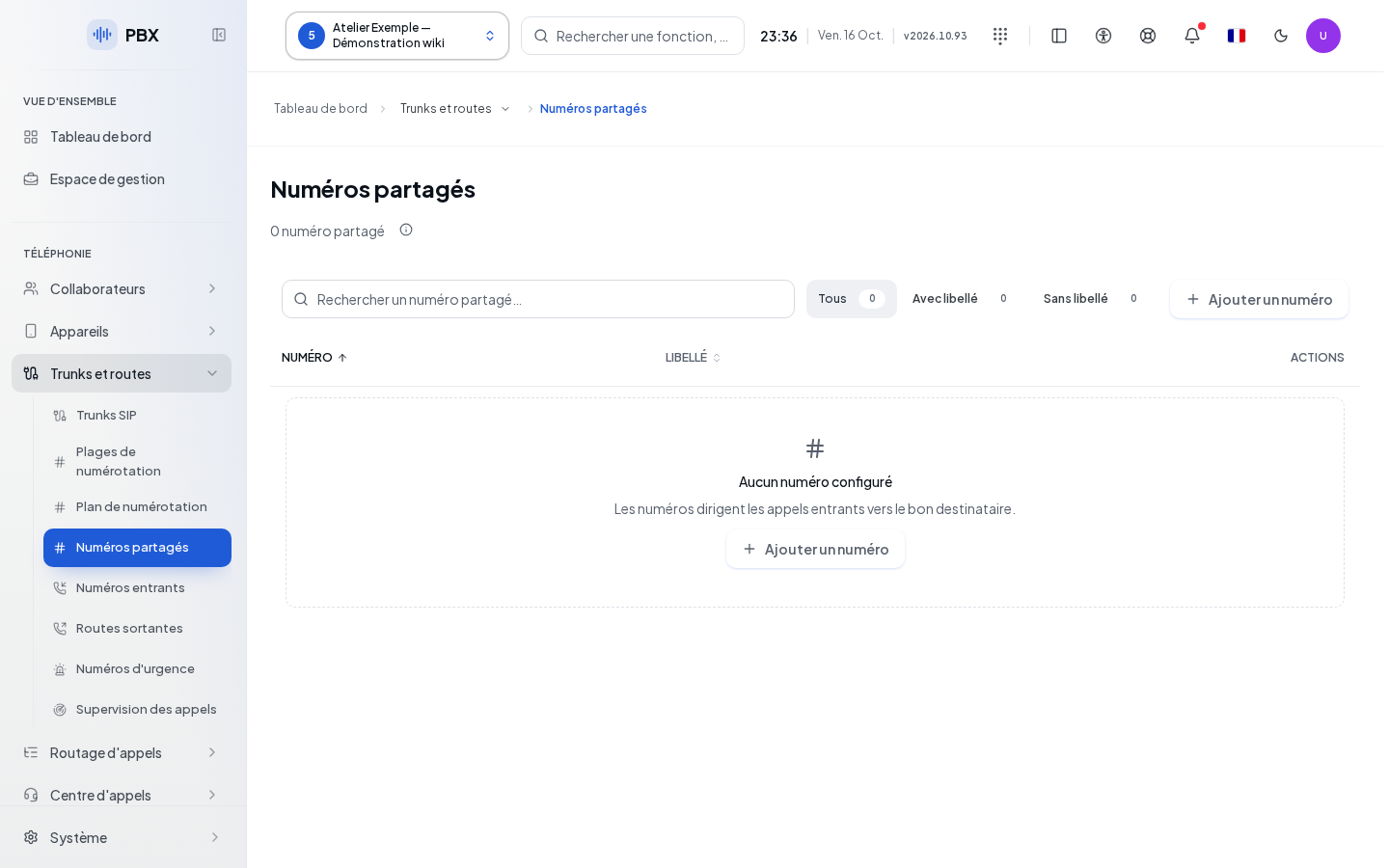
Sharing an existing number
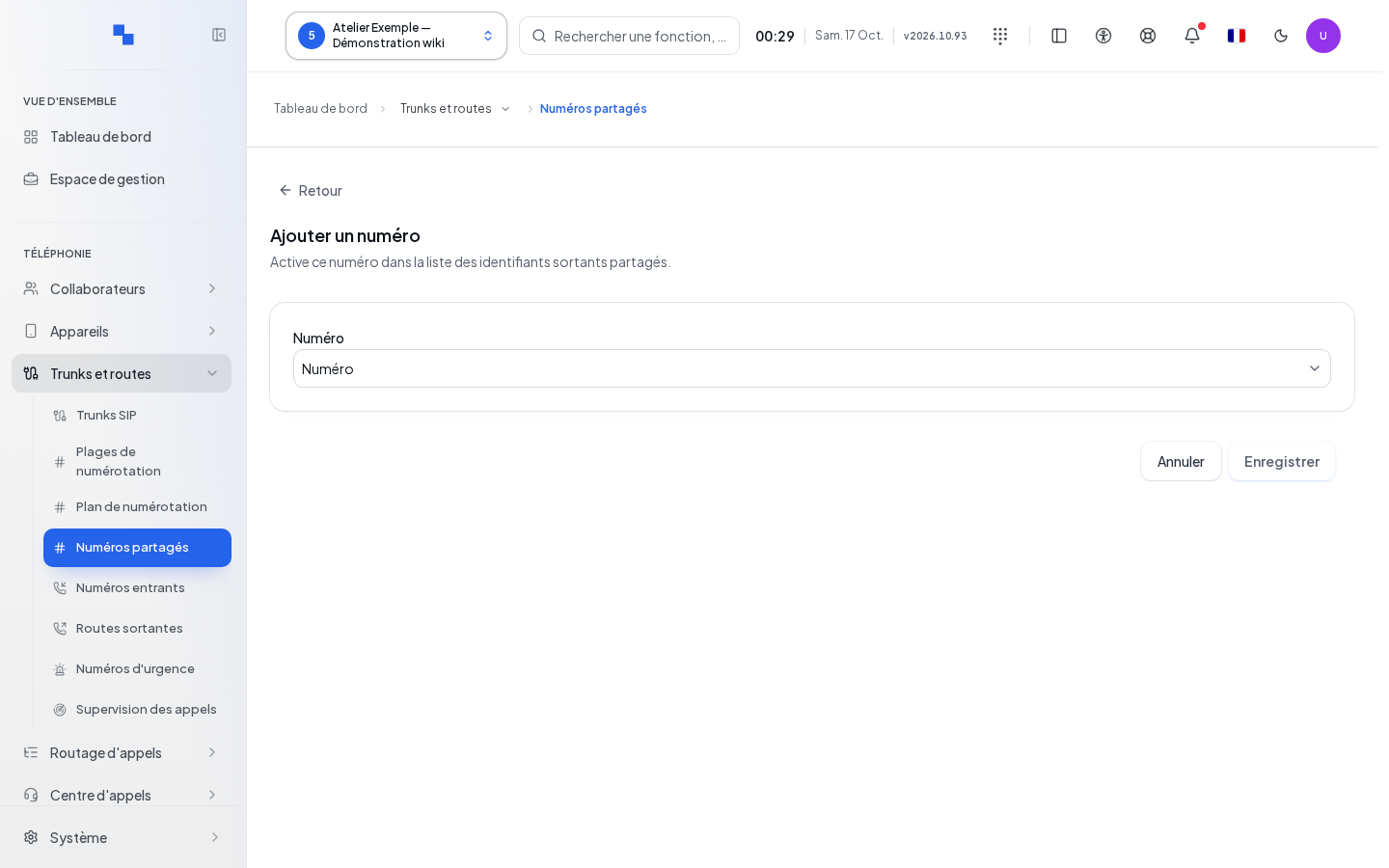
- Click Add a number.
- In Number, choose an existing DID that is not yet shared.
- Click Save. Cancel closes without activating the sharing.
- Find the number in the list.
The add button is unavailable if no number is available, during loading, after a loading error, or without write permission on DID numbers.
| Field | Purpose | Possible values | Example |
|---|---|---|---|
| Number | Selects the DID to share; required | List of unshared DID numbers | Reception DID |
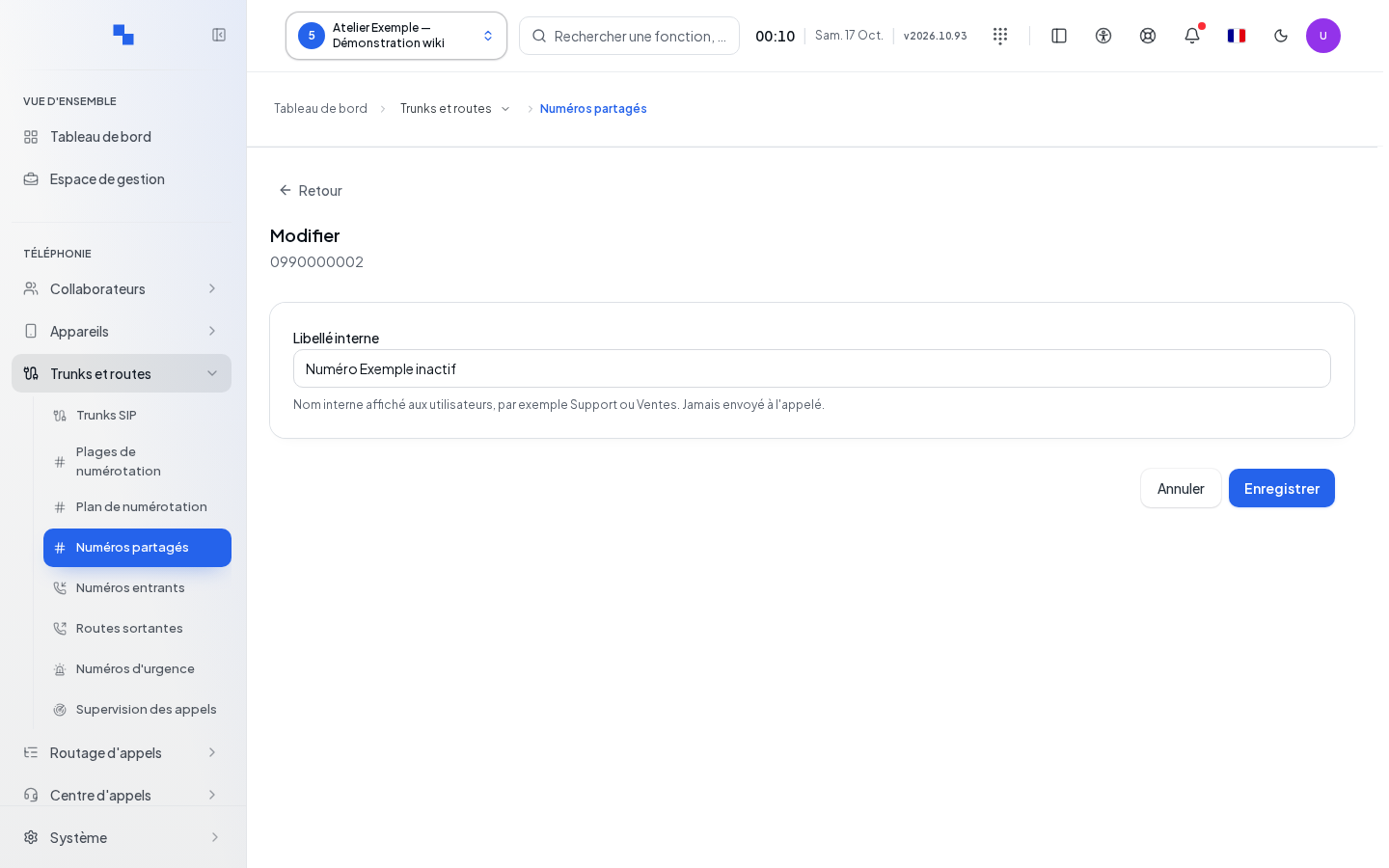
| Internal label | Name displayed to users; optional | Up to 40 characters; never transmitted as a name to the called party | Support |
Editing or removing the sharing
Click the row or Edit to change the internal label. Save applies the name; Cancel discards this entry.
Delete asks "Stop sharing this number? The DID and its inbound route are not modified." Confirm to remove the number from the list of shared identities. The DID remains in the DID numbers. If it fails, a new confirmation allows you to retry.
Checking the result and troubleshooting
A success displays "Saved". Check that the number is present and its label is correct. If the list appears empty, reset the filters. If it cannot be loaded, use the retry option provided by the table. To create a DID or change its destination, see DID Numbers. For the identity actually transmitted to the carrier, see SIP Trunks.