
Choosing the Hold Music
In Hold Music, choose the client then search for the desired music. The list displays the name, the source, the number of files and Used by. The All, Live streams and Audio files filters narrow the list; the column headers sort the results. Use the pagination to find the other rows.
Default music applies to "Anything without dedicated music." Its name cannot be changed and it cannot be deleted. Dedicated music can be assigned from a queue, a group or another compatible service. Click the linked usages to find these services. Not measured means that the usages could not be established, not that there are none.
The PBX automatically checks that the expected music files are loaded, then reloads them if necessary. A failed reload is automatically retried with a progressive delay, from 30 seconds up to 5 minutes; the periodic check occurs every 5 minutes. This loading check does not replace a test call to verify the audio actually heard.
Creating or Renaming Music
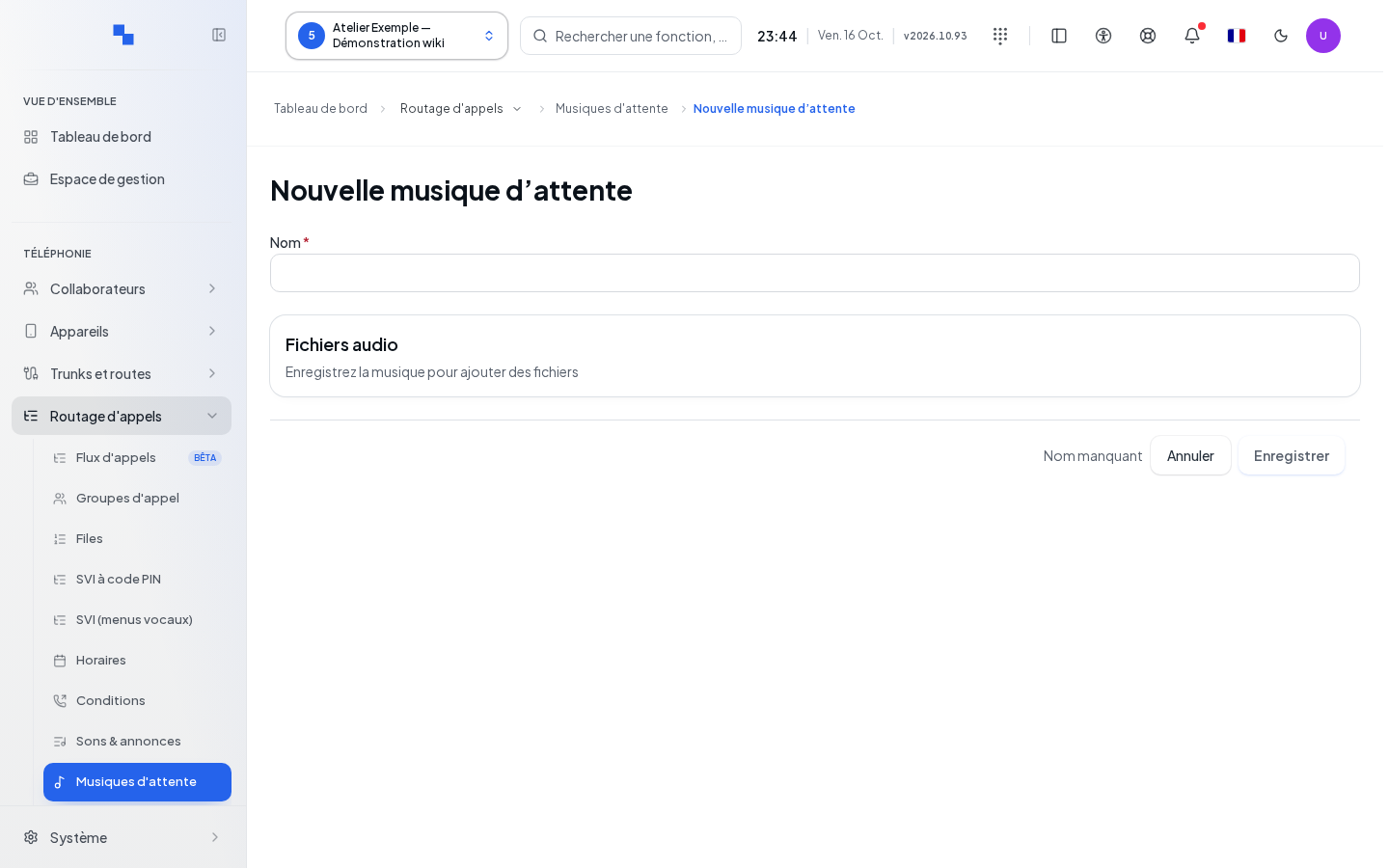
- Click Create music.
- Enter the Name, required and limited to 200 characters. For example, choose "Reception hold."
- Click Save. The message "Save the music to add files" reminds you that files are uploaded after this step.
- Add the files to the created entry.
- To rename, open the row or click Edit, correct the name then save. No changes to save means the name has not changed.
Cancel returns to the list. This command does not delete music that has already been created nor files that have already been imported. "Music not found or inaccessible" prompts you to check the client, the permissions and whether the music exists.
Importing, Listening to and Removing Files
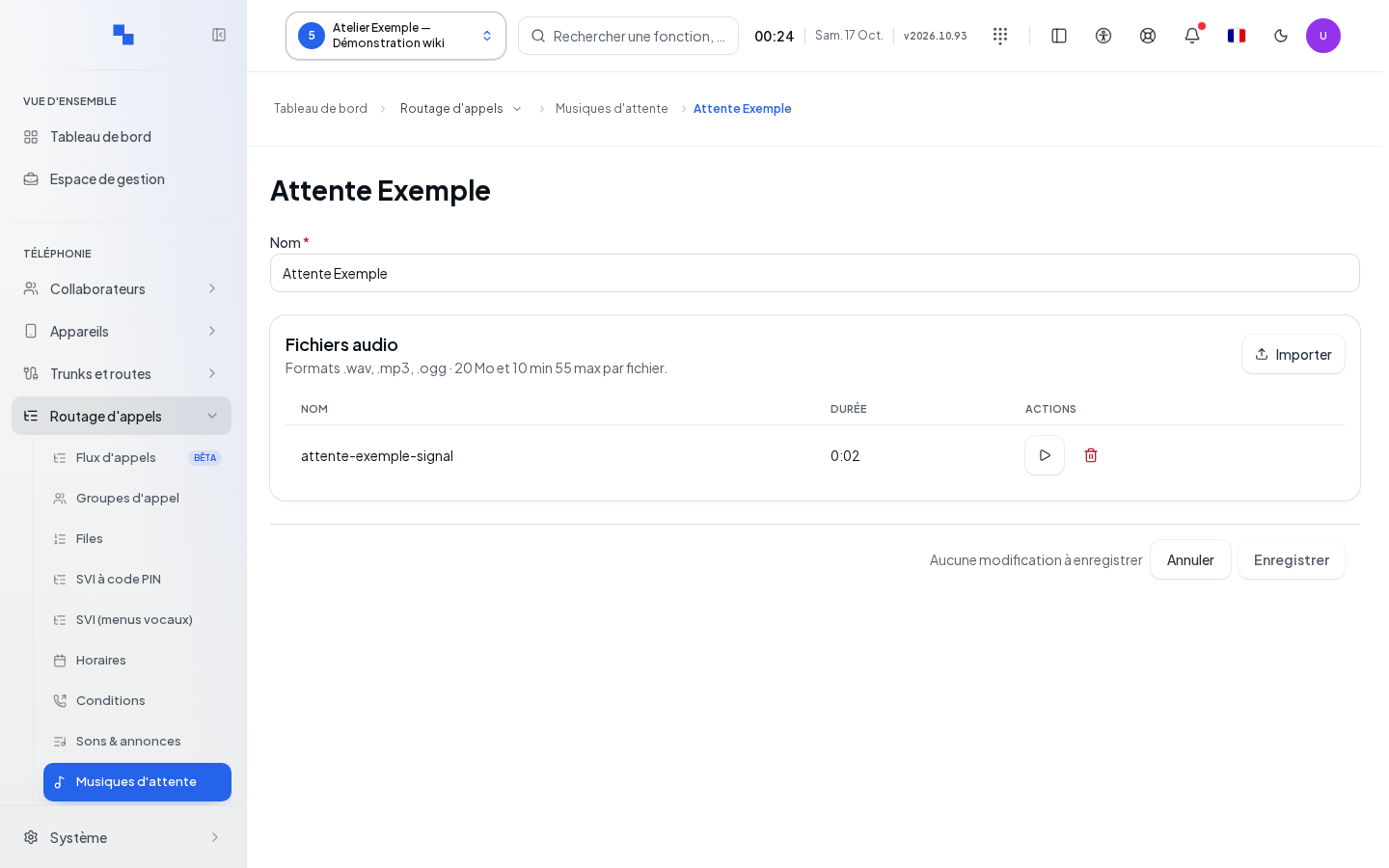
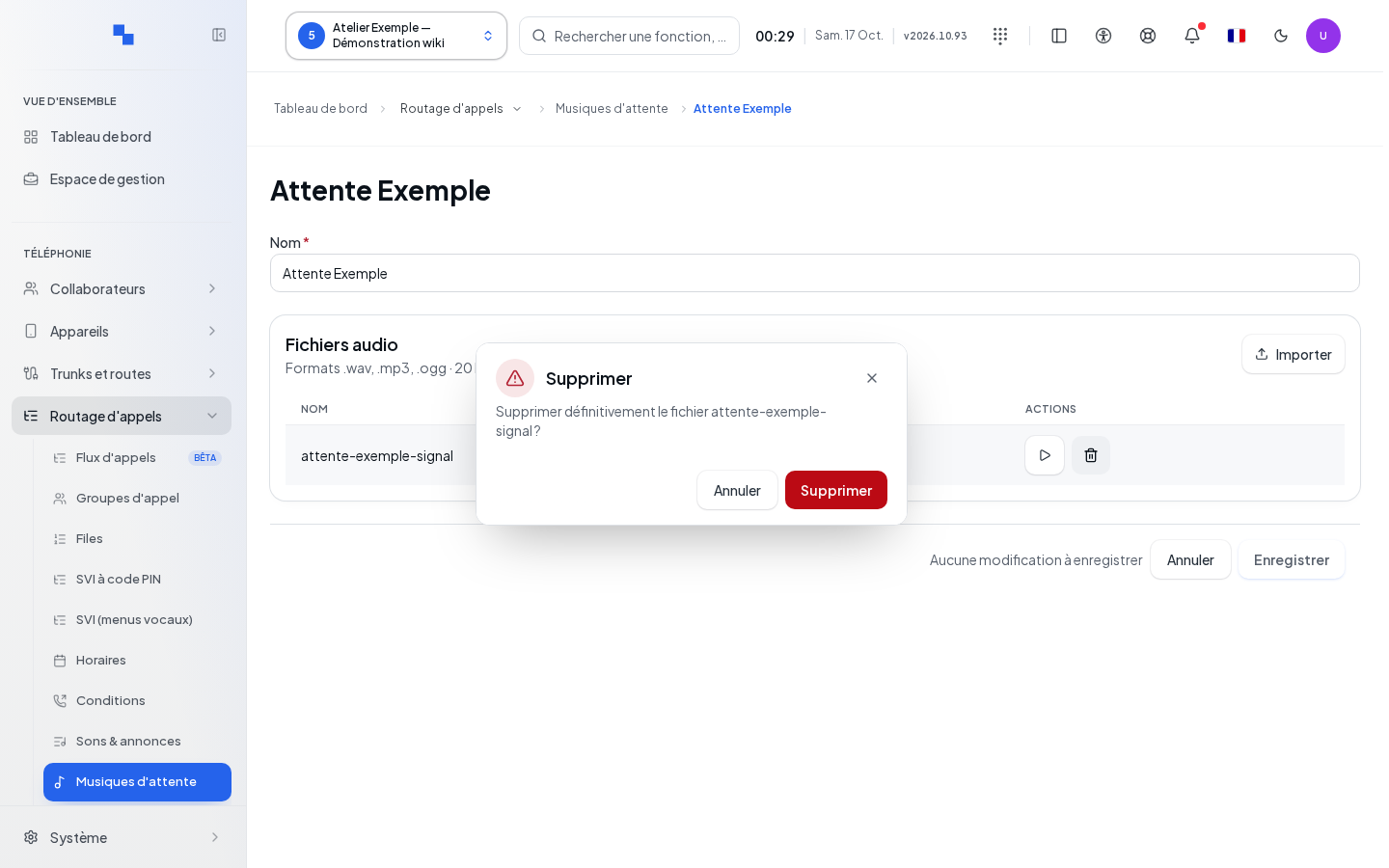
Click Import or drop your files onto the zone. WAV, MP3 and Ogg are accepted as input, with a maximum of 20 MB and 10 min 55 sec per file. The browser converts them to the telephony format. You can select multiple files: read the result for each one; an error on one does not mean the others failed.
After importing, check the name and duration, then click Listen. Stop playback before moving to the next one. To remove a file, click Delete, check its name in the confirmation and confirm. Import and deletion are immediate; leaving the entry does not cancel them.
For file-based hold music, add at least one usable audio file, then assign the music to the desired service. A music name alone without a file does not provide your hold announcement.
Setting the Default Music Source
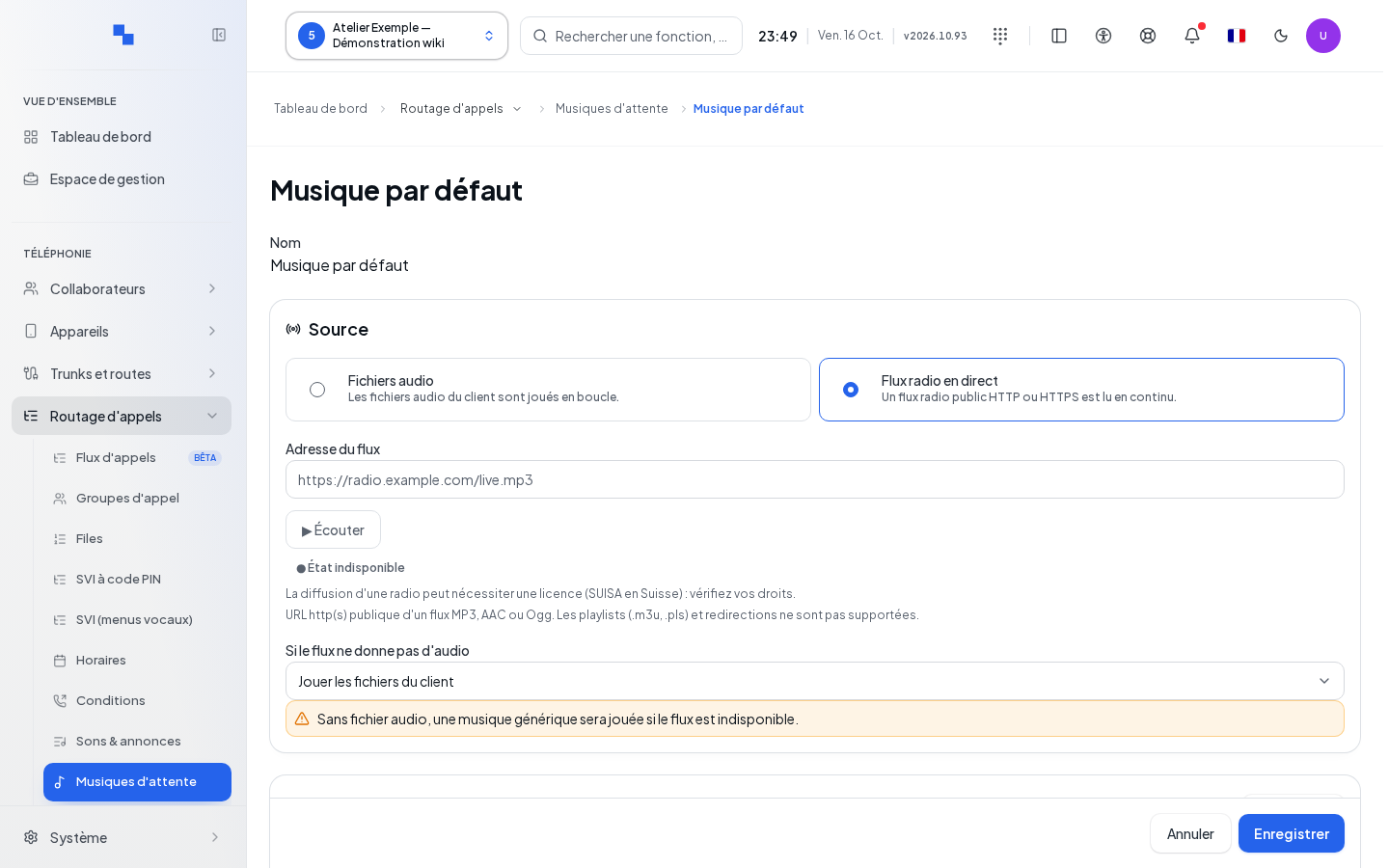
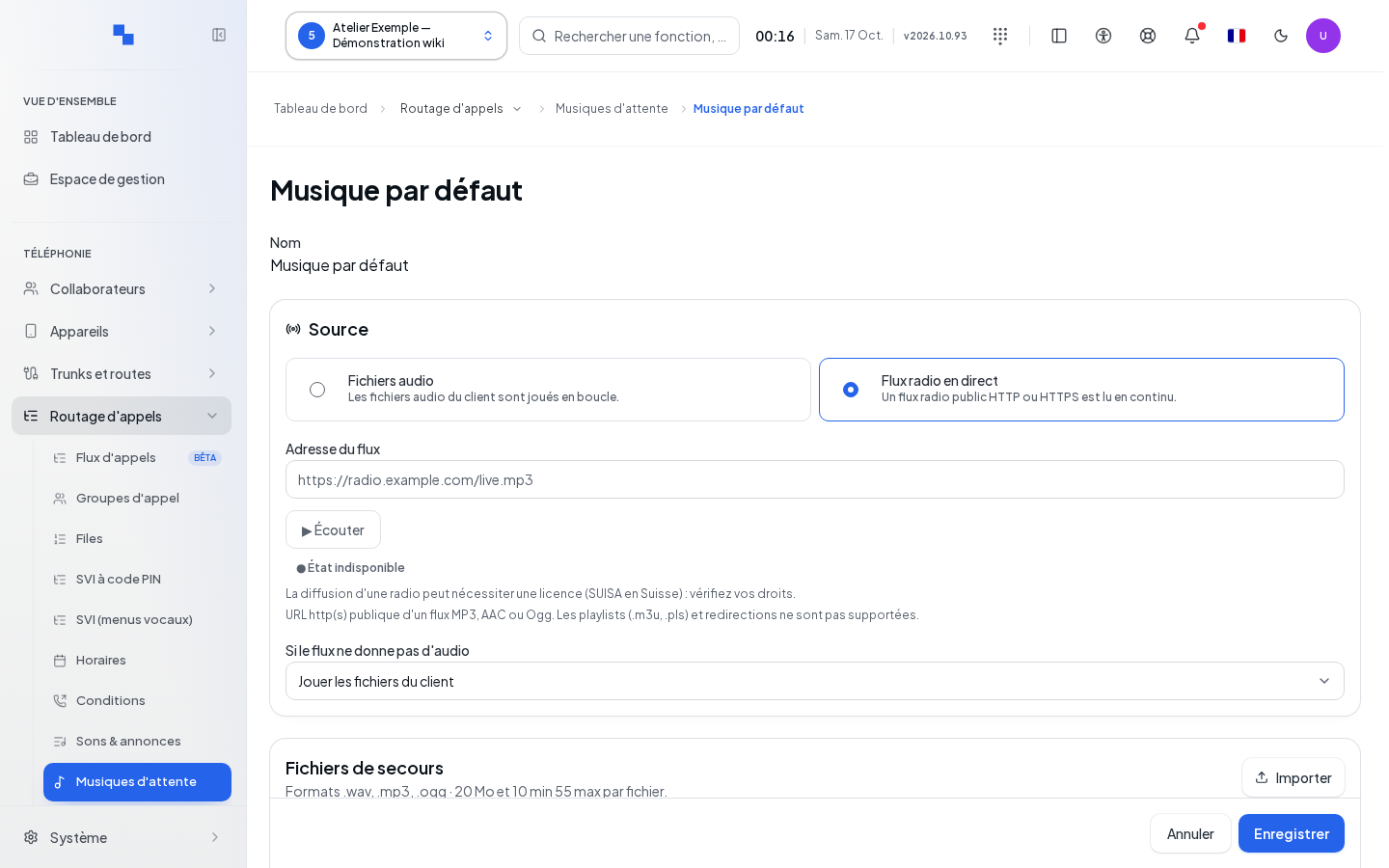
The default music offers a Audio files or Live radio stream source. Dedicated music created on this screen is managed via its files. In file mode, the client's audio files are played on a loop.
| Field | Purpose | Possible values | Example |
|---|---|---|---|
| Source | Chooses files or radio | Audio files; Live radio stream | Audio files |
| Stream address | Provides the radio audio directly | Public HTTP or HTTPS URL, 2048 bytes maximum, without credentials or fragment | A direct address provided by the radio |
| If the stream provides no audio | Chooses the fallback | Play the client's files; Silence | Play the client's files |
A stream must serve MP3, AAC or Ogg. Playlists and redirects are not followed. A local or private address is rejected. Correct "Enter the stream address." by filling in the URL; "Only http:// and https:// addresses are accepted." prompts you to change the protocol. For the file fallback, upload and test your backup files: do not rely on assumed generic content.
Click Save in the source section and wait for "Hold music source saved." While changes remain in draft, the player status applies to the saved configuration. The screen reminds you to check your radio broadcasting rights.
Checking the Stream and Troubleshooting
Listening in the browser does not verify broadcasting by the PBX. Read the Stream status, the observation date, the last audio received and the reconnections. Connecting is not yet a broadcast; Unknown status does not prove a failure. Fallback to files indicates that the radio is not feeding the hold music.
A redirect rejection requires the final direct address. A DNS error requires checking the server name; a TLS error concerns the secure connection. A playlist must be replaced with the audio address. If the engine is unreachable, the status cannot be verified. Then make a test call, put it on hold in the relevant service and listen to what the caller actually receives.
Deleting Dedicated Music
Review Used by, then click Delete and confirm the targeted music. Deletion applies to the class and its files. If rejected due to usage, first choose a different music in the affected services. Selecting multiple rows only applies to the selectable rows on the current page; check the result of each deletion. The default music cannot be selected for this action.