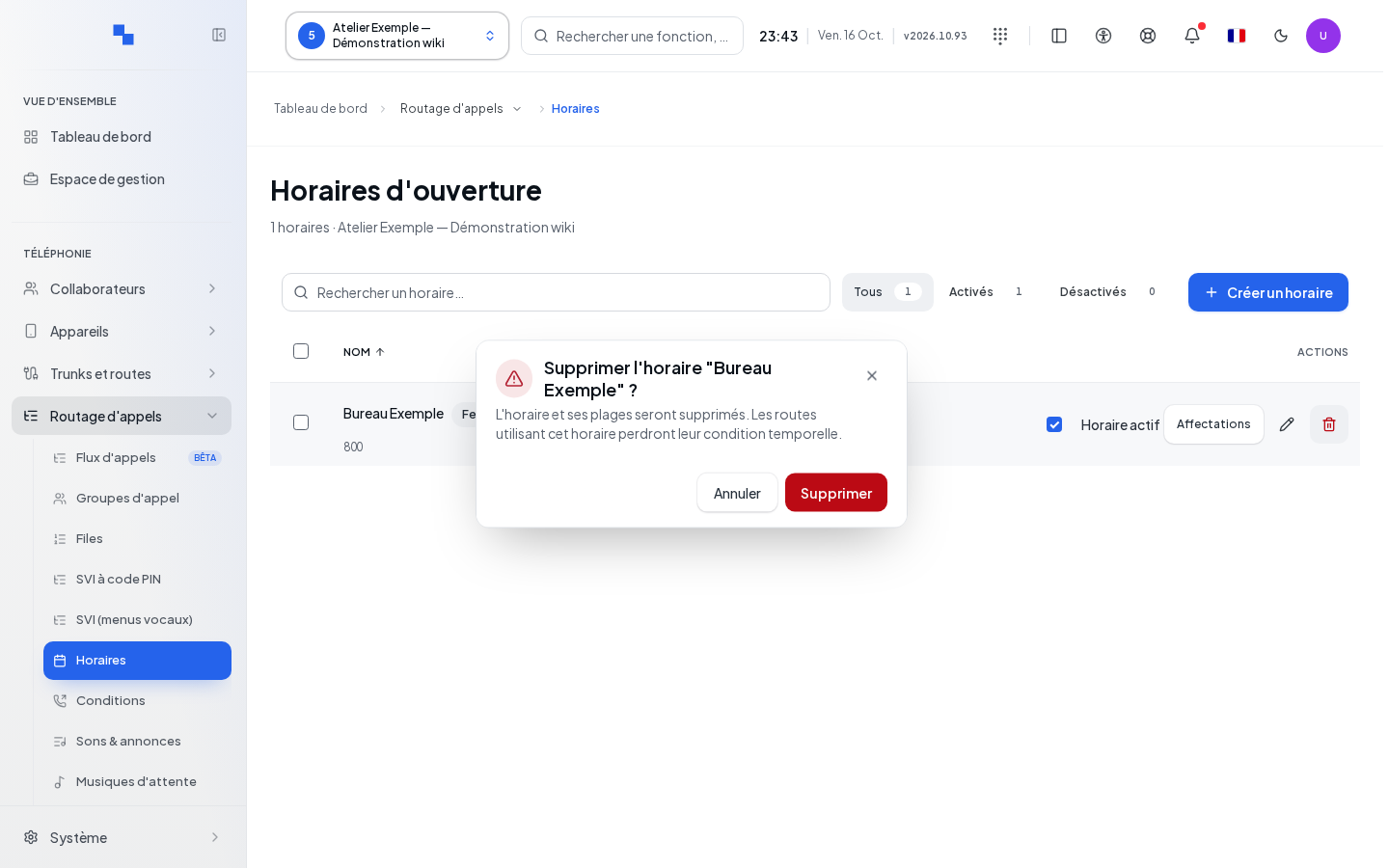
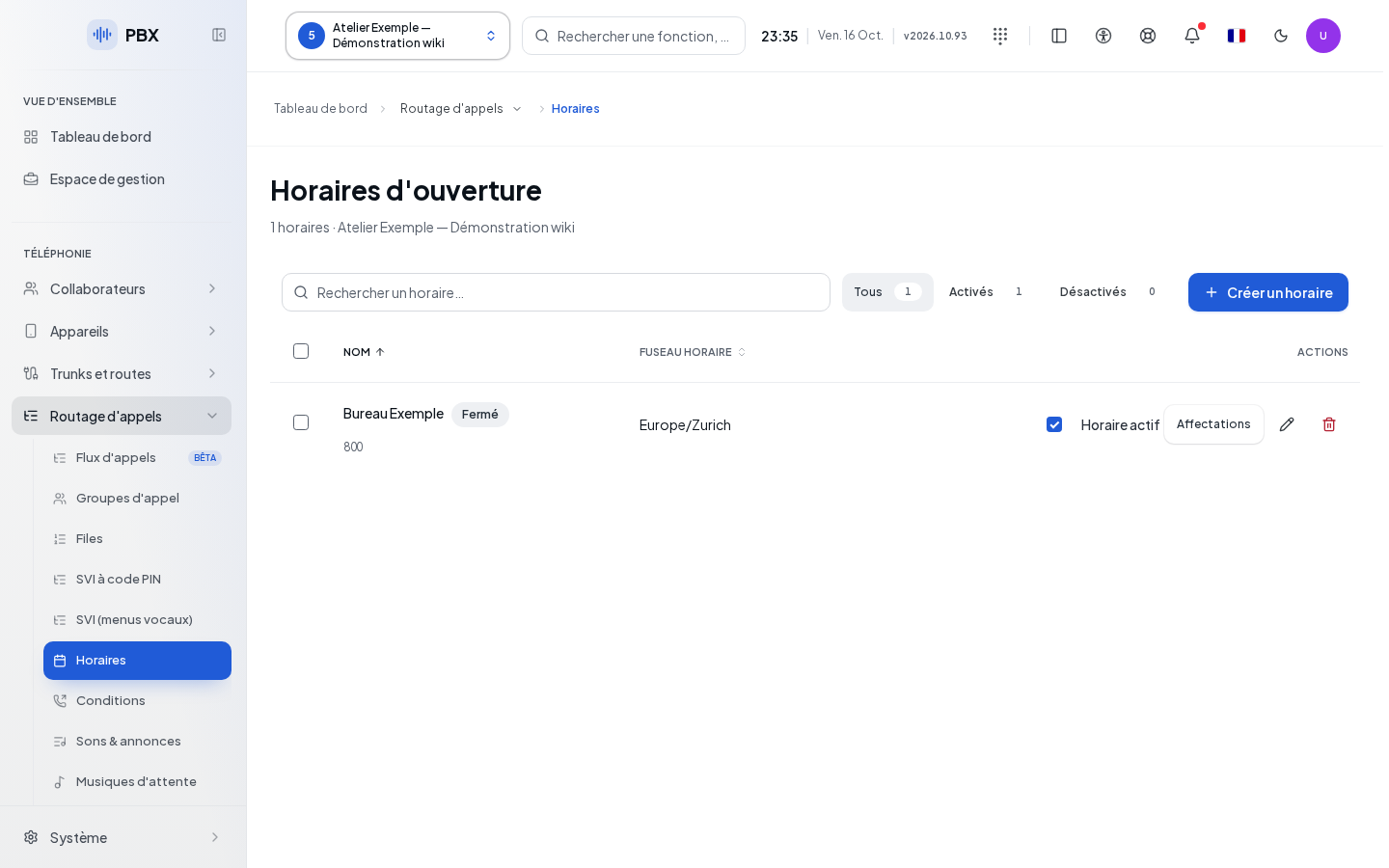
Open the client's schedules
Open Schedules after selecting the client. A schedule determines whether a call flow is open or closed, within its own time zone. A shared schedule can be used by several numbers, groups, or menus: before modifying it, identify its users. For an exception limited to a single resource, prefer its own schedule.
Search by name or number, sort the list, and use pagination. Edit opens the current record; searching does not modify any time slot. A read error must be resolved with Retry before concluding that the schedule is empty. Write operations require schedule management rights.
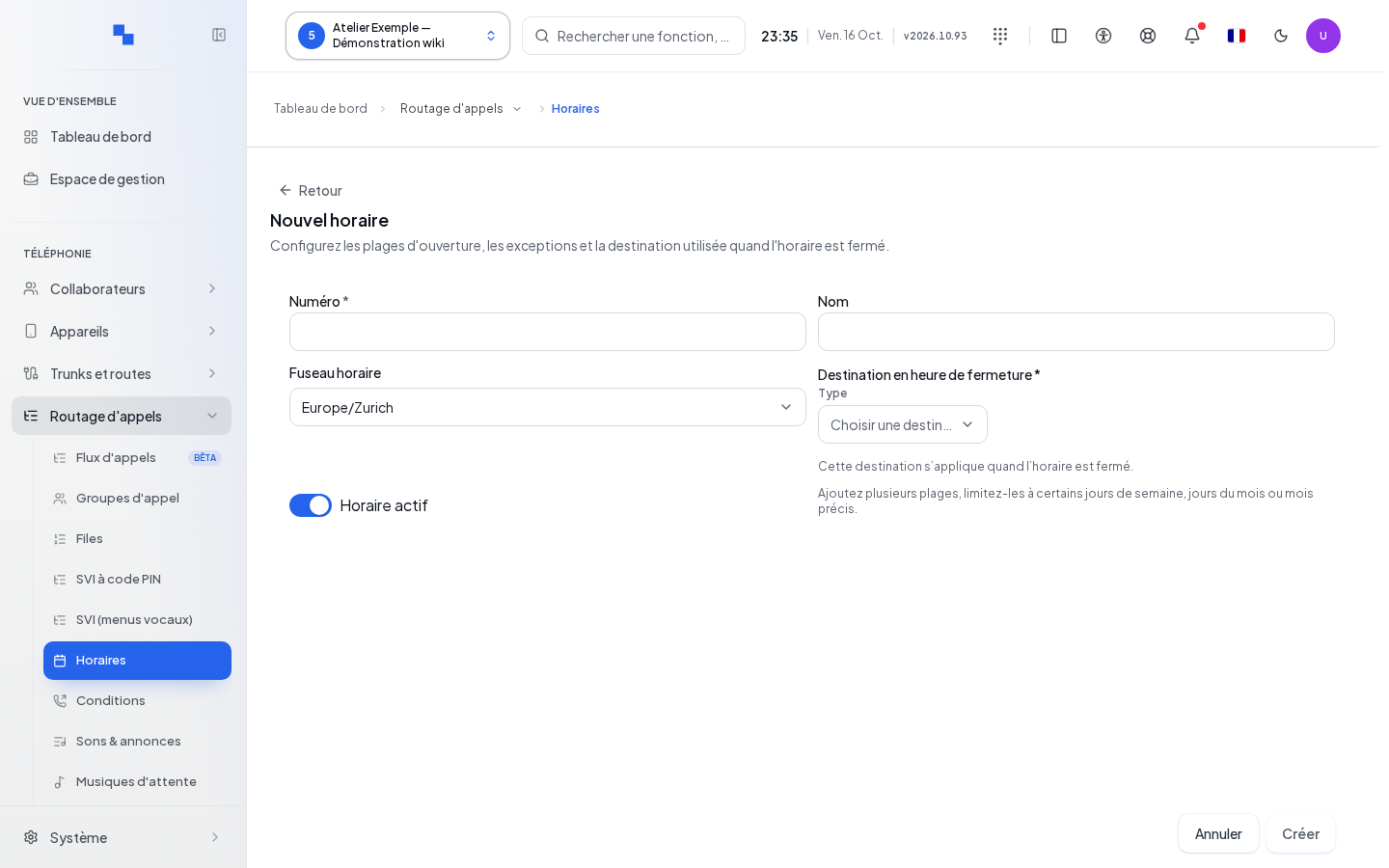
Create a schedule
- Click Create a schedule.
- Enter an available Number and optionally a recognizable Name.
- Check the Time zone proposed for the client. Times will be interpreted in this time zone.
- Choose an existing closed destination. This is mandatory, even if you plan to open the entire week.
- Leave Active schedule checked to use it, then save. Cancel exits the creation.
- Then open Edit to complete the time slots, exceptions, and destinations. The initial creation does not automatically fill in a business week.
| Field | What it's for | Possible values | Example |
|---|---|---|---|
| Number | Identifies the schedule in the dial plan | Available number accepted by the client's plan | 820 if available |
| Name | Helps recognize the usage | Text | Main reception |
| Time zone | Interprets local times | Time zone recognized by the server | Europe/Zurich |
| Active schedule | Activates this schedule | Yes or no | Yes |
| Closed destination | Handles a call outside opening hours | Valid destination offered in the selector | Reception voicemail |
Edit the week and destinations
In the record, select the days to consult or to which a time slot should be added. Unchecking a day does not delete its time slots. Add a time slot with a start and end time; for the lunch break, use for example 08:00–12:00 and 13:00–17:00. Review the week's layout for each day. Explicitly delete the time slots to be removed.
General changes, destinations, and the week constitute a draft until Save. A closure without a valid destination triggers "Choose a valid destination before saving." If the time zone is rejected, correct this field with a recognized zone: a freely translated city name is not sufficient. A failure in the middle of saving may leave part of the changes applied; reload the time slots to know the actual state before starting over. The message "The new time slot and the old one may coexist. Reload the time slots before trying again." calls for precisely this verification.
The Open destination and the closed destination are set separately. If a destination is unavailable, do not randomly replace an old reference. First check the existence and rights on the resource.
Plan exceptional closures and openings
Open or closed periods also allows exceptional opening. Choose the effect, the start date, and the end date, then the hours if the period does not cover full days. Full day clears the end time. Give a label such as "Saturday on-call", then add the period. Immediately verify the created line.
Closure dates adds a specific day with its label. Public holidays by Swiss canton attaches the chosen canton and displays the calculated dates. Check the year and the holidays actually retained. Custom dates are unique: the Every year — unavailable option does not create any annual recurrence.
Adding and deleting exceptions, closure dates, and choosing the canton are saved by their own commands. Closing the record or abandoning the general draft does not cancel these operations that have already been executed. To correct an exception, remove the relevant line and add the correct period, then check the actual state.
Force the state and control priority
Permanent override is part of the record to be saved. It takes priority over exceptions and temporary overrides. Choose forced opening or closing only if you want to bypass these rules; revert to no override to return to the calendar.
Temporary override has its own Apply command. Choose open or closed, a duration in minutes, and a label. An empty duration means No deadline; zero is not a valid duration. To lift this override, select no override and apply. After applying, the screen re-reads the state and its reason. If it remains closed due to the permanent override, correct the latter: repeating the temporary override will not make it take priority.
Read the effective state, its reason, the time zone, and any deadline. Then check a call during opening hours, outside opening hours, and during an exception. Also check the resources that share the schedule.
Choose a schedule in another record
Records that offer Always open, their own schedule, or a shared schedule do not have the same scope. Always open ignores the calendar of this resource. The own schedule keeps its configuration in the record; the shared one references a shared schedule. When switching from a shared to an own schedule, respond to the copy or new configuration choice and review the time slots. Configuration links open the management of the selected schedule. Then save the record that holds the assignment.
Delete a schedule
Use Delete on the line and review the confirmation. First reassign the resources that use it. If the server refuses the deletion because the schedule is in use, handle these references and then try again. After success, check its disappearance and the affected call flows.