
Opening Rules by Caller
This page is intended for administrators. In the Trunks and Routes menu, open Rules by Caller (/admin/blocklist). Check the selected organization: the rules apply to all its users, on incoming external calls, before the usual routing to the called number. Write access is required to add, edit, activate, import, or delete a rule.
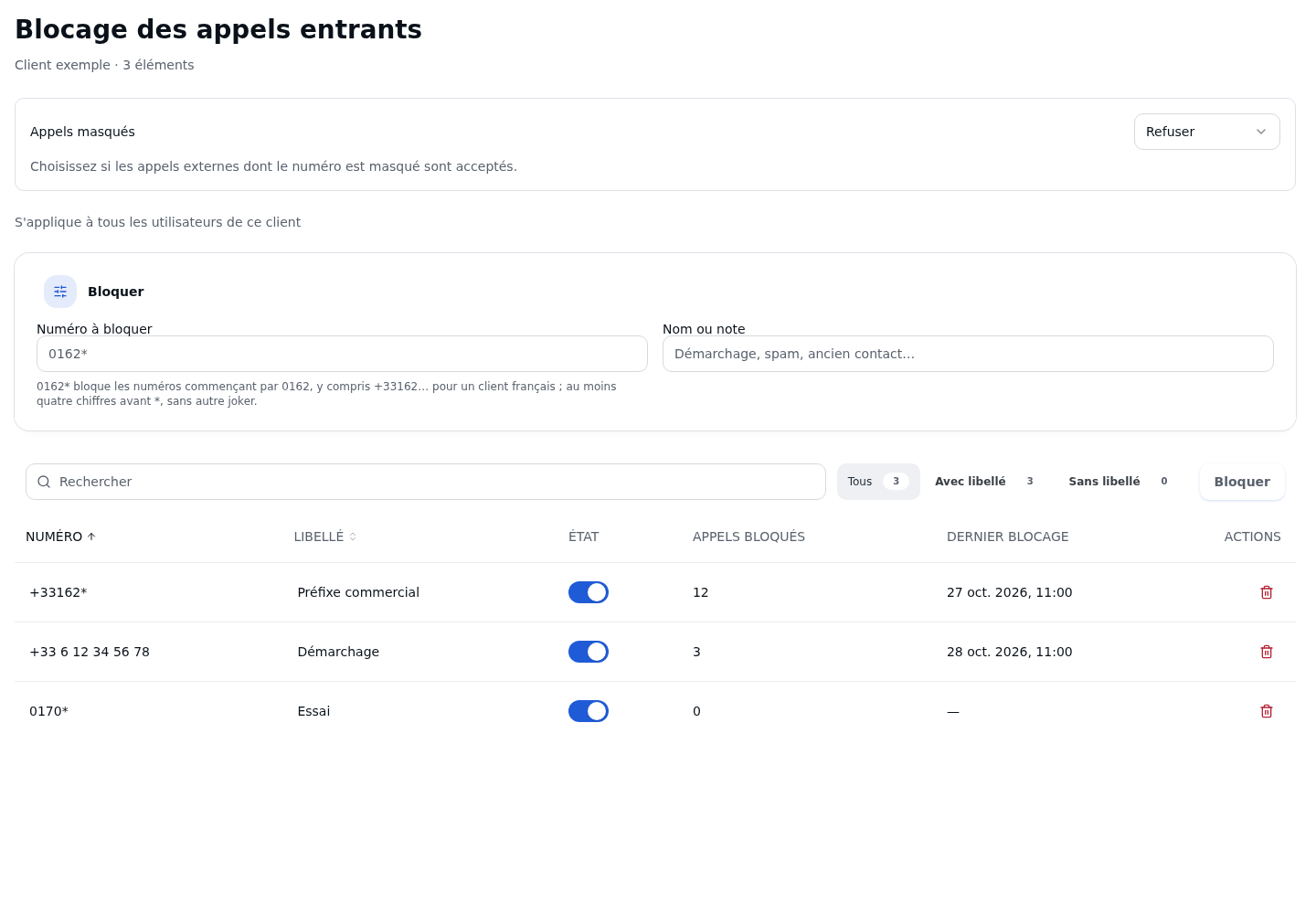
The Export CSV and Import CSV buttons, accompanied by download and upload icons, are located at the top right of the page. Below the title, the Hidden Calls block is marked with a mask icon, followed by the add form.
The list is a dense table with one row per rule, in the order Number, Type, Action, Label, Calls, Last Used, Status, and Actions. The action indicates denial with a prohibition icon or an arrow followed by the destination. On mobile, each rule appears on a summary line with the number, the action, the label, the call counter, the status toggle, and the edit and delete controls. Rules are not limited to a specific user, called number, or time range.
Adding or Editing a Rule
On a large screen, the form fits on a single line: Number, Action, Route to, Target, Name or note, then the Add button. The Prefix (wildcard) checkbox is located below the number. The field help states: "Enter the number exactly as your carrier presents it (e.g., 0162… or +33162…). It is compared as-is, without conversion." On narrower screens, the fields are spread across multiple lines. Route to and Target remain visible but grayed out when the action is Hang up / Deny.
| Field | Purpose | Possible Values | Example |
|---|---|---|---|
| Number | Identifies the caller or the beginning of their numbers; required | National or international number | 0162123456 |
| Prefix (wildcard) | Applies the rule to all numbers starting with this prefix | Unchecked by default; prefix of 4 to 15 digits, with optional leading + |
0162 with the checkbox checked |
| Action | Chooses the handling | Hang up / Deny (default) or Route to | Route to |
| Route to | Chooses the destination type for routing; grayed out in deny mode | Destination type | User |
| Target | Specifies the routing destination; grayed out in deny mode | Target or fields requested depending on the type, with its additional options | Customer manager |
| Name or note | Explains the rule; optional | Text, empty by default | VIP customer — dedicated reception |
- Enter the Number. For a prefix, check Prefix (wildcard). Entering
0162*automatically checks the box and removes the asterisk from the field. - Choose Hang up / Deny to reject the call, or Route to to route the call; then select the type in Route to, and fill in Target.
- Add a note useful to other administrators.
- Click Add. The button is unavailable if the number is empty, while saving, or if the routing has no destination selected.
- After success, the form clears and the rule appears enabled. Check the entered number, type, and action in the list.
To edit a rule, click Edit on its row. The form reloads its values. Correct them, then click Save, or Cancel to abandon the edit.
The selector offers the following destination types: Condition, User, Ring Group, Queue, PIN-Protected IVR, IVR Menu, Call Flow, Voicemail, Conference, Switchboard, AI Voice Agent, Outbound Route, Play Sound, Fax to Email, Dial a Number, and Hang Up. An IVR is an interactive voice response menu. Choose the organization's target or fill in the requested fields; no empty destination is offered. The destination's ringing settings apply, unless a duration is explicitly set in the selector.
VIP Customer Example: create an exact rule for the sample number 0162123456, leave the Prefix checkbox unchecked, choose Route to, then User and the customer's manager. Add the note "VIP Customer". Even if a rule denies the prefix 0162, calls from this exact number follow the VIP destination.
The number is compared as entered to the number presented by the carrier, without automatic conversion. 0162 and +33162 are two distinct rules: a prefix 0162 does not cover numbers presented with +33162, and vice versa. Create two rules if both presentations need to be handled. Prefixes that are too short, *, 0*, an asterisk in the middle, and the ? wildcard are rejected. A duplicate is rejected, even if the action differs: edit the existing rule instead.
If several active rules match, the exact number takes priority, then the longest prefix. Only one rule is executed. If its destination has been deleted or can no longer be resolved, the call reverts to normal routing to the direct external number (DID), without trying a less precise prefix.
Activating a Rule and Reading Its Tracking
The Status toggle immediately enables or disables the rule. Wait for "Setting saved"; it is unavailable without write access or while saving. Disabling keeps the rule and its tracking data. Another active rule matching the same number may still deny or route the call.
Calls counts calls actually handled by this rule, whether a denial or a routing. Last Used shows the most recent occurrence in the organization's time zone; "—" means no occurrence has been recorded. Only the executed rule is counted. A fallback to normal routing due to an unavailable destination does not increment its counter. These columns do not count hidden calls denied by the general setting.
The phone's personal list only concerns its own user; it does not replace these shared rules.
Importing and Exporting CSV Rules
At the top right of the page, click Export CSV to download routage-appelant.csv. The export contains all rules of the selected organization, including disabled rules, regardless of the displayed filters. It preserves destinations, notes, and activation status, but not counters or usage dates. Read access is sufficient to export.
To protect against spreadsheet formulas, the export prefixes cells starting with +, =, -, or @ with an apostrophe (e.g., '+41…), and the import automatically removes this apostrophe.
Prepare a CSV text file with a semicolon as the separator and exactly these six columns in this order:
numero;prefixe;action;destination;note;actif
0162;oui;refuser;;Démarchage;oui
0170123456;non;router;extension:1001;Client VIP;oui
This example assumes that the internal number 1001 exists and is suitable for your organization. Adjust the numbers before importing.
| Column | Accepted Values |
|---|---|
| numero | Exact number or prefix compared as entered to the number presented by the carrier; the same validations as in the form apply |
| prefixe | oui / non, 1 / 0, or true / false; required. This field determines prefix mode, even if the number contains a trailing * |
| action | Exactly refuser or router, in lowercase |
| destination | Empty for refuser (a provided value is ignored); a valid and accessible destination within the organization for router |
| note | Optional text; enclose in quotes a note containing a semicolon or line break, and double any internal quotes |
| actif | oui / non, 1 / 0, or true / false; required |
Booleans also accept uppercase letters and surrounding spaces. For a destination, the short format is type:reference: user:UUID, group:UUID, queue:UUID, ivr:UUID, voicemail:UUID, conference:UUID, switchboard:UUID, call_flow:UUID, voice_agent:UUID, pin_ivr:UUID, interrupteur:UUID, extension:1001, sound:sound-name, or hangup:normal (also busy or congestion). Replace UUID with the actual reference from an export, without entering this word literally.
A destination can also be a valid JSON object. The export preserves this format for destinations with additional options, notably an outbound route or a fax to email. Start from a rule created in the interface and then exported to preserve these options and the correct CSV quoting.
- Click Import CSV at the top right of the page, then select the File. The dialog help states "Columns: numero ; prefixe ; action ; destination ; note ; actif". Limits: 1 MB and 1,000 data rows, excluding the header. Beyond 1 MB, the message is "File too large: 1 MB maximum."
- Read the Preview: row number, entered number, action or destination, label, and Valid status or error. This step does not create any rule.
- Fix the reported errors: CSV syntax, boolean, action, number, destination, or duplicate within the file or among existing rules. Reload the corrected file to refresh the preview.
- Choose the Mode: All or Nothing creates nothing if a row fails; Import Valid Rows creates only the valid rows and leaves errors visible.
- Click Import CSV to apply the choice. The screen displays "Rows imported: …" and refreshes the list. Check the actual number created and any remaining errors.
Import is unavailable without a previewed file, if all rows are invalid, or while processing. In All or Nothing mode, any error in the preview disables the button. Cancel closes the dialog without importing; while processing, wait for the operation to complete.
Import adds rules: it does not replace or update existing ones. Re-importing an export into the same organization will therefore report duplicates. An export exceeding the limits should be split into files with the same header.
Accepting or Denying Hidden Calls
The Hidden Calls setting applies to all users of the selected organization.
| Field | Purpose | Possible Values | Example |
|---|---|---|---|
| Hidden Calls | Accepts or denies external calls whose number is hidden | Accept (default) or Deny | Deny |
Choose Accept or Deny. The change is saved immediately; wait for "Setting saved". The choice is unavailable without write access or while saving. A read error offers a retry; a save error displays the reason returned by the server. Reread the value after reloading to confirm the result.
A call is considered hidden if the presented number is absent, announced as anonymous, private, restricted, unknown, or unavailable, or if the signaling requires hiding the identity. A simple display name of "anonymous" with a visible number is not sufficient. A call absent from your directory is not necessarily hidden.
The denial does not apply to internal calls, inter-PBX calls, or emergency calls. For 24 hours following an emergency call attempt from the organization, all incoming hidden calls remain accepted by this setting and by the personal setting, to allow emergency services to call back: a hidden callback cannot be recognized by its number.
A call denied by the organization's setting is rejected by the network, without any voice announcement from the PBX. The message or tone heard depends on the caller's carrier.
Each user can also enable Deny Hidden Calls for themselves. Disabling one's personal denial does not override a denial imposed on the entire organization.
Searching For and Deleting a Rule
Search applies to the loaded rows. The All, Hang up / Deny, and Route to filters separate the actions. Sort by Number or Label, then use pagination if needed. Clear the filters if you cannot find a row.
Delete directly removes the selected rule, without individual confirmation. This action requires write access and remains unavailable while deleting. The selection checkboxes also allow bulk deletion; check the listed items before confirming. After deletion, another matching rule may apply; otherwise, normal routing resumes.
Verifying the Result
Reload the page and check the number, type, action, destination, note, and status. Make an authorized external test call from the number in question: verify the denial or the destination actually reached, then review Calls and Last Used.
For the VIP example, verify that a call from the exact number reaches its manager despite the prefix denial, while another number within the prefix is denied. Also verify that a number without a rule follows normal routing. After an import, check the number of rows created, the errors per row, and the active or inactive status of each expected rule. Finally, review the hidden calls setting after reloading.
If It Doesn't Work
First, select the organization to administer. While loading, rows are replaced with placeholders. An empty list and a read error are two distinct states. In case of a read or write failure, the screen displays the reason returned by the server; fix the cause before retrying, without assuming that the rule was saved.
If the form or import option is not available, check your write permissions. If Add remains unavailable, enter the number and select a destination for routing. If the destination list is unreadable or incomplete, retry loading it before editing the rule.
If the call does not follow the expected rule, check the number actually presented, the Prefix checkbox, the activation status, and any more specific rules. A destination marked Unavailable must be replaced with an existing target; deleting it causes a fallback to normal routing. A hidden call falls under the dedicated setting and cannot be recognized as a VIP customer by its number.
For a rejected CSV, check the six columns, the quoting, the values, and the file limits. Use the row number and the preview error to correct each entry. If some rows have already been imported using the valid-rows mode, only reload the corrected rows to avoid duplicates.