
Choosing between two destinations
The Conditions screen allows a call to be routed to one of two destinations, depending on a position that can be changed from the administration panel or a phone. Select the client, then open this section. Read and write permissions are separate.
The list shows the name, internal number, position, currently used destination, and people authorized to switch. Search is available once the list exceeds eight items. The position is automatically refreshed every two seconds; a position update does not overwrite your configuration draft.
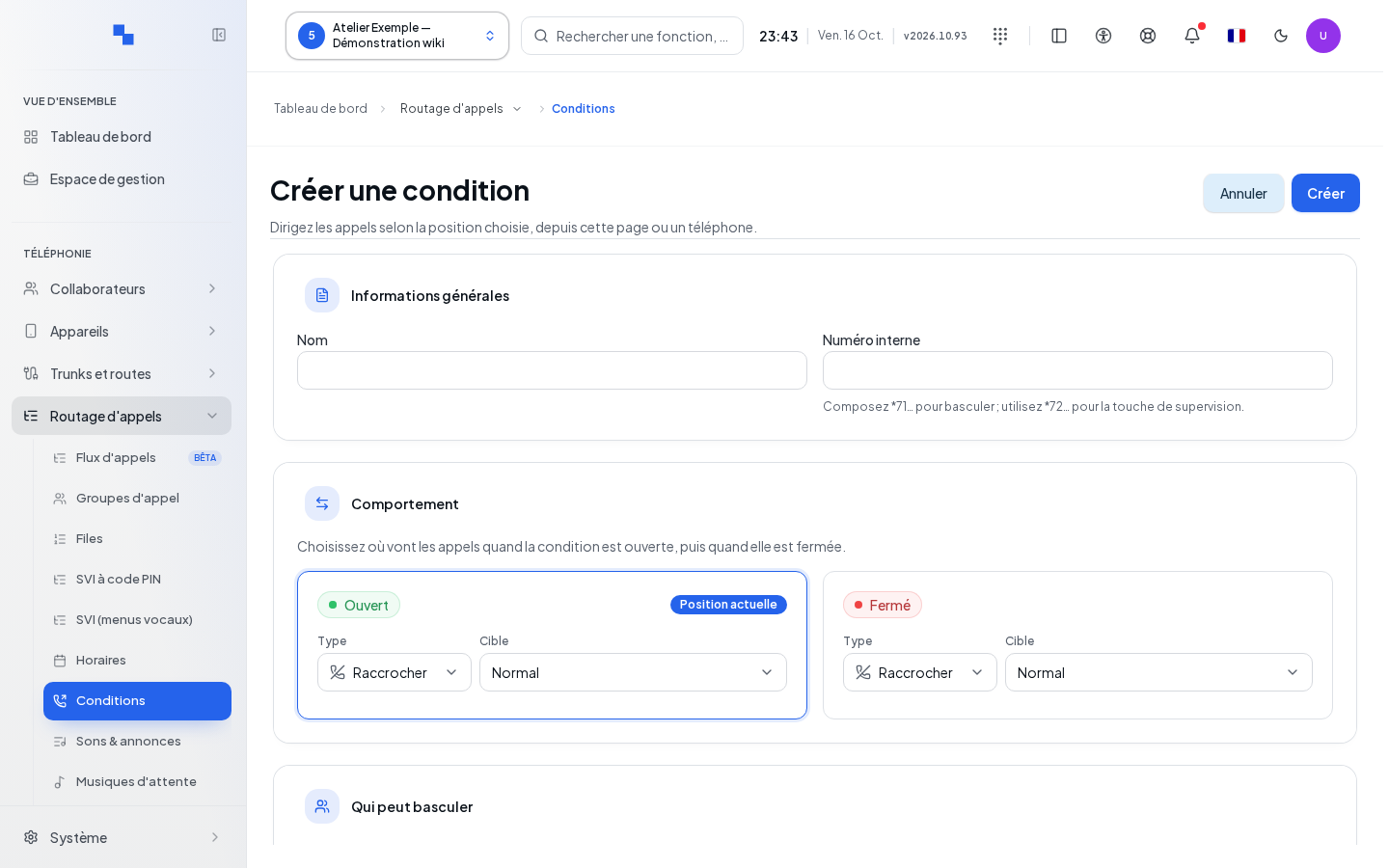
Creating or editing a condition
Click Create a condition or its name. Fill in the general information, the two destinations, and the permissions. Click Create or Save. Cancel exits the form; handle the draft-related prompt if it appears.
| Field | What it is for | Possible values | Example |
|---|---|---|---|
| Name | Identifies the condition; required | Up to 200 characters | Special opening hours |
| Internal number | Identifier to dial; required | 1 to 9 digits, first digit from 1 to 9 | 710 |
| Destinations for both positions | Define where the call is routed | A valid type and target for each position | Reception group / voicemail |
| All users | Allows everyone to switch | Enabled by default | Disable to restrict access |
| Users | Authorized list when All users is disabled | One or more people from the directory | Reception manager |
The active position shows a red indicator; the inactive position shows a green indicator. Read the position label and destination carefully, not just the color. The form highlights the Current position.
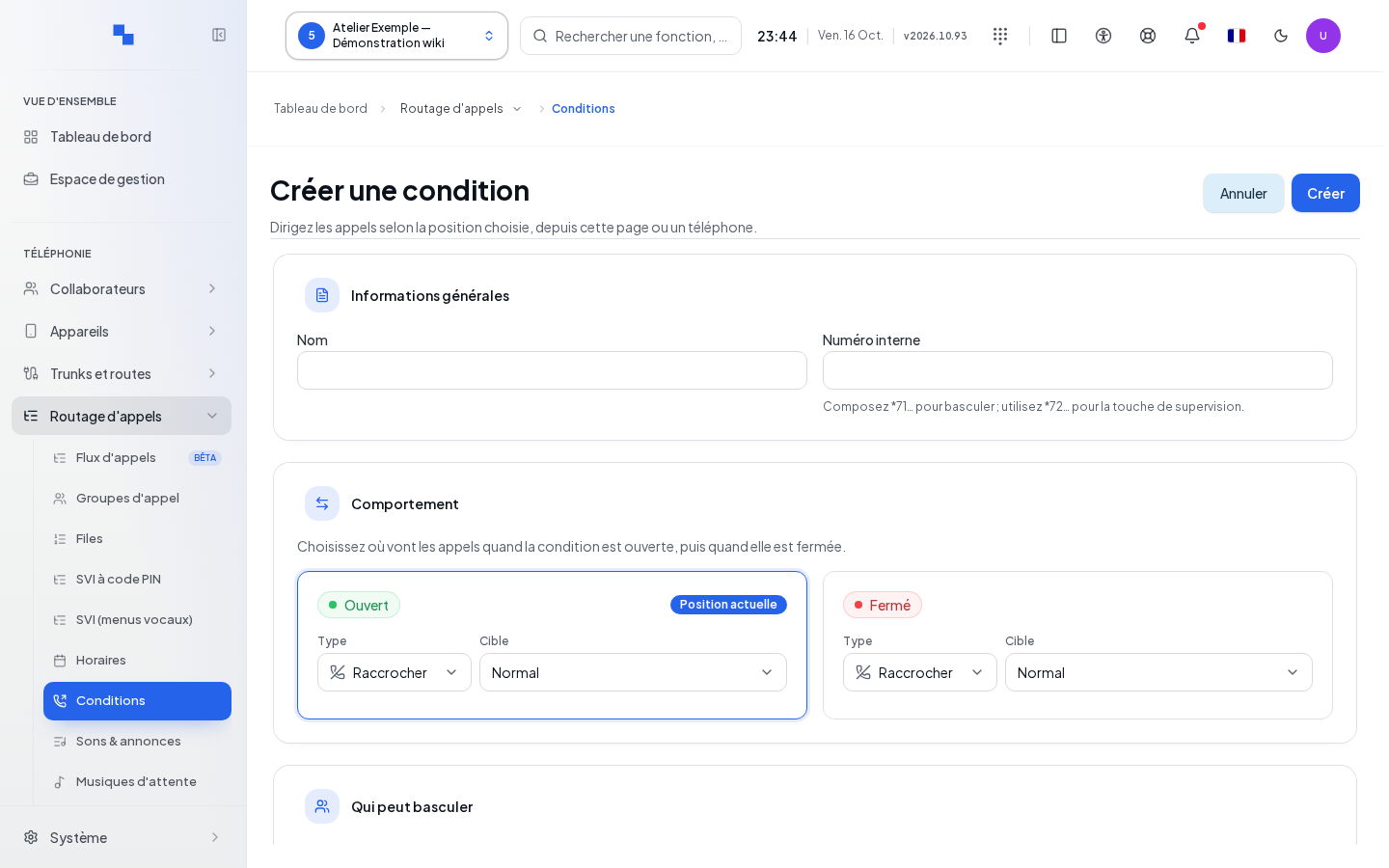
Switching from the screen or the phone
- Click Switch in the list or the form.
- Check the proposed position in the confirmation dialog.
- Confirm to change the position immediately, or cancel to keep the current one.
- Verify the destination shown after answering.
From an authorized extension, dial *71 followed by the condition number to switch. Monitoring uses *72 followed by that number. In the phone's keys, select the Condition type, then the desired condition. Saving the form and switching the position are two separate operations.
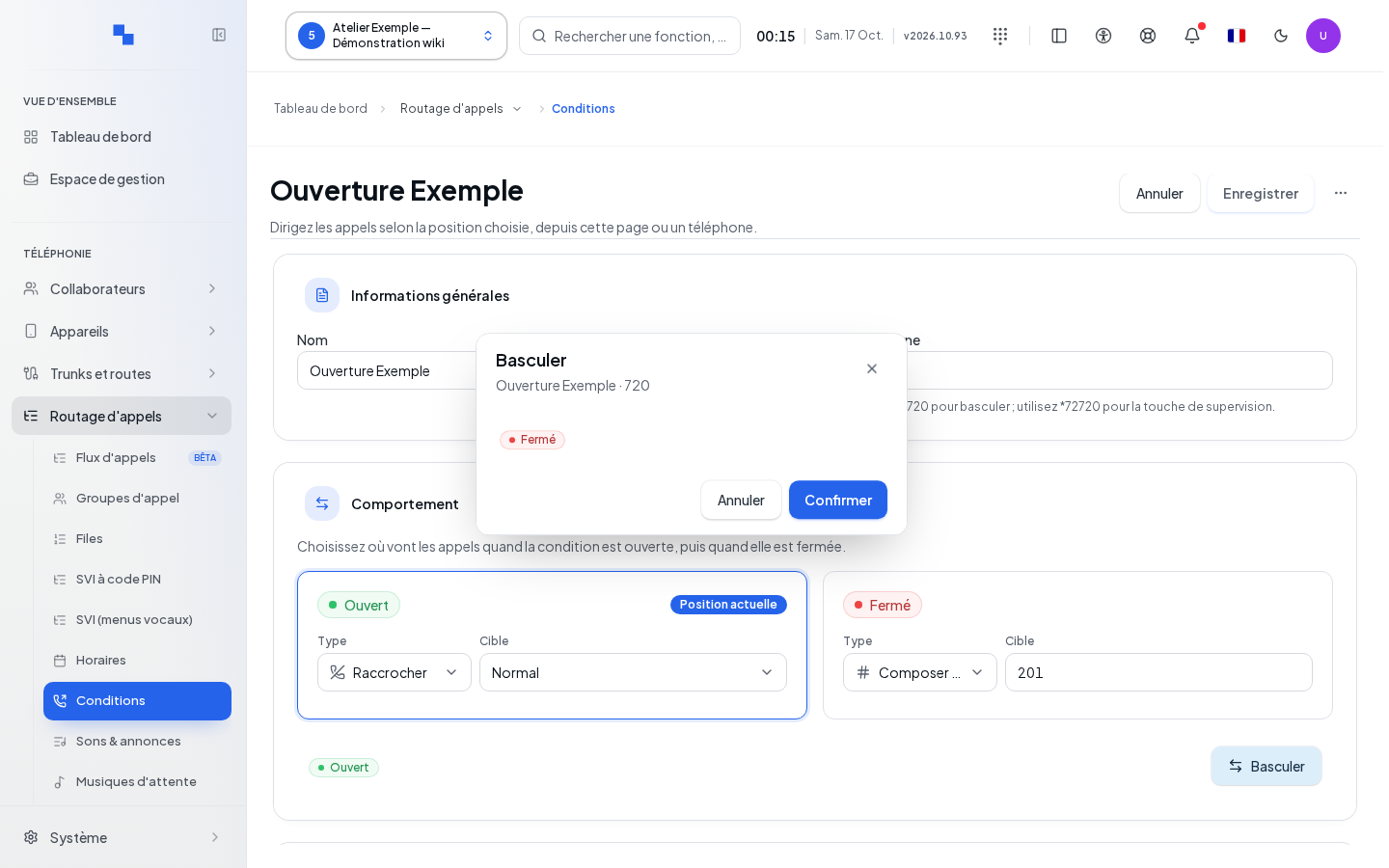
Deleting and verifying
Among the other actions in the form, Delete opens the confirmation dialog. Bulk delete and switch actions are also available from the list selection. Check the affected items before confirming. After saving, verify both destinations with appropriate test calls.
If it doesn't work
Retry resumes a failed read. Controls remain unavailable during a write operation. A read-only account can view the configuration without changing it. A user missing from the directory is still flagged as unavailable: do not confuse this with a permission granted to everyone. Check the server-side reason in the form or confirmation dialog if the change is rejected.