
Reviewing Call Files
Open Call Recordings and select the client. The read permission allows viewing the inventory; listening and downloading also require the download permission. If the audio controls are disabled, check this permission with the administrator.
The list shows Caller, Recipient, the start time and the duration. The total counter applies to the client's inventory. Refresh reloads the current page. Use the column headers to sort the rows and the pagination controls to browse the other recordings.
The page no longer displays the Last requested copies list. It remains dedicated to accessible call and meeting files.
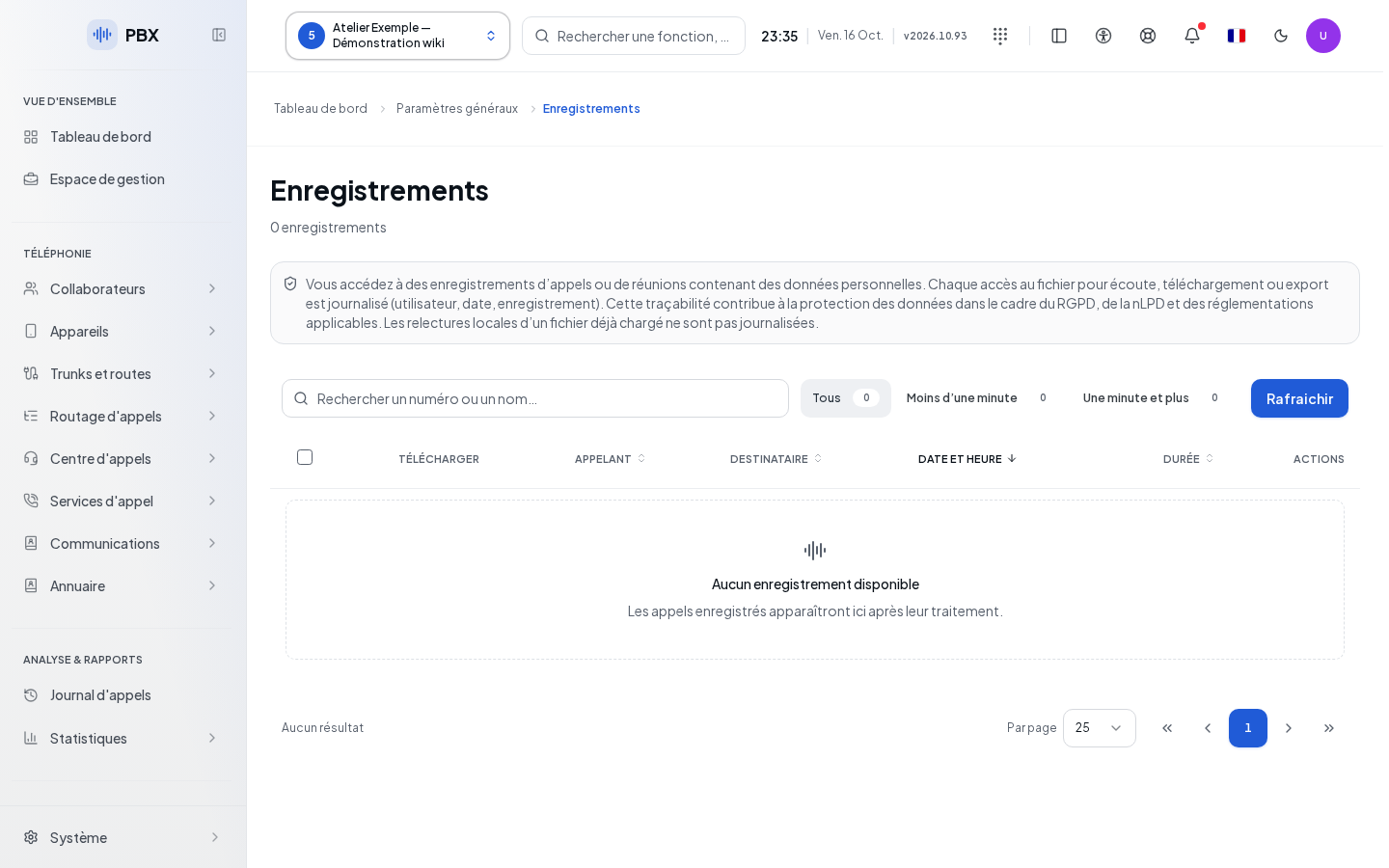
Choose Meeting to display video meeting recordings on this page; Calls returns to the audio files. A row shows the meeting title, the organizer, the date, the duration and the size. The file is a complete MP4 video (image and audio of all participants): watch it in the video player or download it with the same permissions as call recordings. These files are archived on the same storage as calls, the client's or, failing that, the telephony's, with the same retention period.
Searching the Current Page
For Calls, searching by number or name and the All, Under one minute, One minute and over filters apply to the rows of the loaded page. They do not automatically search the entire history. Change pages or use the call log for a search by period and criteria on the server.
In Meeting, the search and filters are sent to the server and apply to the accessible inventory, with its own pagination. Play video opens the player in a modal window sized to fit the screen; the download option is offered once the file has loaded. Closing the window stops playback. Changing pages also closes this player.
An empty result after filtering therefore does not mean the client has no files. Clear the search, return to All, then check the pages and the total.
Listening and Downloading
For calls, click Listen or a row that has a file. The player appears within that row; use its controls to start or stop playback. Clicking again closes the row. Changing pages also closes the open player.
The download button on a row retrieves its file. For multiple files, check the desired rows then use the download bar. The header checkbox selects the eligible files on the filtered page. Rows without available storage cannot be selected. Review the selection after each page or filter change.
This list does not offer a delete command. For call context, analysis and media management, use the log. In case of an inventory read error, refresh after checking the client and permissions; do not treat an error as an empty list.