View the Codes to Dial
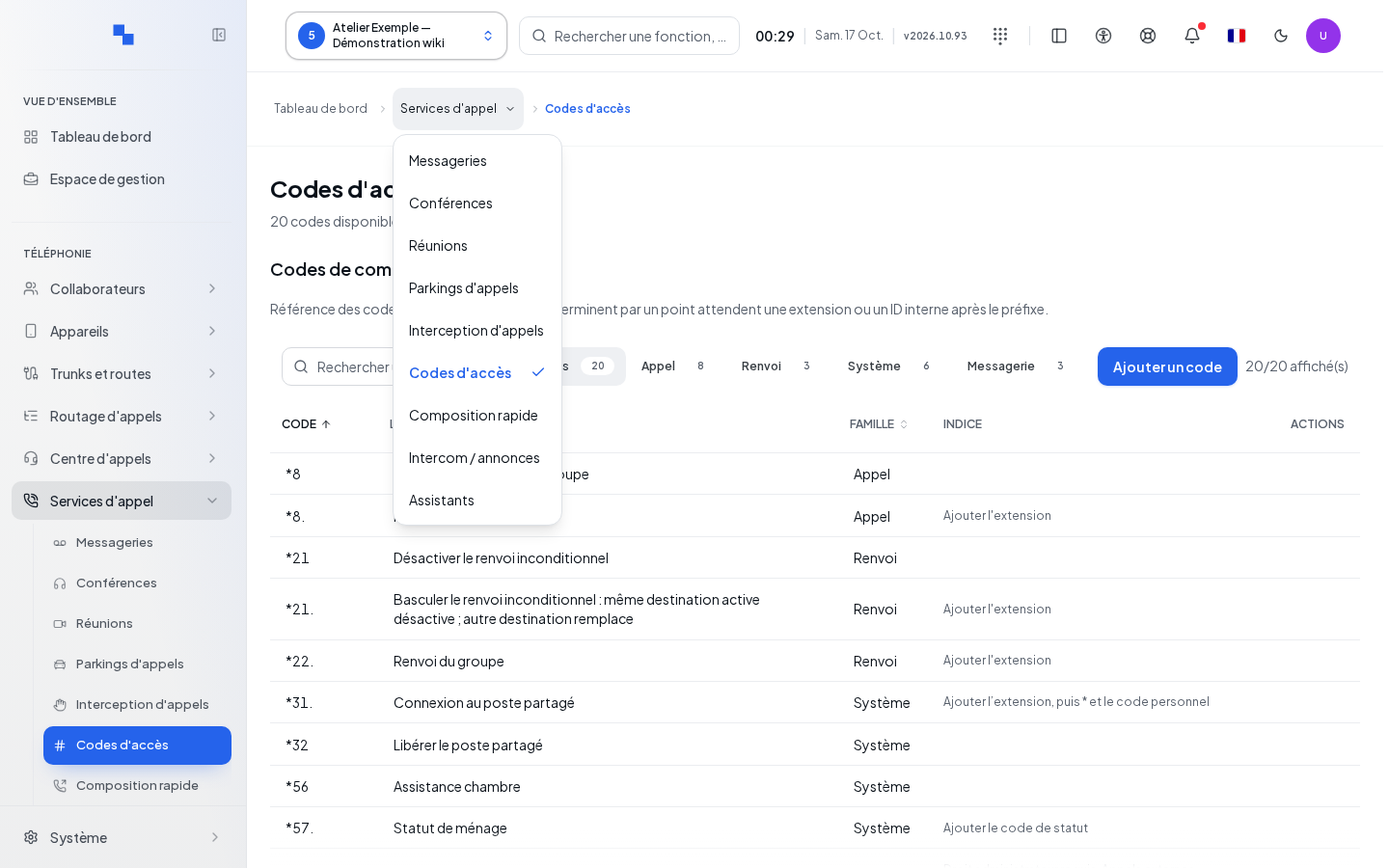
Access codes trigger a service from a Informatique Facile PBX phone. This guide is intended for the customer administrator. Select the customer, then open Access codes in the call services. Read access allows you to view the catalog; write access allows you to manage custom codes.
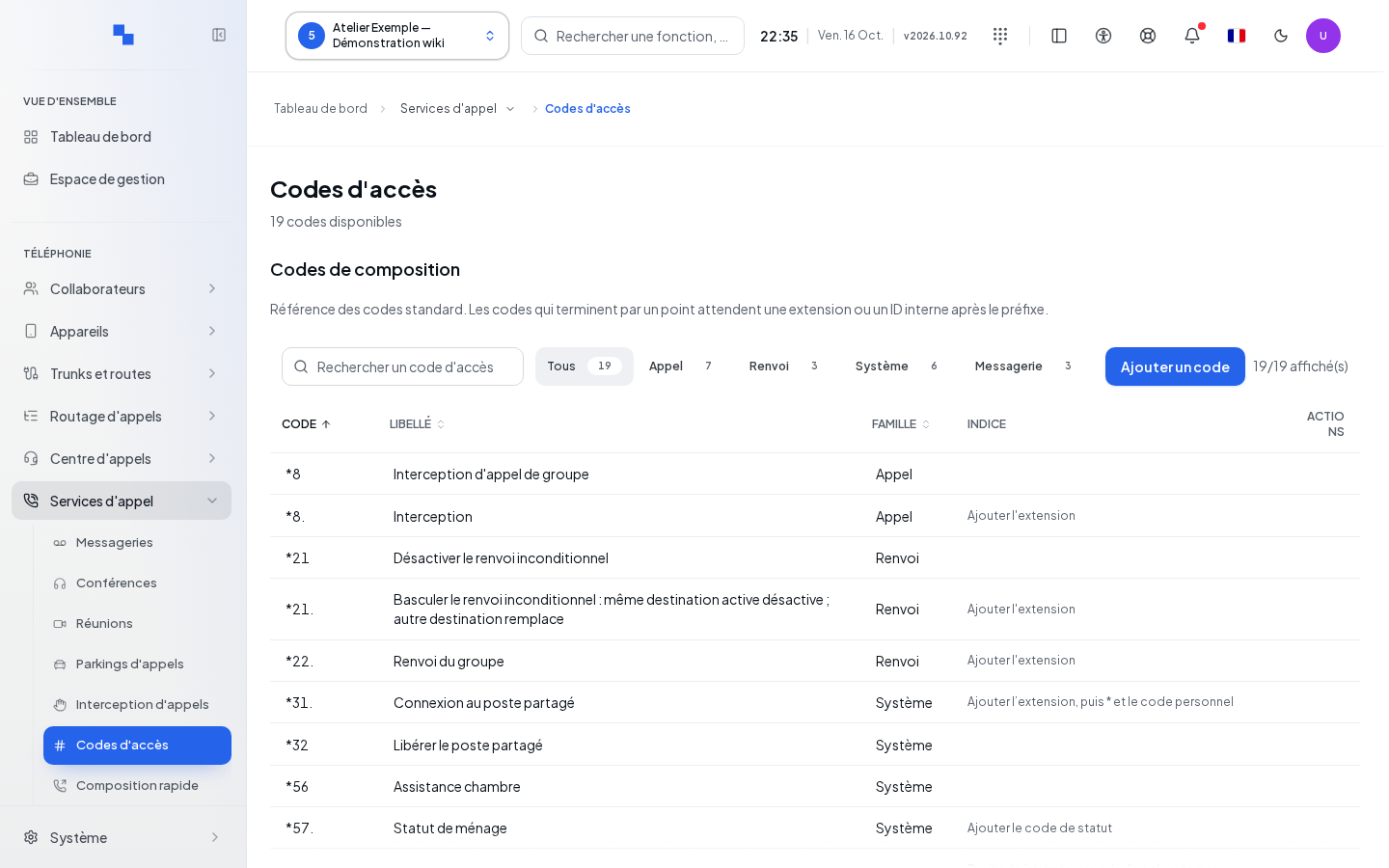
The page brings together built-in actions and custom codes. Search by code, feature, or category. The filters separate calls, call forwarding, agents, voicemail, and system. Click a column header to sort; change pages if needed. An empty result after filtering doesn't mean the service doesn't exist: clear the search.
Built-in codes cannot be modified like a custom entry. A code shown as captured by a built-in action will not trigger your custom action.
Add or Edit a Code
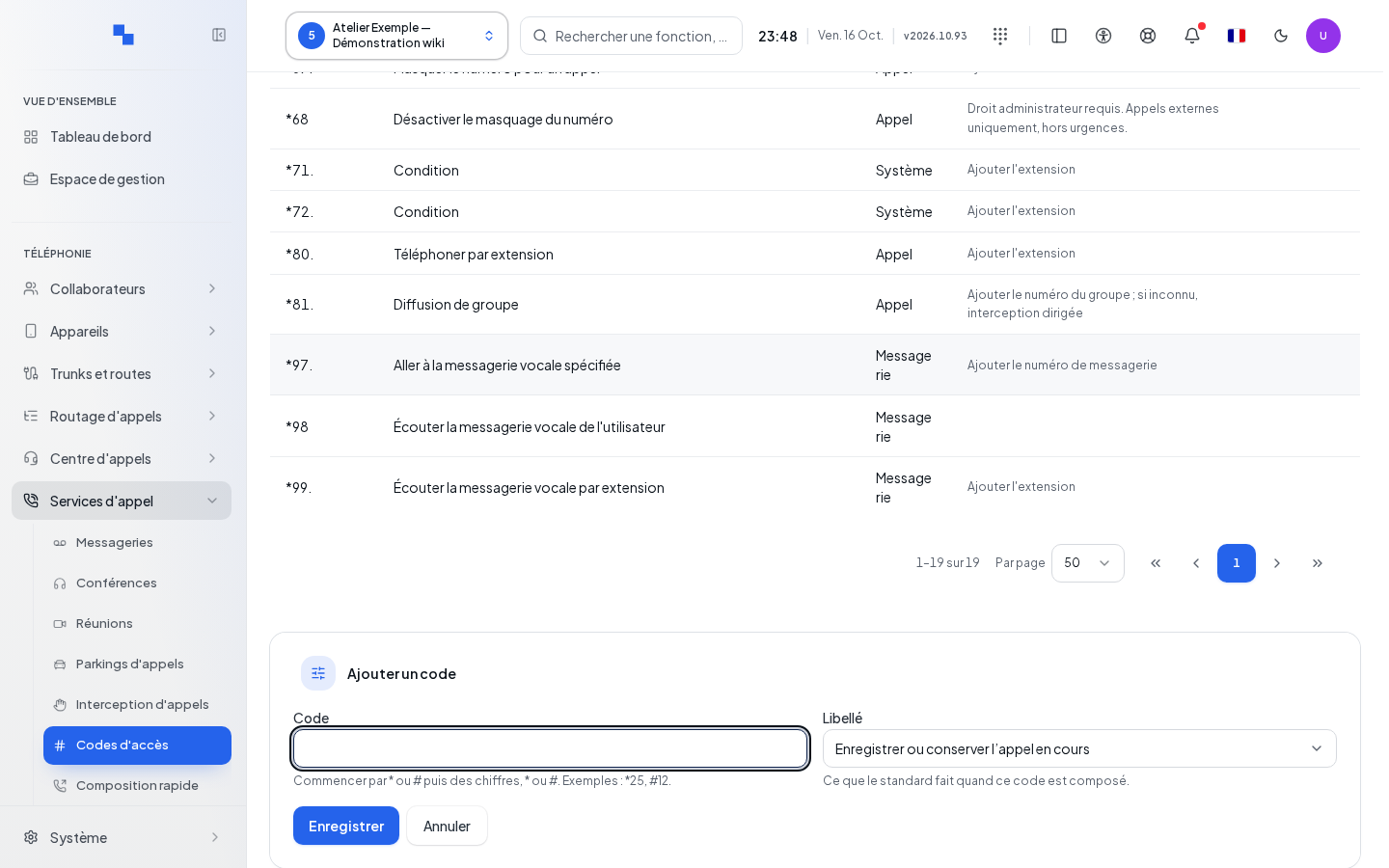
- Click Add a code. The form appears below the list and the cursor is placed in the code field.
- Fill in both fields.
- Click Save and wait for the form to close.
- To correct a custom entry, click Edit, change its values, then save. Cancel closes the form without submitting this entry.
| Field | Purpose | Possible values | Example |
|---|---|---|---|
| Code | Sequence to dial; required | 2 to 32 characters, first character * or #, followed by digits, asterisks, or pound signs; must not be reserved |
*91, only if available |
| Label | Service executed; required | An action from the list provided by the engine | Choose the desired service, then check its label in the list |
Saving is blocked in read-only mode. Do not retry while a request is in progress. A code rejection must be corrected in the field, without attempting to replace a built-in action.
Delete and Verify the Result
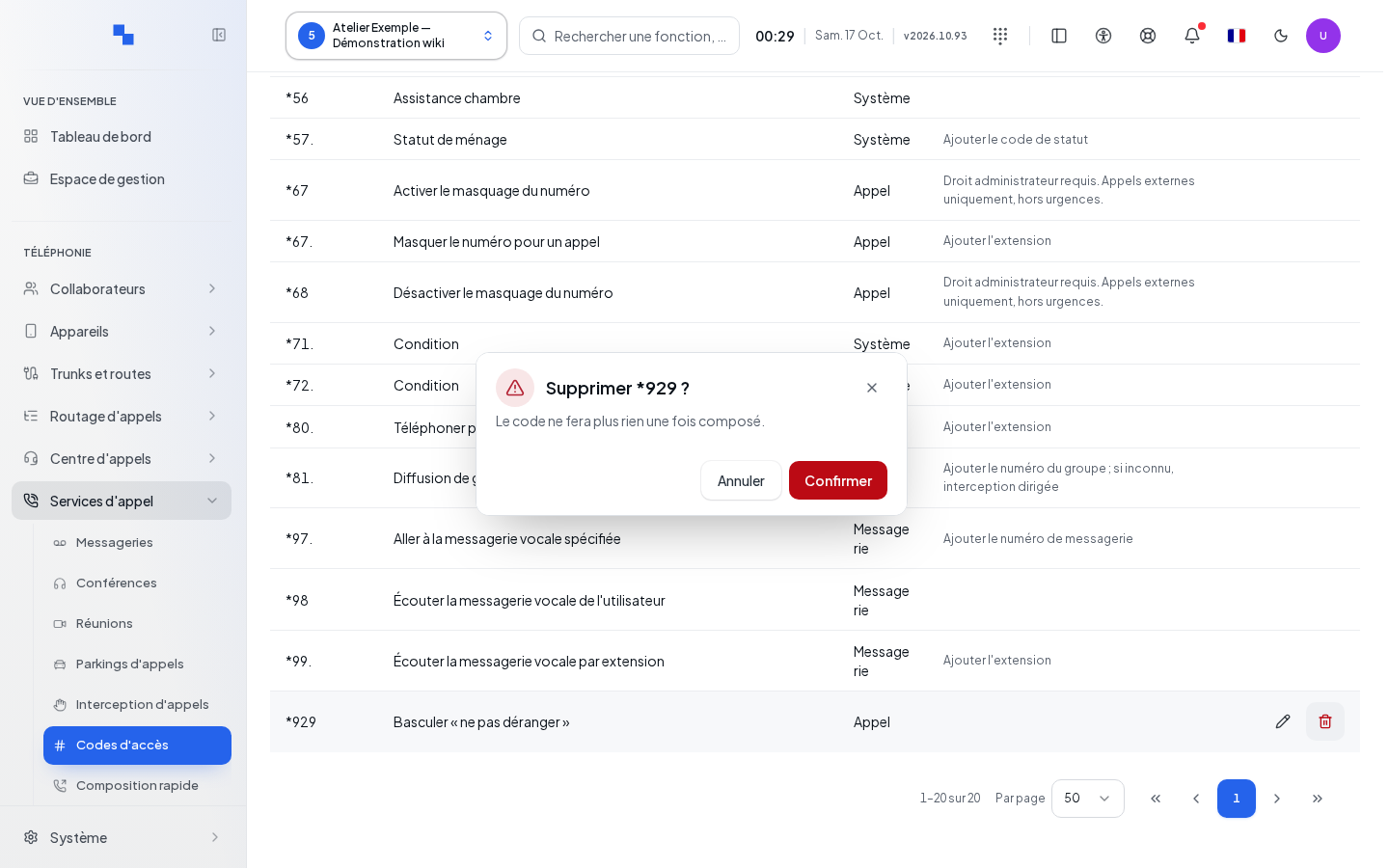
Click Delete on the custom entry. Check the name in the confirmation, then confirm. Cancel to keep the code. In case of rejection, the dialog remains available for another attempt. After success, the entry disappears; built-in codes remain present.
Test the code from a customer phone in a context where the chosen action is desired. For example, a call forwarding code actually changes the phone's behavior.
If It Doesn't Work
Wait for the permissions check and the catalog to load. Retry reloads both sources if the screen reports a failure. The error "Invalid code: start with * or # followed by digits, * or #." indicates an entry that needs correcting. A reserved code must be replaced with another available code. Report the exact message displayed if the server rejects the save.
Accessing Other Screens
The administration panel only displays the menus authorized for your account. During a prolonged loading period, the refresh command reloads the workspace. Phone opens the phone workspace. To switch customers or find a section, see Navigation. Administration sections serve as entry points; not all of them are forms.