
Search contacts
Open Contacts in your user workspace. The list combines the sources you have access to.
- Choose All, Internal, Company, Personal, or Favorites from Contact sources.
- Enter a name, number, or email in the search field.
- Check the source indicated on the result.
- Open the name to view the record.
A contact source from the desktop email client only appears when it is available. Results from an external source depend on its connection. A coverage warning means that not all sources may have responded. In the search field, pressing Enter can trigger the call command for the first result: check it before using it.
In Sort by, choose name in alphabetical or descending order, number, or company. The name is the displayed one, usually first name then last name; accents and capitalization do not affect its order. The number is compared based on its digits; contacts without a company are placed at the end of this sort.
Sorting applies to the contacts loaded from the selected source, before pagination. Pagination starts at 25 results; changing the search or sort returns to the first page. The sort and source filter are remembered in this browser for your user and your organization; they may not persist if storage is blocked. Departments remain identifiable without disrupting the overall order.
To also search a section or a setting, use the global search in the top or bottom bar depending on the menu position.
Call, message, and manage favorites
The call command uses the number selected in the record; a record may offer several numbers. Add favorite adds the contact to your favorites; Remove favorite removes it from this list without deleting the contact.
For an identified colleague, the message command opens an internal conversation. The email address lets you use your email client. Check the record before choosing a destination or a calling identity.
In internal contacts, dropping a transferable call card on Transfer here requests a direct transfer to the colleague's internal number. A launch confirmation does not prove that the colleague has answered.
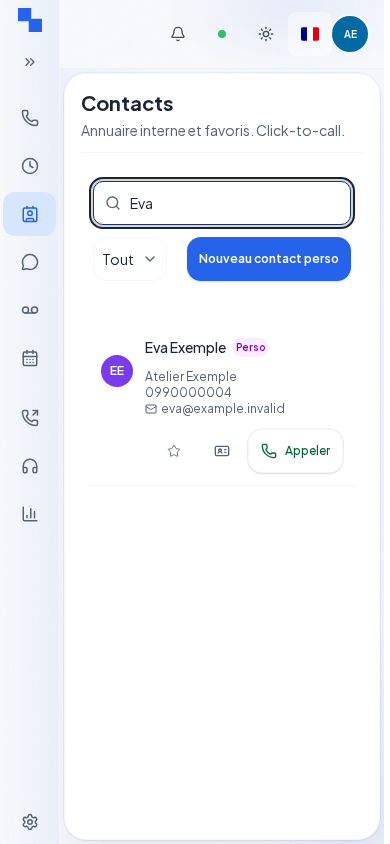
Add or edit a personal contact
- Click New personal contact, or Edit for an editable personal contact.
- Fill in the relevant fields.
- Click Add or Update.
- Wait for Contact added or Contact updated and the dialog to close.
| Field | What it's for | Possible values | Example |
|---|---|---|---|
| First name | Contact's first name | Optional text | Camille |
| Last name | Contact's last name | Optional text | Example |
| Company | Organization | Optional text | Atelier Exemple |
| Landline | Main number | Optional phone text | Full business number |
| Mobile | Other number | Optional phone text | Contact's mobile number |
| Email address | Optional address | camille@example.test |
At least one field must contain something other than spaces. Values are empty when creating and are pre-filled with the contact's data when editing. Cancel closes the dialog; on reopening, the saved values are restored.
Read-only synchronized contacts indicate their provider and do not offer these edit commands.
Delete and distinguish the shared directory
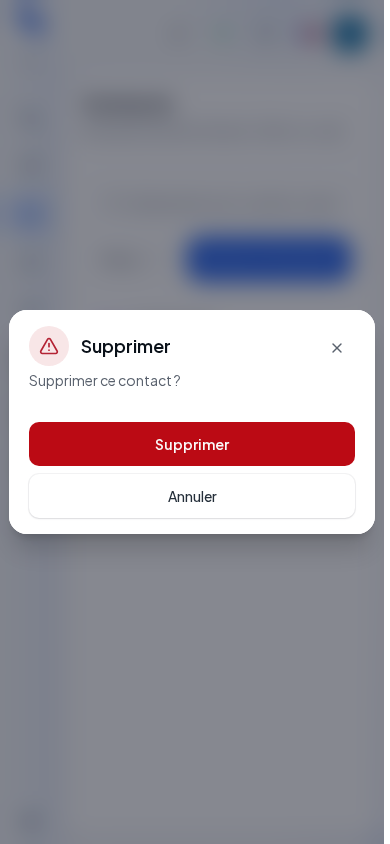
Delete opens "Delete this contact?". Check the contact, then confirm Delete, or cancel. Wait for Contact deleted. An error keeps the diagnostic and does not confirm the deletion.
In Company, choose the desired directory or All. The commands to create and edit local contacts only appear for editable directories. A change to a shared directory affects its users; this is not just your own personal address book.
Verify the result
Search for the contact after saving. Check its source and numbers. Check Favorites after adding a star.
If it doesn't work
"Unable to load contacts." is accompanied by the nature of the failure and its detail. Do not confuse this with "No personal contacts" or "Empty directory." If no company directory is configured, ask the person who manages telephony to create one. For an issue with an external provider, check the connection in Settings › Contacts and shortcuts.