
Preparing an Inbound Route
A direct inward dial number, or DID, receives calls from the carrier and routes them to a customer destination. Open DID Numbers after selecting the customer. Prepare the number provided by the carrier, an existing destination and, if necessary, a schedule. Writing requires permission to modify DID numbers.
Search by number, label or destination. Filters notably help locate numbers that need correcting, with or without a schedule. A line whose destination is unusable must be corrected even if it has a number. Sort the list or use its pagination.
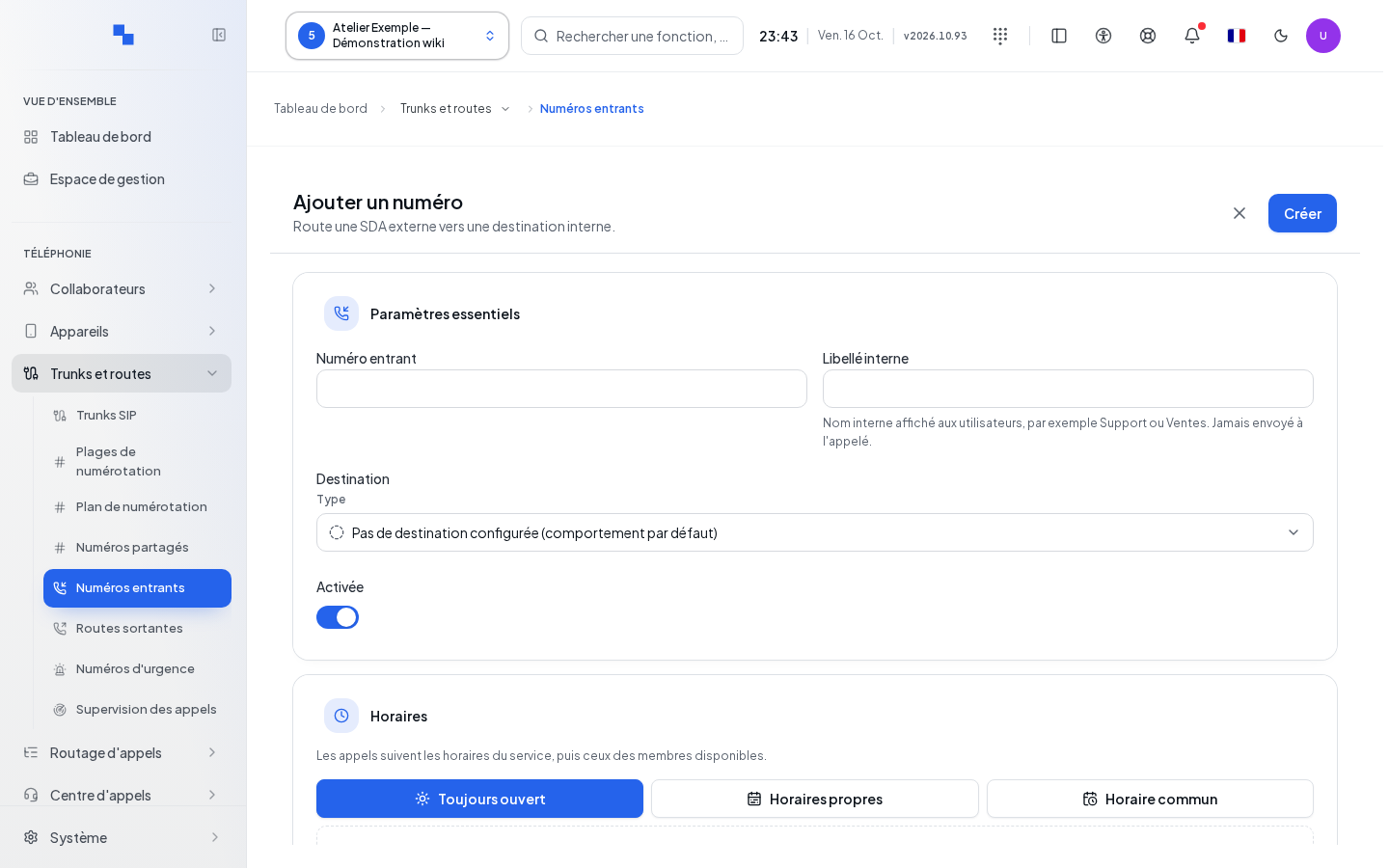
Adding and Editing a Number
- Click Add a number.
- Fill in the essential settings, then the required schedules and options.
- Click Create and wait for the return to the list.
- To make a correction, click Edit. Save applies the entry; Cancel exits the form, with draft handling if needed.
| Field | Purpose | Possible values | Example |
|---|---|---|---|
| Inbound number | DID to route; required | Number provided by the carrier, not empty | A DID assigned to the customer |
| Internal label | Name displayed to users | Up to 40 characters; never sent to the called party as a name | Reception |
| Destination | Call target; required | Type then an available target; an empty or unusable destination is rejected | Reception group |
| Ring duration (sec) | Delay for a user, group or queue destination | Conditional field, integer from 0 to 300; empty keeps the behavior with no explicit delay | 30 |
| Enabled | Allows the route | Enabled or disabled | Enable after preparation |
| Schedule | Limits service hours | Always open, shared schedule or custom schedules | Office Schedule |
| Closed-hours destination | Receives the call outside open hours | Required when a schedule applies | Reception voicemail |
| Technical description | Internal configuration note | Text | Site's main DID |
| Caller name display | Name presentation mode | Available choices: none, prepend, replace or append | Prepend |
| Text to display | Text for the selected name mode | Required if the mode is not none | Reception |
| Greeting message | Reference to an existing announcement | Sound name expected by the configuration | Greeting saved in sounds |
The number field remains editable on the current record: check its value carefully before saving. Schedules are set with their ranges, closures and exceptions; see Schedules.
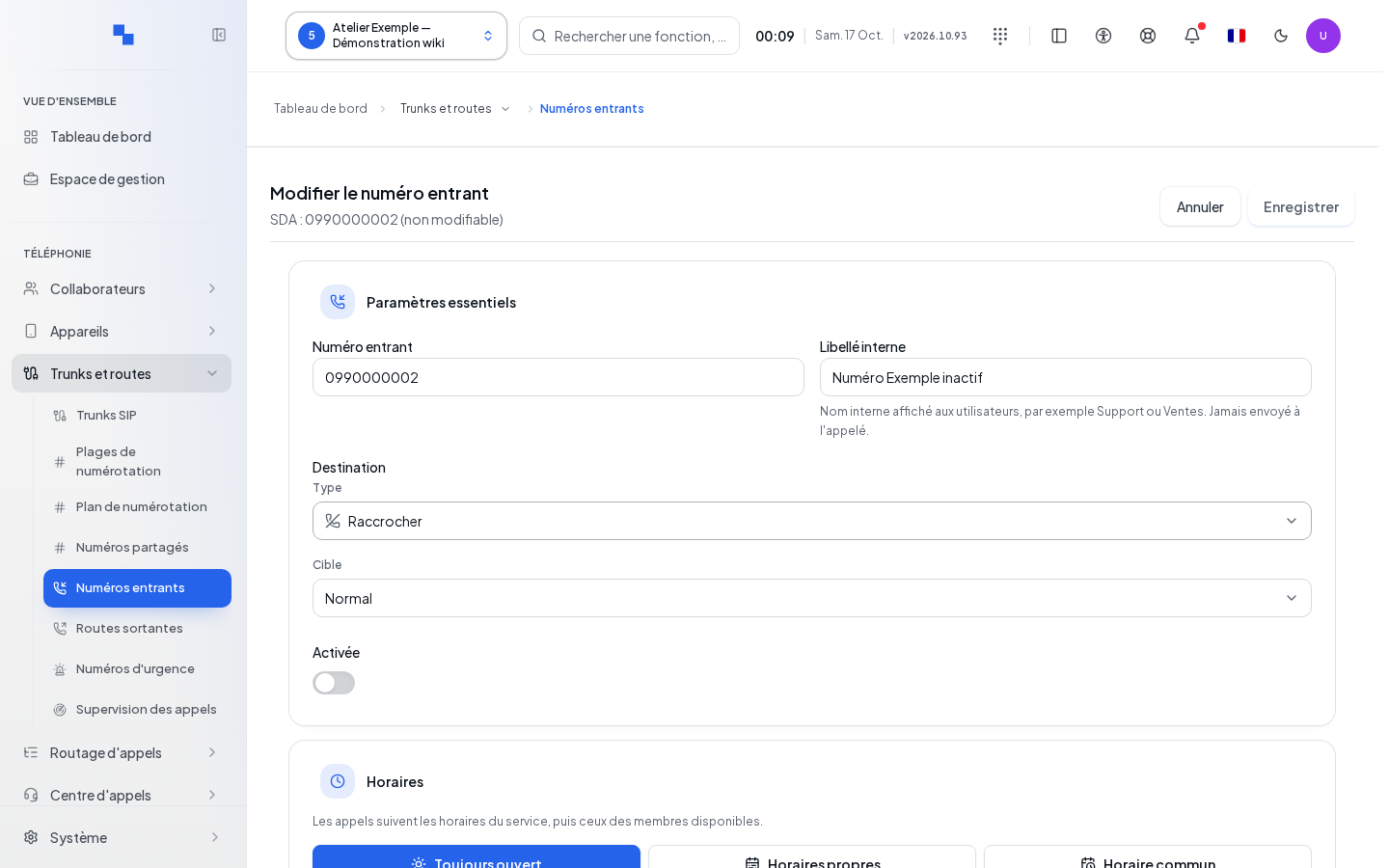
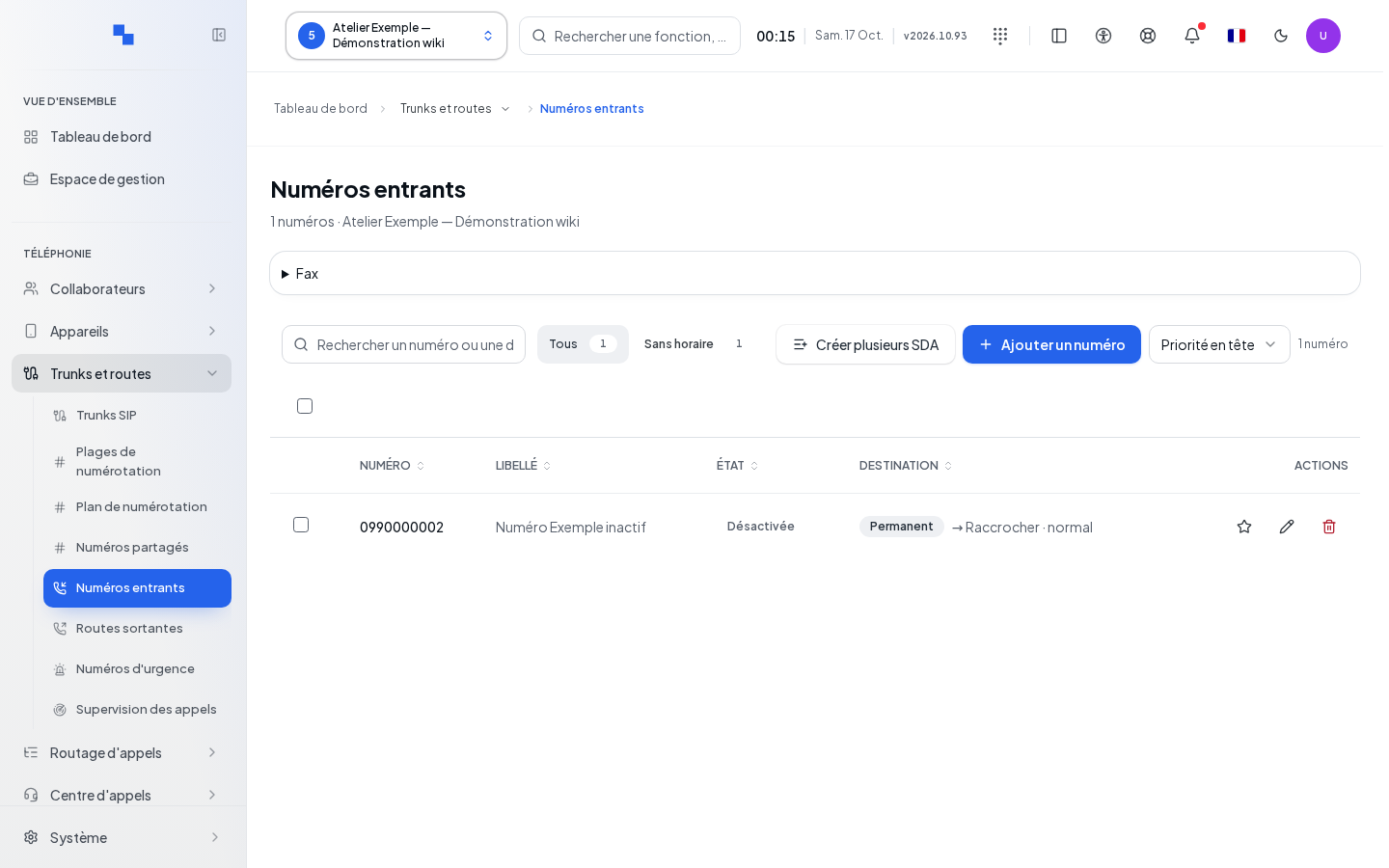
Setting the Primary Number
The Set as primary action designates the customer's primary number. It is unavailable on a number that is already primary or during its update. Wait for "Primary number updated.", then check the indicator in the list. This does not replace the route's destination.
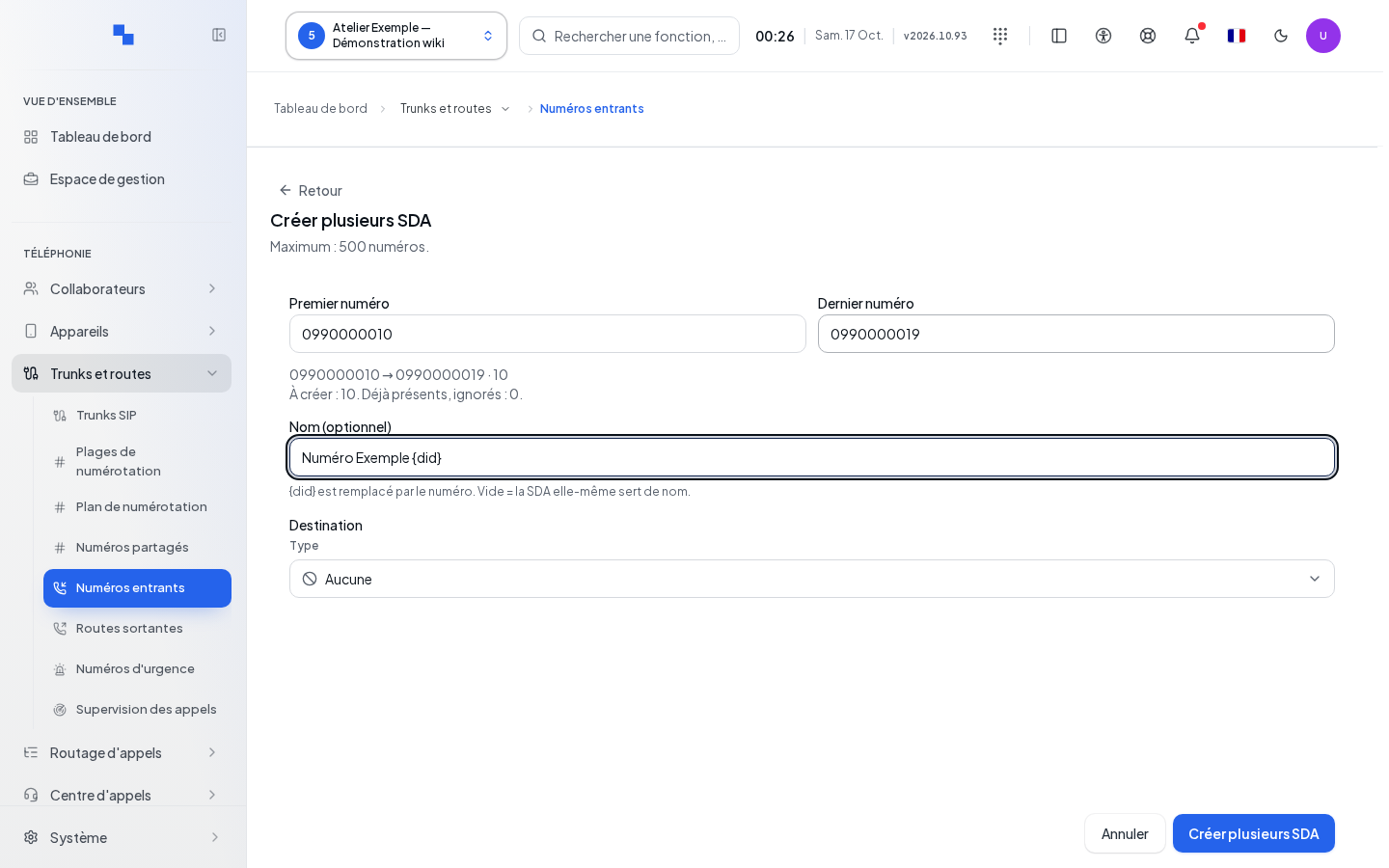
Creating a DID Range
Click Create a range. Fill in First number, Last number, an optional Name pattern and a usable destination. The bounds accept 1 to 15 digits with an optional + and separators. They must keep a compatible format, the same length and an increasing order; the maximum allowed is shown in the window.
The {did} placeholder in the pattern is replaced by each number. Left empty, the name reuses the number. Wait for the preview: it distinguishes numbers to be created from numbers already present, which will be skipped. Creation is blocked if validation fails or if the destination is not usable. Cancel closes without starting creation.
Editing or Deleting Multiple Numbers
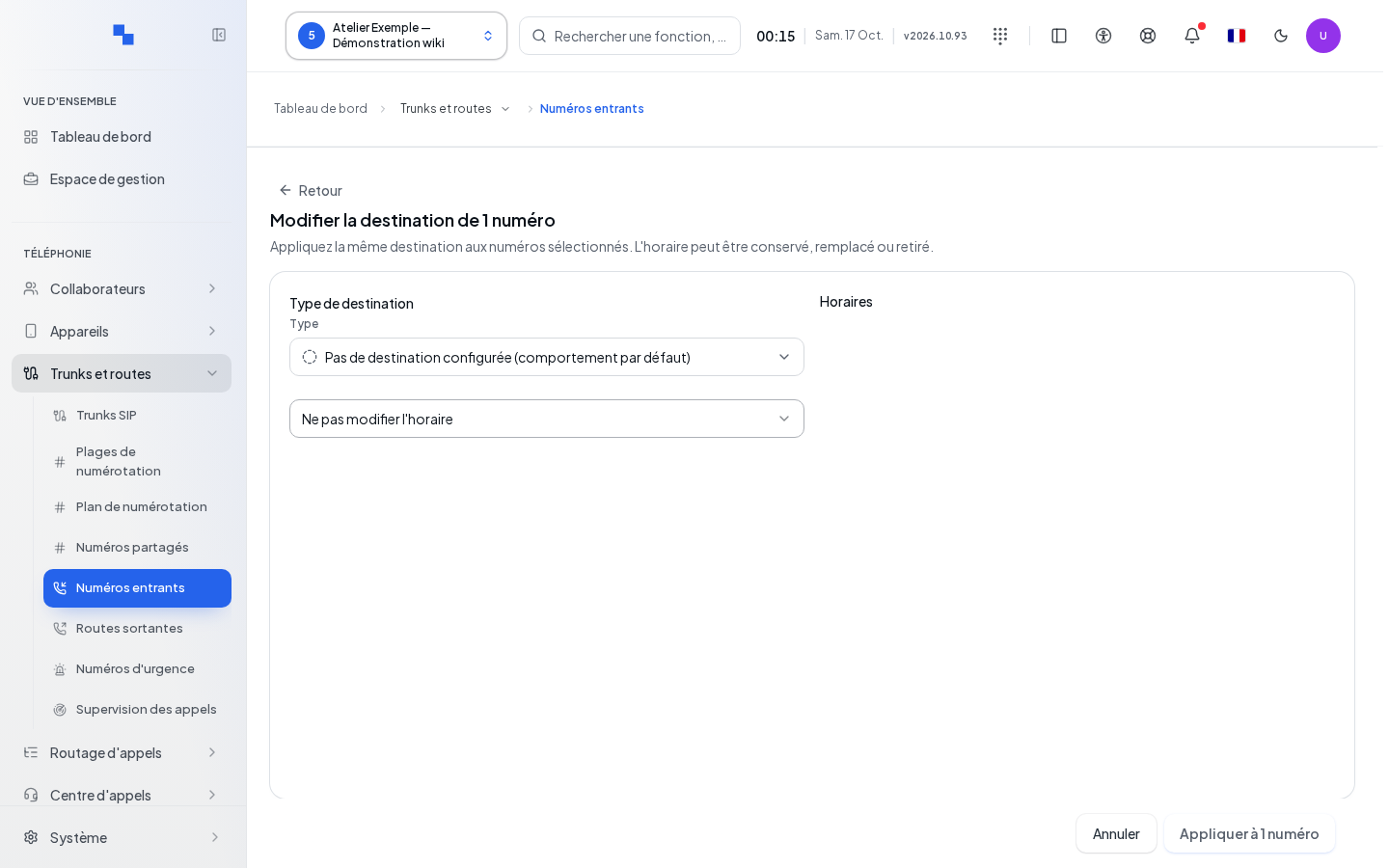
Check the relevant rows. The select-all applies to the displayed numbers. Edit destination opens the choice of a destination and schedule handling: keep, remove or select a schedule according to the options offered. Review the number of numbers before applying.
Individual or bulk deletion requires confirmation. It removes the routing and the associated extension; the calls concerned will no longer be routed through these entries. Canceling keeps the lines.
After a bulk operation, read the report: some lines may have succeeded while others were rejected. "No line written." does not mean success. Correct the rejections rather than blindly redoing the entire operation.
Checking the Result and Troubleshooting
Review the line, its activation status, its destination and its schedule. Make a test call to the DID, then check a closed-hours case. "The number (DID) is required." means the number must be completed. "Closed-hours destination missing" means a closure target is needed. A non-empty caller name is required as soon as a name modification mode is selected.
The record and its schedule are saved by separate operations: if the schedule fails after the record, check the values actually saved before retrying. A read error should not be interpreted as an absence of numbers.