
Opening an internal conversation
Open Internal Chat in your user portal. This service lets you exchange messages with your colleagues and within groups.
The Conversations column lists your exchanges: pinned conversations first, then the most recent ones. Each row shows the colleague's photo or initials, their presence indicator, and a preview of the last message.
- Choose an existing conversation, or click New conversation (+ button).
- In the dialog, filter with Search for a colleague… then click the person. If a direct exchange with them already exists, it opens instead of creating a second one.
- Check the participants in the header; the information icon displays the full list.
- On mobile, use the back button to Internal Chat to return to the list.
- Pin a conversation from the header menu to find it more easily; the reverse command unpins it.
You can also drop a contact onto the chat area to start a conversation with the colleague holding that internal number. If no colleague or several match, "No colleague found" is displayed.
In a direct exchange, the Call and Video call icons in the header launch a call to the colleague's internal number. They only appear if that number is known.
On a wide screen, widen or narrow the conversations column by dragging its border; the width is remembered by this browser.
The magnifying glass icon in the header opens Search within conversations, which accepts up to 100 characters. Selecting a result opens the conversation at the found message. Previous and Next browse through the results, 30 at a time; Return to latest messages exits positioning on an older message.
Creating and renaming a group
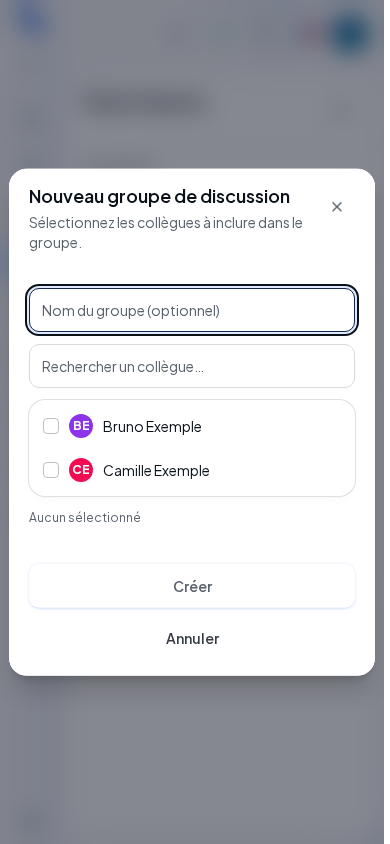
- Click New conversation, then New chat group.
- Optionally fill in Group name (optional).
- Filter colleagues with Search for a colleague….
- Click each person to include; a second click removes the selection.
- Click Create, available once at least one colleague is selected.
Cancel closes the dialog. After creation, the conversation is selected. Rename group opens another dialog: the new name must be non-empty and contain at most 120 characters. Save makes this name visible to all members.
Sending, quoting and attaching
| Field | Purpose | Possible values | Example |
|---|---|---|---|
| Write a message… | Text of the selected conversation | Up to 10,000 characters; must be non-empty to send | Hello, could you call the customer back? |
| Mention | Designates a group member | Type @ then choose a suggestion | Colleague from the list |
| Attachment | Shares a file | File chosen on your device, accepted by the service | Demo document |
Click Send or submit the form. The draft is cleared after success. Each conversation keeps its own draft while the screen is in use.
Insert an emoji opens the picker; choosing an emoji adds it to the text. The attachment command launches the upload of the chosen file: it does not merely prepare a future text send. Wait for it to appear in the exchange.
Reply by quoting prepares a reply linked to the chosen message. Cancel in the quote banner removes this reference without sending. Go to original message returns to the quoted message.
Acting on messages
Hover over a message to display its commands. React offers six emojis: 👍, ❤️, 😂, 🎉, 😮 and 😢; these are the only accepted reactions. Clicking your reaction, below the message, removes it; the counter updates after refresh. The Reply by quoting icon prepares a reply to the message.
The Message actions menu offers Copy, which copies the message text. Your own messages also offer Edit message: correct the text, then Save, or Cancel. The edit is visible to members. Delete message asks for confirmation and replaces the content with Message deleted.
Read by indicates confirmed reads of a message you sent. Open the detail to view the people and dates. "No confirmed reads" does not mean the message was not sent. The translation command opens the translation panel for the available message.
Exporting or leaving
In the conversation actions, Export conversation downloads the proposed export. Wait for it to finish; in case of failure, "Unable to export the conversation." appears.
Leave conversation opens a confirmation showing its name. Confirm to remove it from your list, or cancel. Other participants keep the conversation.
Verifying the result
Check that the message, attachment or edit appears in the correct exchange. After creating a group, verify the participants and the name.
If this doesn't work
Read errors distinguish between conversations, colleagues and messages. An empty list does not replace these diagnostics. A send error keeps the draft; review the exchange before trying again. For files, check the error notification and your organization's policy.