
Opening your queues
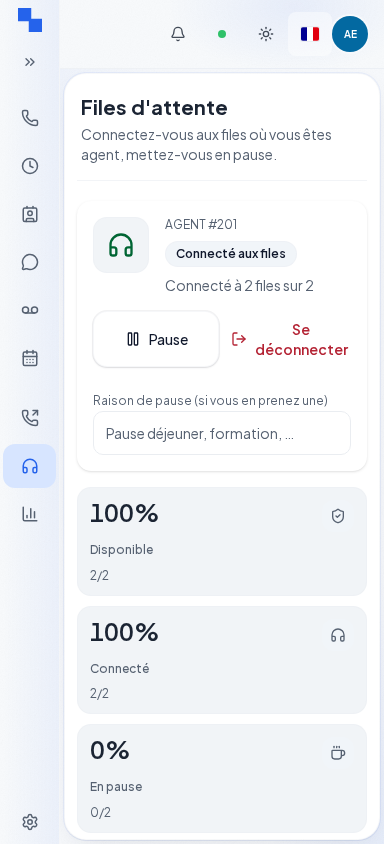
Open Queues with your user account. You must be linked to an agent and assigned to the relevant queues. The page refreshes your status every five seconds.
“You are not configured as an agent. Ask the admin to link you to an agent in Agents.” requests administrative action. “No associated queue. Ask the admin to add you.” indicates an agent without a usable queue; general commands remain unavailable.
Managing your overall availability
- Check your agent number.
- Click Log in to request connection to the queues.
- Before a break, optionally enter a reason, then click Pause.
- Click Resume when you are ready.
- Click Log out at the end of your availability.
| Field | Purpose | Possible values | Example |
|---|---|---|---|
| Break reason (if taking one) | Explains a general break | Optional text; shown when you are logged in and not on break | Training |
Wait for the confirmation and the refreshed status after each command. Log out here refers to the queue agent; it is not your account logout button.
Acting on a queue and reading indicators
Each row shows the queue name and its status. Log in or Log out applies to that queue. Pause and Resume manage its break status; pausing a queue requires being connected to it. A pending general request blocks row-level commands.
| Status or indicator | Meaning |
|---|---|
| Available | The queue confirms your eligibility, your connection, and the absence of a break |
| Connected | You are connected; this does not guarantee eligibility for every call |
| On break | Distribution is suspended for the indicated scope |
| Outside hours | The schedule does not currently allow distribution |
| Missing skill | Your assignment does not meet the expected skill |
| Not connected | Queue you are not connected to |
Percentages compare your usable queues; they do not measure overall call center traffic. If the received statuses are unknown or inconsistent, the page shows an unavailable reading rather than an assumed availability.
Checking the result
After each action, check the general badge and the queue row. A successful connection can still remain outside hours or lack a required skill.
If it doesn’t work
Use the suggested retry. “This queue does not have a valid identifier. Reload the softphone and try again.” asks you to reload; if the issue persists, forward the queue and the message to the person who manages telephony. Do not assume from your phone connection alone that you are receiving calls from the queues.