Understanding and finding a trunk
A trunk connects Informatique Facile PBX to a carrier or to another PBX. Open Trunks for the selected client. Prepare the information provided by the carrier: connection model, server, account and any secret, authorized numbers, and caller ID presentation constraints. The public number and the authentication identifier are not necessarily identical.
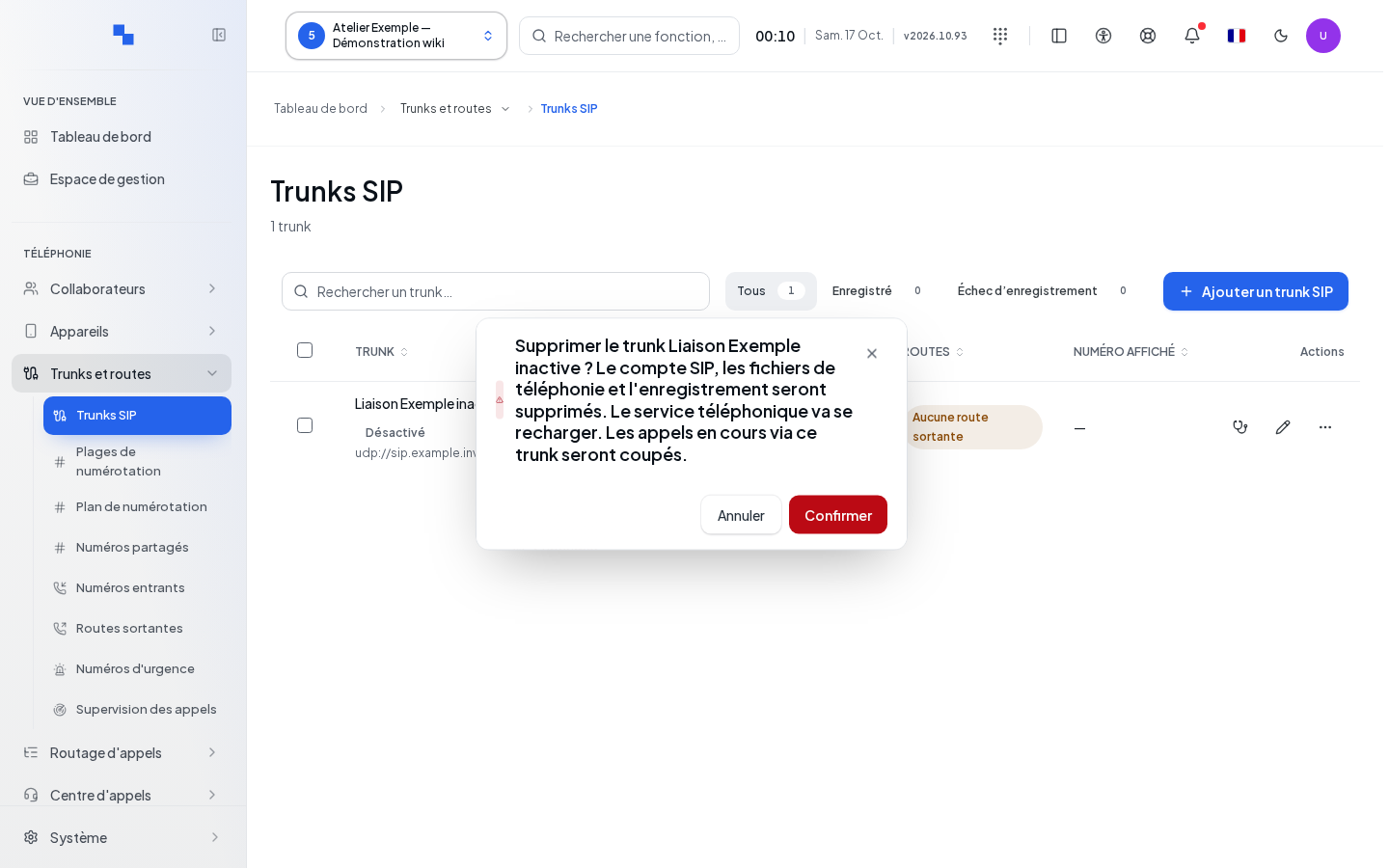
The list lets you search for a trunk and review its status, server, registration, and routes. Edit opens its configuration; Test connection launches a check. The other actions menu provides the operations available on the trunk, including activation, deactivation, and deletion. A correct registration status does not guarantee that inbound and outbound routes are configured.
Read and write permissions determine which commands are available. If a creation includes an inbound number, the right to create this routing is also required.
Choosing the country and carrier model
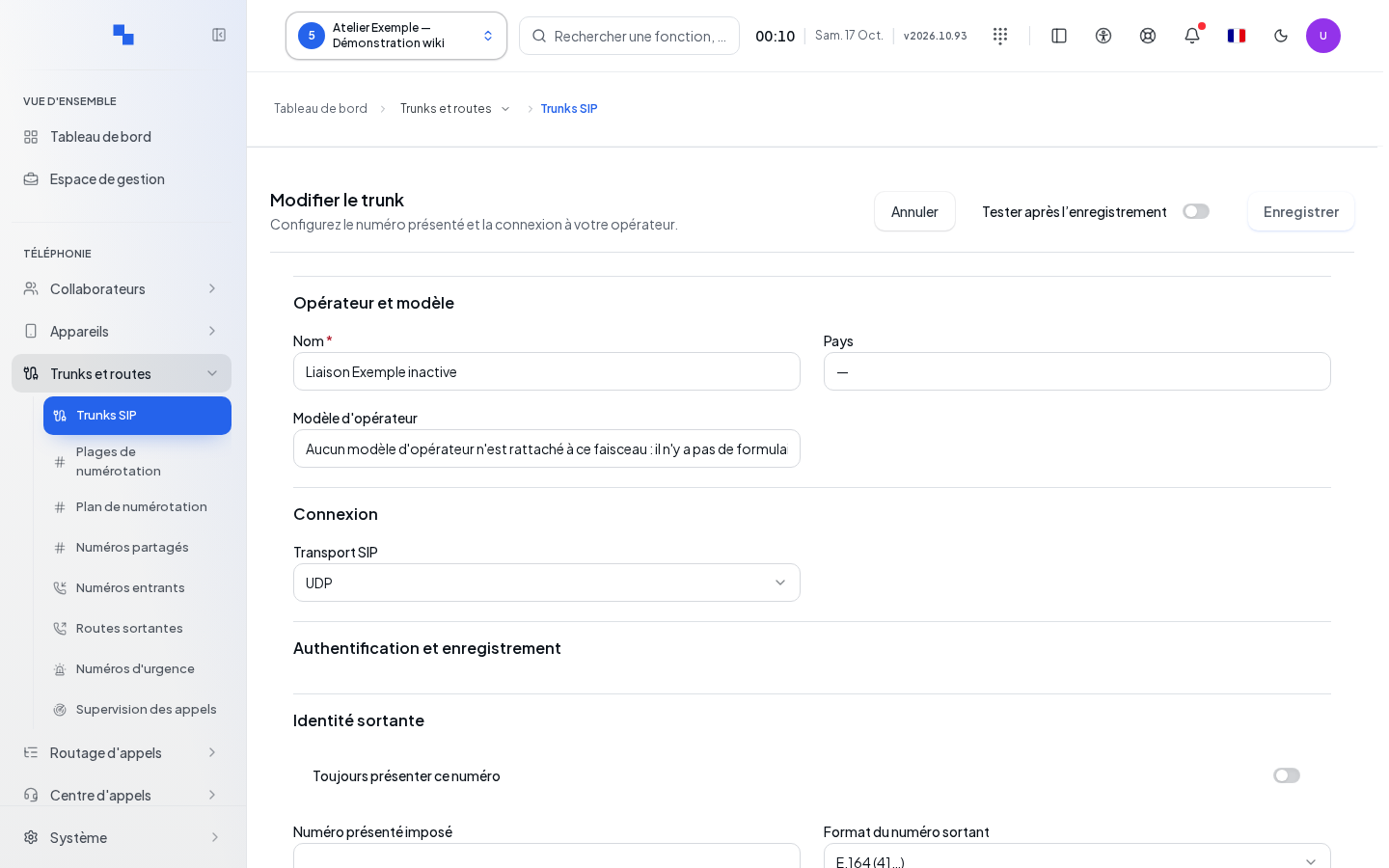
- Click Add SIP trunk to open carrier creation.
- Choose the country, then the model offered for the carrier; Continue opens the connection entry form and Back returns to the previous choice. Cancel closes the wizard. The model determines the fields and the required values.
- Give it a recognizable name, for example "Primary carrier".
- Fill in the connection information actually requested. Read the help text and default values before replacing them.
- Set the caller ID presentation and, if offered, the automatic inbound route creation.
- Review the summary and save once. Wait for the result before leaving.
Fields marked required must be filled in. A value in the wrong format is flagged before submission. An unsupported connection mode must be replaced with the supported mode indicated by the screen. "Name is required." is corrected by giving the trunk a name.
| Field | Purpose | Possible values | Example |
|---|---|---|---|
| Name | Identifies the trunk | Required text | Primary carrier |
| Carrier model | Prepares compatible settings | Model available for the country | The one provided for your carrier |
| Server / domain | Connection address | Value from the model or carrier | Domain provided in the contract |
| Identifier | Authenticates the trunk if required | Carrier identifier | Account provided by the carrier |
| Password | Connection secret | Secret requested by the model | Value received via a secure channel |
| Transport | SIP transport protocol | UDP, TCP, or TLS, possibly mandatory | Value from the model |
| Displayed number | Identity presented to callers | National number with 1 to 20 digits, or + followed by 1 to 15 digits not starting with zero |
+41225550100 |
| Always present this number | Forces the primary identity | Yes or no; requires a displayed number | Yes if required by the carrier |
| Create disabled | Saves without enabling the connection | Yes or no | Yes to prepare the trunk |
Additional fields depend on the model: use their labels, choices, and constraints as displayed. Do not replace a public number with an account identifier simply because both are numeric. The form flags recognized confusions.
Outbound proxy, failover, and automatic port
An outbound proxy is the network relay used to reach the carrier. Set it when the carrier provides a relay address separate from its SIP domain. Server / domain remains the carrier's domain; the proxy does not replace the account identity. Leave the proxies empty if the carrier does not request them.
| Field | Purpose | Possible values | Example |
|---|---|---|---|
| Outbound proxy | Primary relay; optional | Host or host:port, without sip:, identifier, or path; IPv6 in brackets; port 1 to 65,535 |
proxy.carrier.example:5060 |
| Secondary outbound proxy | Backup relay; optional, to be set along with the primary if the carrier provides a pair | Same format as the primary | backup.carrier.example:5060 |
| Choose port automatically | Lets the carrier's DNS service determine the port | Disabled by default; enable according to carrier instructions | Enabled for a domain published with SRV records |
DNS SRV records indicate the servers and ports of the telephony service. Without a forced port, resolution may use them depending on the chosen transport. Without a proxy, it applies to the carrier's domain. A port explicitly entered in a proxy address remains priority. The Choose port automatically option ignores the port kept in the record; it is not necessary to clear it.
If the primary becomes network-unavailable, calls and registration can automatically fail over to the secondary. A rejection returned by the carrier alone does not trigger this failover. For calls, the next call retries the primary again. For registration, the secondary remains preferred for five minutes; the primary is retried at a subsequent deadline, without interrupting a valid registration merely to test it.
Inbound calls can come from either proxy. The usual trunk and authorized number checks continue to apply. Existing trunks keep their ports and behavior as long as you do not modify these settings.
After saving, verify registration, an outbound call, and an inbound call. With the carrier, also check the failover and the return to the primary. The Test connection button alone does not validate this entire workflow.
Carrier compatibility options
Some carriers require a specific setting for calls to succeed. These options are found in the trunk's advanced settings; existing trunks keep their behavior as long as you do not modify them.
| Field | Purpose | Possible values | Example |
|---|---|---|---|
| Confirm call progress | Announces to the carrier support for progress confirmation (100rel); disable if the carrier requires this for calls to succeed | Enabled by default | Disabled for a carrier that refuses confirmation |
| IPv4 only | Uses only IPv4 addresses toward the carrier, for registration, calls, and media | Disabled by default | Enabled if the carrier only accepts IPv4 |
During a call, the carrier may request authentication for intermediate exchanges; it is automatically replayed using the trunk's credentials. Diagnostics indicate the cause of a rejection: a registration rejection indicates an inactive trunk or an IP address not authorized by the carrier; a call rejection indicates that the presented number is probably not authorized; no response after an authentication request appears as a timeout.
After modification, verify registration, an outbound call with two-way audio, then an inbound call.
Setting numbers and routing
The format of called numbers defines what the carrier receives: as dialed, national, international without a sign, international with +, or with an international prefix such as 00. Choose the format expected by this carrier. The additional DID list accepts several numbers separated by commas.
Verifying outbound identity
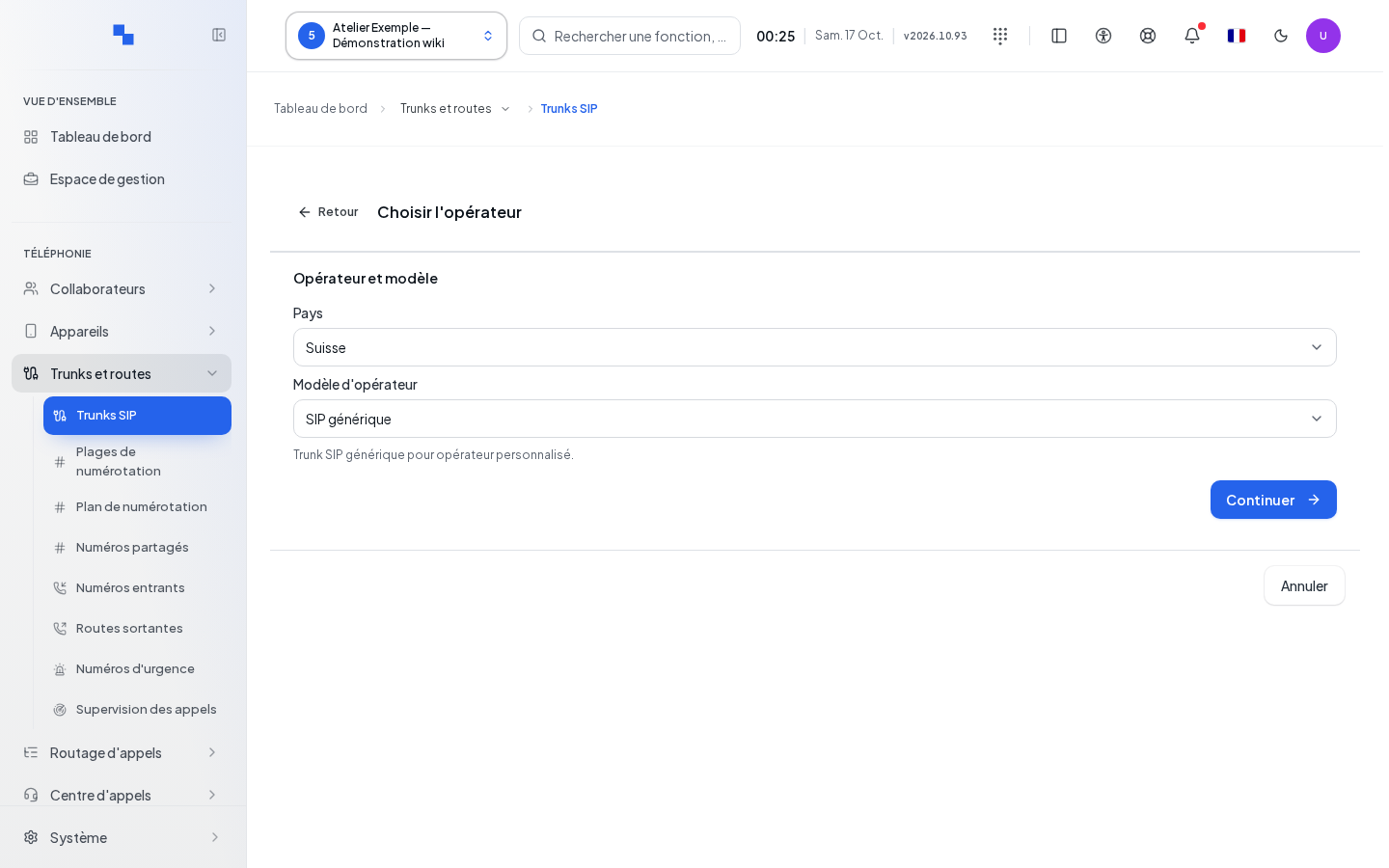
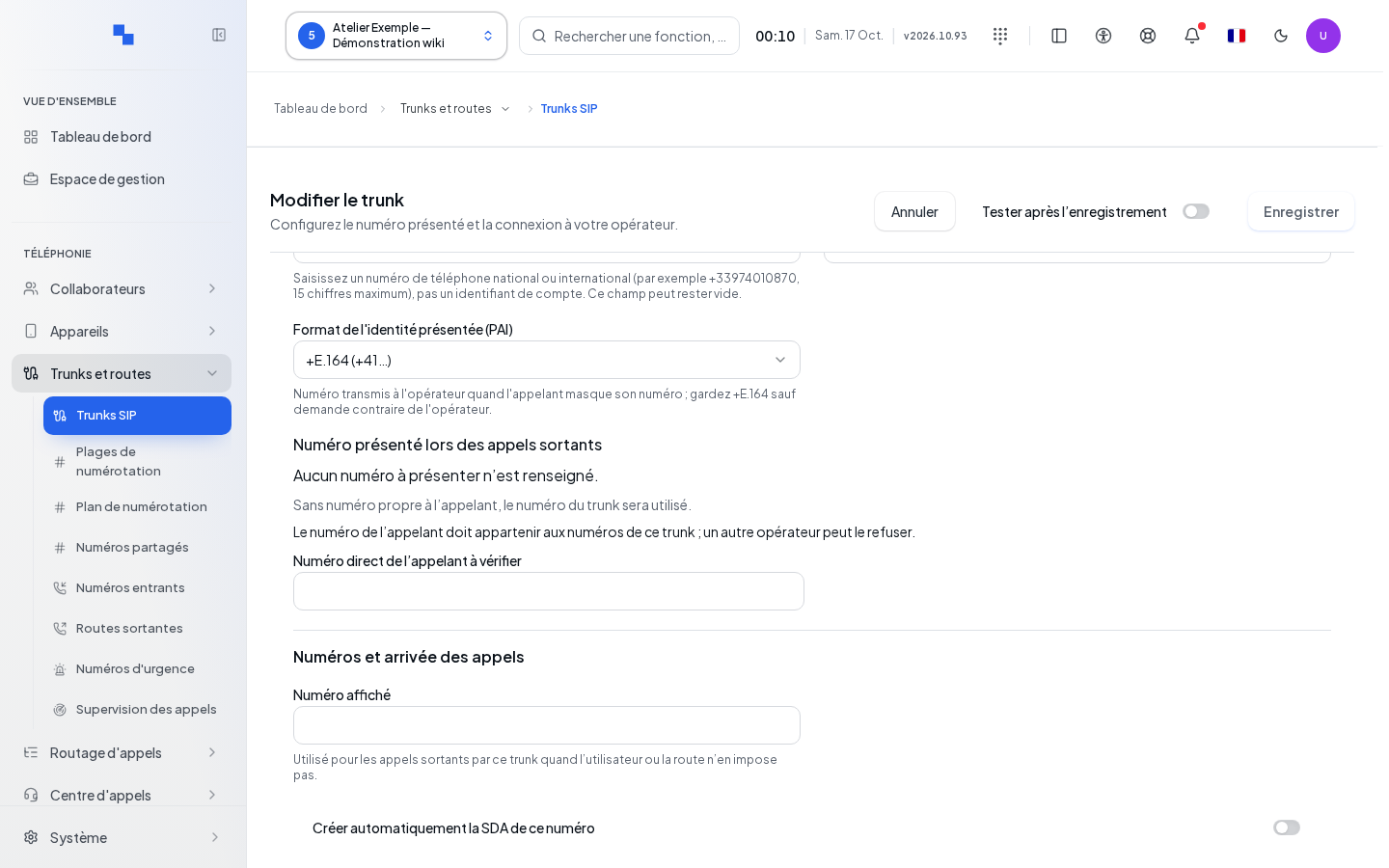
In the Outbound identity section of the record, check the Displayed number and Always present this number. These settings determine the identity requested from the carrier; they do not replace the trunk's authentication credentials.
The format of the transmitted identity and that of the called number are two different settings. The PAI format concerns the identity transmitted in signaling; it does not by itself guarantee that the called party will see this number. Use the outbound identity preview, with the caller's number and the called party's number, to check the computed transformation. This preview does not place a call and does not validate the carrier's policy.
If creation offers an automatic inbound route, fill in both the number and its destination. Without this option, then configure DID Numbers. An empty custom inbound routing keeps the automatic behavior provided by the model.
To make outbound calls, create or adapt an outbound route. In the ordered trunk selectors, choose the primary, add backups, move them with the arrows, and remove unneeded entries. The order should reflect the desired routing choice.
Saving and interpreting errors
Create disabled allows you to prepare the trunk without attempting carrier registration or automatic creation checks. Enable it afterward when ready. On an active trunk, the check can start after creation. When editing, Test after saving requests a SIP OPTIONS check after saving, without a call, and may allow testing even without field changes.
In the edit record, country and model are displayed read-only. Forced displayed number is distinct from the default number; Clear this forced number prepares its removal, to be confirmed by saving. A Previous carrier configuration retained, not applied panel does not describe the active settings: Resume in the record copies the chosen value into the draft, which must then be saved.
Existing secrets are not read back in clear text. The field indicates their presence; leaving it empty retains the secret when already configured. Enter a new value only to replace it. Showing or hiding the field relates to the current entry.
An explicit rejection of an atomic trunk-and-carrier creation indicates that nothing was saved. A lost or ambiguous response does not offer this guarantee: look for the trunk in the list before starting over. In case of error, the form retains the values for correction. Settings not applied may be flagged after saving; read these reservations and verify the actual result.
Outbound network and local address
In the record, the Network section determines the path to the carrier and the address used by this carrier connection (SIP trunk). The platform administrator prepares the cards and ranges. A client administrator only sees ranges open to their client; they cannot reserve an address from another client.
| Field | Purpose | Possible values | Example |
|---|---|---|---|
| Outbound network | Chooses the path to the carrier | Automatic based on carrier or an authorized network; choice locked when an address is already reserved | Voice network provided to the client |
| Local address | Chooses a shared or dedicated address | Network address or authorized range; reservation required if the model requires it | Carrier voice range |
- Choose Automatic based on carrier to let the system determine the output, or select the intended network.
- If a dedicated address is needed, select the desired range. Reserve an address prepares the first compatible range offered; check the choice before saving.
- Save the record: reservation of the first free address in the chosen range occurs at this point, not when clicking the button.
- Note the displayed address with To declare with the carrier and send it to the carrier according to their instructions.
- If Pending network application appears, have the plan applied and confirmed by the platform administrator. Wait for Address applied before testing.
A reserved address belongs to a single trunk. The record does not allow implicitly moving an existing reservation to another range. For a reservation on a private carrier network, the announced address is the reserved local address. For an address configured with firewall translation (NAT), also check the announced public address with the administrator.
Registration-based identification uses the identifier and password to register the trunk with the carrier. IP-based identification depends on authorized addresses and the declared local address; it may also require an identifier and password to authenticate outbound calls. Do not therefore remove credentials simply because registration is disabled.
To test, use Test connection and check the trunk check. This check sends a SIP OPTIONS verification, without placing a call. A favorable result indicates that the trunk responded to this check. The result fits in one sentence; the tested address and response time are indicated separately. "Undetermined" means the response does not allow a conclusion: rerun the check and verify the carrier's address. The probe originates from the retained local address; read the result and delay when available. A favorable result alone does not validate audio or inbound calls.
If the test indicates "Network reservation not yet applied. Apply and confirm the network plan before testing this trunk.", have the plan applied and confirmed by the platform administrator, then rerun the check.
"This network range is not open to this client.": ask the platform administrator to authorize this client in the range's Authorized clients, or choose a range already open to this client.
If "Authorized networks are unavailable." appears, have reading restored before choosing an output. If no range is offered while the model requires a reservation, ask the platform administrator to open one for this client.
Free Pro model — SIP Trunk
The Free Pro model concerns the SIP Trunk product, XPR Telephony range. It does not concern the Freebox Pro line. It is offered by the carrier catalog when it was distributed at installation; its provisional status does not constitute certification or acceptance testing with the carrier.
Prepare a dedicated internal address per trunk: this model requires a reservation in an authorized range, not merely a card's primary address. One model configures a single trunk. Create both connections, Paris then Marseille, and order them in the same outbound route for failover; this route is not created automatically.
| Field | Purpose | Possible values | Example |
|---|---|---|---|
| SBC server | Chooses the carrier's server; required | Internet: 85.31.193.194 / 85.31.193.210; private: 85.31.193.202 / 85.31.193.218, or 85.31.193.201 / 85.31.193.217 without DNS | Paris 85.31.193.194 initially offered; confirm the pair with Free Pro |
| SIP identifier | Authenticates calls; required | Identifier provided by Free Pro | Trunk identifier |
| SIP password | Authentication secret; required | Secret provided by Free Pro | Do not share in screenshots |
| Registration | Registers the trunk if needed | Disabled by default, optional; 120-second expiration if enabled | Disabled per model |
| SIP transport | Carries signaling | UDP by default or TCP; port 5060 | UDP |
The model requires G.711 A-law, with 20 ms audio packets. The presented number is sent in national format: trunk head number or authorized direct inward dial (DID) number. For a hidden call, the model retains the real number in signaling and requests masking with the privacy indicator; do not replace this number yourself with anonymous text.
Test each trunk, then inbound calls, outbound calls, the presented number, masking, and failover. Verify two-way audio on the link actually provided by the carrier.
Understanding shared trunks
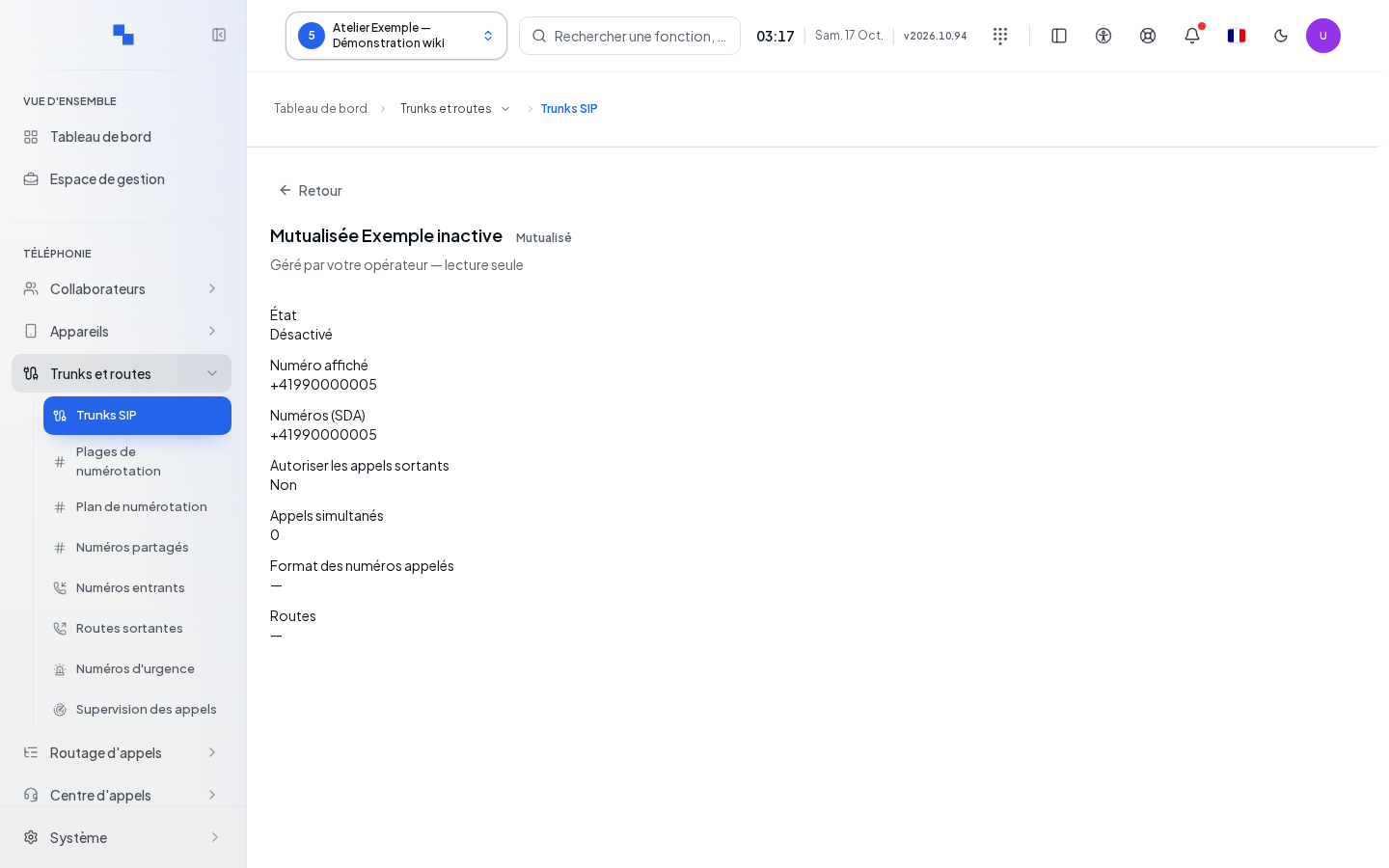
A trunk marked Shared may be provided to the client by the installation. Its read-only record displays the authorized information, including the simultaneous calls cap, then Close returns to the list. Its full configuration must be managed at the installation level by an authorized account.
In this management, Assigned clients opens the trunk's assignments to clients. The displayed number is set in each client's assignment or outbound routes. Simultaneous calls accepts a positive number or zero for unlimited. Check this scope before modifying a shared trunk.
Using the connection check
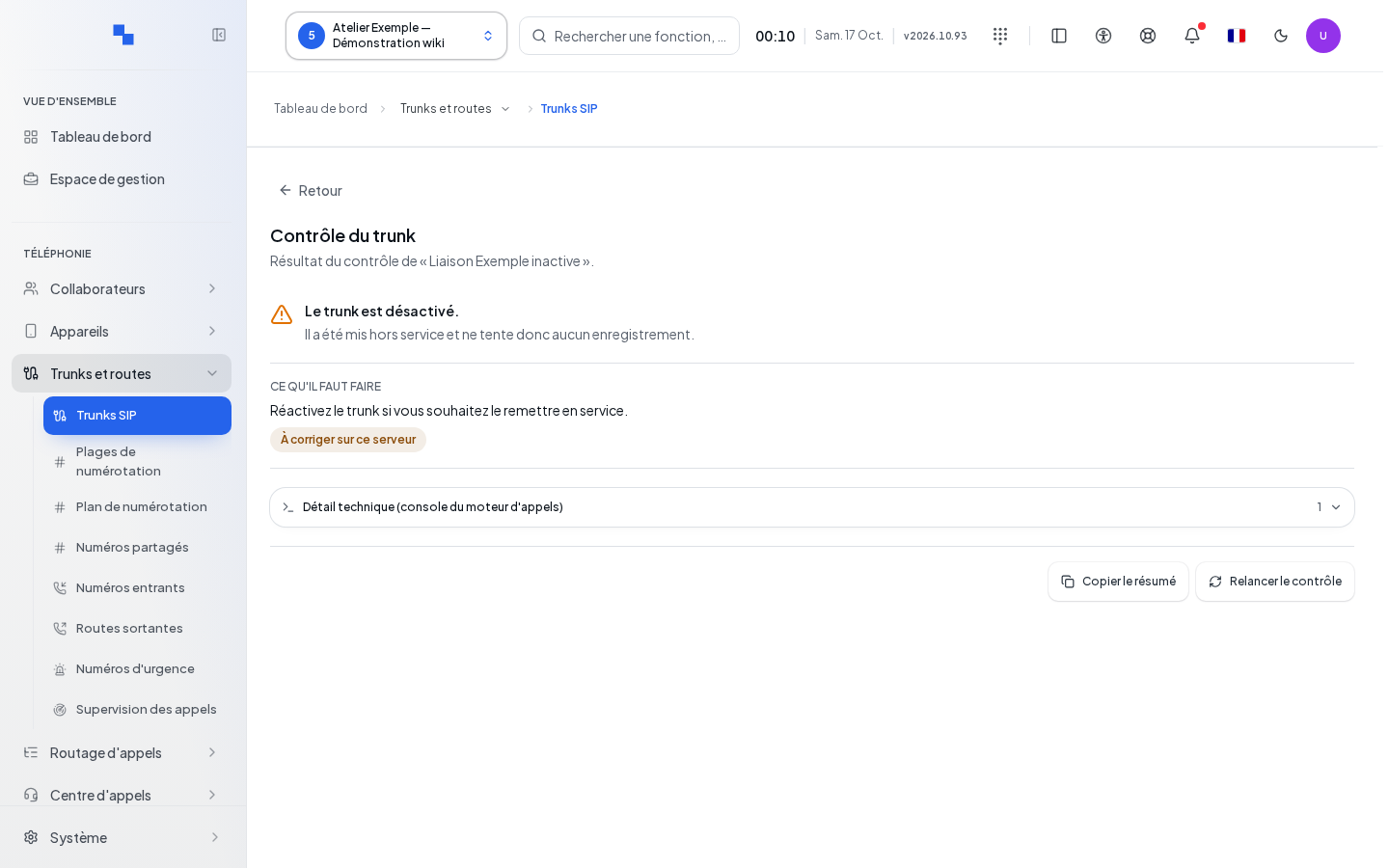
Test connection opens Trunk check. Wait for Check in progress… to finish. The result gives a verdict, recommended actions, and the party who should intervene. Review the SIP code, retries, and the last attempt when present.
Technical detail (call engine console) displays elements useful for support. Copy summary copies the result; Summary copied confirms the copy. Use Rerun check after fixing the problem or waiting for the relevant delay. "The check could not complete. Try again shortly." should not be read as a success.
After a favorable check, make an inbound call then an outbound one. Verify ringing, two-way audio, and the presented number. Test failover routes separately if you have planned any.
Connecting two PBX systems with a link code
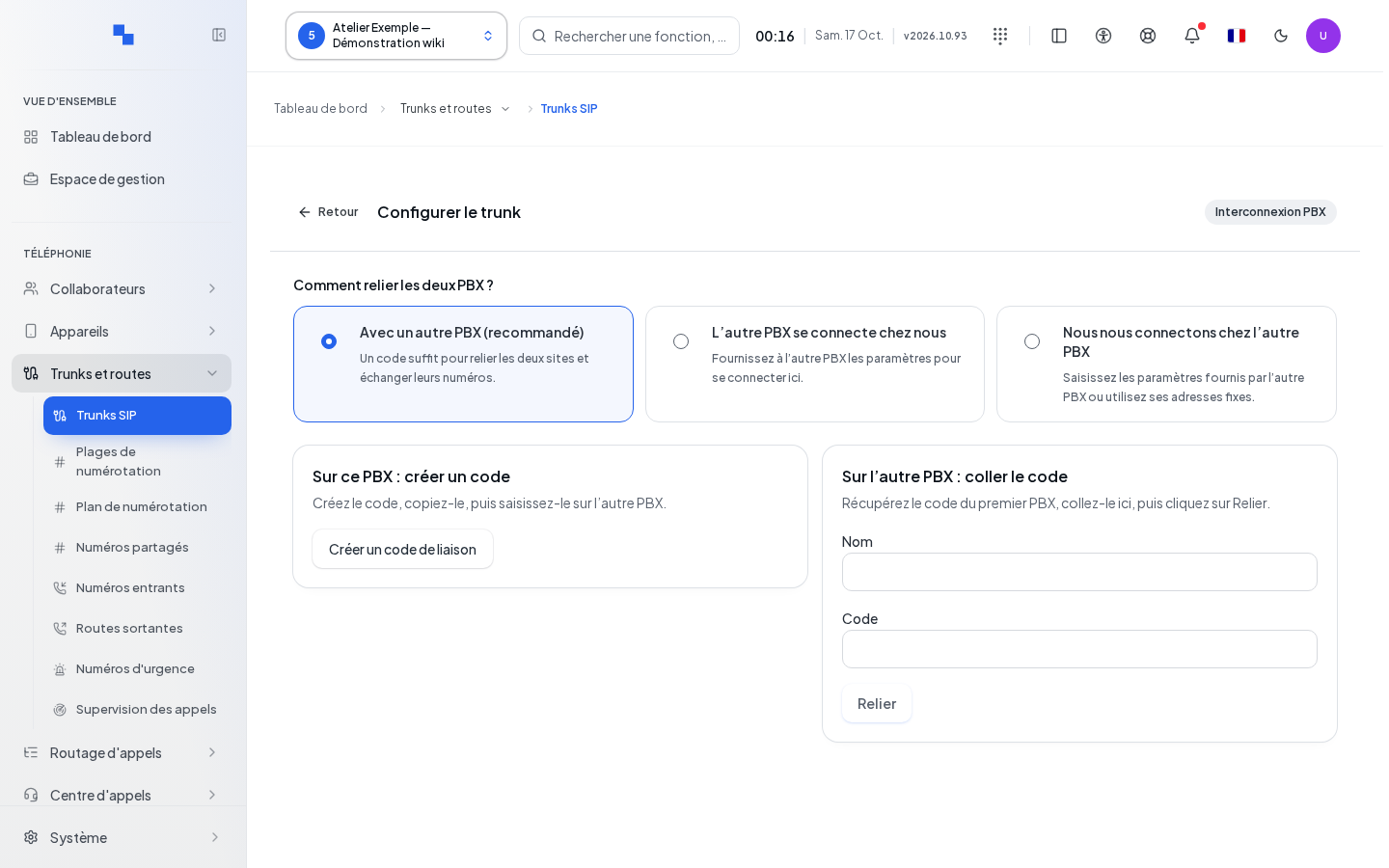
The With another PBX (recommended) mode guides the connection between two compatible installations. On the first side, use Create link code, then copy the code. Check its expiration date and send it to the person responsible for the other PBX through the intended channel.
On the other side, fill in Name and Code, then Link. Wait for the result and check both sides. Revoke invalidates a still-available code; an expired or revoked code must be replaced. Creating a code alone does not establish the link.
Configuring a manual trunk
Choose the registration direction: receive registration from the other PBX or register toward it. The outbound trunk can also use a fixed IP without registration, depending on the mode offered.
| Field | Purpose | Possible values | Example |
|---|---|---|---|
| Name | Identifies the other PBX | Required text | Secondary site |
| SIP server / SIP domain | Address of the correspondent or expected domain | Address provided for the chosen mode | Remote site domain |
| Port | Connection port | 1 to 65,535 | 5061 with TLS if planned |
| Transport | Signaling transport | UDP, TCP, or TLS | TLS depending on remote configuration |
| Identifier | Trunk account | Generated on receiving side or provided for sending side | Displayed or provided value |
| Password | Secret shared with the other side | Trunk secret | Value received at creation |
| Authorized addresses | Limits accepted sources | List of addresses accepted by the form | Public address of the remote site |
| Remote numbers | Describes accessible numbers | Numbers or patterns separated by commas | 6XXX |
| Prefix | Local prefix to reach the other site | Value chosen for the trunk | 8: dial 86101 to reach 6101 |
| Allow remote external calls | Allows the remote site to use the authorized outputs | Yes or no | No if only calls between sites are intended |
PBX type: choose Third-party PABX for an older PBX from another brand connected via IP, and the type bearing your platform's name for another PBX in the same product line. For a third-party PABX, the internal addresses of the PBX are never transmitted to it.
Network: in Automatic mode, the PBX chooses the network card through which the correspondent is reachable (directly connected network or route in the applied network plan) and uses its primary address on this card, without needing to create an address range. Choose a specific card to force it. If the correspondent is not reachable through any authorized card, the call is rejected instead of going out via the public address. The record displays the SIP address to configure on the PABX: the PBX's address on the voice network (e.g., 10.30.0.5) when the PABX is on the client's network, or just the public name for a correspondent reached via the Internet. A private card (a client's voice network, carrier network) is usable by a client only if the platform administrator has opened it to them ("Authorized clients" on the card, in System › Network) or opened an address range on this card for them. Otherwise, the choice is rejected with the cause: card not open to this client, card absent from the applied network plan, or unknown card. A call to this correspondent is then rejected before any ringing: the caller receives a clear rejection (unavailable) instead of hearing ringing. In the other direction, a call sent by the PABX on a card not open to the client is rejected the same way; the trunk log indicates the cause.
A transport change can adjust the proposed port; check the final value with the other side. Authorizing external calls can involve your client's lines and billing: enable it only for the intended use.
The initial secret may only be shown once: copy it to configure the other side. Generate new password requires confirmation, invalidates the old one, and requires updating the remote PBX. Copying settings for the proposed PBX types helps retrieve the correct values; it does not automatically configure the remote system.
Check the last registration, address, latency, last exchange, and number of remote numbers. In case of a number or source conflict, open the detail, identify the competing resources, and fix them before testing.
Disabling or deleting
Disabling keeps the configuration but can interrupt new calls that use the trunk. Check the routes referencing it before applying this. To restore service, enable and rerun the check.
To delete, choose the command from other actions and review the confirmation. Resolve flagged dependencies, including outbound routes and DID numbers, before retrying after a rejection. After success, check the list and test the reassigned call paths.
If the trunk uses an address reserved in a network range, deletion frees this reservation. The address remains set on the server until the next network plan application by the platform administrator, then it is removed. During an ongoing network change (application, pending confirmation, or rollback to resume), deletion is rejected: wait for the change to finish, then try again.