
Preparing a conference call
A conference brings together multiple calls in a conference room. Select the client, then open Conferences in call services. Prepare a name, a free internal number or automatic assignment, and access codes if the room should require them. Modification commands require write permissions on conferences.
The list allows you to search and sort rooms. The filters distinguish notably between rooms with or without a code. A value not provided by the server remains unknown; it is not treated as a disabled checkbox.
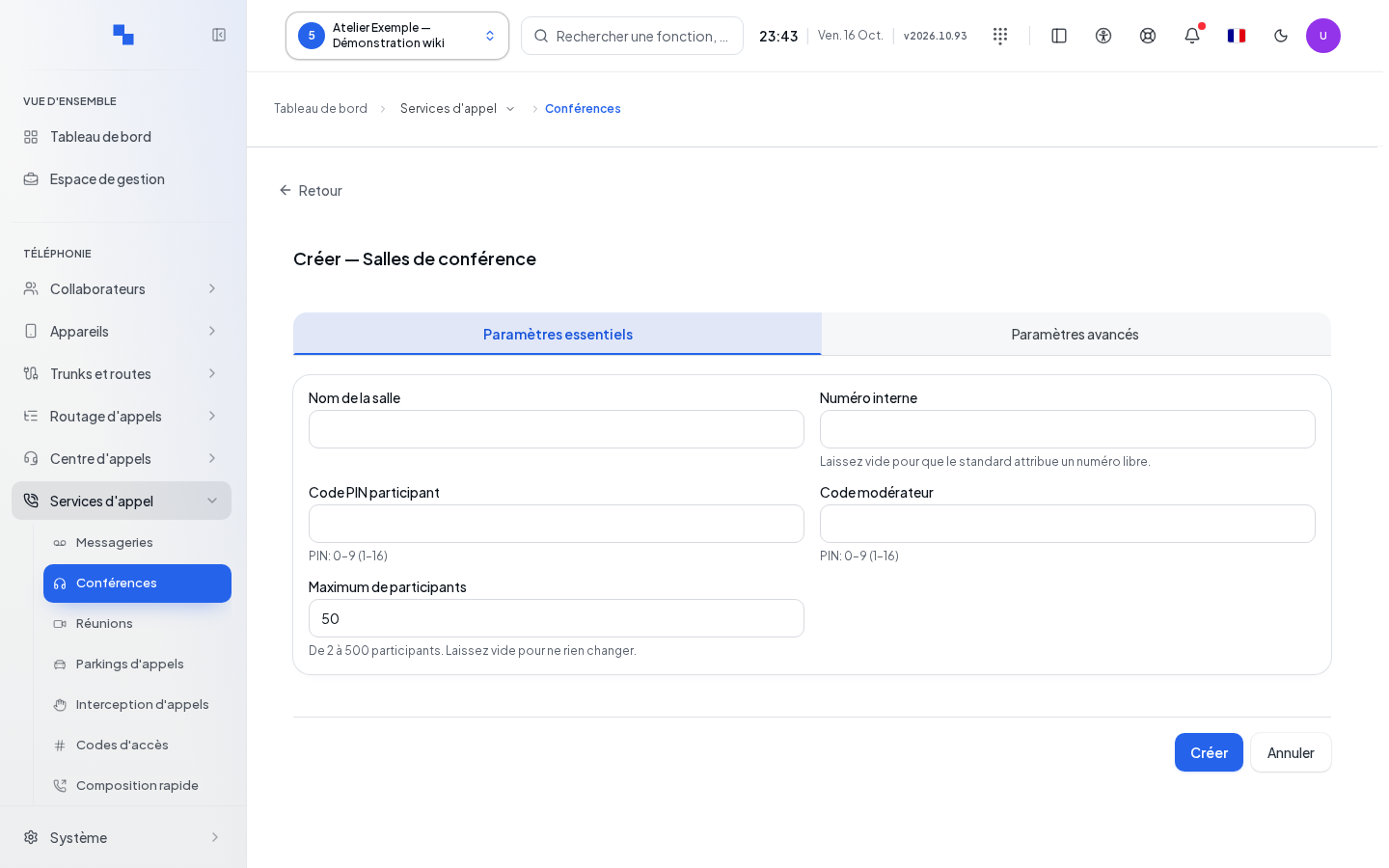
Creating or modifying a room
Open the creation panel or click Modify on the room. In Essential Settings, fill in the fields, then save. Cancel closes the input form; a prompt to handle the draft may appear if you have modified values.
| Field | Purpose | Possible values | Example |
|---|---|---|---|
| Name | Identifies the room; required | Non-empty text | Team meeting |
| Extension | Number to dial | Empty at creation for automatic assignment; required on an existing room | 6100 if available |
| PIN code | Protects participant entry; optional | 1 to 16 digits | Choose a private code |
| Moderator code | Grants moderator access; optional | 1 to 16 digits | A separate code kept secure |
| Maximum number of participants | Room capacity | From 2 to 500; 50 at creation | 12 |
Existing codes are not revealed. When editing, leaving a secret field empty keeps the code unchanged. Use the corresponding clear checkbox to erase it; entering a new value replaces it.
In Advanced Settings, configure the hold music, recording, entry and exit announcements, the announcement when a participant is alone, and the participant count announcement. These options are initially disabled at creation. The main recording takes these settings into account. Wait for the settings of an existing room to load before modifying them.
Monitoring an active room
In the advanced settings of an existing room, the participant list is refreshed every five seconds. Available names and numbers identify participants; indicators distinguish moderator status and muted microphone.
The controls allow you to lock or unlock the room, start or stop its recording, and mute, unmute, or remove a participant. They act on the ongoing conference. Room actions are disabled if the room is empty, during a request, or in case of a loading error. Verify the person before removing them.
Deleting and verifying
Deleting a room opens a confirmation panel. Confirm only the correct room; cancel to keep it. After creation, note the assigned number if you left the extension field empty. Have two test devices join the room and verify the chosen codes and announcements.
If it doesn't work
Wait for the settings to load and for permissions to be verified. Retry resumes a failed load. A code must contain only digits; capacity must remain between 2 and 500. If recording fails, correct the field named in the message. A number already in use should be checked in the Dial Plan.