
Choose the template and its language
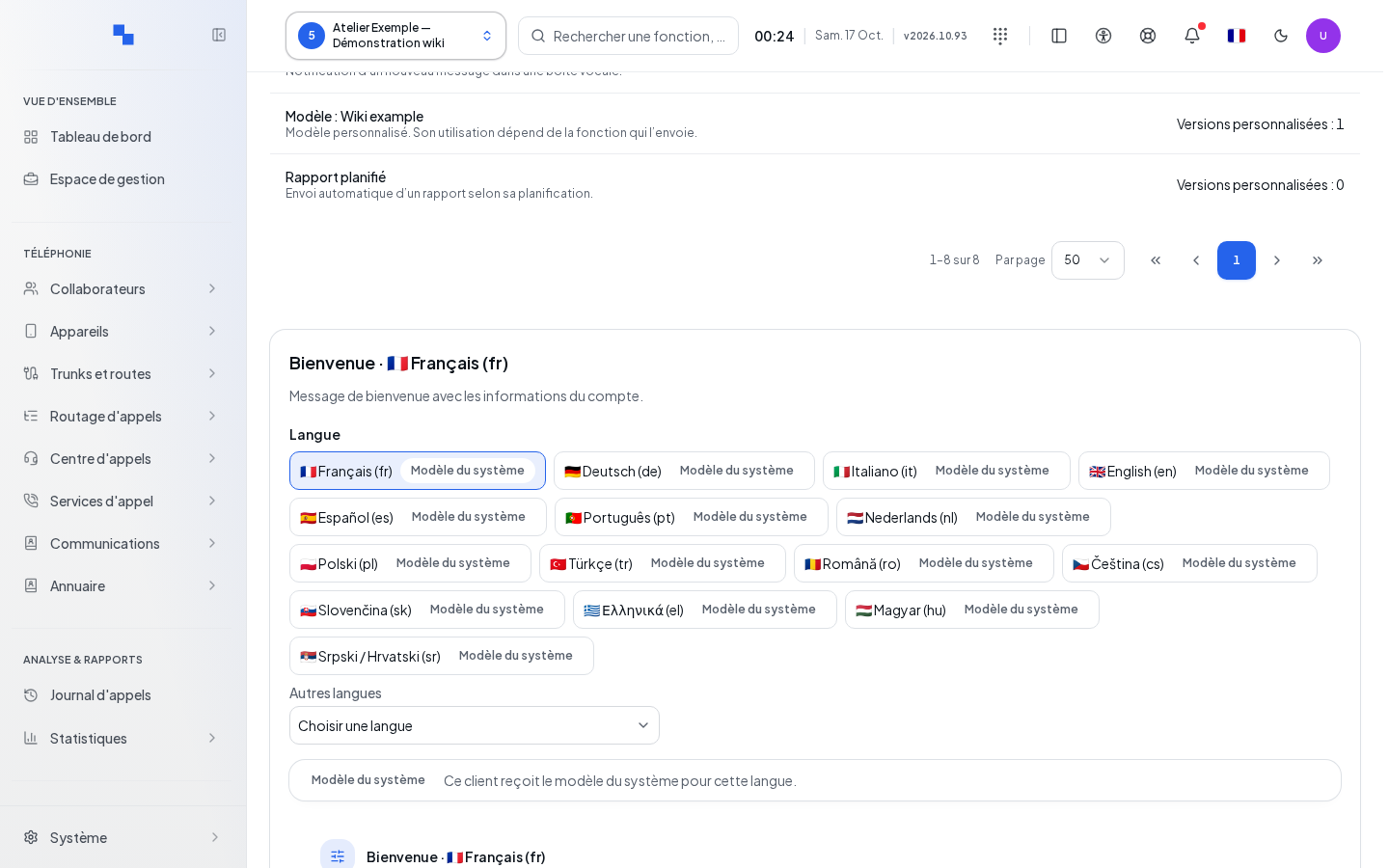
Open Email Templates for the selected customer. The screen displays the notification templates, with a separate version per language. Choose a template: Voicemail, Welcome, Meeting invitation, Scheduled report, or Fax to email, depending on the available catalog. A custom template is only sent by the feature that uses it.
Search for the template, use the language filters, then select the language to edit. Other languages lets you choose a different one. The Version missing status means that saving will create this version without modifying the others. The System template status indicates inherited content.
Allow customization
Enable Customize emails for this customer to edit its own templates. When disabled, this option causes the system templates to be used. Write permissions are required; if the command is unavailable, ask the authorized administrator to check your role.
The Installation Email Templates screen, reserved for the corresponding administration, applies to all customers who do not customize their emails. Check the title and scope before editing any text. Selecting a customer and selecting a global template are not interchangeable.
Write and save
- Check the template and language in the editor title.
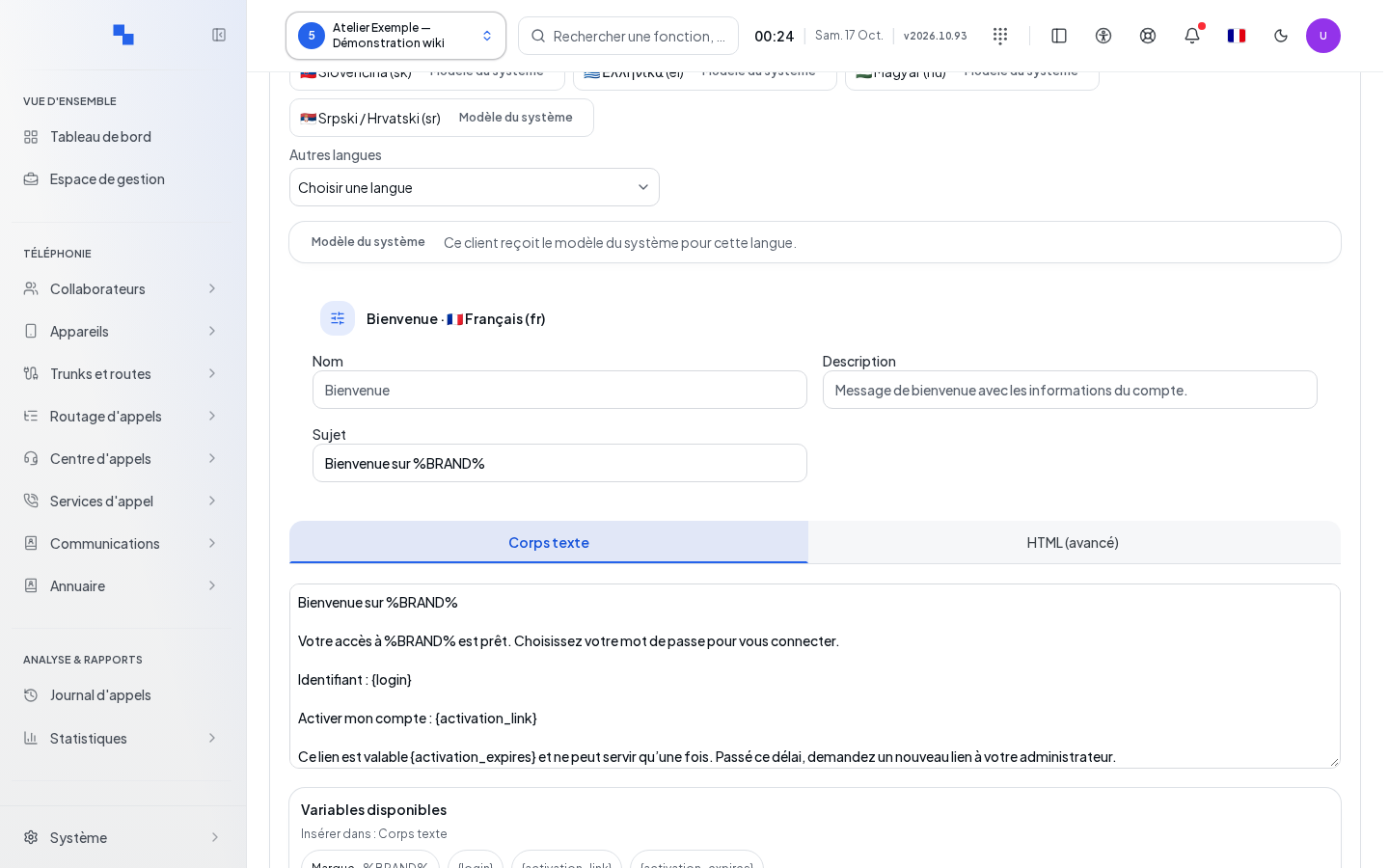
- Edit Subject and Text body.
- Place the cursor in the desired field, then click an Available variable to insert it. The Insert into indicator confirms the target field.
- If needed, open HTML (advanced) and adapt the HTML body. Also keep a usable text version.
- Save and check that the status no longer shows pending changes.
| Field | What it's for | Possible values | Example |
|---|---|---|---|
| Name | Identifies the template in the catalog | Identifier provided by the template | Voicemail template |
| Description | Explains its use | Presentation text | New message notification |
| Subject | Subject of the received message | Text and recognized template variables | New voicemail message |
| Text body | Readable version without HTML formatting | Text and available variables | A sentence announcing the caller and duration |
| HTML body | Formatted version | HTML code and recognized variables | A simple layout with paragraphs |
Use the variables offered for the chosen template: the list varies depending on the event. An unknown variable may remain unreplaced. Editing a text does not change either the notification trigger or its recipient.
Check the preview
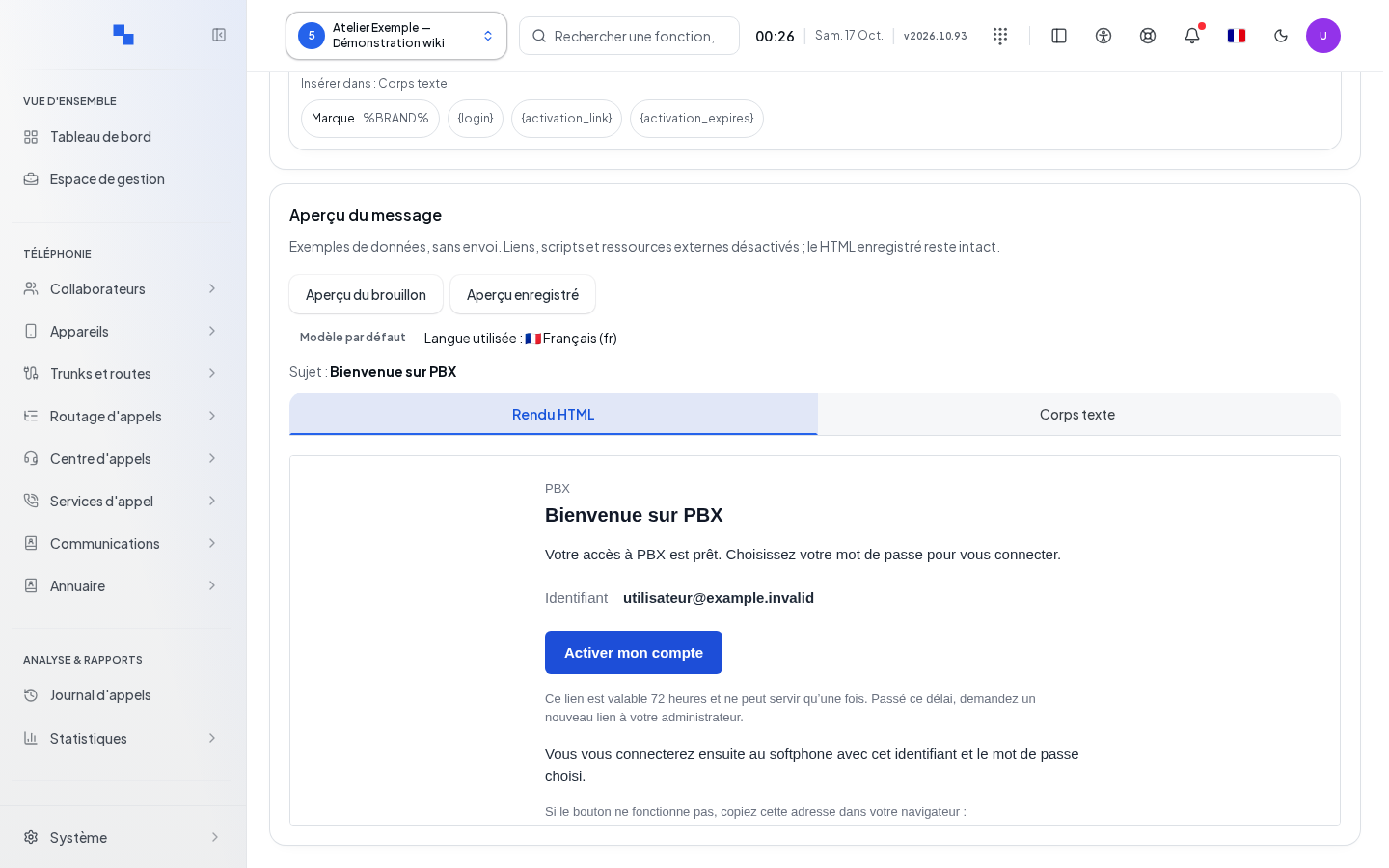
Open Draft preview to check the current input, or Saved preview to check the saved version. The dialog shows its source and the Language used. If the requested language does not exist, the preview may indicate a different language used: correct the missing version if needed.
Review the subject, the text, and the HTML rendering. The data are examples; no email is sent. Links, scripts, and external resources are disabled in the preview without modifying the saved HTML. "The draft has changed. Refresh the preview." asks you to rerun the preview after a correction. Check Unreplaced variables and replace unrecognized names with those from the catalog.
Use the template for voice messages
The saved voice template is used for notifications in this language. If you apply different content using Use for voice notifications, save it first. The command is blocked as long as the draft differs from the saved content.
Review Replace the voice template?, the language, and the scope, then confirm. The result shows the number of mailboxes affected. To verify actual delivery, leave a message in a correctly configured mailbox and check the email received. The preview alone does not perform this test.
Discard or restore
Cancel changes removes the draft. When changing templates or languages, Discard changes? protects unsaved input: Discard loses it; returning to the form allows you to save it.
Revert to system template removes the customer-specific version for the specified template and language. Confirm only after reviewing these two pieces of information. The result "The system template is used again." confirms the return to inheritance.
In the installation editor, Restore original template replaces the global customization with the template delivered with the product. The confirmation targets the template and its language; it may affect customers who inherit from the system. After a restoration, reopen the saved preview to check the actually retained content.