
Administering an Operator Switchboard
The switchboard groups operators and calls that are waiting or placed on shared hold. Select the client, then open Operator Switchboards. Viewing requires read permission; creation, assignments, and deletions require write permission.
Search for a name, filter switchboards with or without an overflow destination, and sort by name or delay. The list is paginated by fifty items. An empty result may be due to the filter: clear it before creating a duplicate.
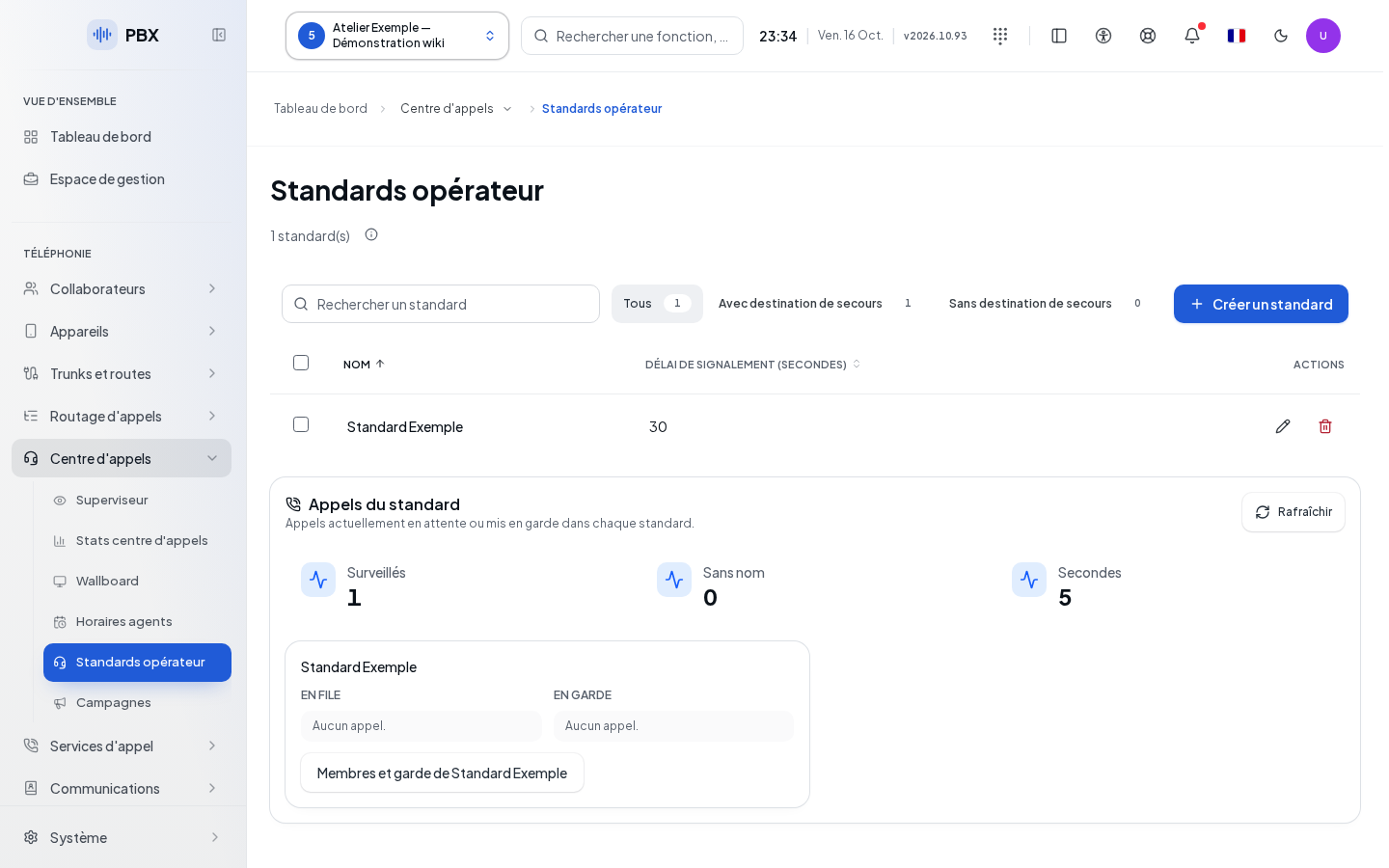
Create or Edit
- Click Create a switchboard, or open the name of a row.
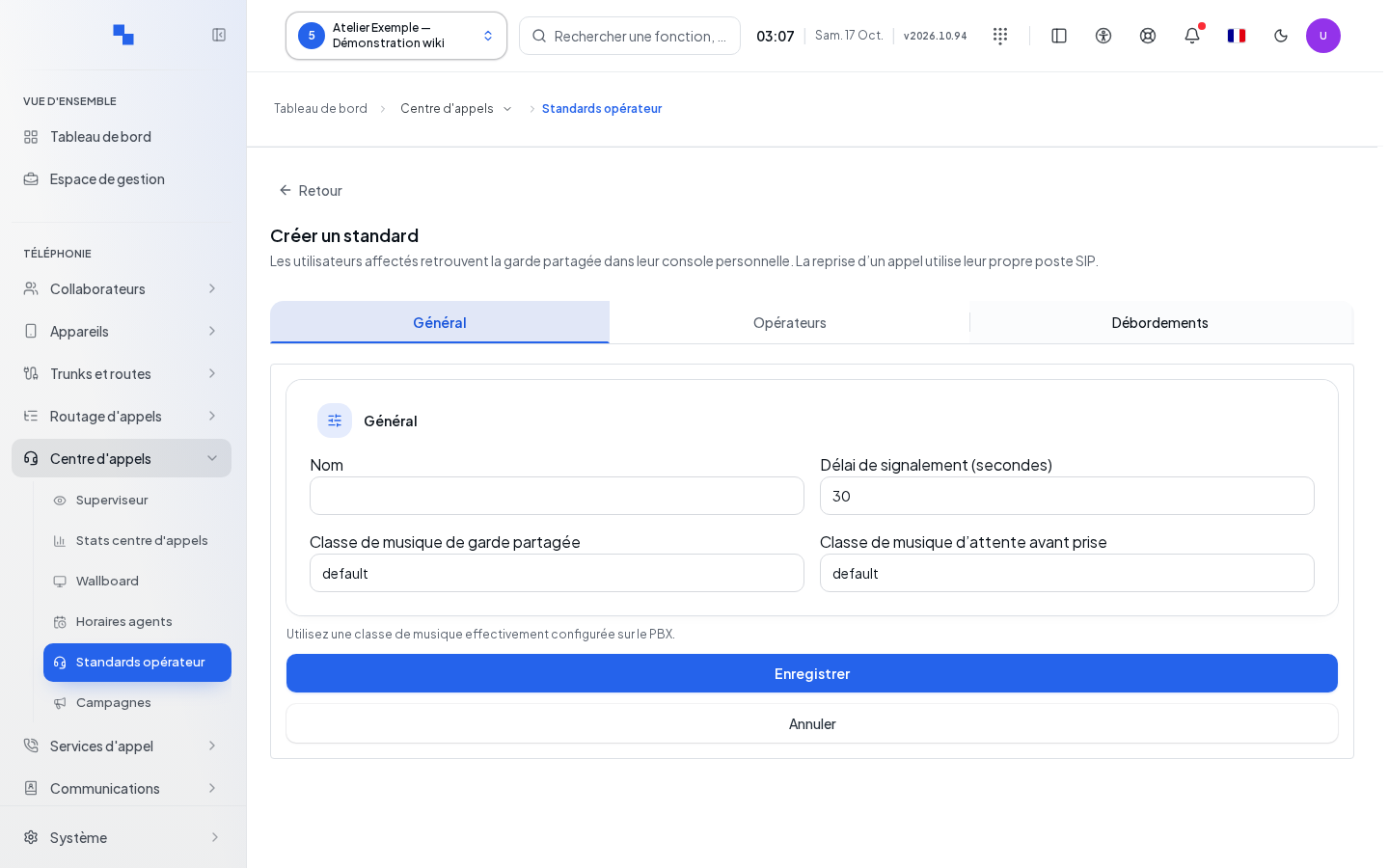
- In General, fill in the fields below.
- In Overflows, choose the destination in case of no answer.
- Click Save. The record closes upon success. Cancel discards the changes.
| Field | Purpose | Possible values | Example |
|---|---|---|---|
| Name | Identify the switchboard; required | Up to 200 characters | Main reception |
| Reporting delay (seconds) | Set the delay; required | 5 to 3,600 seconds, initially 30 | 30 |
| Shared hold music class | Music for calls placed on hold; required | 1 to 80 letters, digits, hyphens, or underscores; initially default | default |
| Waiting music class before pickup | Music before the call is answered; required | Same format; initially default | default |
| No-answer destination | Choose the overflow | Destination from the catalog: user, extension, group, queue, voice menu, conference, voicemail, switchboard, voice agent, exit, or hang-up | Backup queue |
An extension is also called an internal number. Music class names must match available classes. From Overflows, Save also validates the General fields and returns to them if one is invalid.
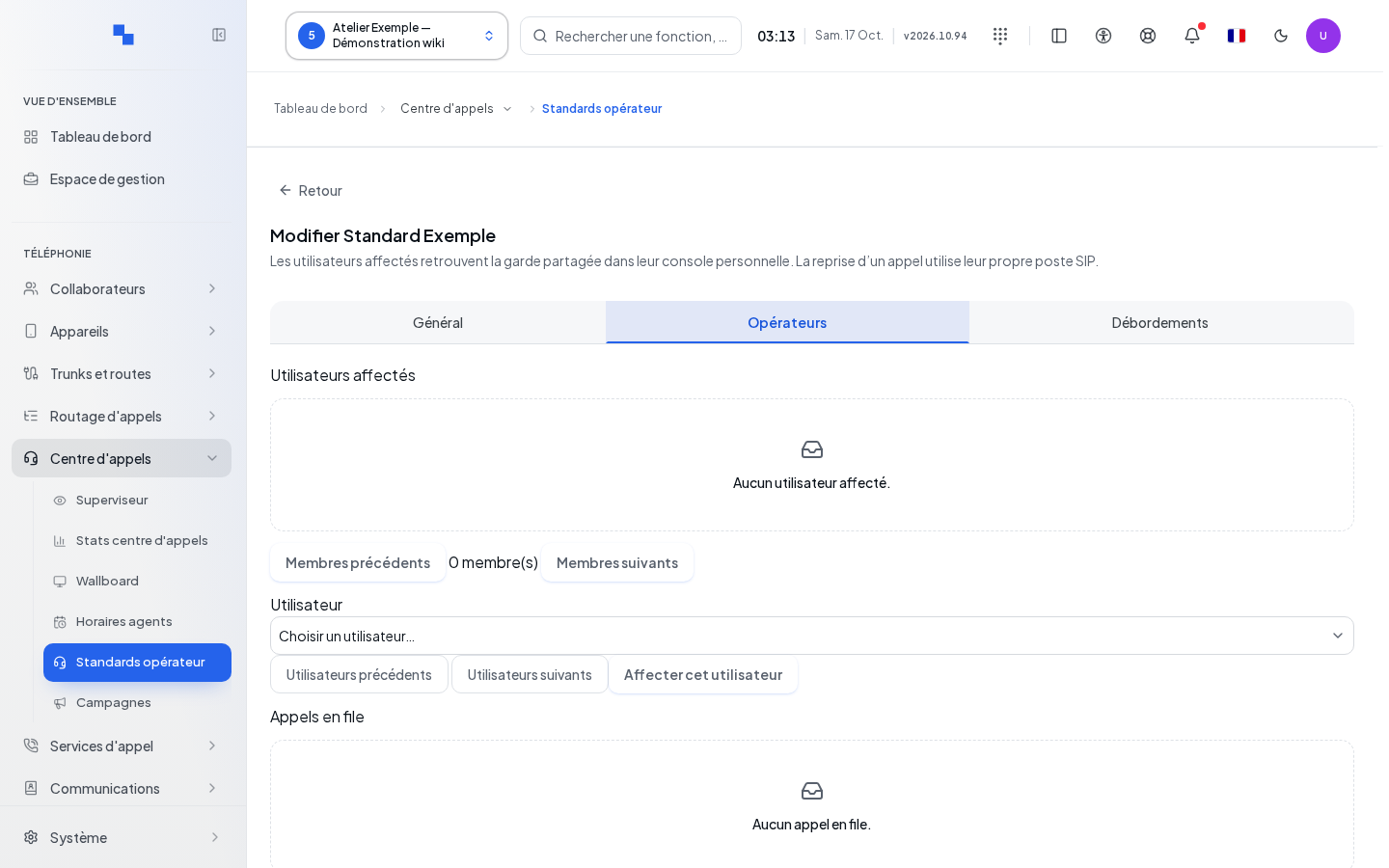
Assigning Operators
The Operators tab is unavailable before the first save.
- Choose a User. Search and Previous users / Next users browse the catalog.
- If you cannot read this catalog, enter the UUID identifier provided by your administrator in the substitute field.
- Click Assign this user. The selection clears upon success.
- View members with Previous members and Next members.
- To remove a member, click Remove, then Confirm removal, or Cancel.
Assignment remains disabled if no user is chosen, during the operation, or if reading members has failed. A removal concerns membership in the switchboard.
Viewing Waiting and On-Hold Calls
The live panel shows the switchboards on the current page. Refresh reloads the list. Members and hold opens the switchboard details, with waiting calls, their age, and an indication of an exceeded delay. Refresh hold reloads calls placed on hold.
Answer opens the Switchboard calls console. The button requires a registered browser phone and a session belonging to the same client as the switchboard. Opening the console alone is not proof that the call has been answered: continue in the console controls.
Deleting, Checking, and Troubleshooting
Delete opens a confirmation; Confirm deletion deletes the chosen switchboard, Cancel keeps it. Multiple selection also offers deletion to authorized persons. A write error remains displayed and must not be interpreted as a success.
After saving, reopen the switchboard to check its values and members. A read error for calls or members is distinct from an empty list. Use the displayed retry option and check the selected client. For an unavailable Answer button, check the phone registration and the client of your session.