
Manage support mailbox accounts
Select the client and open Support Email. This page links mailboxes to tickets. Reading requires support access; writing allows adding, testing, fetching, and deleting.
The list refreshes every thirty seconds and displays the address, server or method, status, and last fetch diagnostic. Search by name or address; filter active or inactive accounts. Lists exceeding fifty accounts include pagination.
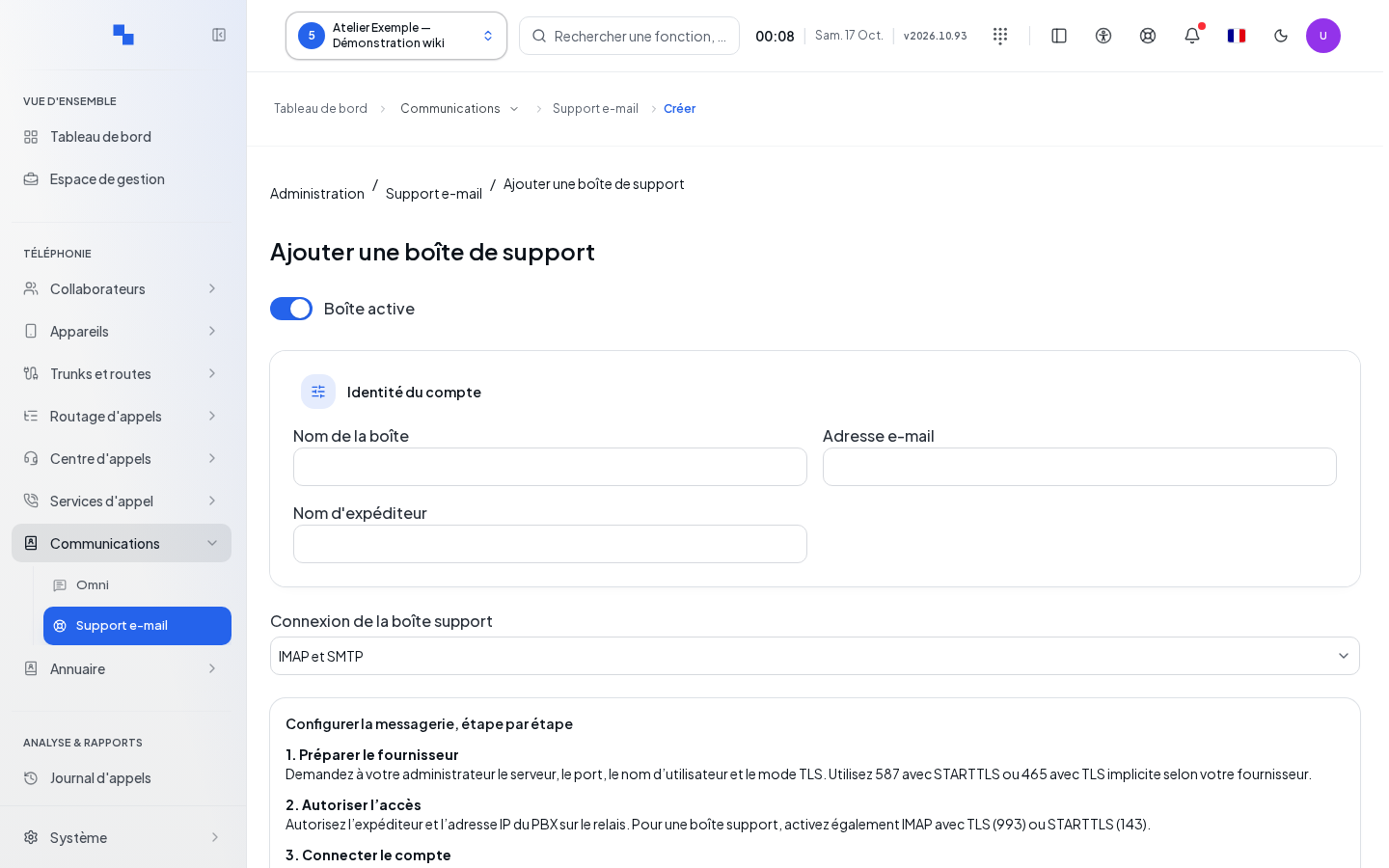
Enter identity and method
- Use the add command, or Edit on an existing account.
- Enter the identity and choose the mail method.
- Fill in the corresponding connection and ticket settings.
- Click Save. On success, you return to the list. The cancel command returns without saving.
| Field | Purpose | Possible values | Example |
|---|---|---|---|
| Name | Identify the account; required | Maximum 160 characters | Sales Support |
| Email address | Account address; required | Valid address, maximum 320 characters | support@example.test |
| Sender name | Name visible on replies; optional | Maximum 160 characters | Support Team |
| Active account | Include the account in fetching | Enabled by default | Enabled after verification |
| Method | Choose the connection | IMAP, Microsoft Graph, Gmail with service account or delegation | IMAP |
| Default priority | Priority of created tickets | Suggested values; normal by default | Normal |
| Signature | Text associated with replies | Text | Support Team |
The address can pre-fill the IMAP user as long as it is empty or matches the previous address. Saved secrets are not displayed again.
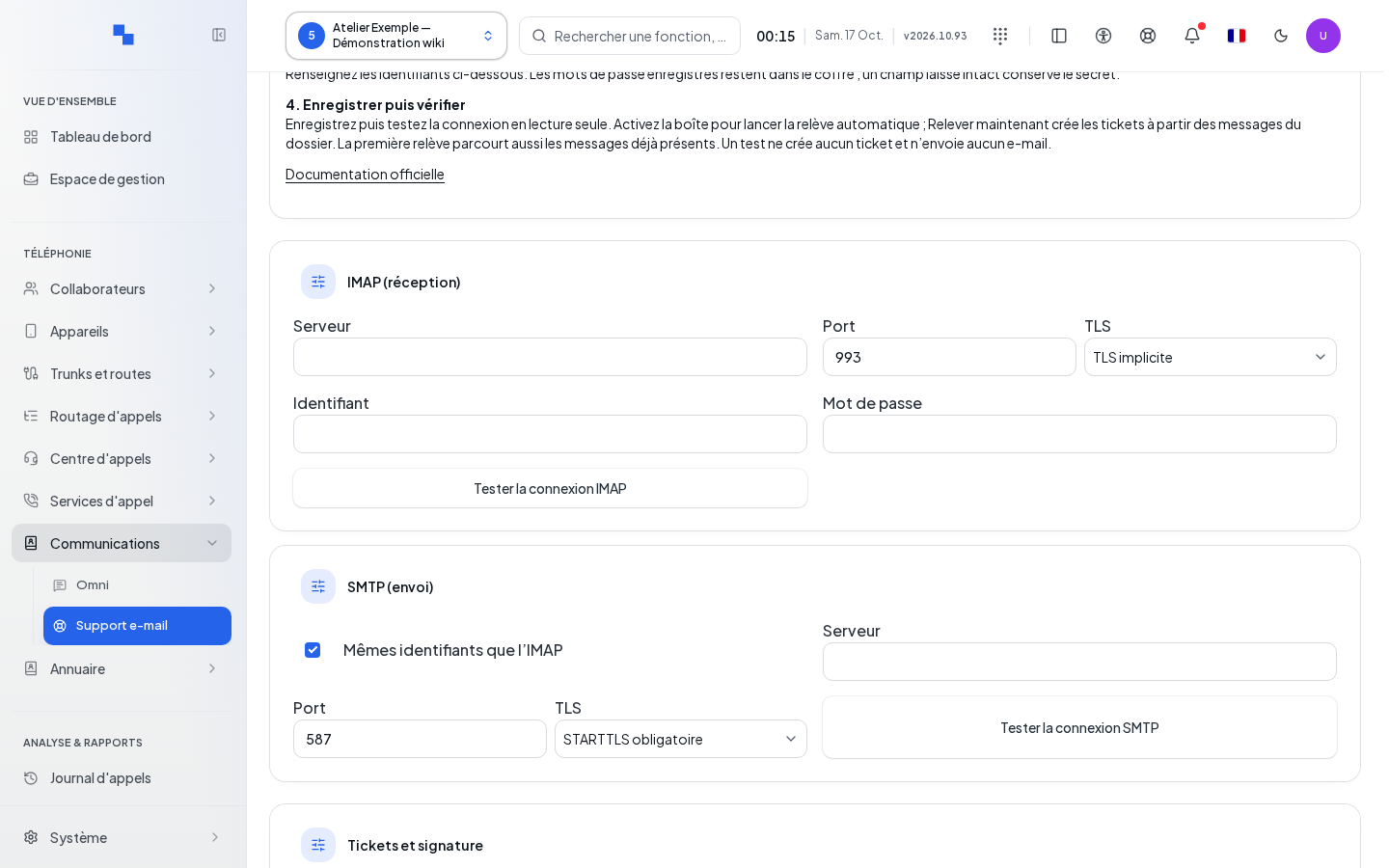
Configure IMAP and SMTP
IMAP reads incoming messages. SMTP is used for sending. Prepare the exact settings with the mail administrator.
| Field | Purpose | Possible values | Example |
|---|---|---|---|
| Server | Receiving or sending host; required | Up to 253 characters | mail.example.test |
| Port | Port for each protocol; required | 1 to 65,535 | IMAP 993; SMTP 587 |
| TLS | Secure the connection | Implicit TLS or mandatory STARTTLS | IMAP with implicit TLS |
| User | Login account | Provider identifier | support@example.test |
| Password | Authenticate the connection | Entered secret, or existing value retained | Application secret |
| Same authentication | Reuse IMAP credentials for SMTP | Enabled on creation | Enabled if accounts are identical |
| Folder | Fetched folder | ASCII or modified UTF-7 name provided by the server; INBOX by default | INBOX |
Changing TLS automatically adjusts the port unless you have manually set it: IMAP 993 or 143, SMTP 465 or 587. Clear the saved secret explicitly requests its removal; simply leaving a field blank retains the existing secret.
Test the IMAP and SMTP connections separately using the commands on the form. The IMAP test may suggest readable folders. These tests are read-only and do not send any email. During a test, the fields and save action are unavailable.
For Microsoft Graph or Gmail, the connection guide appears with fields specific to the method.
| Field | Purpose | Possible values | Example |
|---|---|---|---|
| OAuth application ID | Identify the application; required for Graph and delegated Gmail | Provider identifier | Your organization's application |
| Microsoft tenant ID | Designate the organization; required for Graph | Microsoft identifier | Your organization's tenant |
| Application secret value | Authenticate Graph or delegated Gmail | Application secret | Secret kept in your manager |
| PEM certificate and private key (alternative to secret) | Authenticate Graph by certificate | PEM text, maximum 65,536 characters | Certificate and key provided by the administrator |
| Service account JSON key | Authenticate Gmail with a service account | JSON, maximum 65,536 characters | Authorized account key |
| Refresh token | Renew delegated Gmail authorization | Provider token | Authorized account token |
Leave secret fields unchanged to keep their value. Clear this saved secret explicitly prepares the deletion of the relevant secret. If you start replacing a secret then clear its input, the field has been modified: check its clear state before saving.
Save before the cloud test: it uses the saved account and remains unavailable if the configuration, a secret, the address, or the relevant folder has changed. It verifies the connection in read-only mode without sending any email.
Fetch messages and review the result
Active accounts are processed by an automatic fetch scheduled every thirty seconds. Fetch now triggers an additional fetch. The button requires an active account and the necessary secret; it is unavailable during a mutation.
Review the counts of imported messages, duplicates, and rejected messages, as well as the indication of messages remaining to process. Fetching does not modify the original messages and does not send any email. Check the rejection reasons and the next displayed retry.
Accepted messages must comply with the displayed limits: up to 12 MiB, a UTF-8 or ASCII text part, at most ten attachments, and 8 MiB cumulative attachment size. HTML-only, encrypted, signed messages, or those in other encodings remain to be reviewed in the original mailbox. Replies are prepared in tickets in the personal console and then passed to the sending service.
Delete and resolve an error
Delete opens Delete this account?. Review the name and confirm only the intended account. Accounts referenced by tickets are retained by the server. An error remains displayed and the list is refreshed to reflect the actual state.
A record not found may result from a removed account or an incorrect record address. Return to the list using its link. If a test fails, correct the cited parameter and try again; a successful test does not prove that a reply has been sent. Check the fetch diagnostics and the SMTP Logs with an installation administrator to track sending.