
Preparing a CRM Integration
The CRM is the customer relationship management application. Select the client and open CRM. Prepare your provider's access credentials. The page distinguishes between native connectors and the Custom Connection, which uses a relay. Read, write, and log consultation permissions are independent.
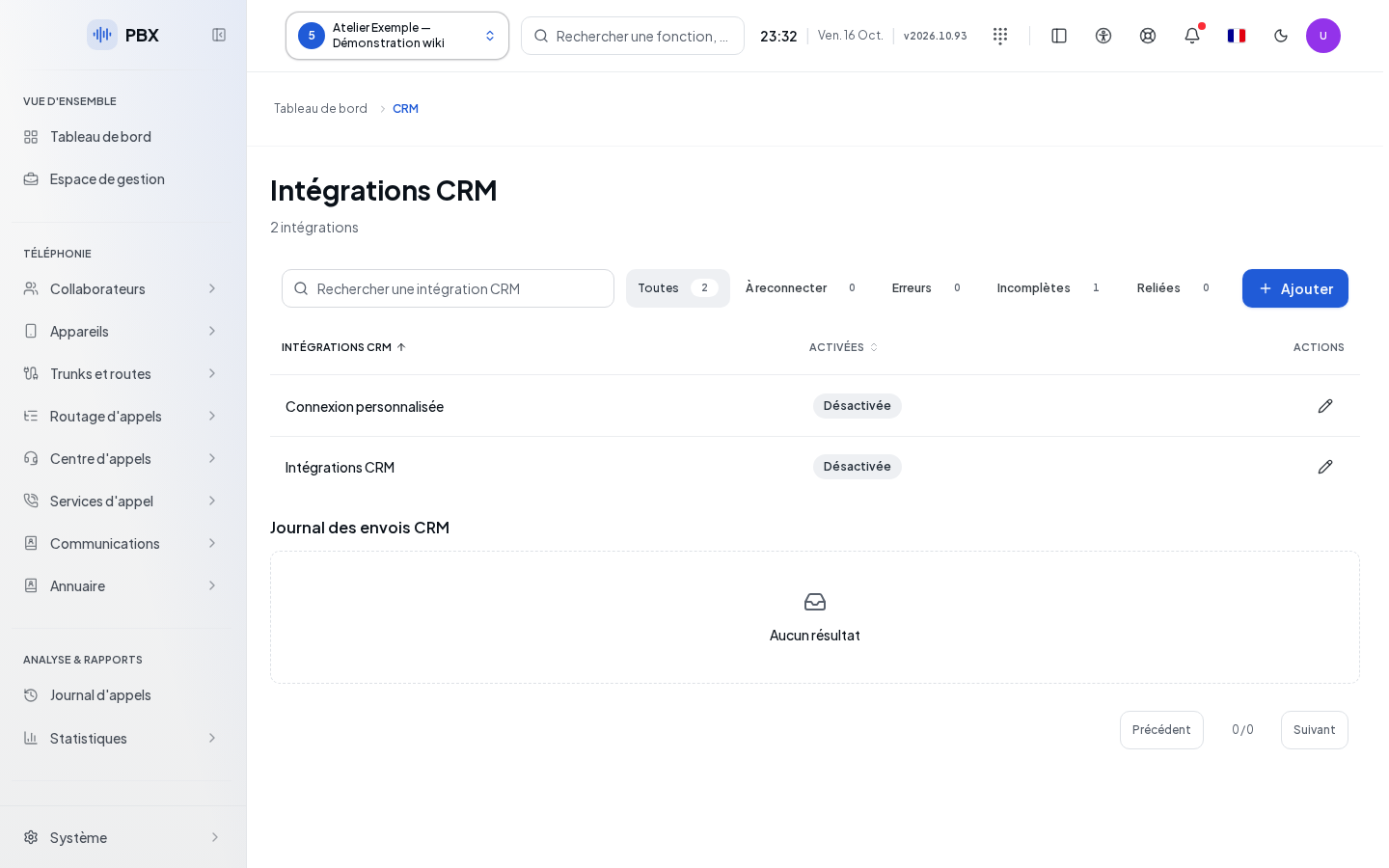
Search for an integration and filter those requiring reconnection, in error, incomplete, or connected. Add opens the native configuration. Click a row to open its configuration. An enabled integration is not necessarily tested successfully: the screen displays this information separately.
Configuring a Native Connector
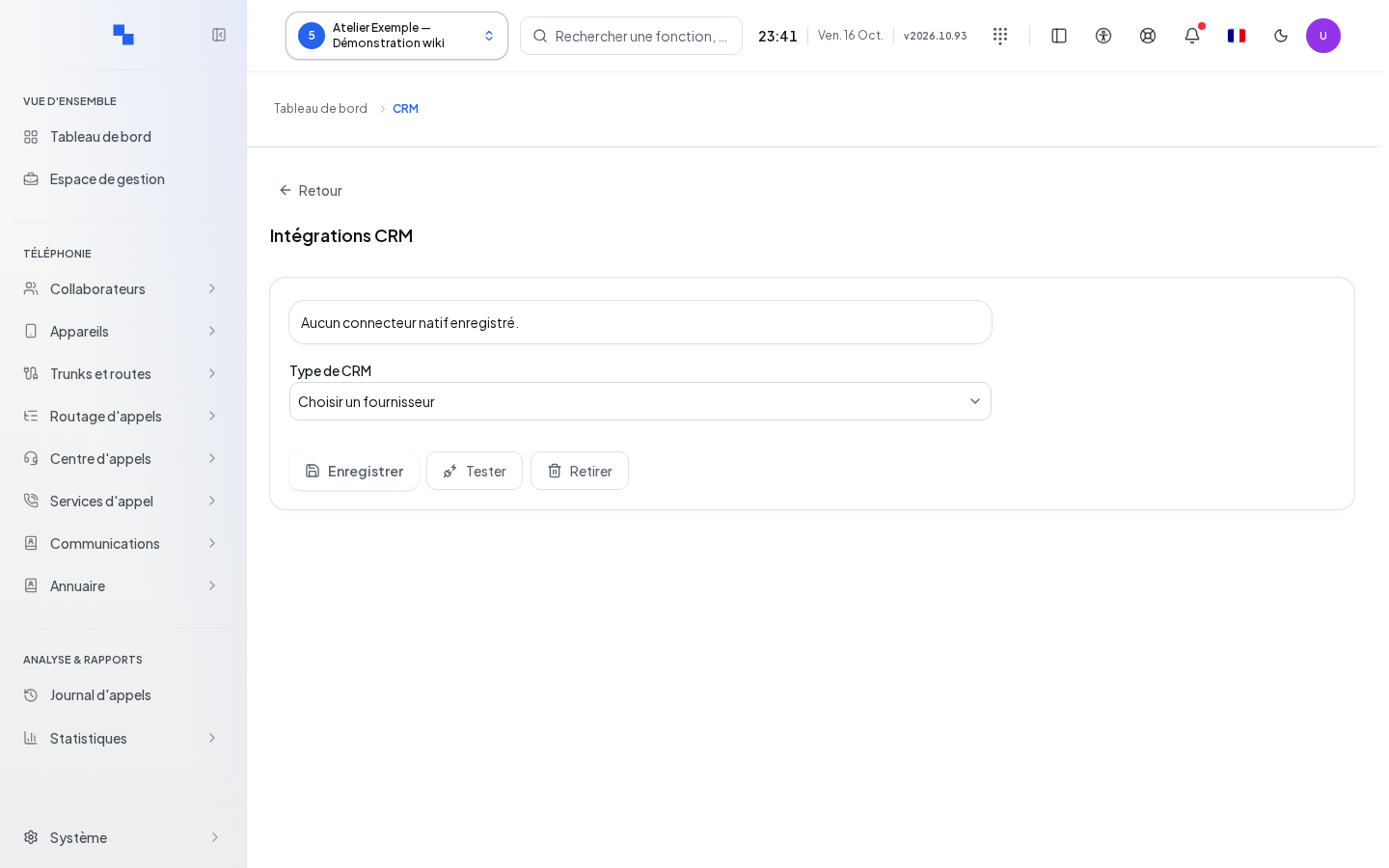
- Choose CRM Type from the available providers in the catalog.
- Read the advertised capabilities for this provider and open Connection Guide or Open Console if needed.
- Fill in the fields offered for this provider.
- Click Save.
- Once the configuration is saved, click Test and review the recognized account, date, and result.
| Field | Purpose | Possible Values | Example |
|---|---|---|---|
| CRM Type | Determine fields and capabilities | Providers available in the server catalog | Your company's provider |
| Host, domain, or portal | Identify your instance | Format and length specified by the provider; a host is not a full URL | crm.example.test |
| Region | Choose the Zoho region | us, eu, au, in, cn, jp, or ca | eu |
| Database, company, organization | Identify the account when required by the provider | Connector-specific fields | Identifier provided by your CRM administrator |
| Client ID, public key, or user | Identify the application | Value provided by the CRM | ID of the application created for the PBX |
| Client secret, API key, private key, or token | Authenticate the connection | Secret; leaving the field empty retains an already saved secret when the identity does not change | Secret from the password manager |
| Contact URL template | Open a record from the interface | Approved template with the contact identifier | Template prepared by the integrator |
| Enabled / Disabled | Put the integration into service | Switch | Disabled during preparation |
Required fields and their limits depend on the loaded catalog. An unavailable provider cannot be selected. Changing providers resets the fields and disables the new draft. If the connector's identity changes, certain secrets must be re-entered.
Clear this secret on save explicitly prepares the deletion of the relevant secret and disables its entry. Simply leaving a field empty does not have the same effect. The contact link template is used for navigation; it does not constitute a request from the PBX to the CRM.
Authorizing OAuth
For Salesforce, Dynamics 365, and Zoho, the process can use OAuth, an authorization granted by the provider.
- Copy the Callback URL to register with the provider using Copy Callback URL.
- Register this address in the provider's application, following the displayed connection guide.
- Save the PBX configuration before clicking Connect with OAuth.
- Complete the authorization with the provider, then return to the same client and the same session.
- Test the saved configuration.
Refresh Connection renews the authorization when this mode is active. Disconnect OAuth removes the connection; for Microsoft, the screen specifies remote revocation limitations. These commands are unavailable during an operation or while the draft differs from the saved configuration. A missing callback URL must be corrected before initiating authorization.
Using a Custom Relay
| Field | Purpose | Possible Values | Example |
|---|---|---|---|
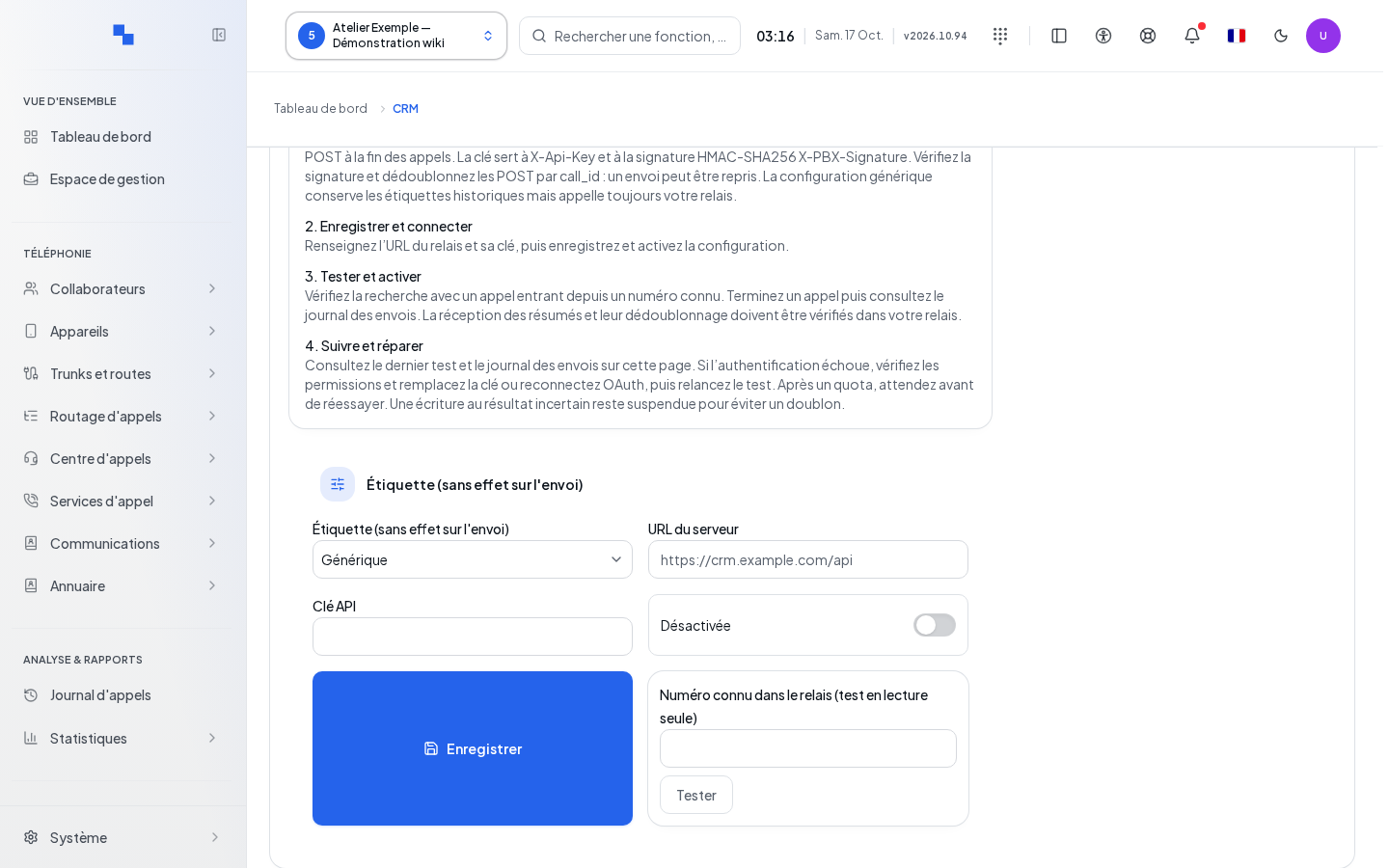
| Label (no effect on sending) | Identify the relay | Suggested label | Custom Connection |
| Server URL | Reach the relay; required to enable | URL accepted by the form | https://relay.example.test/api |
| API Key | Authenticate the relay | Empty retains the saved key | Relay secret |
| Known number in the relay (read-only test) | Verify a lookup | 3 to 32 characters in the field | Known test number |
Save before clicking Test. The relay test looks up the number and distinguishes an unknown contact from a connection failure. The native connector and the relay must not be enabled simultaneously: the screen flags this conflict. Selecting a provider label in the relay does not turn it into a native connector.
Log, Removal, and Troubleshooting
The log displays CRM submissions, their provider, date, duration, and available result. It does not represent all calls. A pending retry is not proof of definitive failure or final delivery. Browse the log in pages of fifty rows.
Remove opens the native connector confirmation. Confirm to remove its configuration, or Cancel to keep it. After a read error, Reload Configuration re-reads the catalog and the values. An unavailable secrets vault requires the installation administrator's intervention. After a provider rejection, correct the indicated credentials or authorization, save, and retest; simply saving does not validate the connection.