
Organize an establishment's telephony
The Rooms screen is intended for reception and establishment administrators. Select the client before opening it. Rights are distinct for rooms, stays, reservations, clients, invoices, wake-up calls, emergencies, and hotel software connection. Changing the client returns to Reception and closes any creation in progress.
The tabs are Reception, Home, Reservations, Clients, Billing, Register, History, Wake-up calls, Emergencies, Groups, and Configuration. Show on TV / Full screen opens the hotel display; check the client and the visible information before broadcasting the screen.
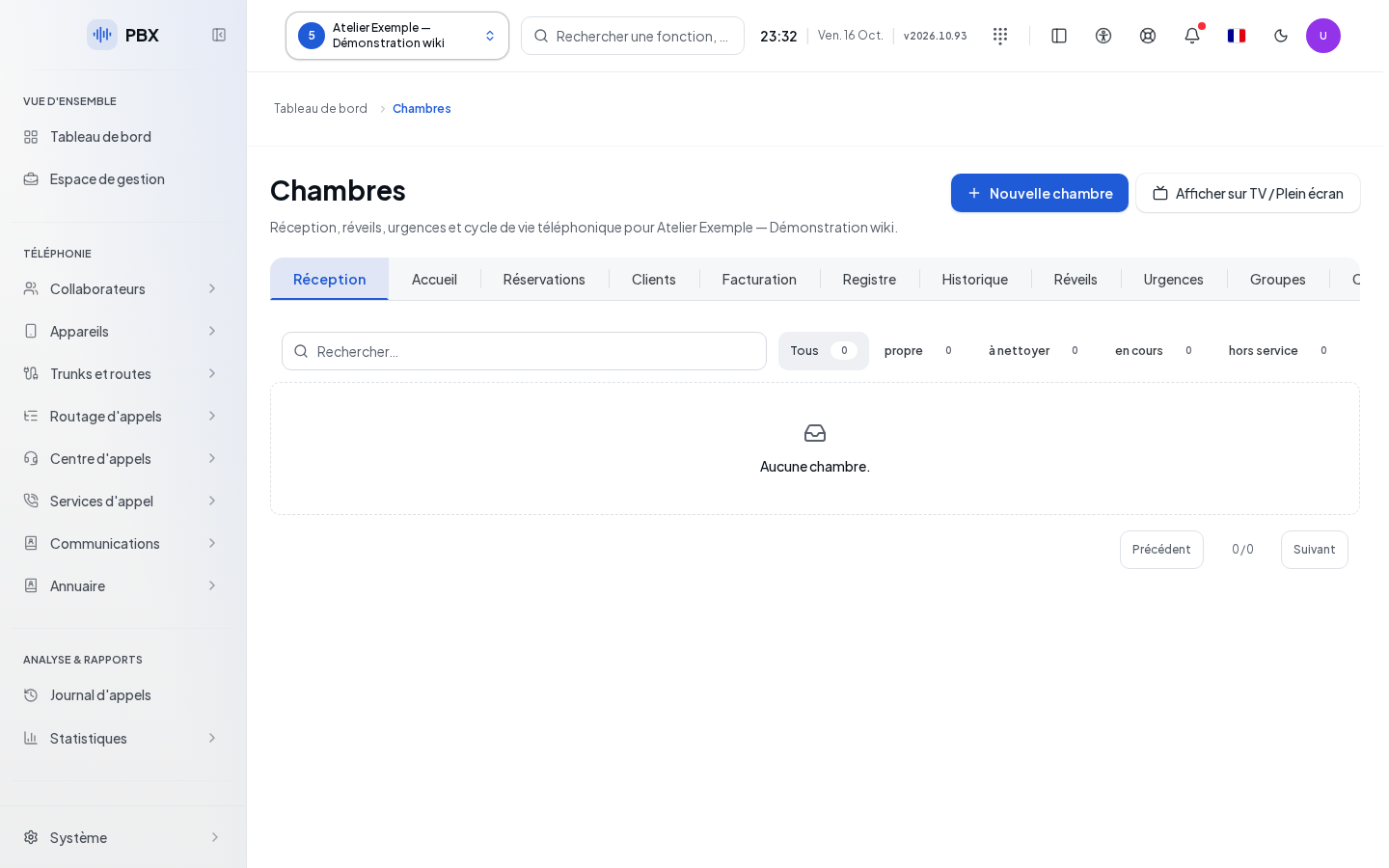
Create a room and track its status
- Click New room. You arrive in Reception.
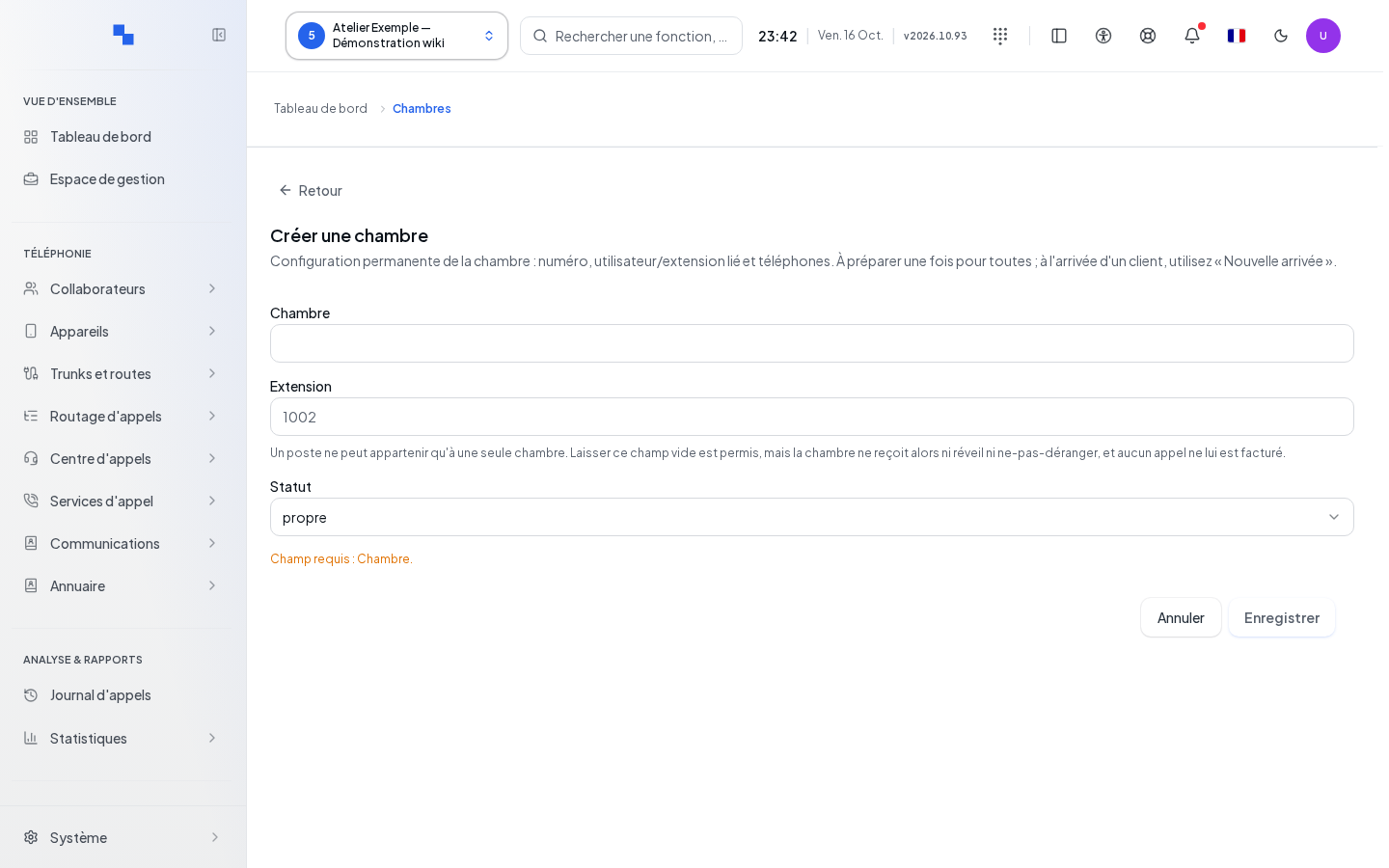
- Enter the room number, its internal extension, and its housekeeping status.
- Click Save. Cancel closes the dialog without saving.
- Search for the room or filter the housekeeping status to find it.
- Open its record to read the stay and its operations.
| Field | Purpose | Possible values | Example |
|---|---|---|---|
| Room | Identify the room; required | Number accepted by the form and unique within the context | 101 |
| Extension | Internal telephone number; required | Internal extension of the room | 4101 |
| Status | Indicate housekeeping | Proposed states; clean by default | Clean |
The grid offers housekeeping and do-not-disturb changes according to rights. Their success must be verified on the room. Delete opens Delete this room?; re-read the number before confirming. Multi-selection deletion is also reserved for authorized persons. A number or extension conflict remains displayed in the form; correct it before trying again.
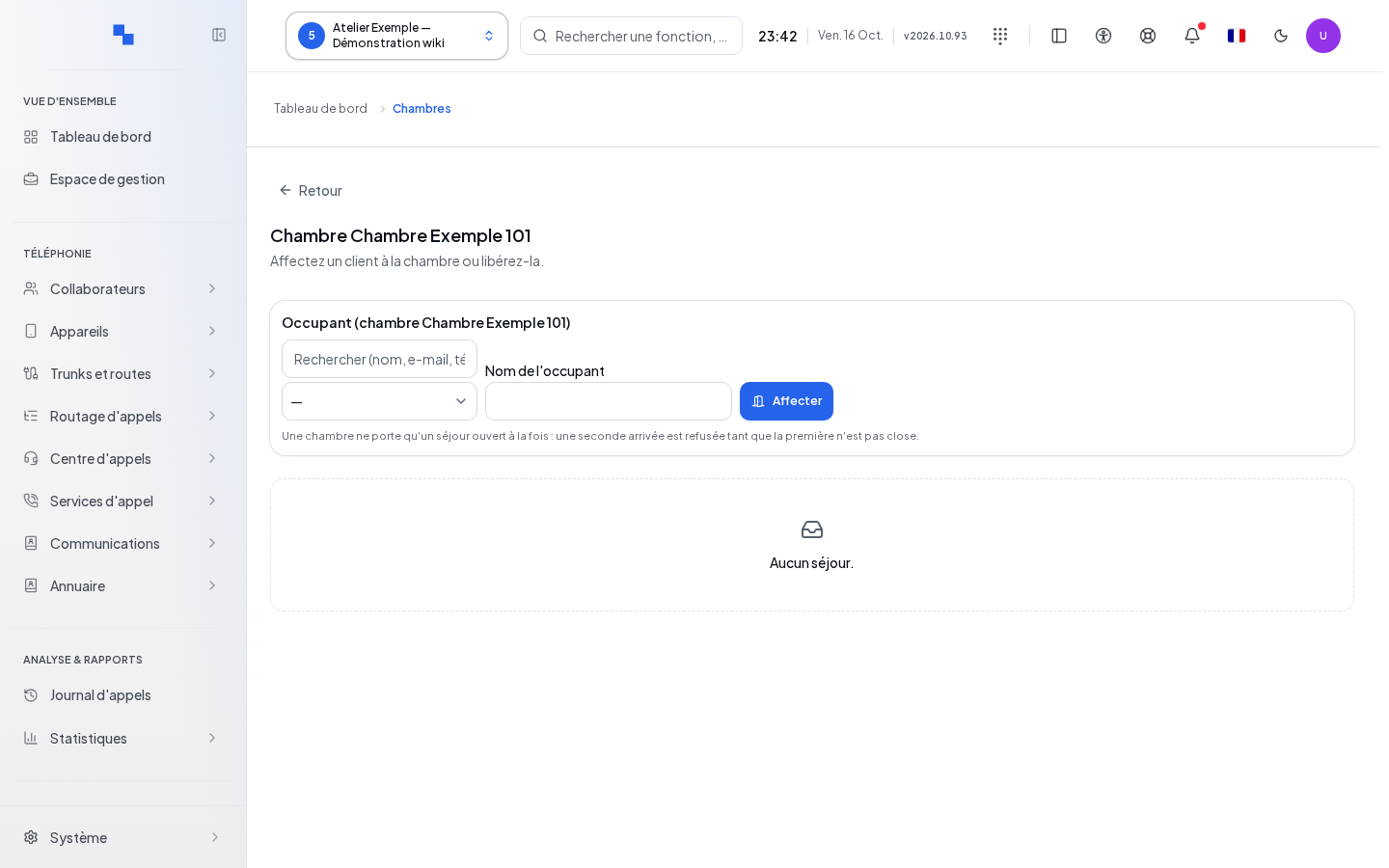
Open a stay, assign an occupant, and check out
The Room record distinguishes between the Current stay and the History. To check in an occupant, enter Occupant name, select their record when suggested, then Assign. Verify that the stay appears before adding consumptions.
Check out room ends the current stay. Check the relevant stay and the displayed information before any confirmation. The Home tab gathers arrivals, departures, and alerts for reception work. Check-in opens the stay for an eligible reservation; a reservation still in draft must first be confirmed. Acknowledging an alert marks it as handled.
In the stay record, Description, Type, and Amount prepare a charge. Post adds this charge to the selected stay. Re-read the description and amount before this entry. The history allows selecting a past stay; occupancy actions concern the current stay and should not be confused with its consultation.
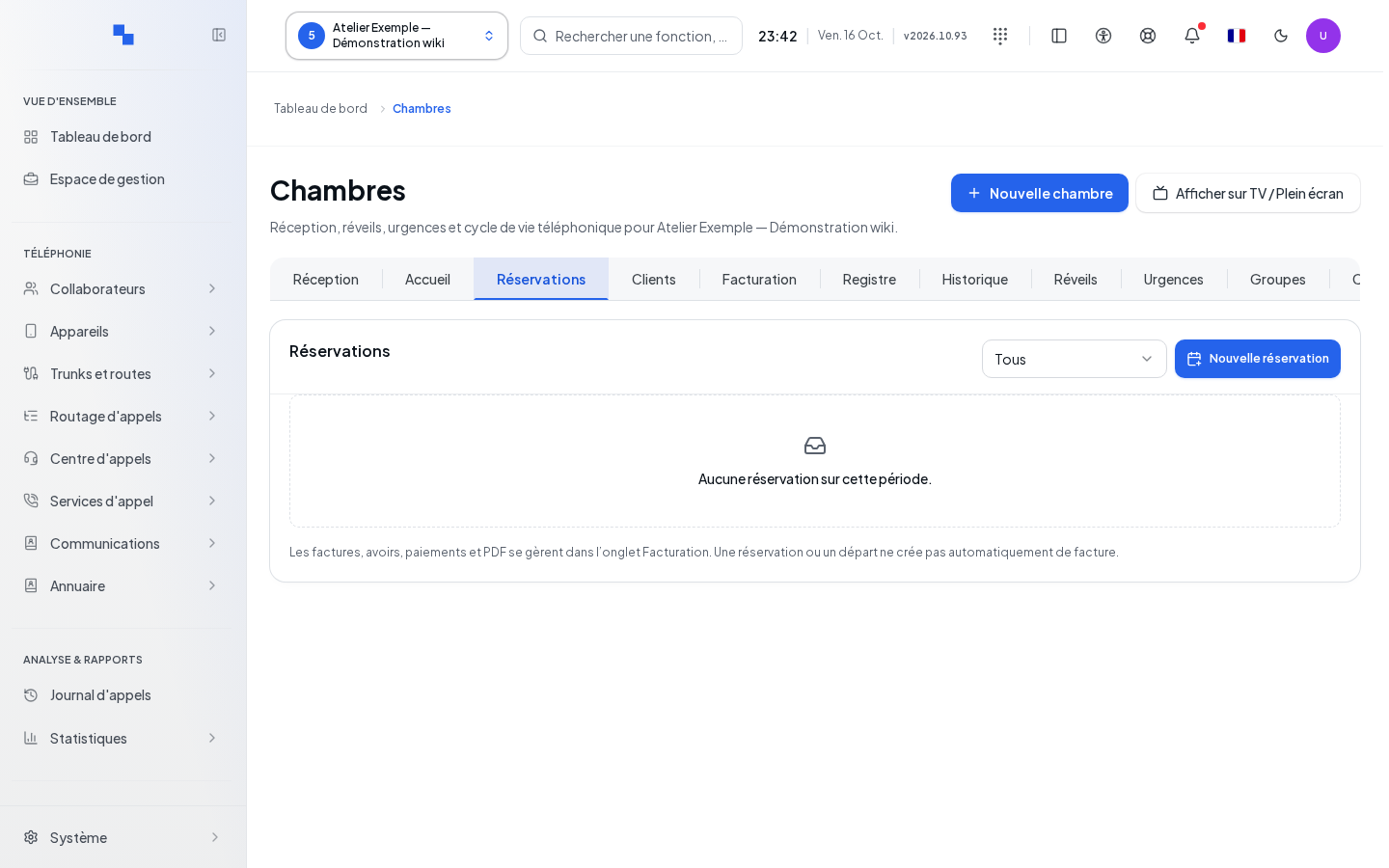
Record a reservation
- Open Reservations, then New reservation.
- Choose the type: room or suggested resource.
- Fill in the information appropriate to the type.
- Click Save; Cancel exits the dialog.
- In the list, use Edit, cancellation, or deletion on the desired reservation.
| Field | Purpose | Possible values | Example |
|---|---|---|---|
| Type | Choose what is reserved | Room or other suggested type | Room |
| Resource | Name the non-room resource; required in that case | Text | Morning room |
| Description | Specify the service | Text | Meeting |
| Arrival time | Specify check-in time | Time | 15:00 |
| Qty | Quantity of resource | Integer from 1 to 999 | 1 |
| Room | Assign a room; required for this type | Room available in the catalog | 101 |
| Occupant name | Identify the reservation; required | Non-empty text, with client record if selected | Camille Exemple |
| Arrival | Start date; required | Date | October 20 |
| Departure | End date; required | After arrival for a room, at least one night | October 22 |
| Status | Define the pre-stay state | Proposed states; confirmed by default | Confirmed |
| Adults | Number of adults | 1 to 99; 1 by default | 2 |
| Children | Number of children | 0 to 99; 0 by default | 0 |
| Total stay rate | Optional amount | Positive number or zero, up to two decimals, dot or comma | 250.00 |
| Currency | Rate unit; required if a rate is entered | Three uppercase letters | CHF |
| Source | Reservation origin | Proposed values; direct by default | Direct |
| Notes | Internal details | Text | Late arrival |
Missing required fields are named. For a room, a departure equal to the arrival is rejected. A conflict reported by the server must be resolved before validation; modifying only the description does not resolve a room overlap. Check-in is only usefully offered for a reservation in the expected state.
Import a calendar with preview
Calendar sources associate an HTTPS URL with a room.
| Field | Purpose | Possible values | Example |
|---|---|---|---|
| Source name | Identify the calendar; required | Maximum 120 characters | Room 101 reservations |
| Room | Assign the source; required | Room from the catalog | 101 |
| Calendar HTTPS URL | Read events; required at creation | HTTPS address; blank when editing keeps the existing address | Address provided by your software |
Save source keeps the configuration; Cancel edit discards the draft. Edit source reopens the record. Read a preview calculates the planned actions without applying them. The preview shows its timestamp, expiration, creations or modifications, and issues. Its pages display twenty-five events.
Click Apply this preview only after reading it; the button is disabled if the plan cannot be applied. Success rereads the reservations. If the preview is expired or rejected, read a new one before continuing. Remove source directly removes its configuration: check the selected row. The sources themselves are paginated by fifty; Reread list retries a failed read.
Maintain client records and anonymize
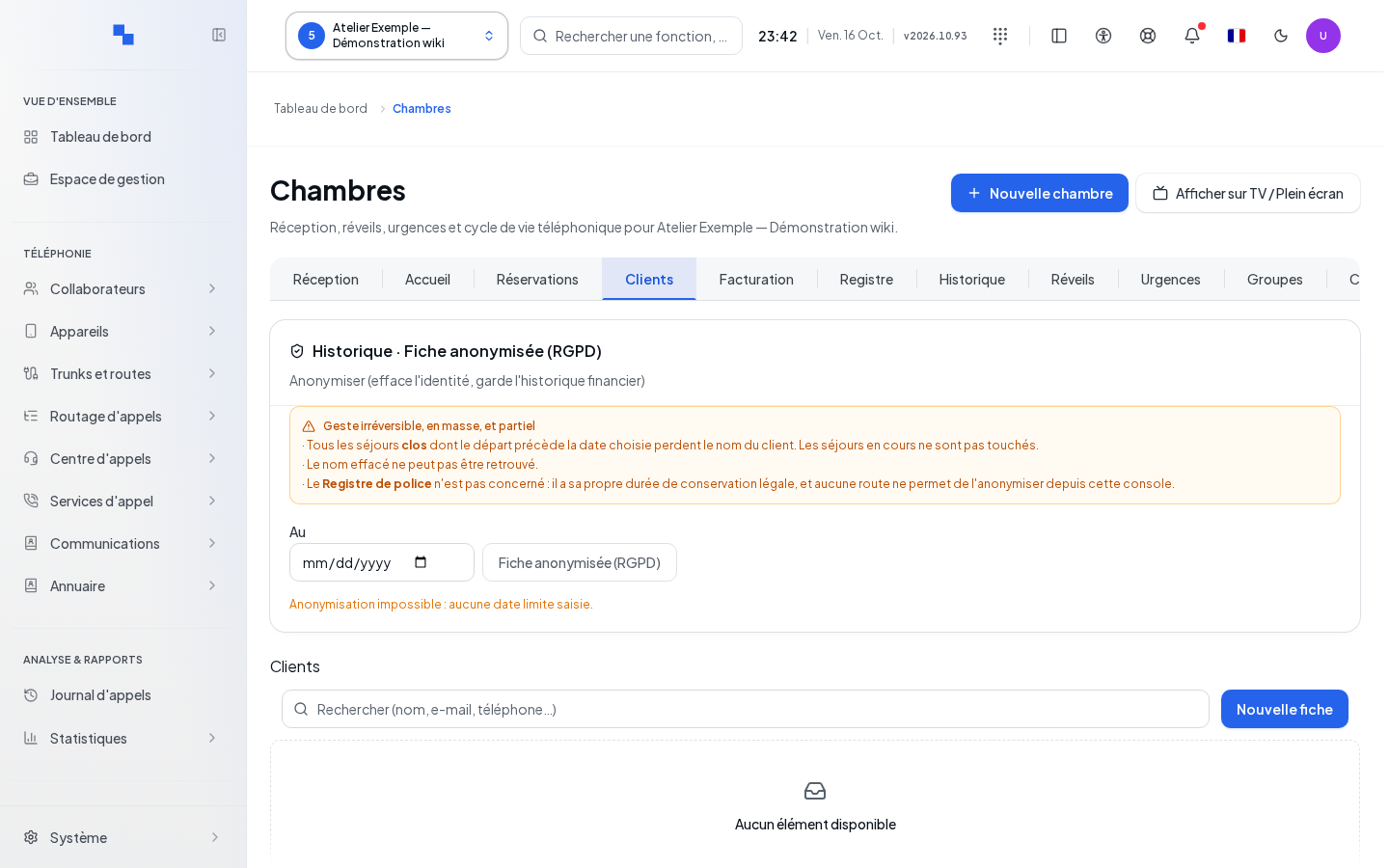
In Clients, search for a person before New record. The record allows entering the proposed personal information; first name and last name are required. Save, then verify the reread record. The viewing and editing commands are distinct from anonymization.
Anonymized record (GDPR) opens the confirmation for anonymizing the person. Re-read its scope before confirming. The panel for processing old stays uses the To date as a cutoff; it displays the number processed after success. Anonymization should not be used to correct a simple name error. A function marked "This function is not available in this version." remains unavailable and is not a command to execute.
Prepare and issue an invoice
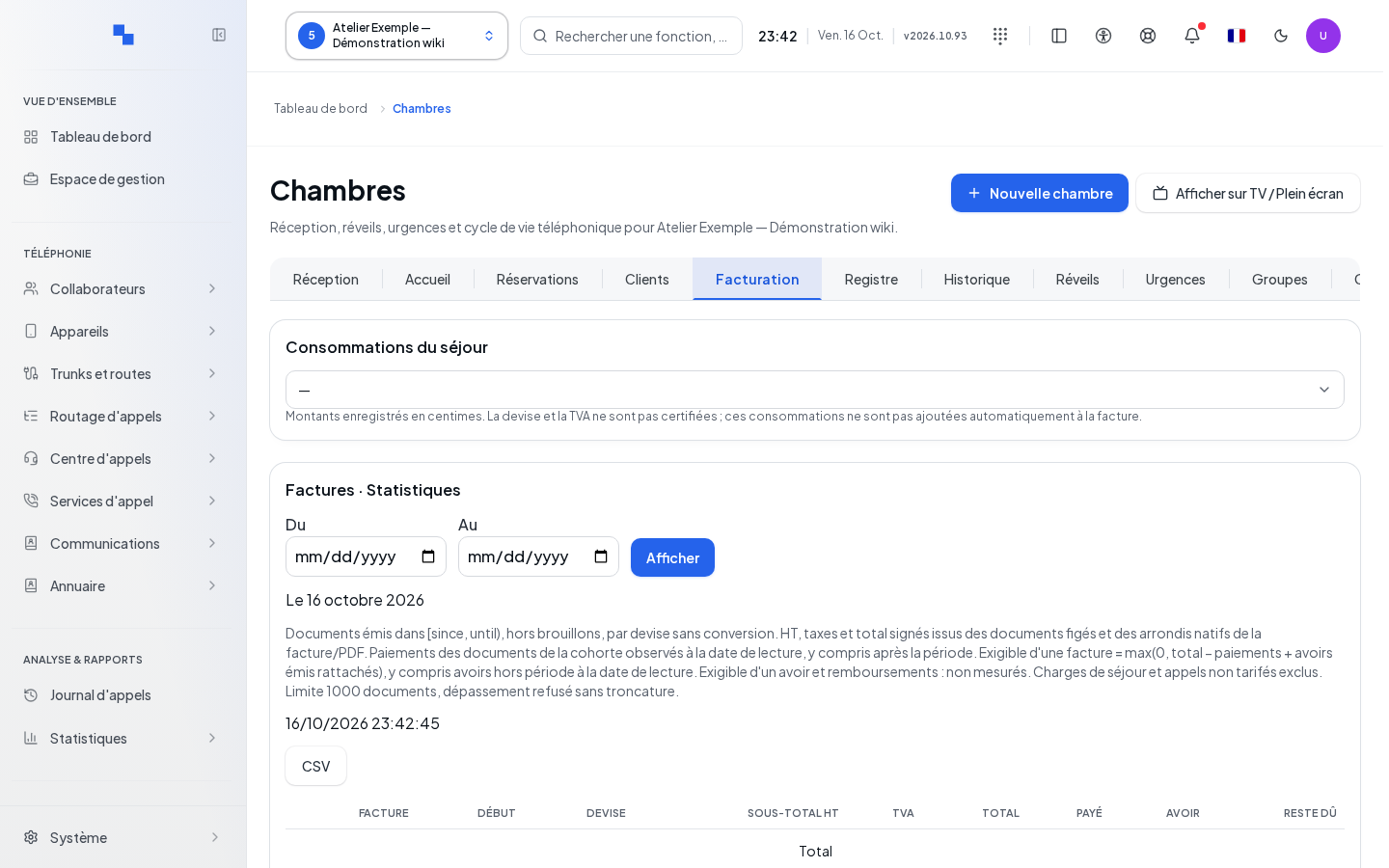
In Billing, select the stay and check its charges. Draft prepares a new invoice; opening an existing invoice loads its document.
| Field | Purpose | Possible values | Example |
|---|---|---|---|
| Issuer and recipient | Identify the parties | Document information | Establishment and occupant |
| Currency | Amount unit | Document currency | CHF |
| Description and lines | Detail the services | Invoice lines editable while in draft | Overnight stay |
| Payment amount | Record a payment | Amount accepted by the form | 250.00 |
| Number | Payment reference | Text | Terminal reference |
| Notes | Document or credit note details | Text | Correction reason |
Add line completes the draft; the remove command removes a line. Tourist tax adds the corresponding suggested line. Save keeps the changes. Issue finalizes the invoice: check all lines and data before this action. An issued invoice or a credit note is no longer a freely editable draft.
PDF downloads the selected document. Collect payment records the prepared payment. Create credit note uses the document and entered reason for its correction; check the reference. After each action, check the new amounts and the returned status. Generating a PDF is not the same as recording a payment.
Fill in the register and consult the history
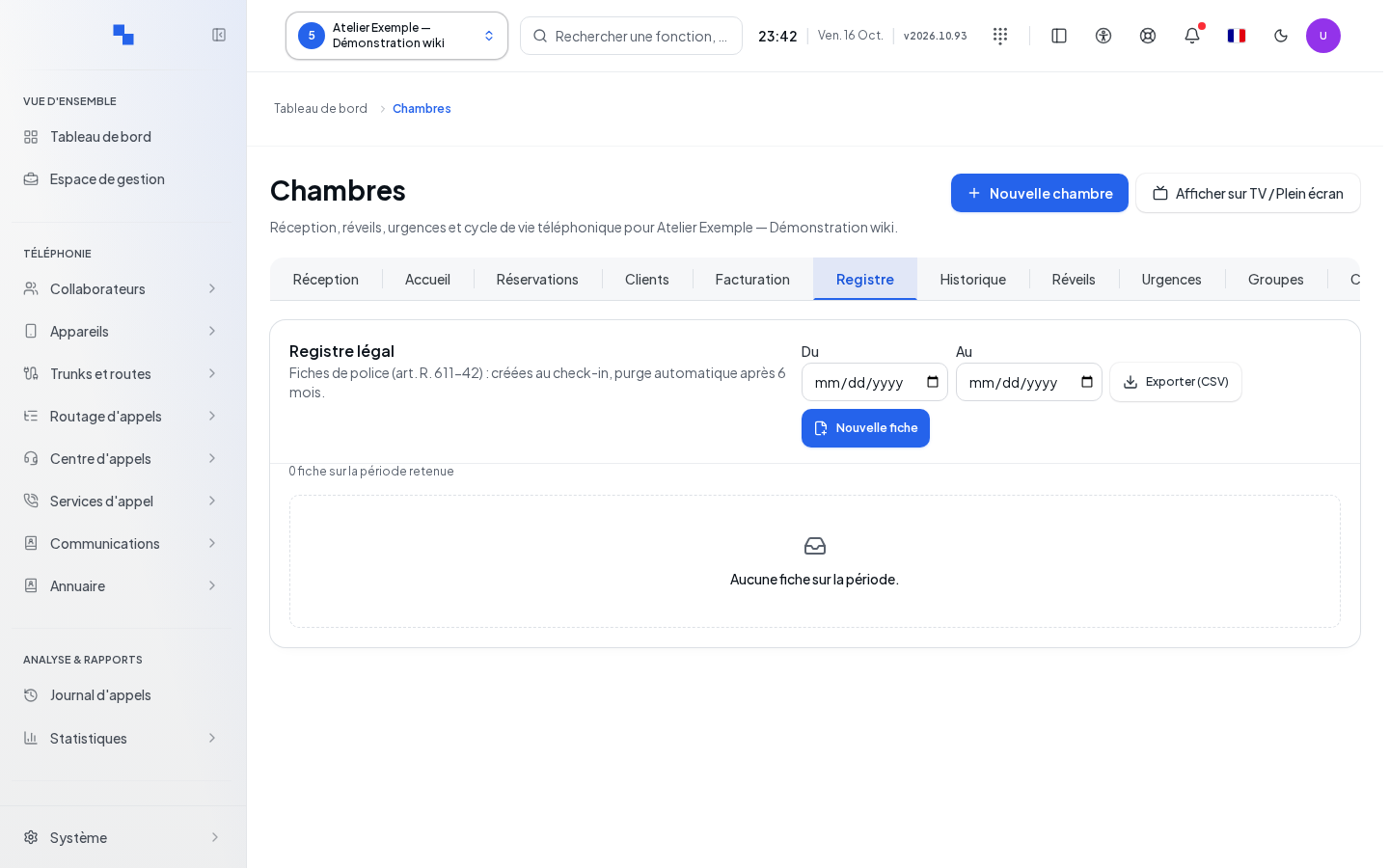
In Register, set From and To, then Export (CSV) for the desired period. New record opens the register entry.
| Field | Purpose | Possible values | Example |
|---|---|---|---|
| Last name / First name | Identify the person | Text | Camille Exemple |
| Date and place of birth | Provide identity details | Date and text | Fictitious test data |
| Nationality / Country (ISO) | Specify origin | Required nationality and country code | CH |
| Address / City | Provide residence details | Text | Fictitious address |
| Arrival / Departure | Define stay dates | Consistent dates | Two nights |
| Room | Attach the record | Room of the establishment | 101 |
Add validates the record after the form checks; Cancel closes without adding. This function does not replace the establishment's verification of its own local obligations.
In History, fill in the search and the From (UTC) and To (UTC) bounds, then Search. Open a stay for its detail. Print opens the browser's print dialog; Close returns to the list. Check the UTC timezone of these fields before matching the history to a local time.
Schedule and track wake-up calls
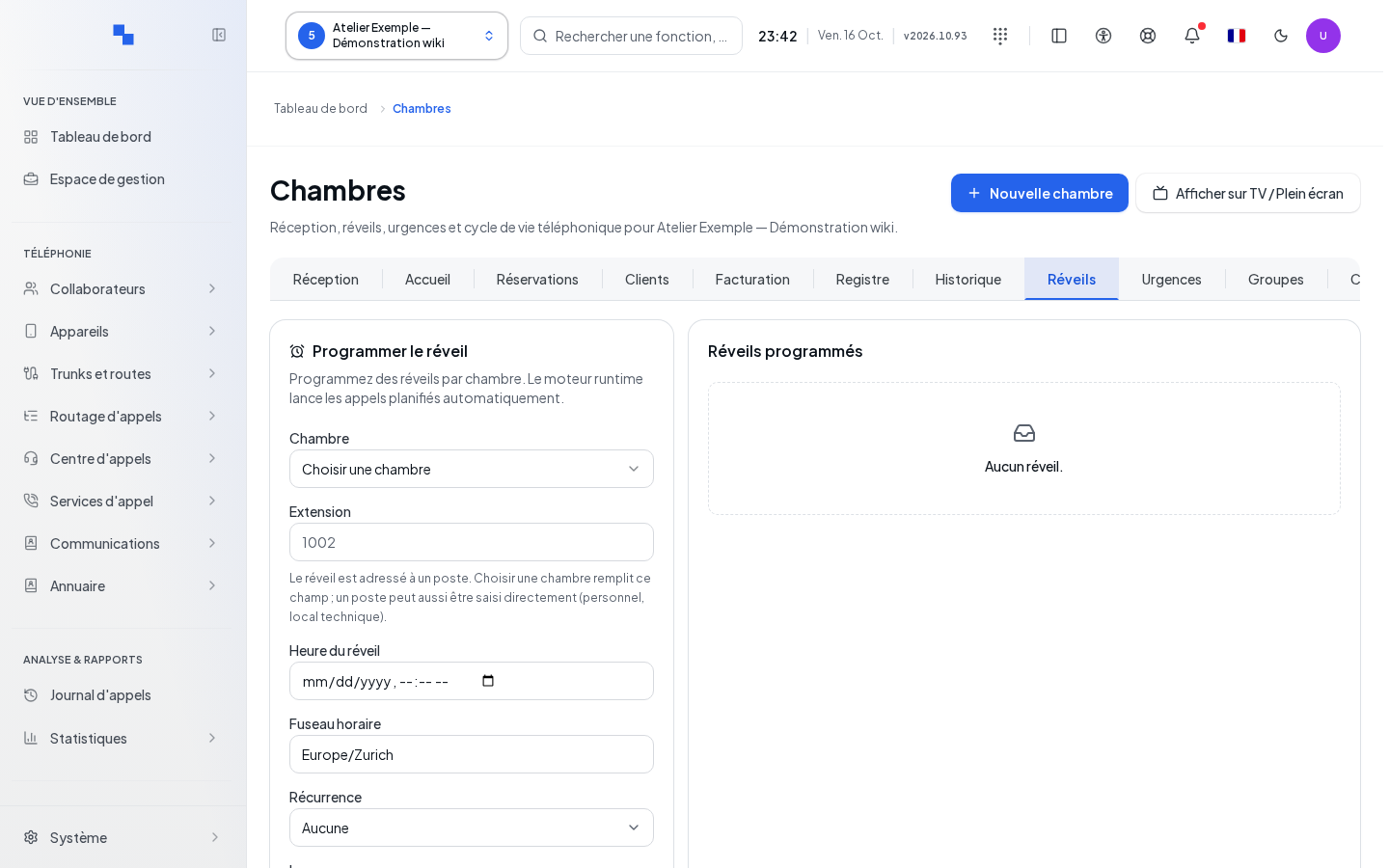
| Field | Purpose | Possible values | Example |
|---|---|---|---|
| Room / Extension | Choose the extension to call | Suggested room or internal number | Room 101 |
| Wake-up time | Define the deadline | Valid date and time | Tomorrow at 07:00 |
| Time zone | Interpret the time | Selected or effective time zone | Europe/Zurich |
| Recurrence | Repeat the wake-up call | None, daily, weekdays | None |
| Language | Choose the announcement | Suggested language | French |
| Audio file | Customize the message | Available sound | Wake-up announcement |
Click Schedule wake-up call, then check the time and extension in the list. Cancel on a wake-up call acts on that schedule. Execution statuses must be read: scheduling a wake-up call does not prove that the occupant answered it. A read or write error remains distinct from an empty list.
Prepare emergencies
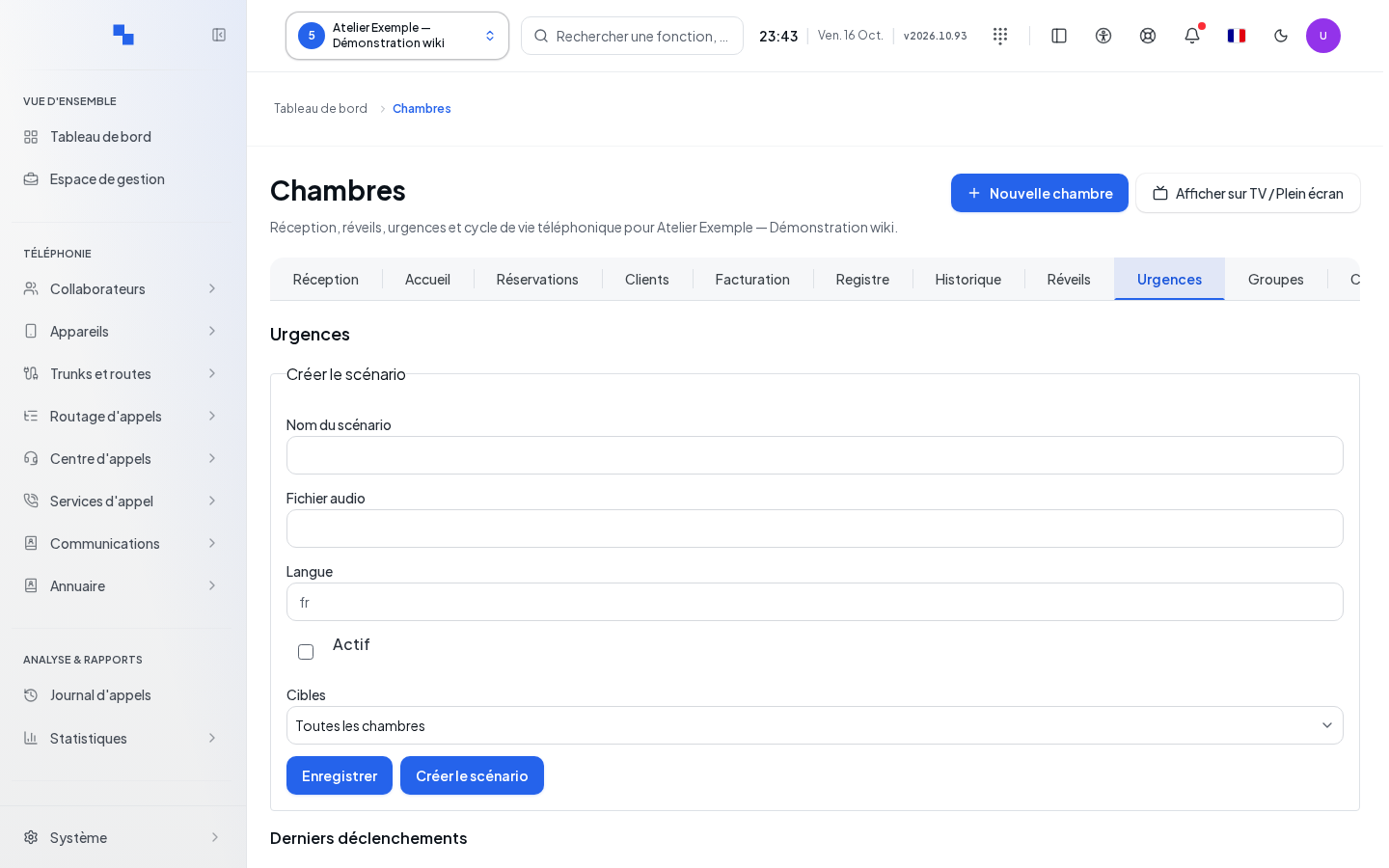
In Emergencies, the rights to read scenarios, trigger them, and read events are separate.
- Prepare Scenario name, Audio file, Language, Active, and Targets.
- Choose the proposed rooms or destinations and click Create scenario.
- Use the edit command to correct the scenario, then save.
- Click Simulate to obtain the planned targets without triggering the actual operation.
- Verify the targets before Trigger for real. This command requires confirmation including the scenario name.
- Consult the events and use Acknowledge to mark them as handled.
If the response to the trigger is lost, reread the events and use the resume feature for the same scenario; do not create a new scenario to retry. A successful simulation does not guarantee a successful real broadcast.
Set up groups and hotel connection
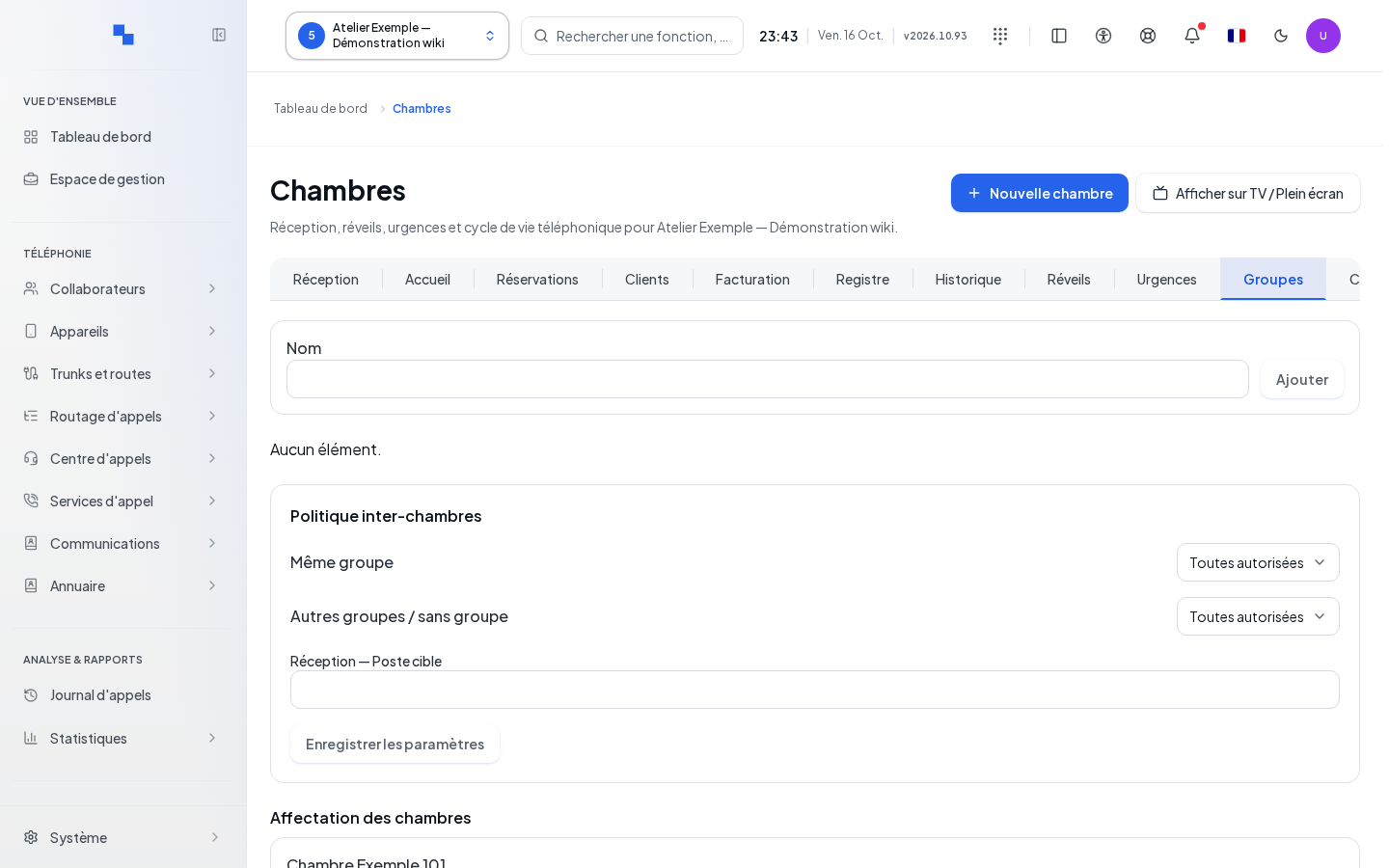
In Groups, enter a Name of up to 120 characters then Add. Editing, canceling, and Delete apply to the selected group. Then assign rooms to a group or No group.
The policy distinguishes between Same group and Other groups / no group. Choose all allowed, none, or reception. If a forward to reception is chosen, its internal number is required and contains 1 to 20 digits. Save settings keeps the policy.
In Configuration, the PMS connection links the PBX to the hotel management software.
| Field | Purpose | Possible values | Example |
|---|---|---|---|
| PMS address (host:port) | Reach the hotel software | Address and port from your integrator | pms.exemple.test:5000 |
| PMS equipment | Identify the connection | Value expected by the software | Reference provided by the integrator |
| Active | Enable the connection | Toggle | Enabled after preparation |
| Authentication | Secure the link | Option and key depending on the connection | Key provided by the integrator |
Save settings applies the configuration. Managing the secret requires its own rights; leaving the secret blank keeps the existing one. Test connection tests the saved values; save the draft before testing. Read the returned diagnostic. Configurations marked unavailable have no active effect in this version.
Check results and request help
After each operation, check the room, the stay, or the reread document. If a catalog cannot be read, have its rights checked and use the proposed retry; do not create a duplicate object. For a reservation conflict, correct the room or dates. For a payment, issuance, triggering, or connection error, keep the exact message and reread the object before trying again.