
Prepare an outbound call campaign
This screen is intended for the call center administrator. Select the client and open Outbound Call Campaigns. Prepare a contact list, an internal destination number (extension), an outbound route, and a schedule. Each tab has its own read and write permissions.
The recommended workflow is: Call Lists, Records if needed, Compliance, then Campaigns. Callbacks, Do Not Call List, and Call Qualifications complete the tracking. A grayed-out tab may be due to your permissions.
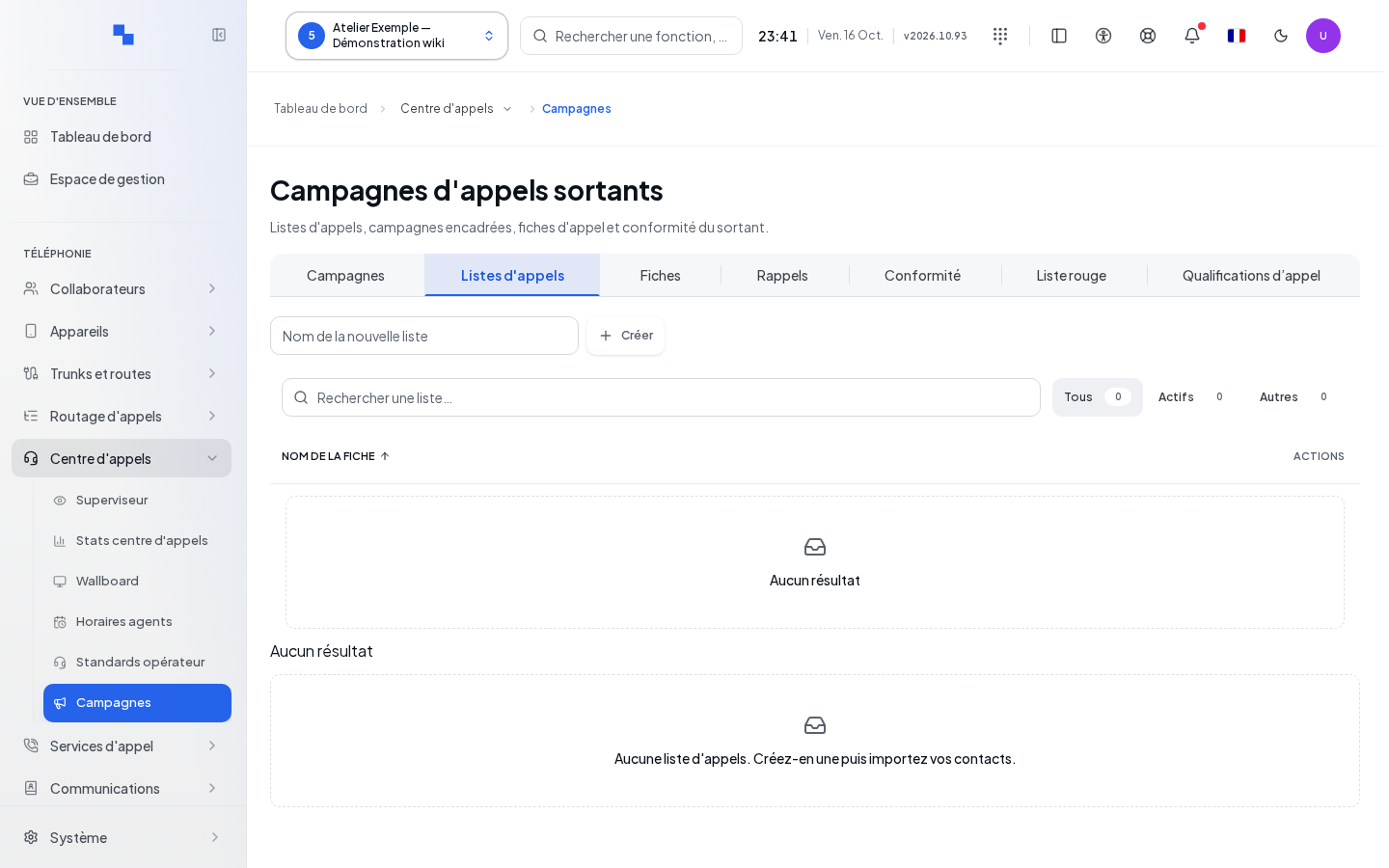
Create a list and import contacts
- In Call Lists, enter the name of the new list and click Create. An empty name blocks creation.
- In its row, click Import CSV/TXT/Excel and choose the file.
- Choose the workbook Sheet and indicate whether The first row contains the headers.
- Assign the role of each column: ignore, phone number, external reference, consent, or contact data.
- Click Verify numbers.
- Review the preview of the first ten rows, the totals for valid, duplicate, invalid, and do-not-call entries.
- Click Import valid rows, then check the actual summary. Close exits the dialog.
| Field | What it's for | Possible values | Example |
|---|---|---|---|
| Name of the new list | Identify the batch; required | Non-empty text | October follow-ups |
| File | Provide the contacts | CSV, TXT, XLSX, XLS; at most 50,000 rows and 8 MiB encoded; decompressed workbook limited to 32 MiB | Test list |
| Sheet | Choose the workbook data | Available sheets | Contacts |
| Headers | Ignore the title row as a contact | Checked or unchecked depending on the file | Checked |
| Column roles | Identify the information | Exactly one phone column; distinct roles for each retained column | Phone, reference, consent |
"Choose exactly one phone column and a distinct role for each retained column.": correct the column mapping. A file that is too large must be split; an empty, protected, or unreadable file must be fixed before resuming. Retry restarts the reading or failed verification.
Archive removes a list from new campaign choices; Unarchive makes it available again. Deletion is distinct from archiving: read the displayed confirmation carefully. List counters distinguish between contacts to be called and processed ones.
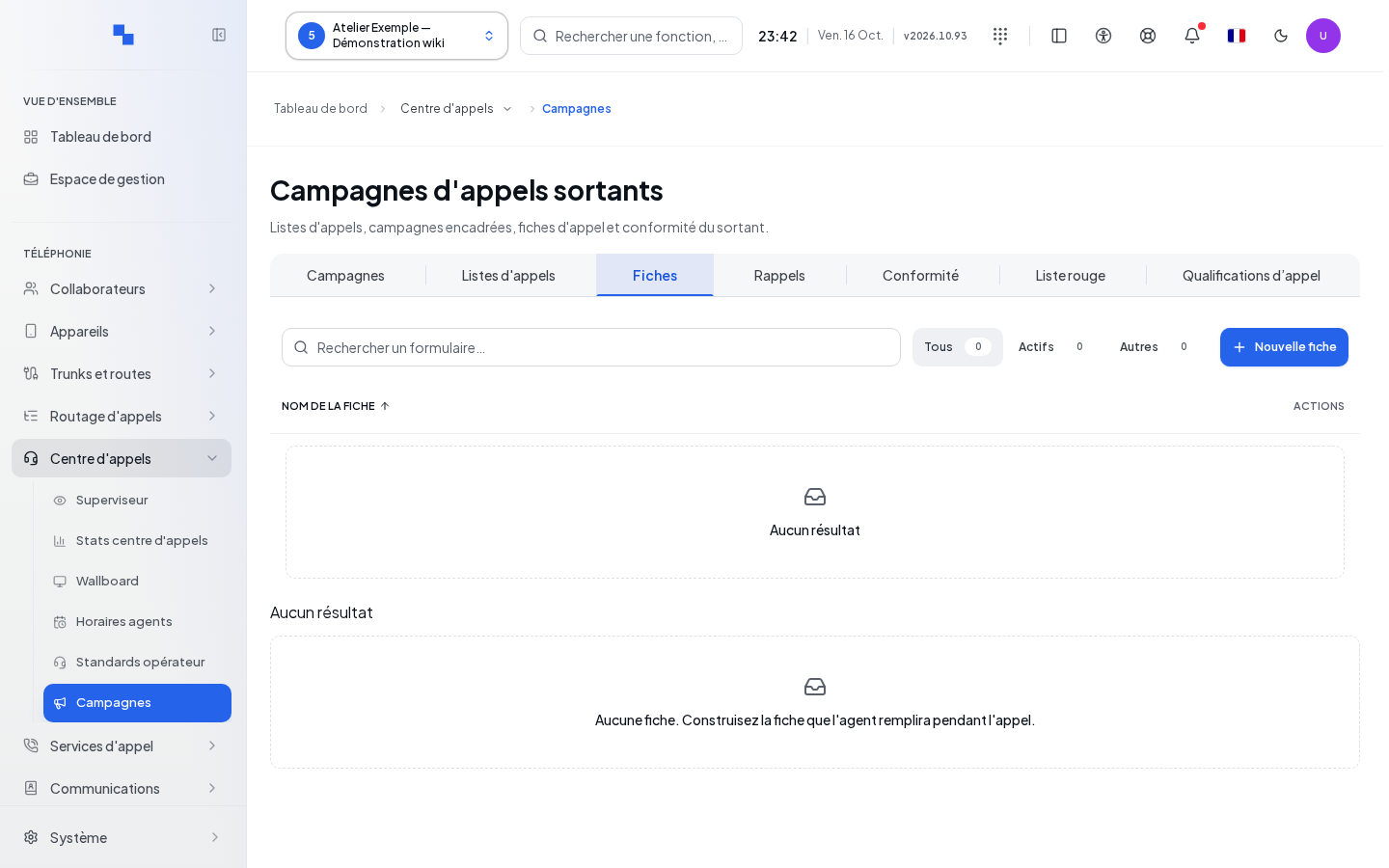
Create and publish a call record
A record gathers the information that the agent must enter. In Records, click New record, name it, then open the Record Builder.
- Add a field from the available types.
- Fill in its label and key, then check Required if an answer is mandatory.
- For choice fields, fill in the options; for a link, fill in its target.
- Move fields by drag-and-drop or with the up/down commands. These commands are unavailable at the ends.
- Remove unneeded fields with their delete command.
- Click Save to keep the draft, or Publish to make the version usable.
| Field | What it's for | Possible values | Example |
|---|---|---|---|
| Record name | Identify the record; required at creation | Non-empty text | Sales qualification |
| Field label | Question visible to the agent | Text matching the type | Desired date |
| Field key | Identify the answer | Unique key within the definition | desired_date |
| Required | Require an answer | Checked or unchecked | Checked for the result |
| Options | Define the choices | Options for the selection field | Interested, call back |
The available types are those of the builder; it also retains the types of an existing definition. An empty record cannot be saved or published. Modifying a published version goes through Save as new version. The campaign offers published versions, so that a draft does not silently change the agents' record. Cancel closes the builder; while saving, wait for it to finish.
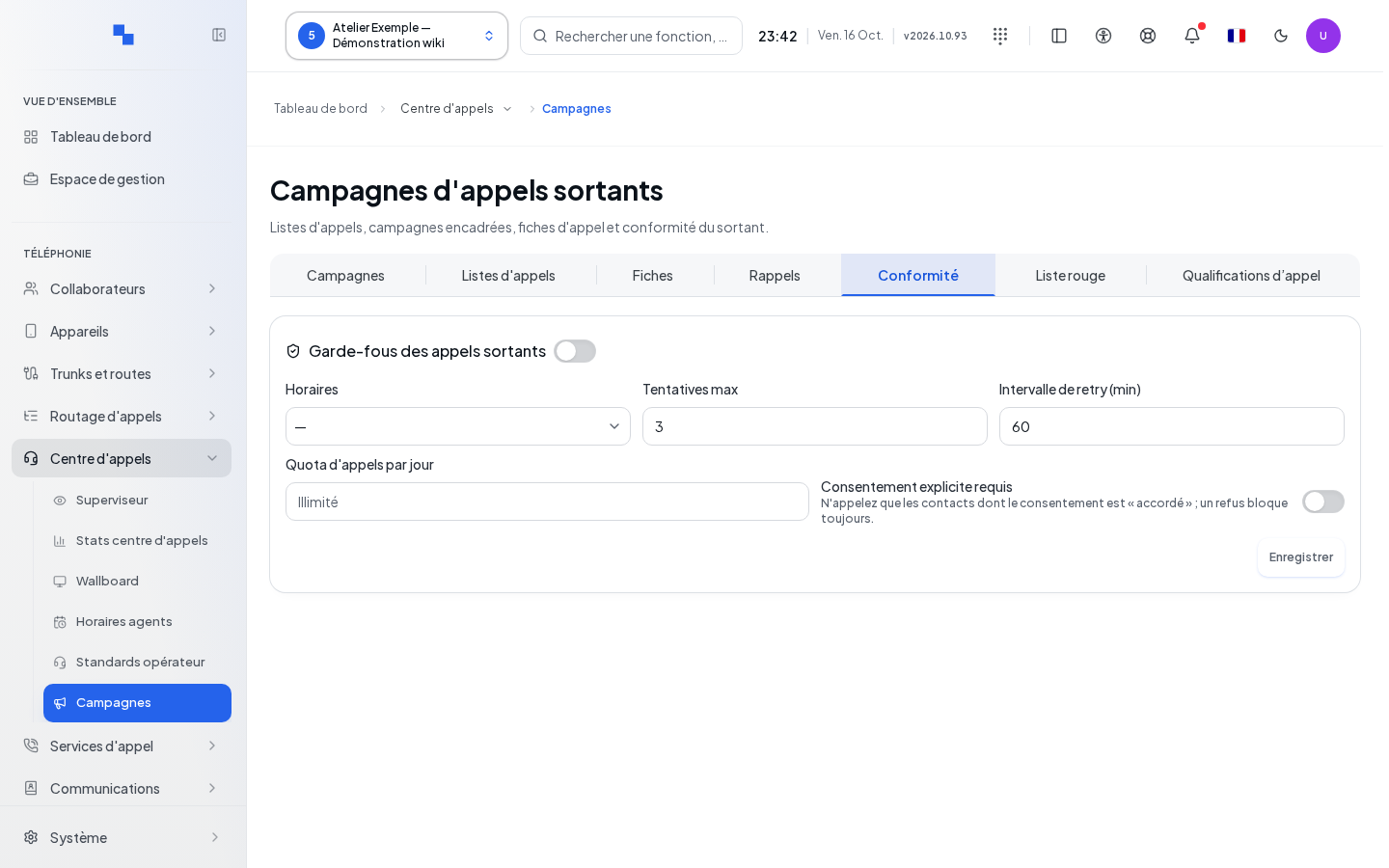
Set the safeguards
In Compliance, set the client's outbound call safeguards. These do not constitute a certification of legal compliance; this guide only describes their behavior within the phone system.
| Field | What it's for | Possible values | Example |
|---|---|---|---|
| Activation | Apply the compliance settings | Toggle | Enabled |
| Hours | Limit the allowed time slots | Saved schedule | Business days |
| Max attempts | Cap the attempts per contact | Integer from 1 to 20 | 3 |
| Retry interval (min) | Space out new attempts | Integer from 1 to 10,080 minutes | 60 |
| Daily call quota | Limit the daily number | Non-negative integer; zero for unlimited | 100 |
| Explicit consent required | Require consent to be granted | Enabled or disabled; a refusal always blocks | Enabled |
Click Save after modification. The command remains unavailable if the values are invalid, unchanged, or being saved. Time slots are configured in the associated schedule. The engine checks for do-not-call blocks, schedules, quotas, consent, and attempts; an active campaign does not bypass these checks.
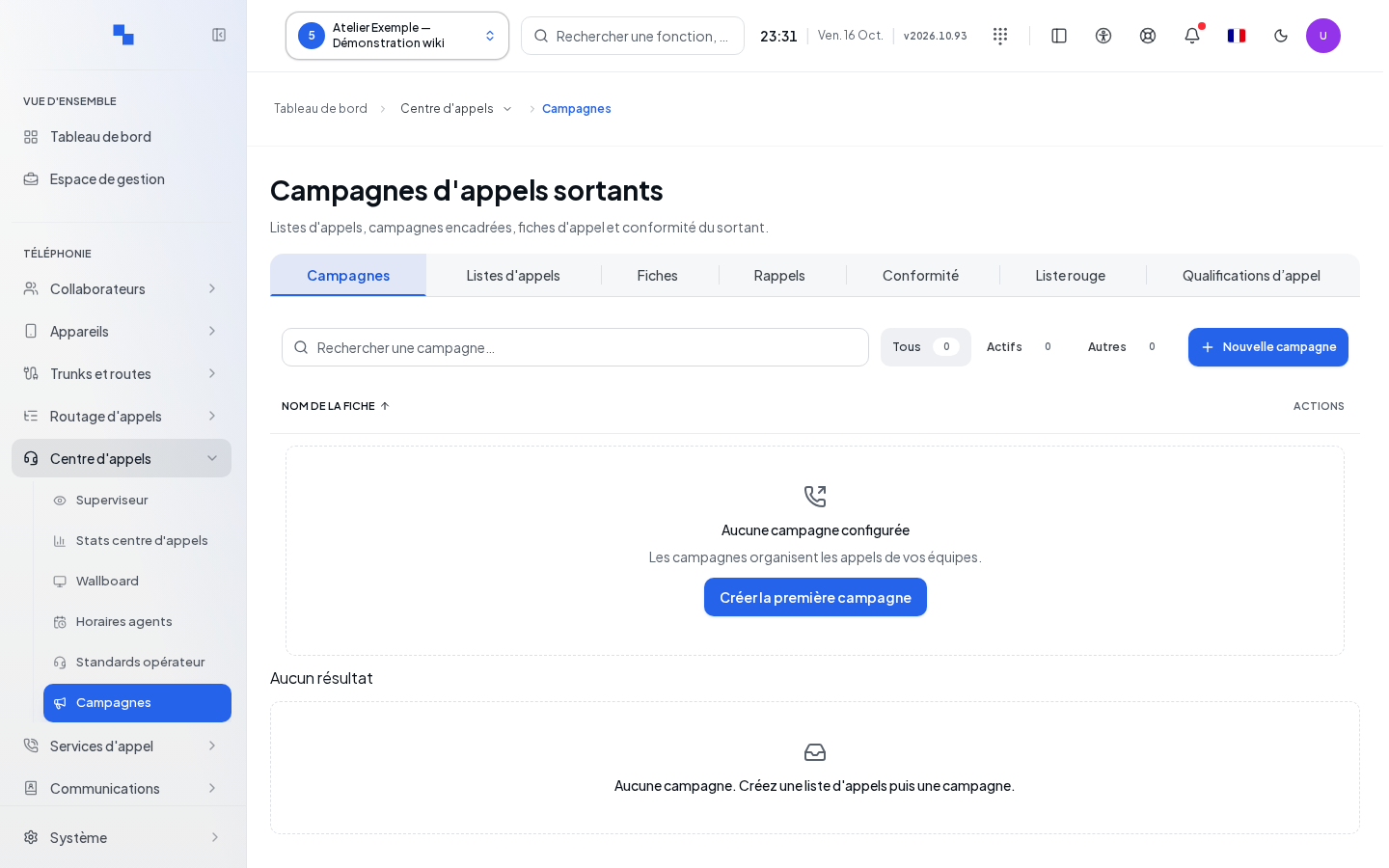
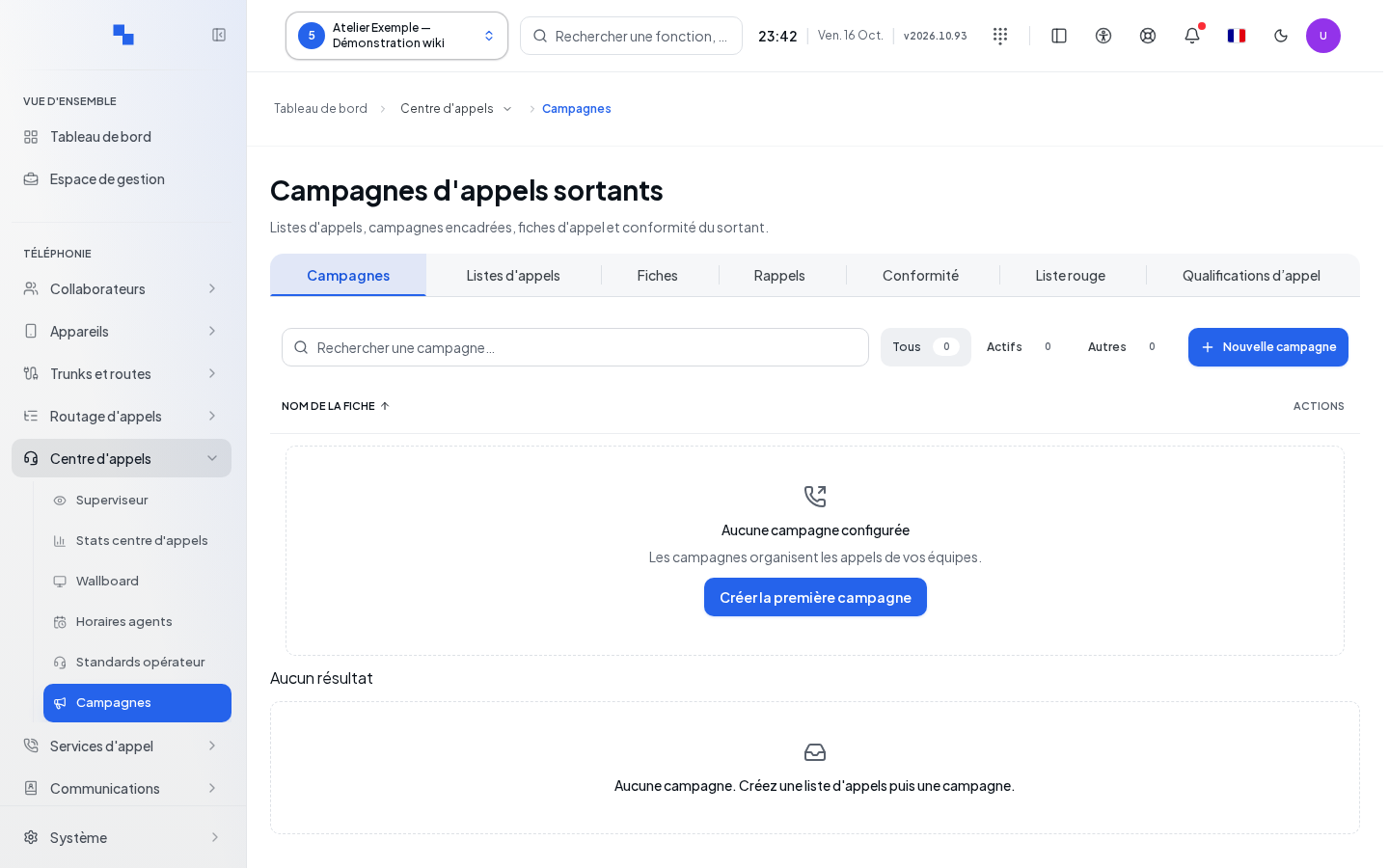
Create and launch a campaign
- In Campaigns, click New campaign.
- Fill in the name and choose a non-archived list.
- Fill in the telephony parameters and attachments.
- Click Save.
- In the list, use Activate when the campaign is ready.
- Check Stats to track progress, remaining contacts, and blocking reasons.
| Field | What it's for | Possible values | Example |
|---|---|---|---|
| Name | Identify the campaign; required | Non-empty text | October follow-ups |
| Call list | Provide the contacts; required | Non-archived list at creation; cannot be changed afterward | October follow-ups |
| Extension | Internal number of the agent or destination | Value accepted by the form | 201 |
| Presented number | Identity sent during the call | Number authorized for your client | Assigned business number |
| Concurrent calls | Limit concurrency | Integer from 1 to 30; 1 by default | 1 |
| Ring duration (s) | Ringing delay | Integer from 5 to 120; 30 by default | 30 |
| Hours | Associate the calling window | Schedule from the catalog | Business days |
| Outbound routes | Choose the outbound routing | Route from the catalog | National outgoing |
| Call record | Associate the questionnaire | No record or published version | Sales qualification v1 |
| Description | Describe the purpose | Text | Follow up on open requests |
The grayed-out fields Attempt cap, Call start, Call end, Call days refer back to the schedule and compliance settings. Assigned agents and Call script are also unavailable: assignment uses the extension; the script is not available. Dialing mode and Priority are not active settings in this version. No predictive mode should be assumed from older labels.
The available actions depend on the state: activation, pause, archiving, or return to draft. Pause allows you to interrupt the campaign's progress; check its new state. Export as CSV downloads its results. Delete is a separate operation, with confirmation; archiving is preferable if you want to keep the object viewable.
Schedule callbacks and maintain the do-not-call list
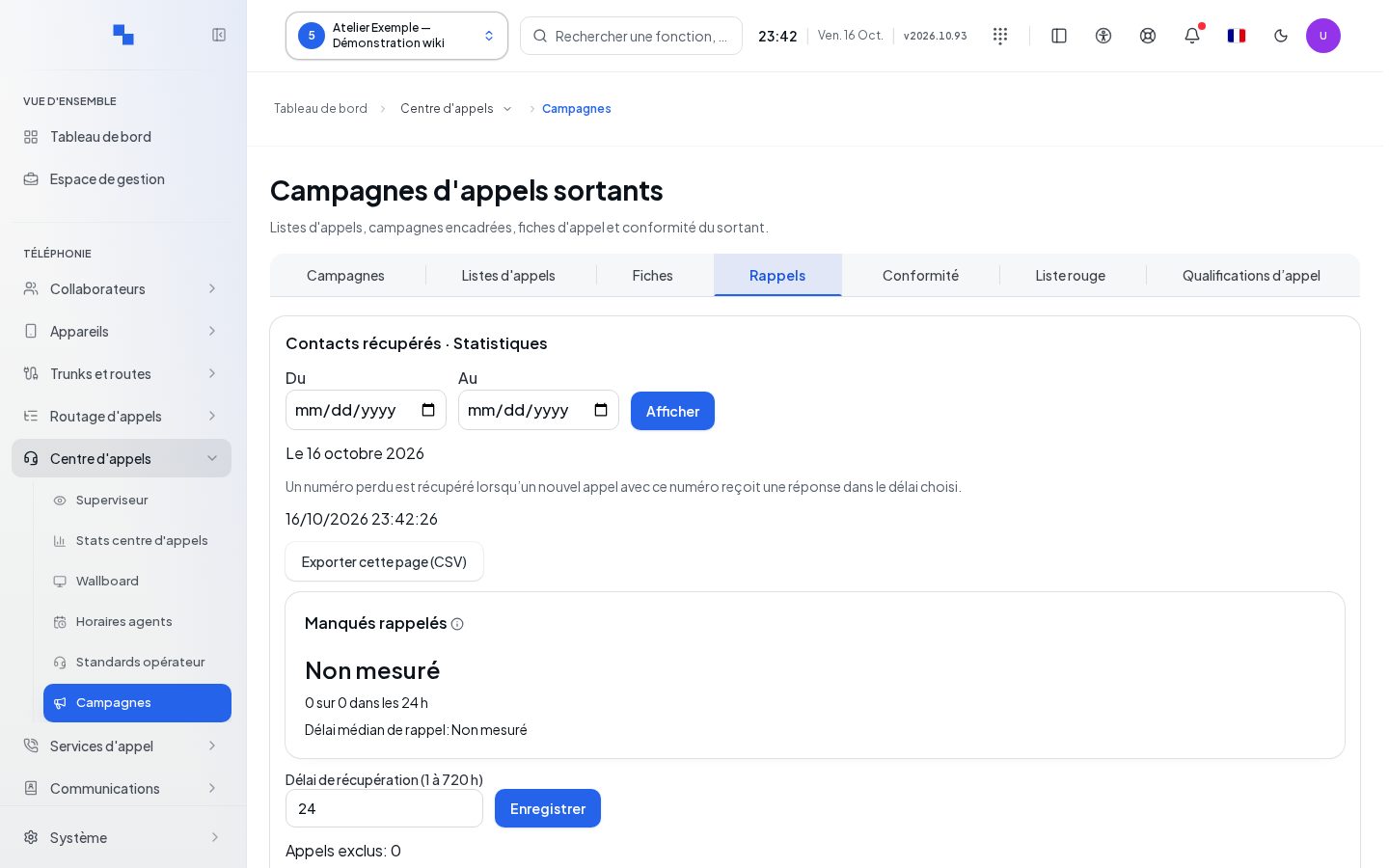
In Callbacks, click Schedule a callback. Fill in Number to call back, When, Destination extension, then optionally Name (optional) and Note. The number, deadline, and destination must be valid before Save. Cancel closes the entry form; Cancel the callback acts on a callback already created and asks you to verify the target.
The list distinguishes the states pending, in progress, called back, failed, and canceled. A scheduled callback is not proof of a successfully completed call.
In Do Not Call List, enter the number then click Block. These numbers are excluded from campaigns, regardless of their source list. Search for a number before adding another. The delete command removes an entry from this list; it does not constitute a contact's consent agreement.
Manage qualifications and verify
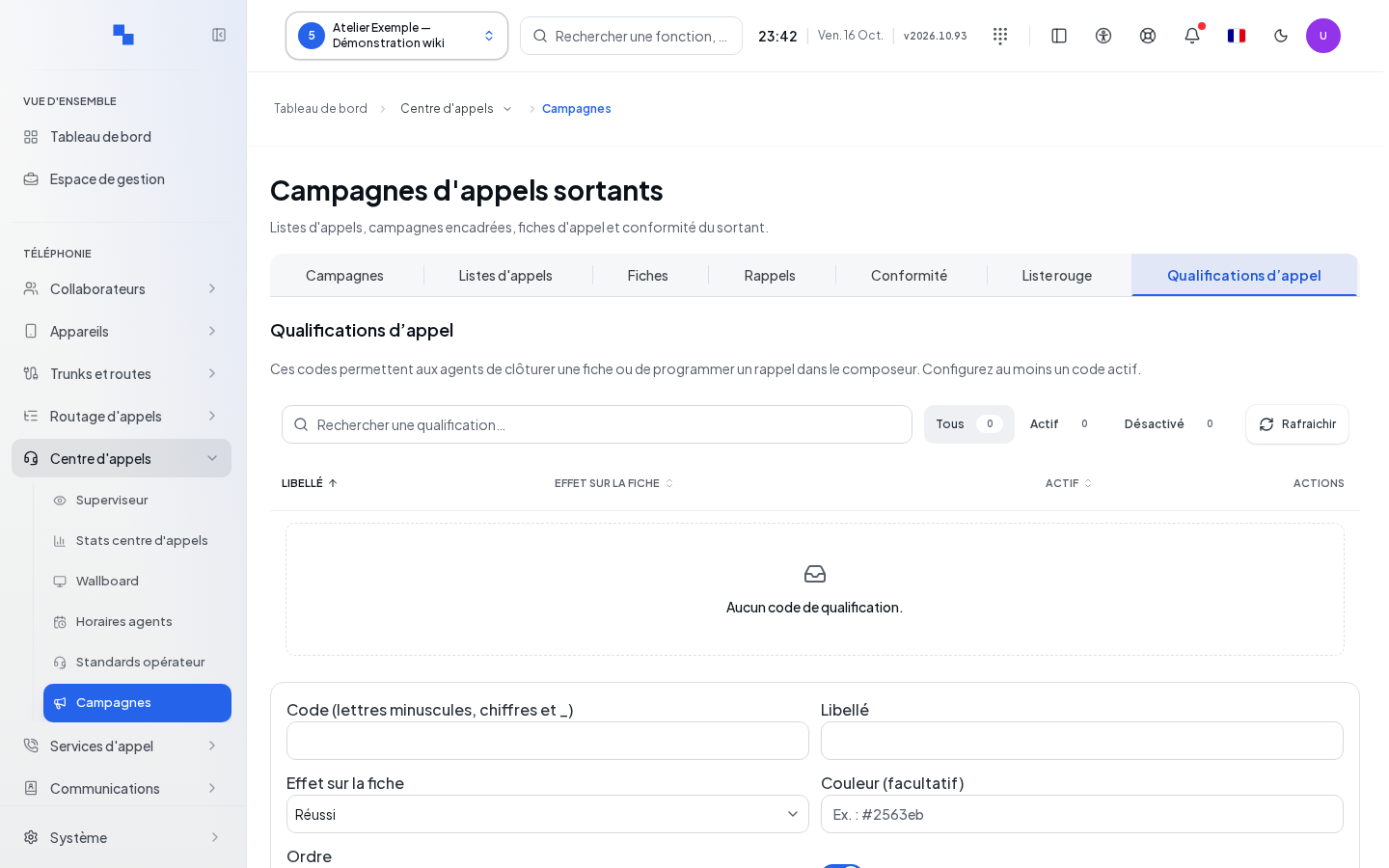
In Call Qualifications, create or edit a code with Code, Label, Effect on record, Color (optional), Order, and Active. The code uses lowercase letters, digits, and underscores. Choose the proposed effect that matches the desired follow-up; do not confuse a simple label with the effect applied to the record. Save or cancel the draft. Deletion opens Delete this qualification code?; cancel to keep it.
Verify the result and resolve a block
Review the campaign and its state after saving. In Supervision, cross-check progress, entered results, and activity per agent. Call summaries are only displayed when they exist.
For a field error, correct the field designated by the server. For an activation refusal, check the list, schedule, and attachments. For blocked contacts, check the reason: unmeasured data or a read failure is not a zero count. In case of a list error, use the displayed recovery option and verify your client and your permissions before retrying.