
Add a support mailbox
In Email support, choose the add command. This entry directly opens the new account form for the selected client. You must have write permission for support.
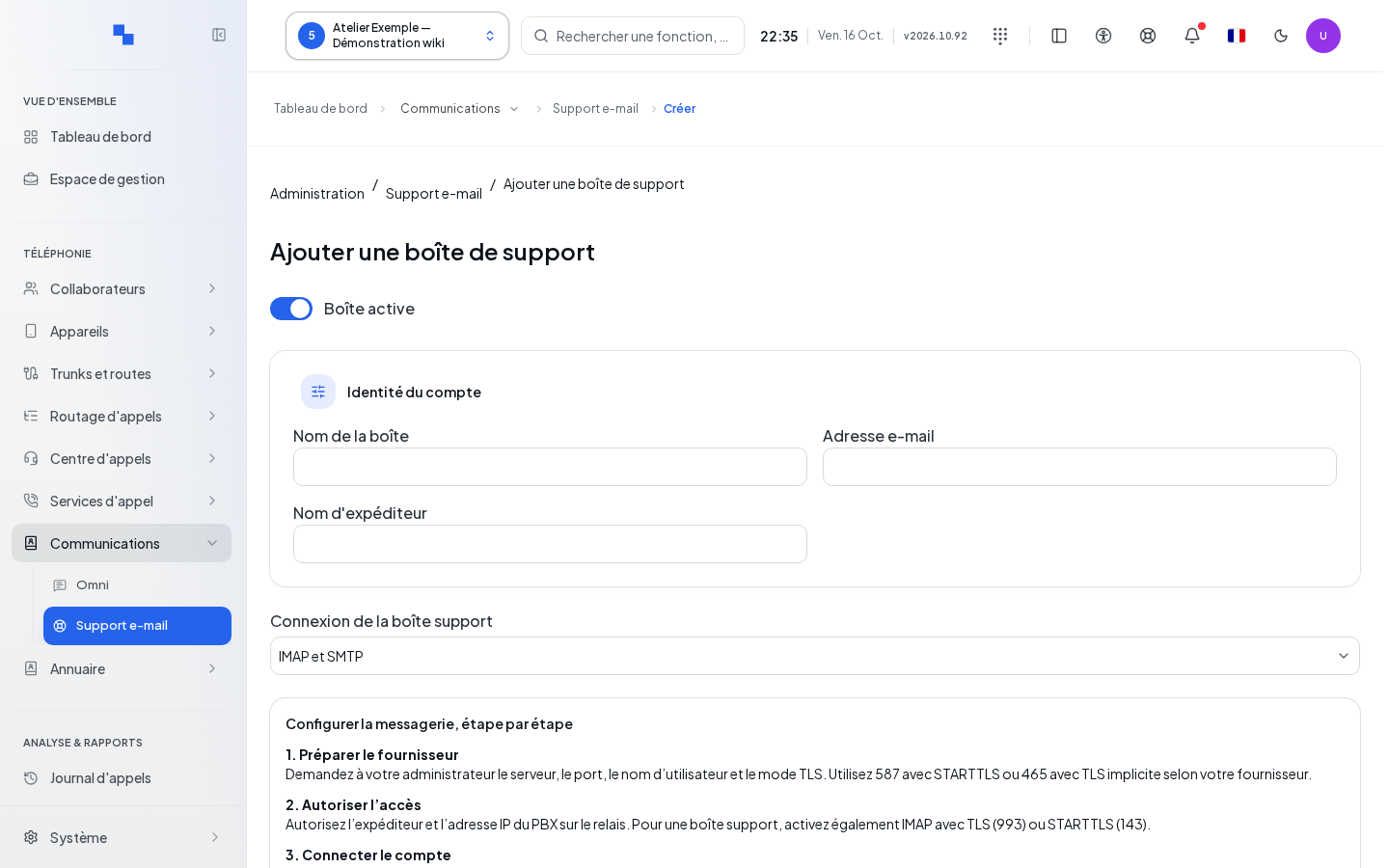
Prepare and save
- Give the account a name and enter its email address.
- Choose IMAP or one of the available Microsoft Graph/Gmail methods.
- Fill in the connection servers and secrets.
- Check the inbox folder, ticket priority and signature.
- Test the IMAP/SMTP connections if you are using this method.
- Click Save. For a cloud method, save first, then open the account to test its saved configuration.
Initially, the account is active, priority is normal, the folder is INBOX, IMAP uses port 993 with implicit TLS, and SMTP uses port 587 with STARTTLS. Adjust these values to match your provider. Canceling returns to the list without creating the account.
Verify the result
Find the account in the list and check the retrieval diagnostics. Connection tests do not send any messages. Detailed fields, secret management and message rejections are explained in Email support.