
Opening Support
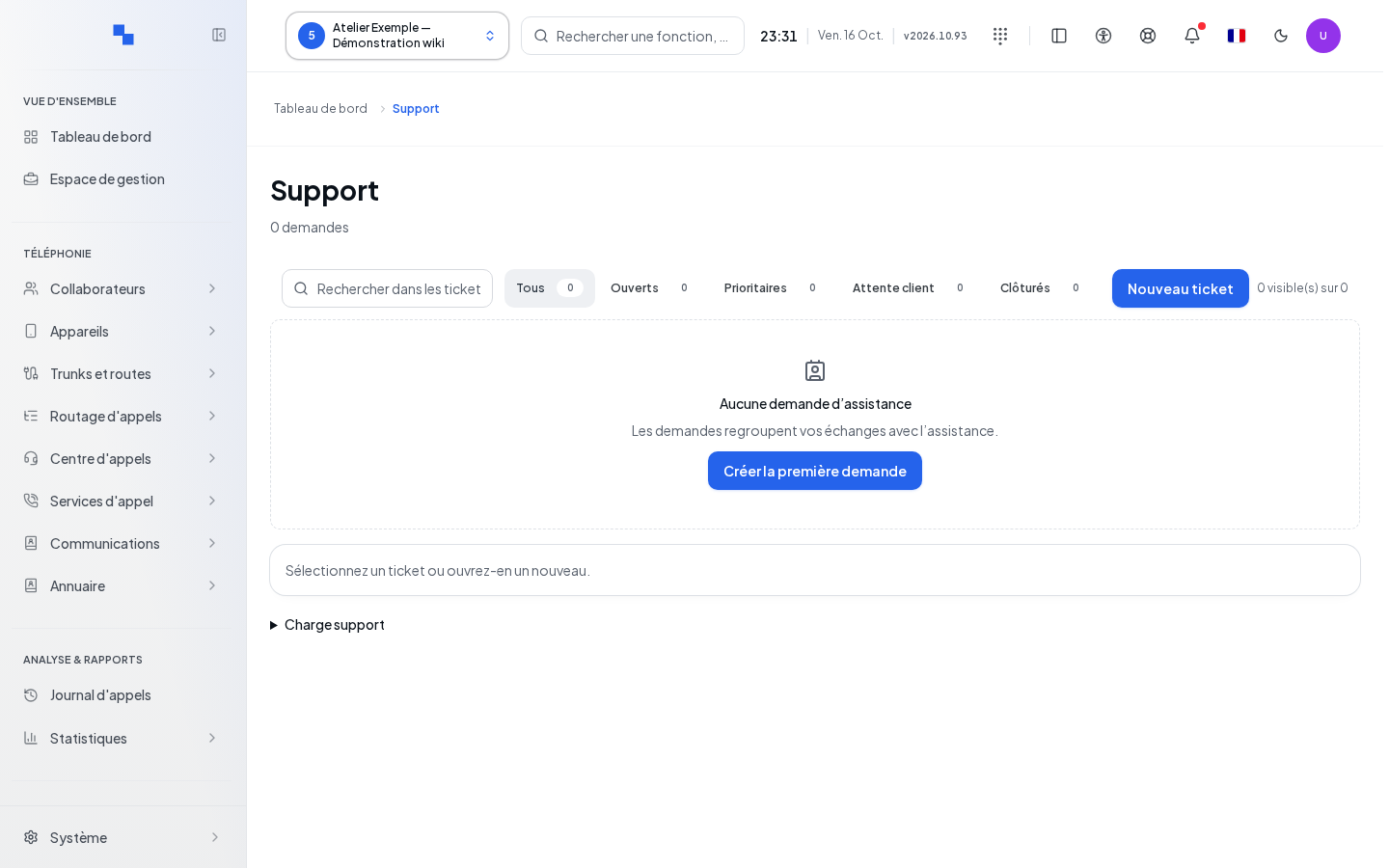
The Support screen allows you to read tickets for the selected customer, create a request, and reply to it. Read and write permissions are distinct. Prepare a precise subject, the circumstances, and any files useful to the support team.
The list displays subjects, priorities, statuses, and load indicators. Search for a subject or ticket information and use the available filters. Results are read in batches of up to five hundred tickets: browse through the pages as needed. A read error offers Retry; it does not mean that no tickets exist.
Creating a ticket
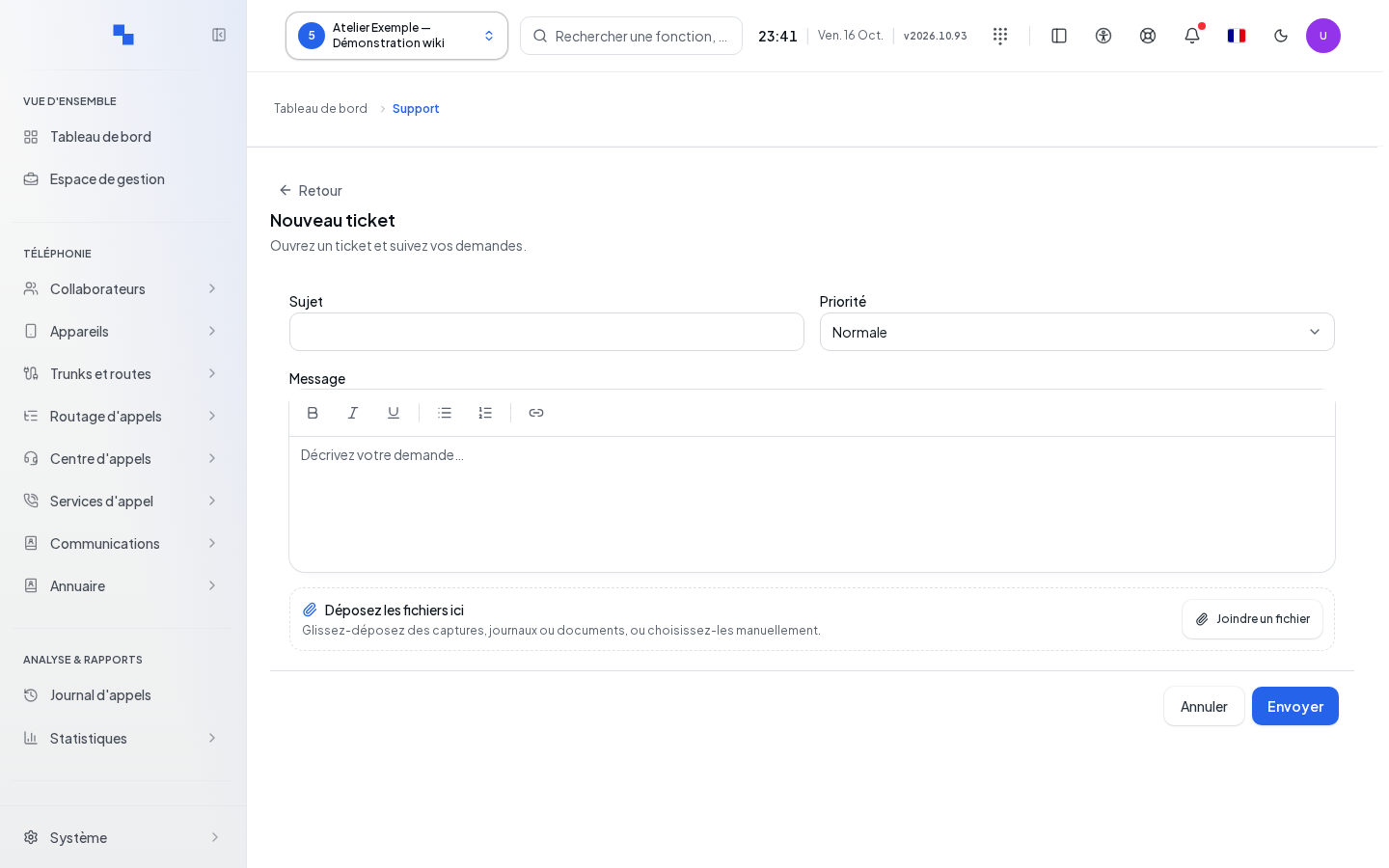
| Field | Purpose | Possible values | Example |
|---|---|---|---|
| Subject | Identify the request; required | Non-empty text after trimming leading and trailing spaces | Incoming calls interrupted at 10 AM |
| Priority | Indicate the urgency of processing | Low, normal, high, urgent; normal by default | Normal |
| Message | Describe the facts | Text | Time, affected number, and displayed message |
| Files | Attach relevant items | Files accepted by the picker and the server | Diagnostic without secrets |
- Click on New ticket.
- Fill in Subject, Priority, and Message.
- Add attachments; check their name and size.
- Edit files allows you to add to the selection; the removal command removes the chosen file and Clear removes the entire selection.
- Click on Send and wait for Sending… to complete. Cancel closes the form without submitting the ticket.
The message is entered as plain text. The bold, italic, underline, list, and link commands in the editing toolbar are disabled in this workflow. Pasting text does not add rich formatting.
Replying and updating
- Open the ticket subject.
- Read the messages, their author, and their date.
- Click on the name of an attachment to download it.
- Prepare your reply, with text or at least one file.
- Click on Reply. An empty reply without an attachment is not sent.
The Status and Priority fields on the record save their change when a new value is selected. Wait for the operation to complete before continuing. Write commands remain unavailable if your profile only allows read access.
Granting access to the ticket portal
The portal access panel lets you generate a link for this ticket, copy it, and open it in another tab. It displays the expiration date when an access exists. The link contains a secret: share it only with the intended recipient.
- Generate the link from the panel.
- Select the messages visible on the portal using the publish checkboxes. Each checkbox saves the visibility of the corresponding message.
- Copy the link and check the recipient's view using the open command.
- Review portal activity: openings, replies, and closure. It is refreshed every fifteen seconds.
- To remove access, use the revocation command; the local link is then cleared.
If copying fails, the panel displays the error. Do not assume the clipboard contains the link until the copy is confirmed.
Checking the result and avoiding duplicates
After successful creation, the form closes and clears. After a successful reply, the input field clears. If the save succeeded but the reload fails, the screen displays a specific warning: reload or reopen the ticket, without recreating the request or resending the same message.
For a send failure, keep the returned reason and check the files. For a failed read, use Retry. If a customer or session change occurs, reopen the ticket in the correct scope before taking any further action.