
Manage meeting rooms
This screen allows the client administrator to manage meeting rooms and their participants. It requires read access to meetings; write access allows changes. Read access to the user catalog is used to name owners, but its unavailability does not block the room list.
Search for a room or owner name, filter permanent or temporary rooms, then open a row. Results are paginated by fifty. The number of participants is re-read every fifteen seconds for visible rooms; a dash indicates an unknown value, not zero participants.
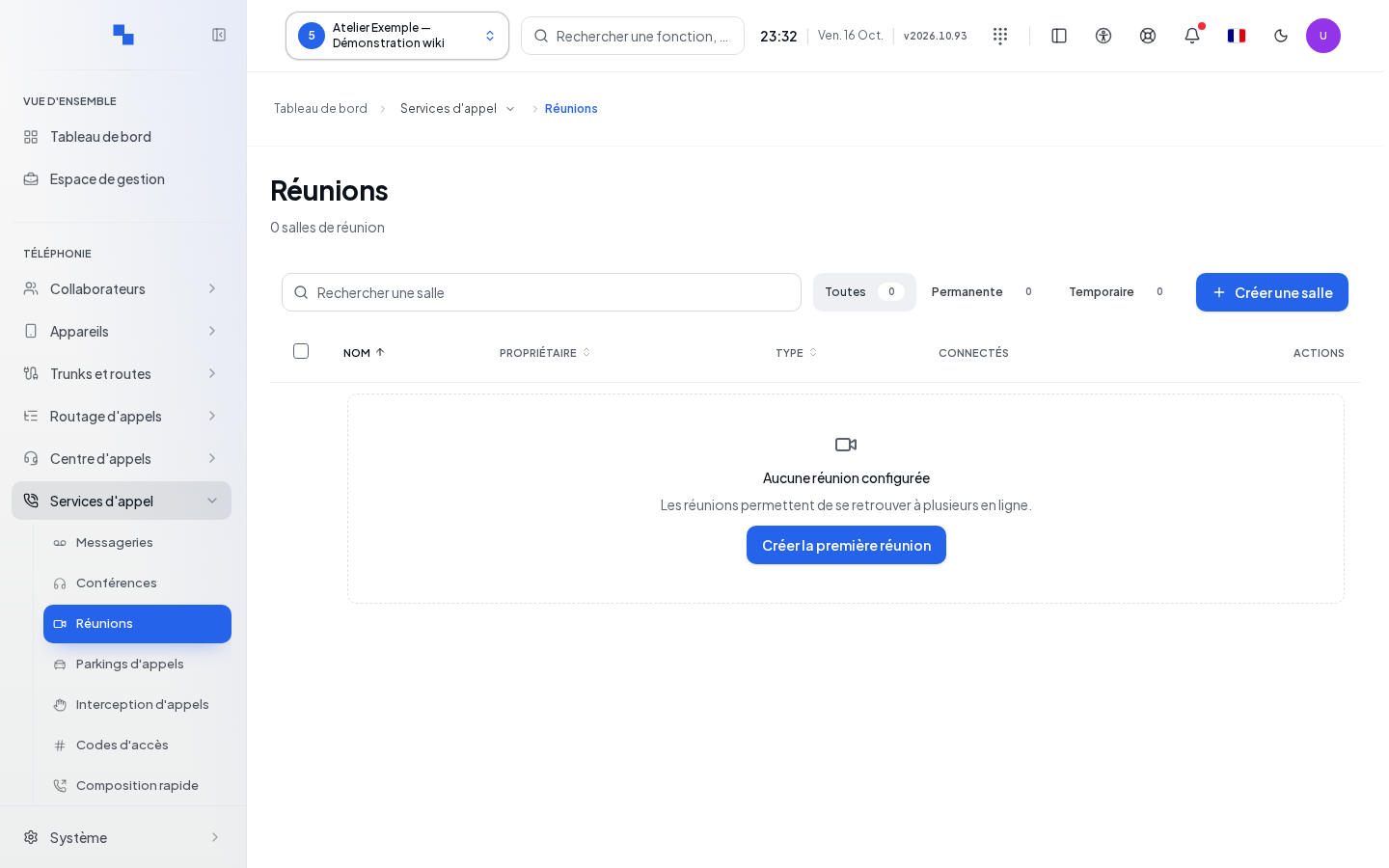
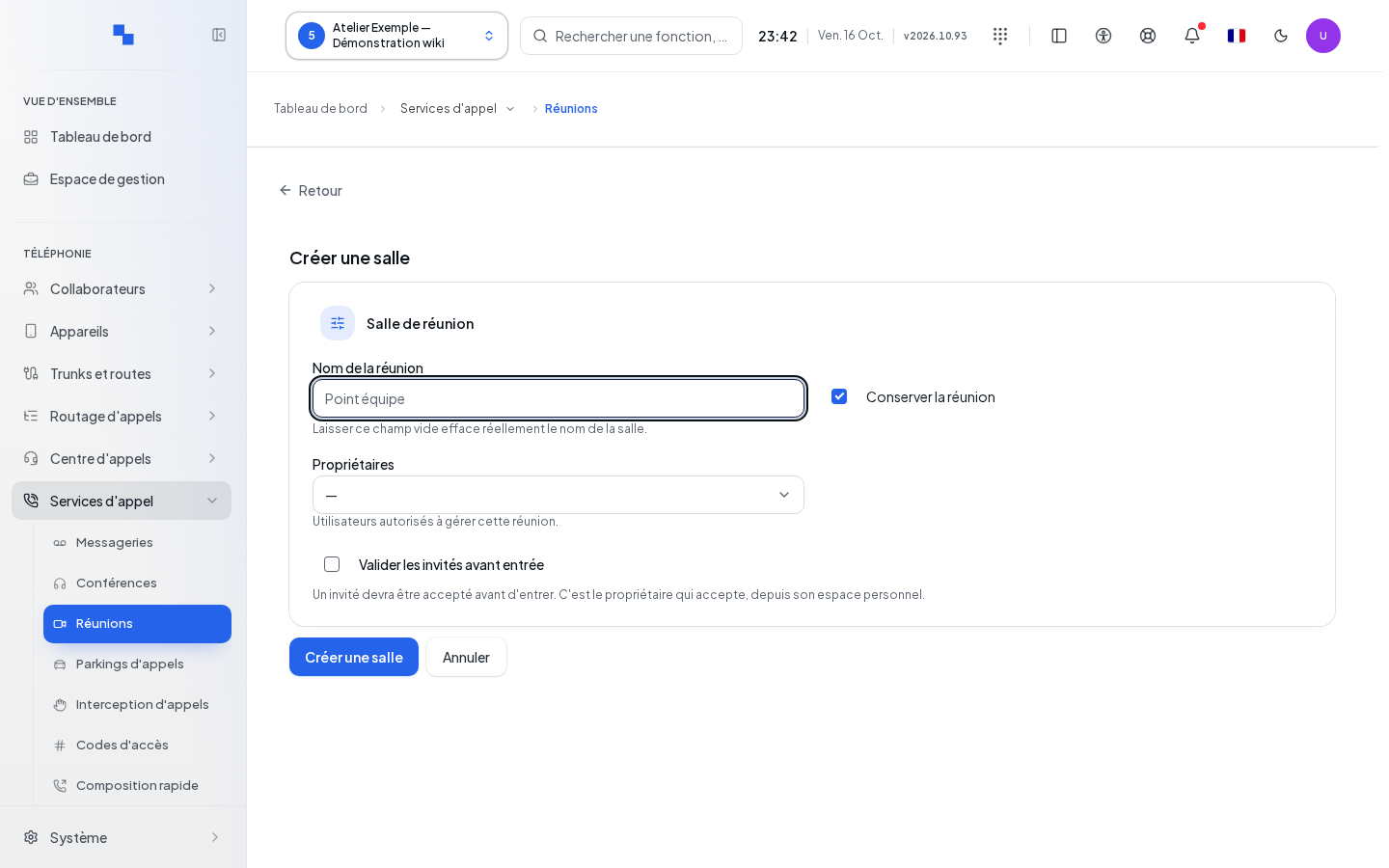
Create and edit a room
- Click the create room command.
- Fill in the form and select at least one owner.
- Confirm the creation, or click Save when editing.
- Verify that the record now matches the created room. Cancel closes the form.
| Field | Purpose | Possible values | Example |
|---|---|---|---|
| Name | Name the room; optional | Up to 200 characters; leaving it empty clears the name when editing | Welcome meeting |
| Permanent room | Keep the permanent type | Checked by default, or temporary | Permanent |
| Owners | Designate those responsible; required | One or more users from the catalog | Alice and Marc |
| Entry authorization | Require admission | Unchecked by default, or checked | Enabled for a moderated meeting |
If no owner is selected, submission is blocked with an explanation near the form. If the catalog is empty, use the user creation link when offered or ask the administrator to create one. An owner already assigned but missing from the catalog remains represented in the record.
View and remove participants
In the record of an existing room, the participant list is re-read every five seconds. It flags muted microphones. The refresh command requests a new read.
To disconnect a person, use their removal command, review the confirmation bearing their name, then confirm. This action ends their participation in the meeting. An error keeps the confirmation and its message displayed; do not consider the person disconnected until the next read confirms it.
Delete and verify
Delete opens the room deletion confirmation. Cancel to keep it. After successful confirmation, the room disappears from the list. Multiple selection also offers deletion according to your permissions.
If a read fails, use the retry option shown. A failure to read participants does not represent an empty meeting. If owners cannot be read, have your user permissions checked; avoid creating another room solely to resolve this display issue.