
Scheduling a Standard Report
Select the client then open Scheduled Reports. This page schedules standard reports and tracks their executions. Prepare the frequency, time zone, and recipients authorized by the client's messaging policy.
Search by name and use the available status filters. Rows indicate activation, cadence, next send, and last result. Counters and follow-up priorities help identify disabled or failed reports.
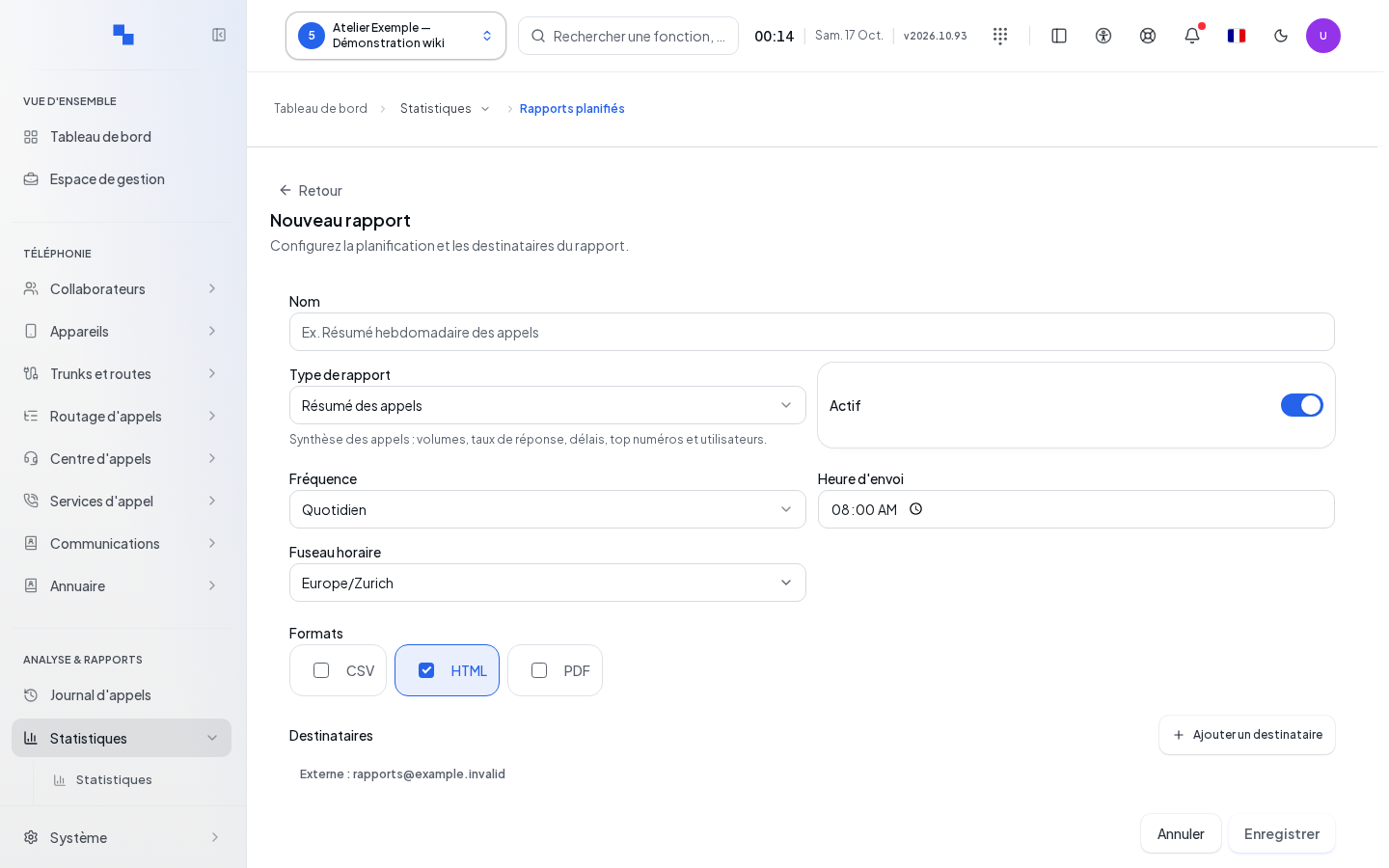
Create or Edit
- Click New Report, or open the edit dialog for a row.
- Enter the name, type, cadence, and recipients.
- Choose the formats available for this type.
- Click Save. Cancel closes the dialog without applying the entry.
| Field | Purpose | Possible Values | Example |
|---|---|---|---|
| Name | Identify the report; required | Non-empty text | Reception summary |
| Report Type | Choose the content | Types offered by the active version; call summary by default | Call Summary |
| Active | Authorize future executions | Toggle switch | Enabled |
| Frequency | Choose the repetition | Daily, weekly, or monthly | Daily |
| Day of the Week | Day for a weekly report | Suggested day; weekly only | Monday |
| Day of the Month | Day for a monthly report | 1 to 28; monthly only | 1 |
| Send Time | Scheduling time | Hour and minute; 08:00 by default | 08:00 |
| Time Zone | Interpret the time | Valid suggested or entered time zone | Europe/Zurich |
| Formats | Choose the generated files; at least one | Formats offered and accepted for the report; HTML by default | HTML |
| Recipients | Define the addresses; at least one | Valid email addresses authorized by the client's policy | manager@example.test |
Add Recipient adds a row. Remove Recipient removes the relevant row; keeping zero recipients prevents saving. The recipient policy must be read before validating; a blocked domain must be corrected.
An older type or format may remain visible for an existing configuration. This does not guarantee its acceptance by the server. For a custom report, use the report builder, rather than inferring its availability from an outdated value.
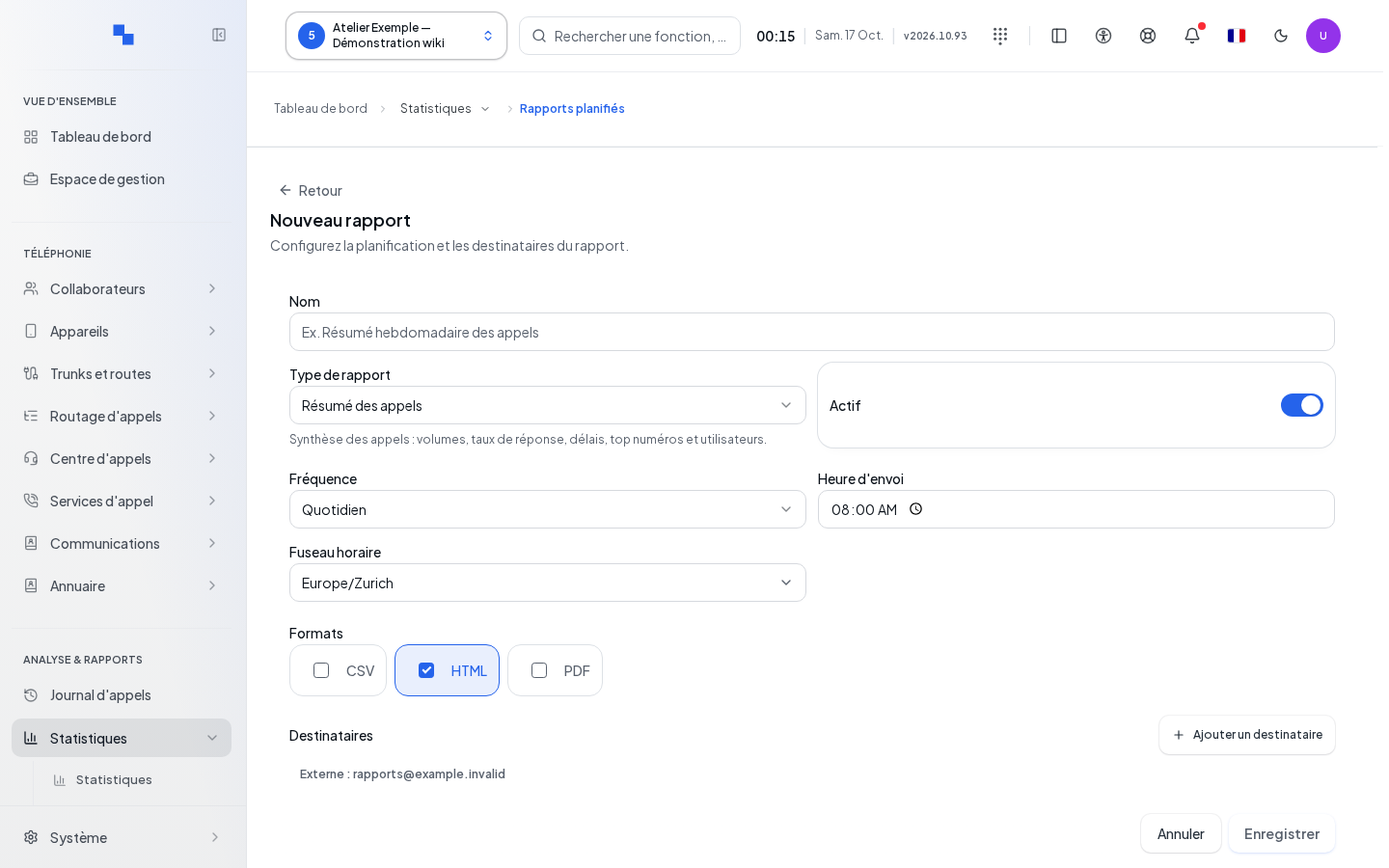
Run, View History, and Delete
The immediate run command requests a pass for the saved report. It does not simply test the form: check the recipients before launching it. The activation command changes participation in future sends.
Open History to view the passes, their status, and result information. Available files can be downloaded from their respective commands. Close closes the history. An accepted request is not yet proof of email receipt: verify the pass result and delivery information.
Delete opens Delete this report?. Confirm the intended report or cancel to keep it. Deactivation and deletion are two different operations.
Verify the Result and Troubleshoot a Failure
After saving, review the next due date along with its time zone. Correct the flagged fields if the entry is rejected: name, formats, recipients, cadence, or type. For a failed read, use the suggested retry. If the calculation succeeded but no email is received, have the SMTP Logs reviewed.