
Manage the accounts authorized to administer the Informatique Facile PBX installation. This screen requires a full installation administrator. Collaborator accounts and client administrators are managed separately.
Find an account
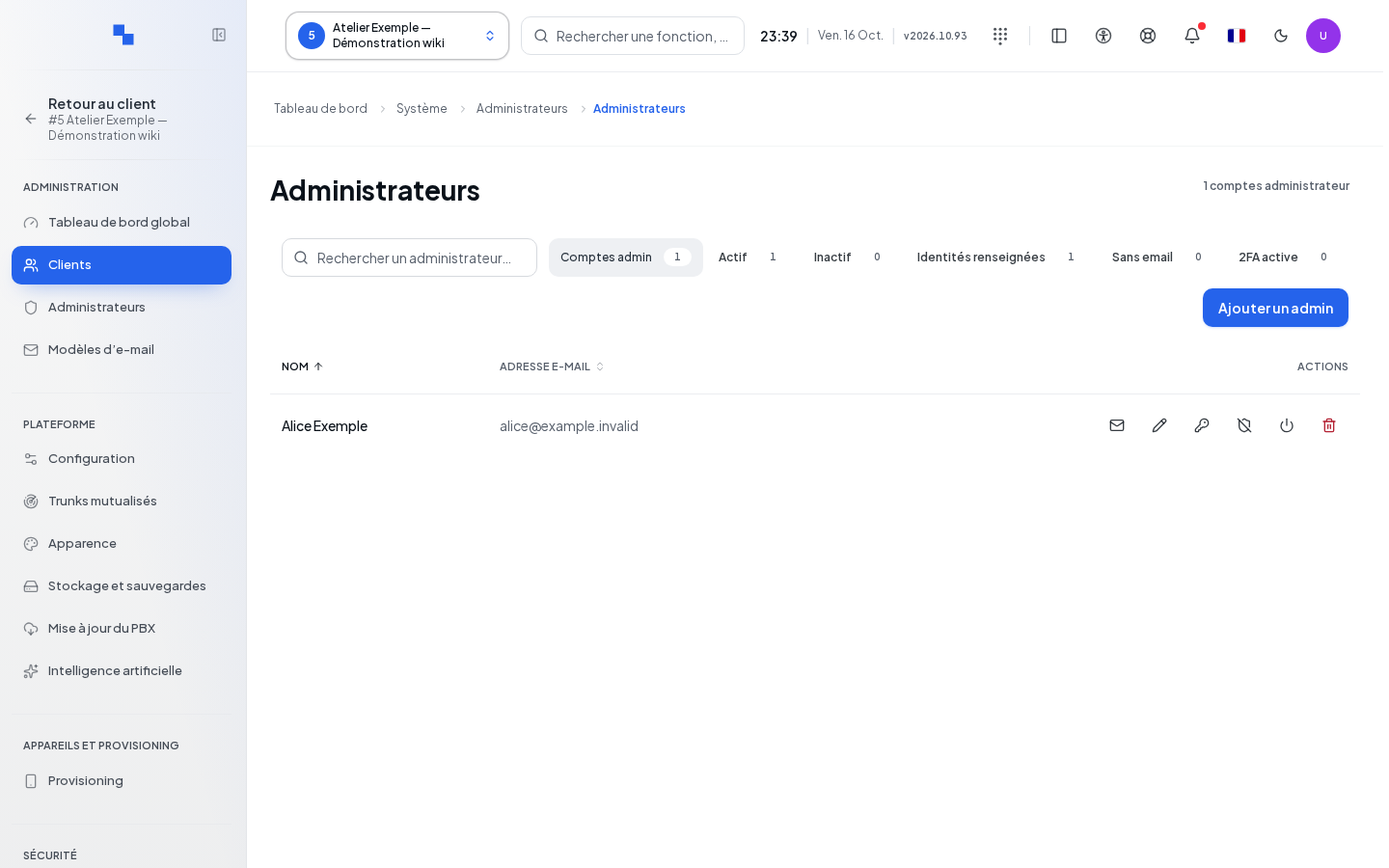
- Open Administrators in the system workspace.
- Wait for Loading…. The list shows the name, notification address, role, status, and two-factor authentication when known; a dash indicates a missing address.
- Enter a name, username, or address in Search.
- Combine the search with Active, Inactive, Identities filled in, or No email. 2FA enabled appears when this information is known for all accounts.
- Click Name or Email address to sort. Beyond 50 results, use the pages.
"No administrator configured" concerns the loaded list. "No results" may simply come from the filters: Clear filters removes them. In case of a read error, Retry requests the list again.
Active and Inactive are quick filters. Other filters gives access to the other criteria. Edit remains visible on each authorized row. The … menu groups the other actions; a deletion requires confirmation. On small screens, each account displays a summary with its actions.
Add and edit
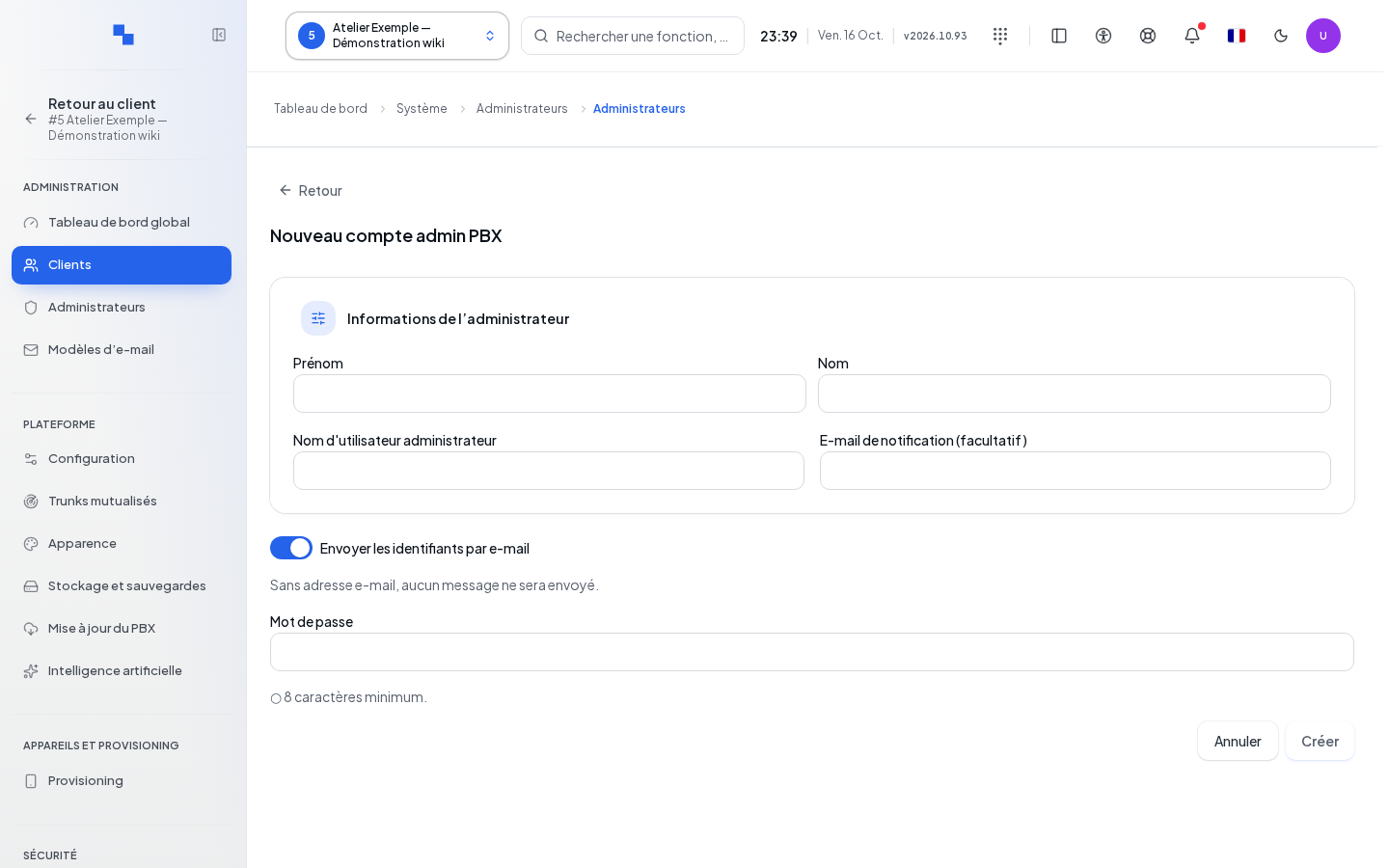
Click Add an administrator, or Edit on a row. Clicking the row also opens the edit view.
| Field | Purpose | Possible values | Example |
|---|---|---|---|
| First name / Last name | Displayed identity; optional | Maximum 120 characters per field | Camille / Example |
| Administrator username | Required login identifier | 3 to 64 characters; starts with a letter or digit; letters, digits, period, hyphen, and underscore | camille.example |
| Notification email (optional) | Destination for access messages | Valid email address or empty | camille@example.test |
| Send credentials by email | Requests sending upon creation | Enabled by default; an address is required | Enabled |
| Password | Login secret | At least 8 characters if entered; required without email sending with address | Choose a personal secret |
| Confirm | Authorizes the username change | Appears if the username is changed during editing | Check after verification |
- Fill in the identity.
- When editing, leave the password empty to keep it.
- If you change the username, check the confirmation; any further username change unchecks it.
- Click Create or Confirm. Cancel closes without sending; commands are blocked while writing.
- Check the list and the email sending result.
The identity and password are saved separately. An error may therefore accompany an already-saved part: the message names the successful part and the failed one. Correct only the rejected part.
Send access and reset the password
Resend access email requests a new send. This action is unavailable if the account is inactive, has no address, or if an operation is in progress. A mail failure does not mean the account does not exist.
Reset password opens the new secret entry. Follow "8 characters minimum.", then Confirm. Other sessions will be logged out after the change. Cancel keeps the current secret.
Deactivate, remove two-factor authentication, or delete
Deactivate or Activate opens a confirmation bearing the account identifier. Check it before confirming.
Reset two-factor authentication disables two-factor protection for the selected account. Its owner will be able to log back in with their password and then re-enable protection. This command is not offered for your own account in this list.
Delete also opens a confirmation. Deleting your own account is not offered. Cancel if you only wanted to suspend access.
Verify the result
Reopen the record and check the identity and status. For a password change, have the account holder verify access without asking them to share their secret with you.
If it doesn't work
"You are not authorized to perform this action." requires checking the connected account's role. A form error remains visible in the dialog; correct the flagged field. After a partial success, review the values before trying again.