
Departments group a customer's users and can pass down shared settings. Select the customer, then open Departments. Read and write access depends on your permissions for this section.
Finding a department
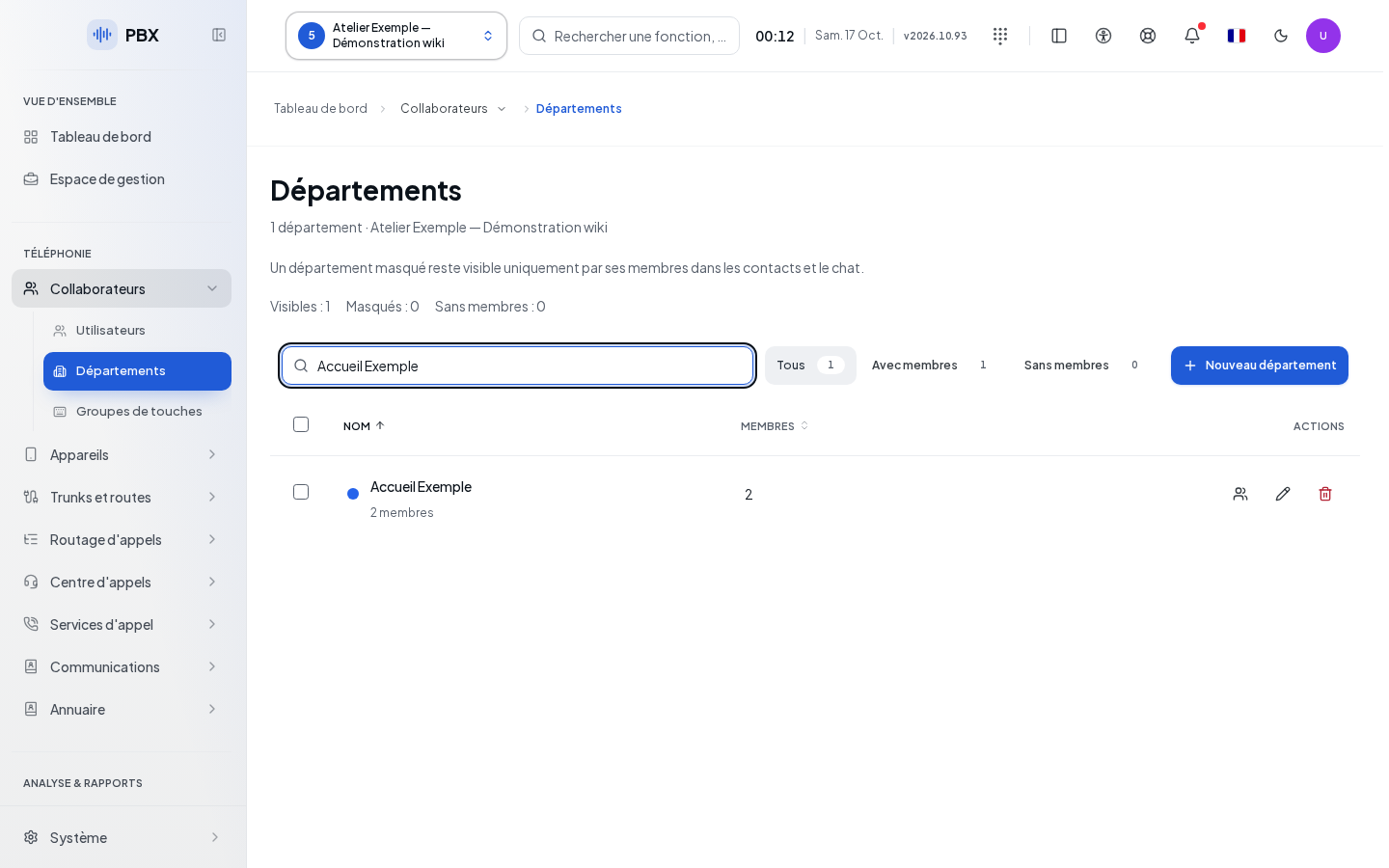
Search by name and use the list filters. The table displays the name, number of members, and actions. The hidden badge indicates a hidden department. Click the name or Edit to open its record; Members opens the composition. Pages beyond 50 departments can be browsed using Previous and Next.
Creating or editing
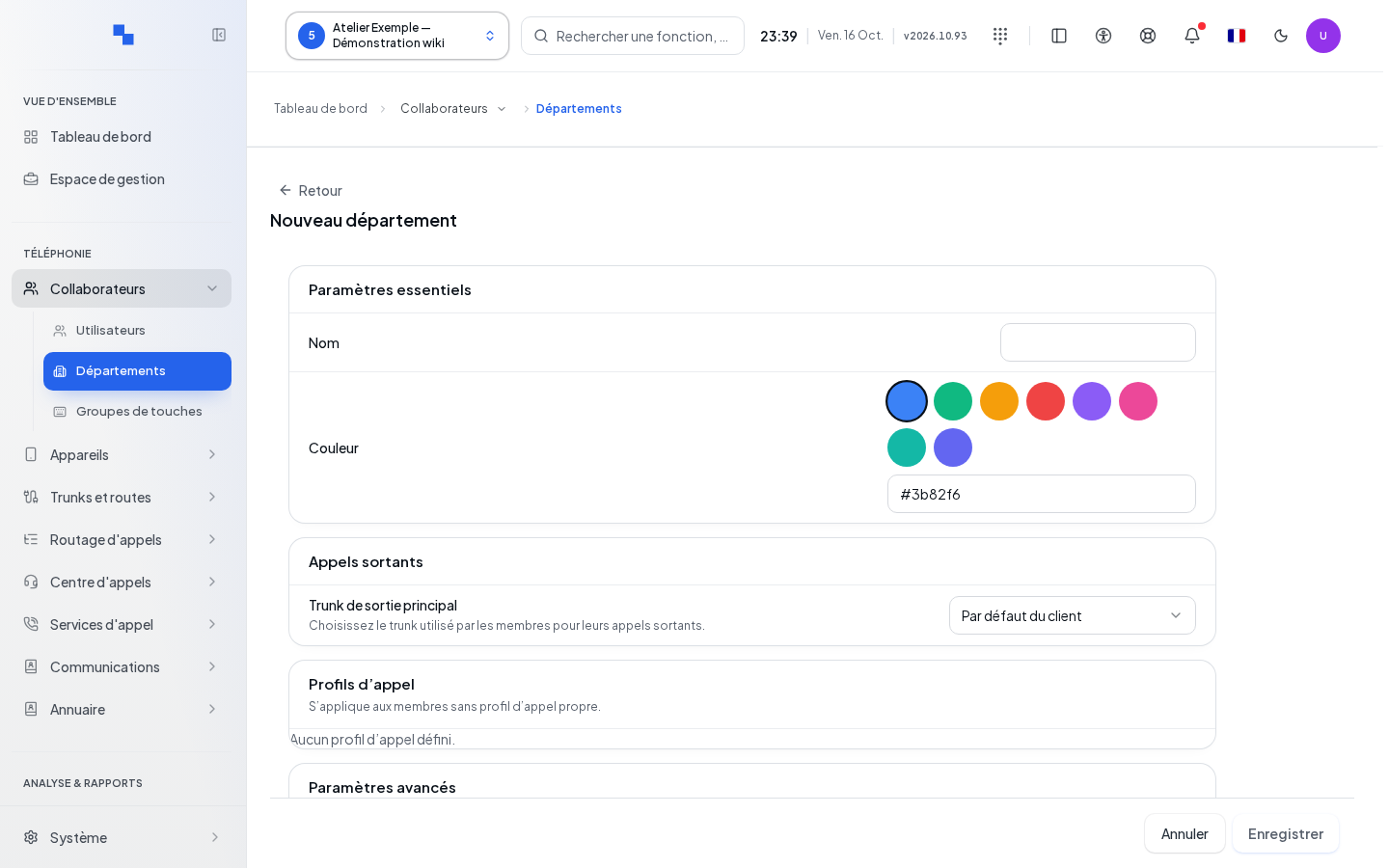
- Open the creation form or click Edit.
- Fill in the essential settings.
- Choose the call profiles and carrier connection if you have the corresponding permissions.
- Review the advanced settings, then click Save.
| Field | Purpose | Possible values | Example |
|---|---|---|---|
| Name | Identifies the department; required | Non-empty text, 200 characters maximum | Support |
| Color | Visual marker | Suggested swatch or six-digit hexadecimal color | #2563eb |
| Call profiles | Restrictions shared by members | Loaded and authorized profiles; a disabled profile cannot be newly selected | National profile |
| Primary trunk | Carrier connection used for outbound calls | A suggested connection or the customer's default | Customer default |
| Hidden | Makes the department hidden depending on directory usage | Toggle, disabled on creation | Disabled |
A carrier connection is also called a SIP trunk. Key groups for an existing department are set within its record. Changes to them affect the users who inherit them. Cancel closes the record. Save is unavailable while writing, without a name, or without any changes.
Adding and removing members
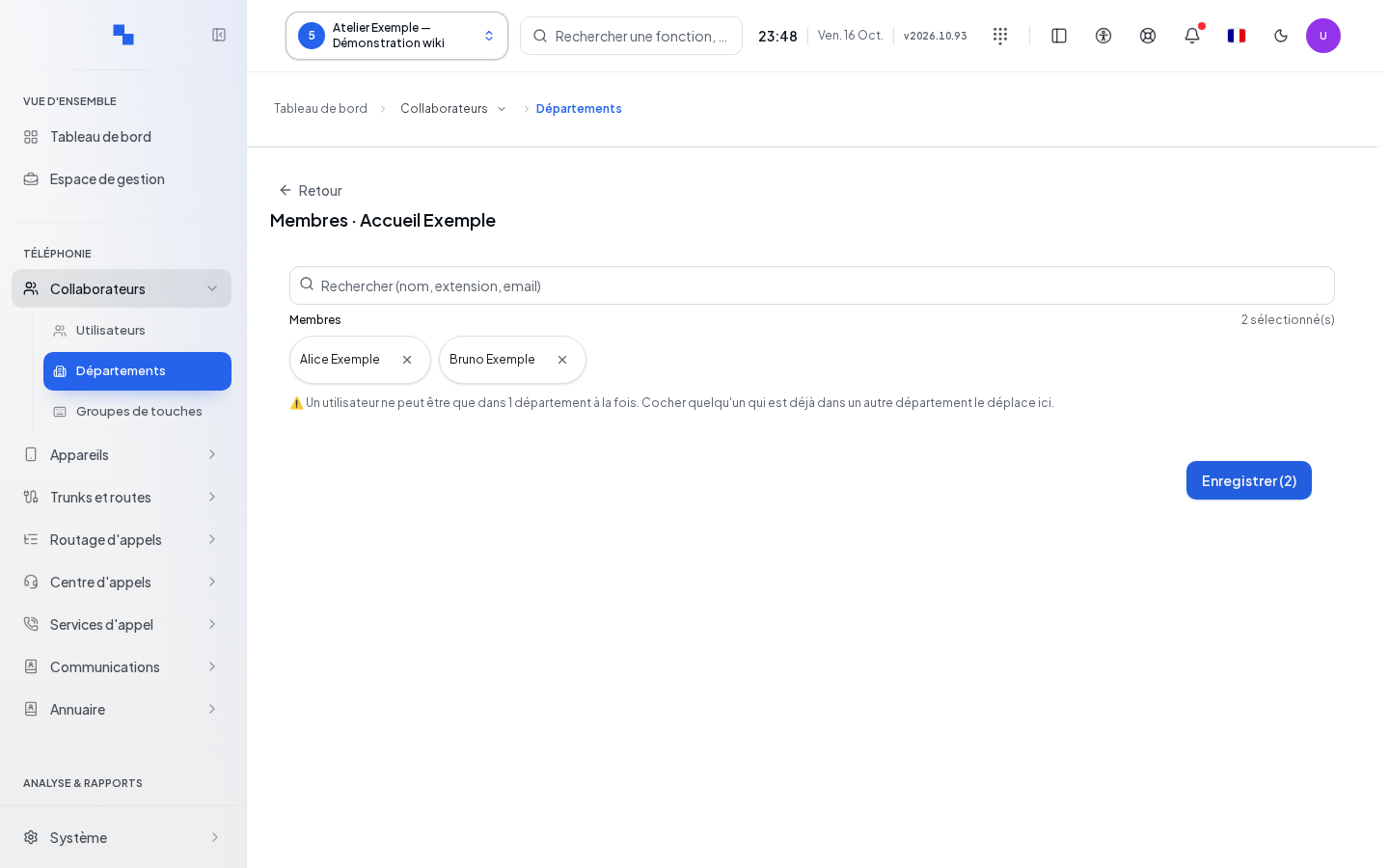
- Click Members for the department.
- Wait for the members and users to load.
- Search for and select the people to add; deselect those to remove.
- Click the save button showing the selected count.
A person can only belong to one department at a time. Check their previous assignment. If you cannot read the user directory but can modify members, the form allows you to enter a person's UUID identifier and then click Add. Have this exact identifier provided to you; do not enter their internal number.
The composition is paginated by 50 members. Save the changes on the page before switching pages. Removals and additions are processed sequentially: review the composition if an error occurs midway.
Deleting
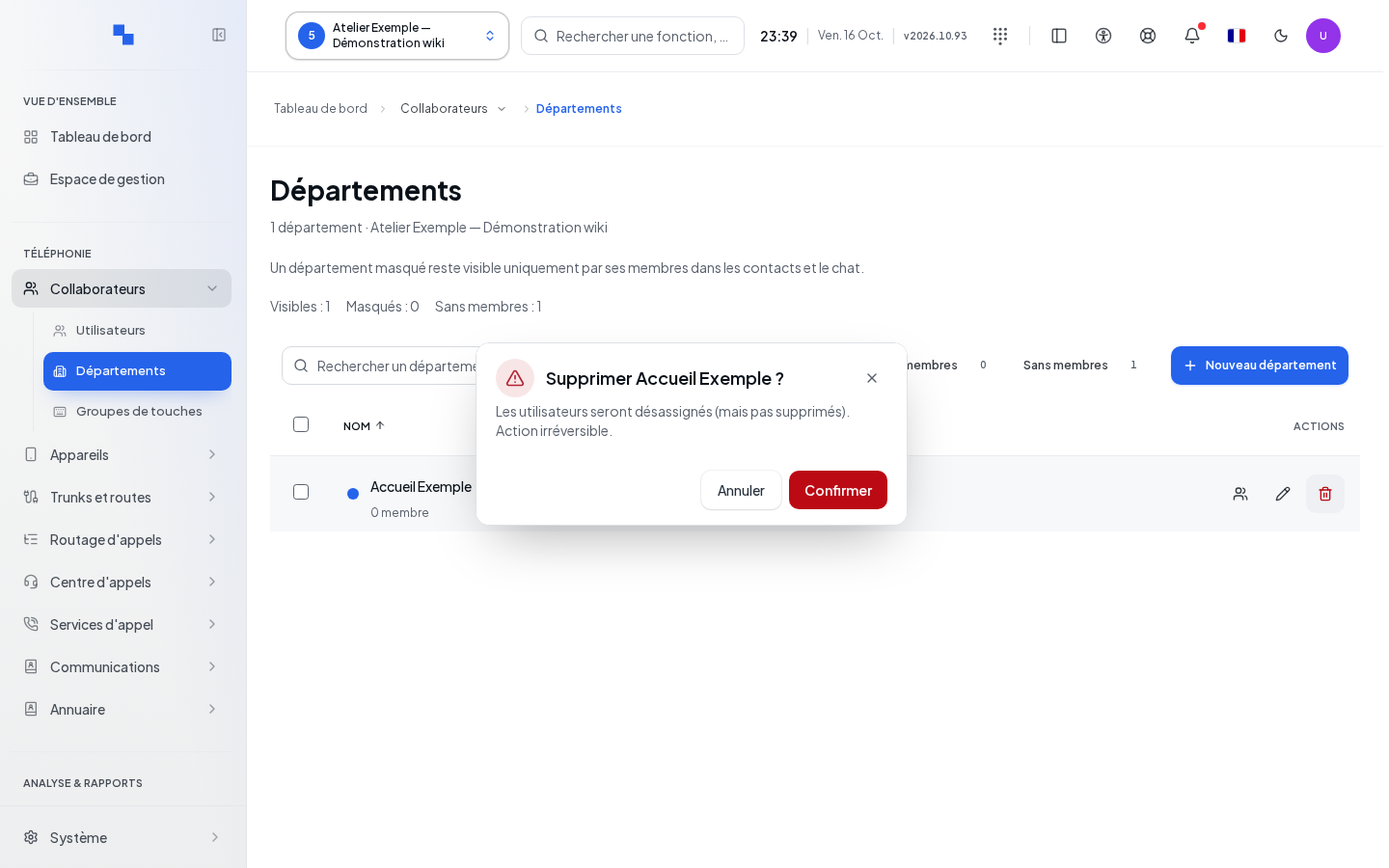
Click Delete on the row and verify the department name in the confirmation. Cancel if you only want to remove a person: use the member list instead. After confirming, check the list and the assignments of the affected users.
Checking the result
Reopen the record, then Members. Check the people, profiles, and carrier connection. A catalog error should not lead you to clear an existing assignment.
If it doesn't work
"Unable to read members" means you should retry the read before making any changes. "Unable to modify members" may occur after changes have already been made: check people one by one before retrying.