
The Microsoft 365 connection shares a provider configuration between the uses offered for the client. Open the integration after selecting the client and preparing the provider application.
Prepare the connection
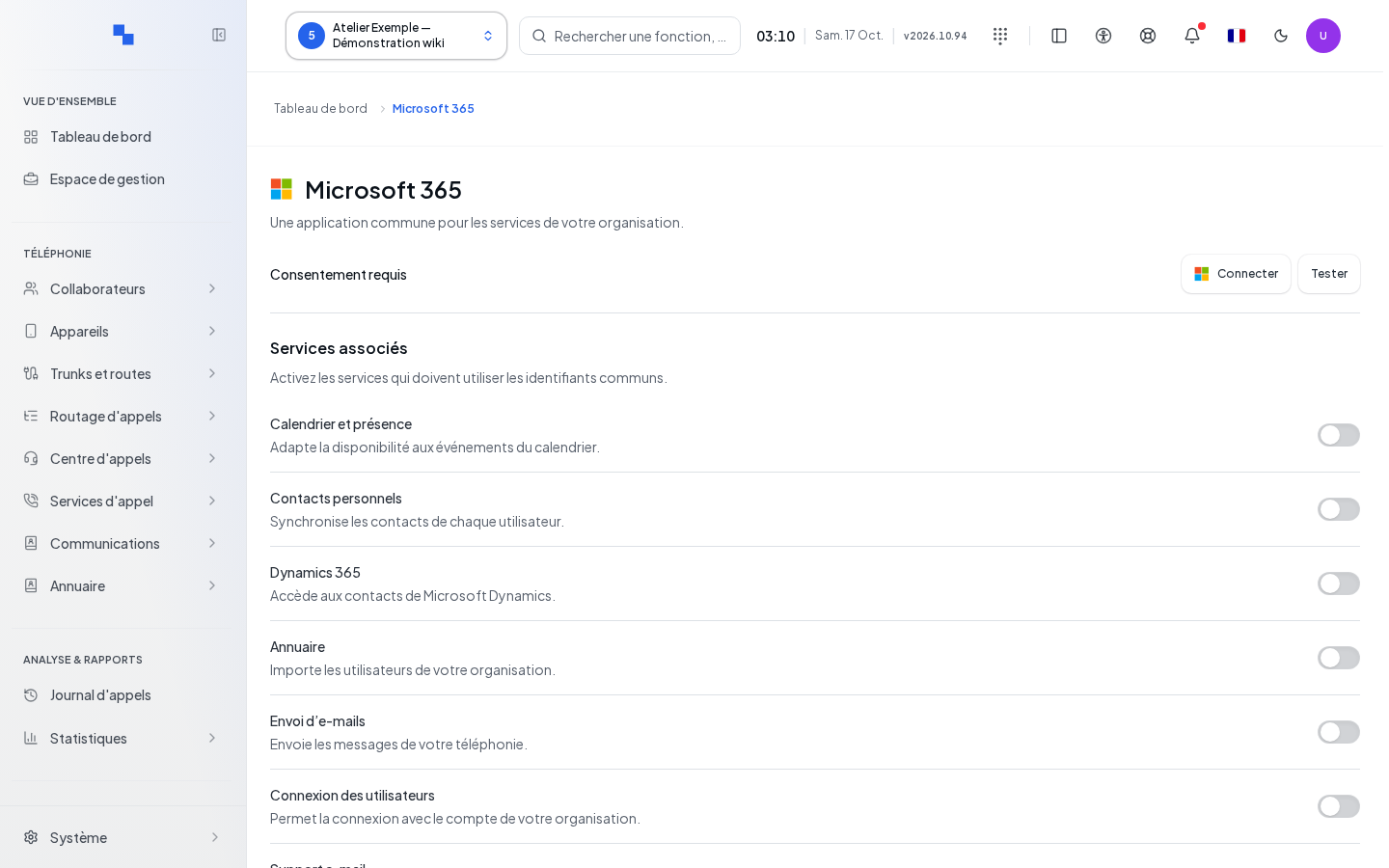
The screen requires read rights for settings, the directory, support, and SSO providers. Write access also requires the corresponding write rights and SSO secret management. Partial access can therefore make the entire panel non-editable.
- Open the application creation guide provided in the screen.
- Copy the exact return address.
- Open the application credentials or advanced configuration.
- Fill in the values below.
- Select the desired uses, then Save.
| Field | Purpose | Possible values | Example |
|---|---|---|---|
| Organization ID | Provider organization | ID or domain requested by the panel | Value provided by your administrator |
| Application ID | Application to use; required | Provider ID | Application ID |
| Application secret | Application secret | Protected input; leaving it blank keeps the already configured secret | New secret value |
| Associated services | Functions that use the connection | Switches offered for the client | Directory, if offered |
Authorize and test
Connect opens the provider authorization. If the configuration is not ready, the command first opens the credentials and places the cursor on a missing field. Pending changes are saved before the login redirection. Reconnect renews an existing or expired connection.
The Microsoft guide displays the required application permissions based on the selected uses and requests administrator consent. Follow the list shown for your configuration; it changes with the uses. The Google guide exposes the permissions for its flow.
Test applies to the saved configuration. It is unavailable if the configuration is missing, if a draft exists, during an action, or without rights. The result may indicate consent denied, missing permissions, invalid credentials, different organization, or unavailability.
Verify the result
Check the connection status, then test the chosen function in its own screen. A successful connection does not by itself synchronize all contacts and does not send a test message for every use.
If it doesn't work
Save the changes before testing. Check the organization, the secret value, and the consent matching the uses. An expired status requires a reconnection. Do not share the secret in the diagnostics.