
Create the customer's people and devices from Users. A person is a named employee; a device is a shared or non-named extension. Check the customer and licenses before any creation.
Browsing the list
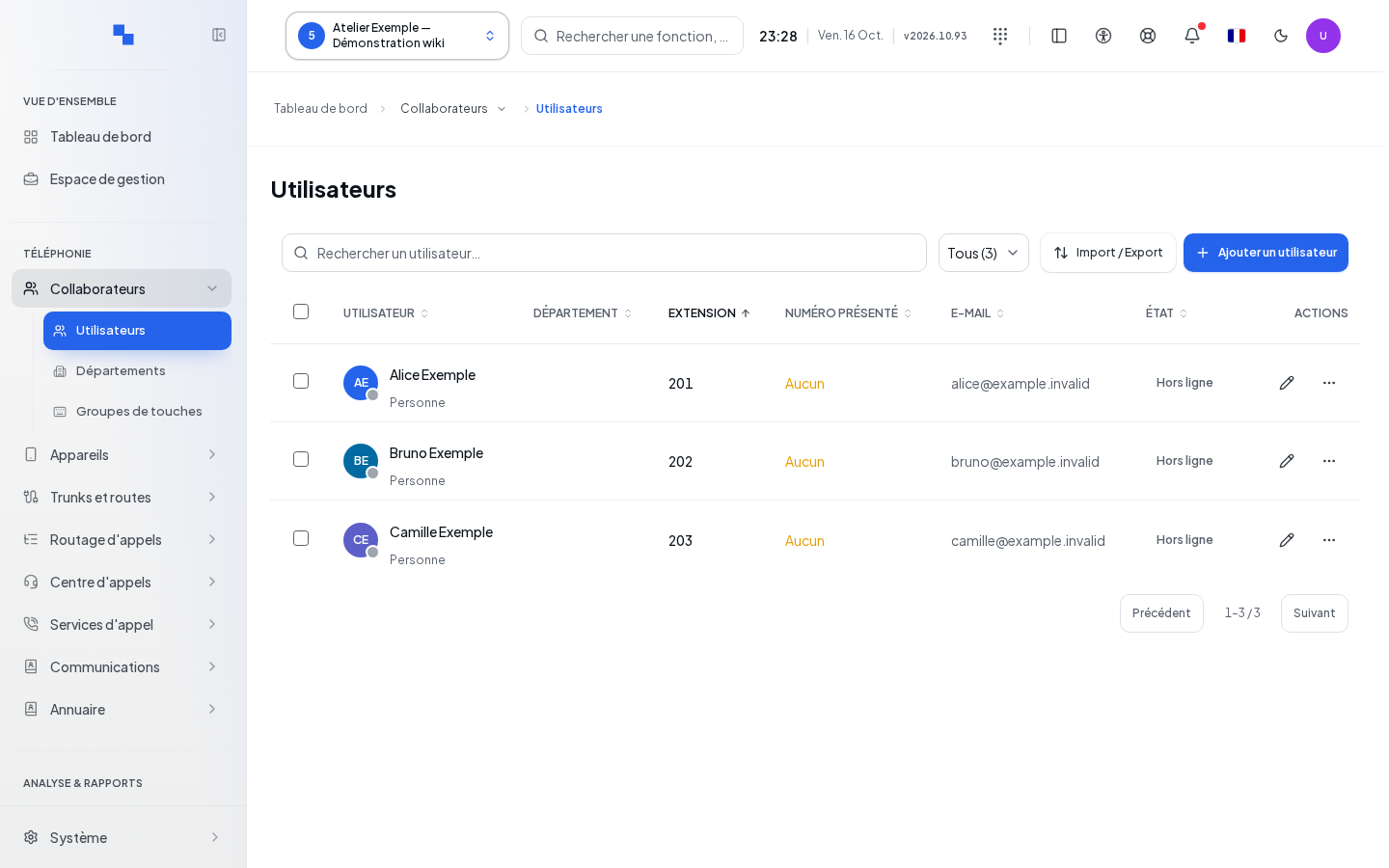
The table displays the user, the department, the internal number (extension), the presented number, the status, and the actions. Search a user…, the presence filters All, Online, Offline, Unknown, sorting, and pages make searching easier. Refresh reloads the data.
A Truncated list warning limits the scope of search and sorting to the rows received. Truncated numbers means a dash in the Extension column may be a number that was not received. Do not create a duplicate to fill this dash without reading the record.
The Customer licenses block distinguishes total, people, devices, and remaining. An unknown quota is not unlimited; "Pending license" requires an allocation followed by a reload. A zero quota blocks creation. An overage is displayed explicitly.
Adding a user
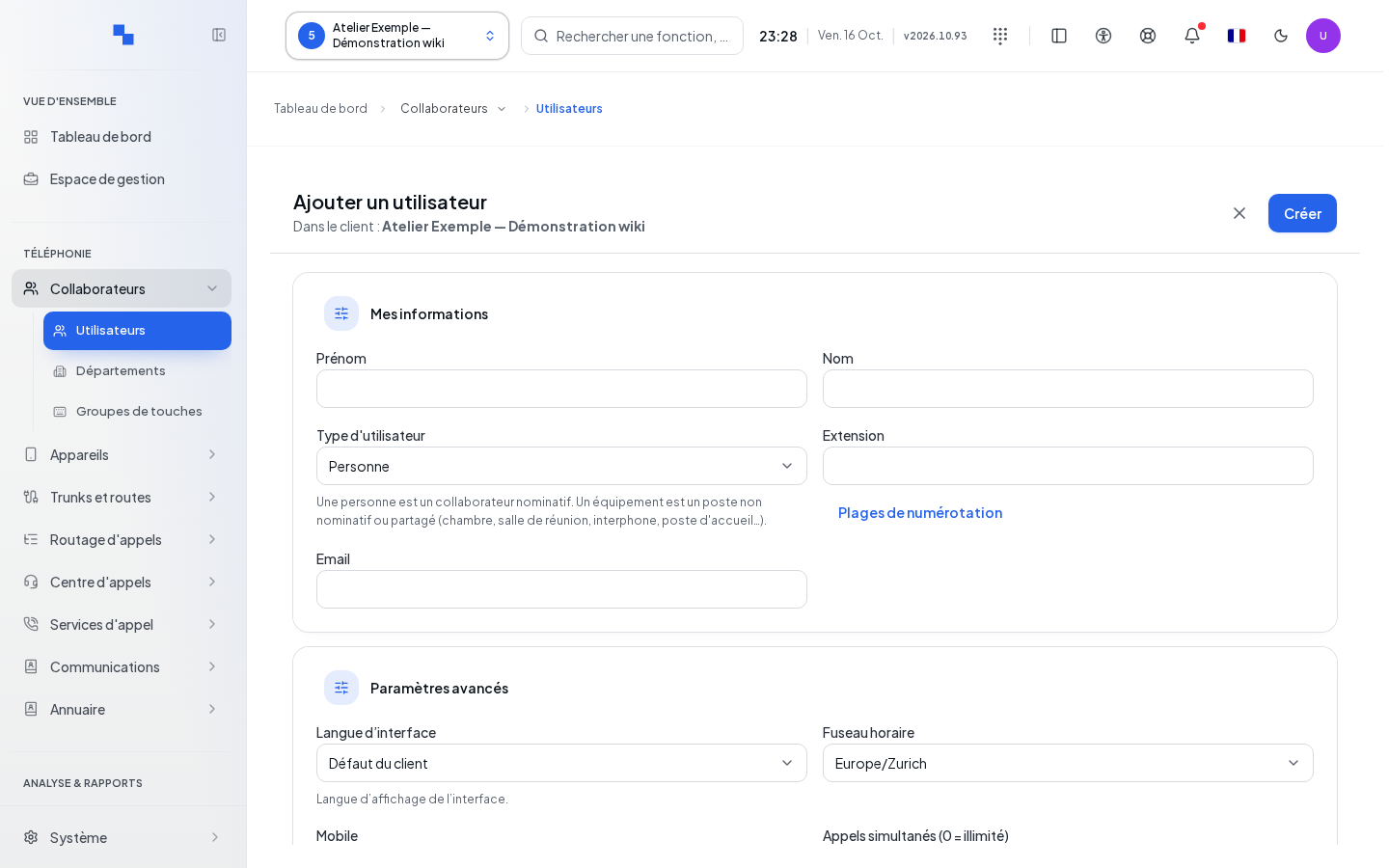
- Click Add a user.
- Verify In the customer:.
- Fill in the personal information and the internal number.
- Open Advanced settings for the optional values.
- Click Create, then check the created record.
| Field | Purpose | Possible values | Example |
|---|---|---|---|
| First name / Last name | Identity of the person or device | Text | Camille / Example |
| User type | Account nature | Person or Device | Person |
| Extension | Internal number | 2 to 8 digits starting from 10; leave empty for automatic allocation if a range is available | 201 |
| Notification address | Valid address, optional | camille@example.test | |
| Interface language | User's language | Suggested language or customer default | French |
| Time zone | Date and time display | Suggested time zone | Europe/Zurich |
| Mobile | Mobile contact number | Optional phone number | +41795550123 |
| Concurrent calls (0 = unlimited) | Account call capacity | Positive integer or zero | 2 |
An automatic number is taken from the customer's ranges. If no range is suitable, use the Numbering ranges shortcut in the general settings. The server decides the allocation; a concurrent entry may make a previously free number unavailable.
Actions on a person
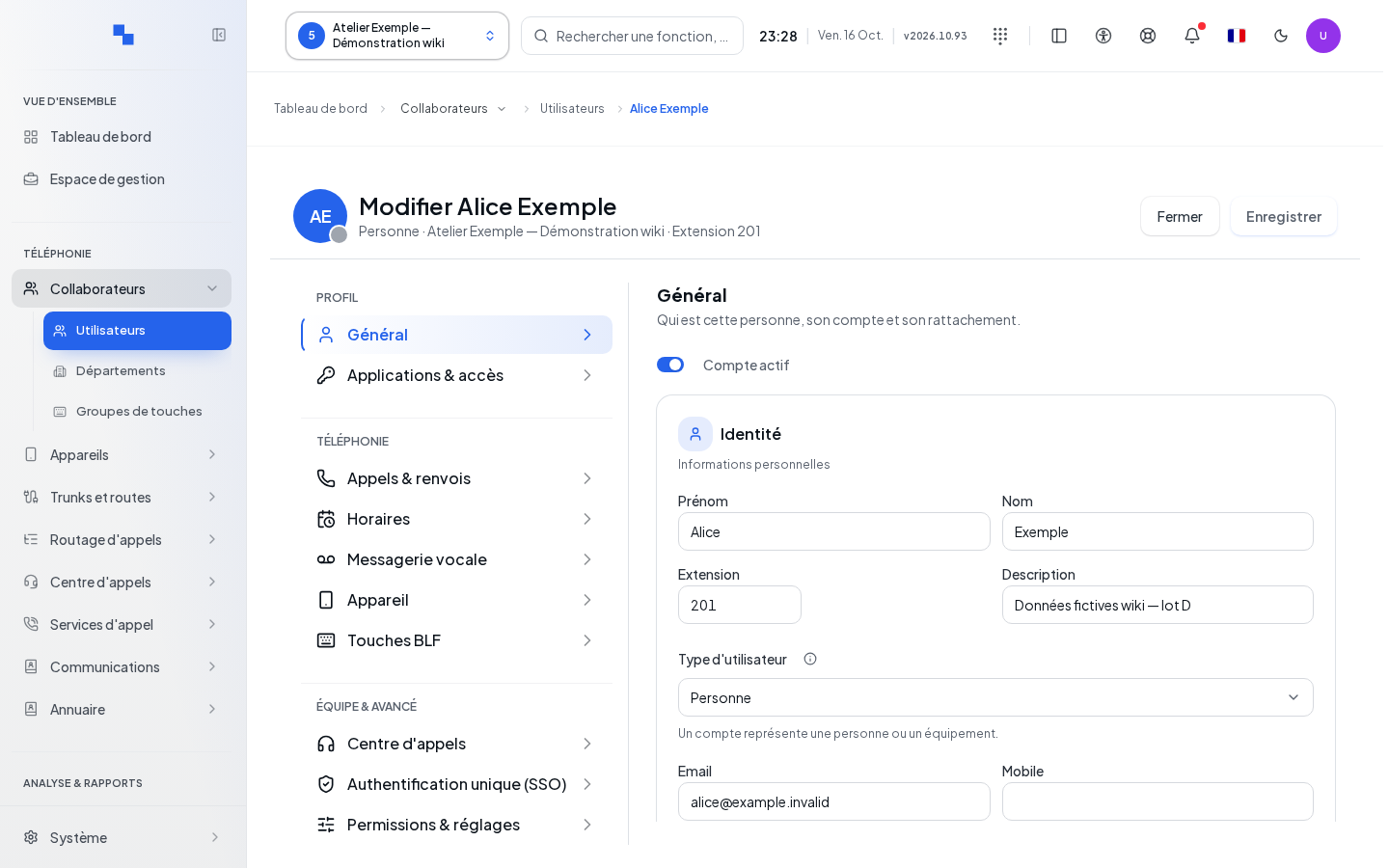
Edit opens the user record. The row menu also offers:
| Command | Effect and control |
|---|---|
| Enable "do not disturb" / Disable "do not disturb" | Changes the availability status; then check the call destination in the record. |
| Change presence | Chooses a suggested status; a measured busy status cannot be forced from this menu. |
| Resend welcome message | Requests confirmation, then sends the login and a password selection link valid for 72 hours, single-use. An e-mail address is required. |
| Activation link | Creates a link valid for 30 minutes, single-use; share it only with the account holder. |
| Reset user password | Requests confirmation then displays a new login password once only. The physical phone's SIP secret remains separate. |
| Test mobile notification | Requests a test send; check reception and diagnostics. |
| Registered devices | Opens the SIP extensions currently connected; an empty list does not prove the absence of configured devices. |
After a reset, Copy credentials copies the displayed secret. "Copy failed: the browser refused access to the clipboard." requires a secure manual transmission before Close. The welcome send must be checked in its report: a received response may still indicate a delivery failure.
Importing or exporting users
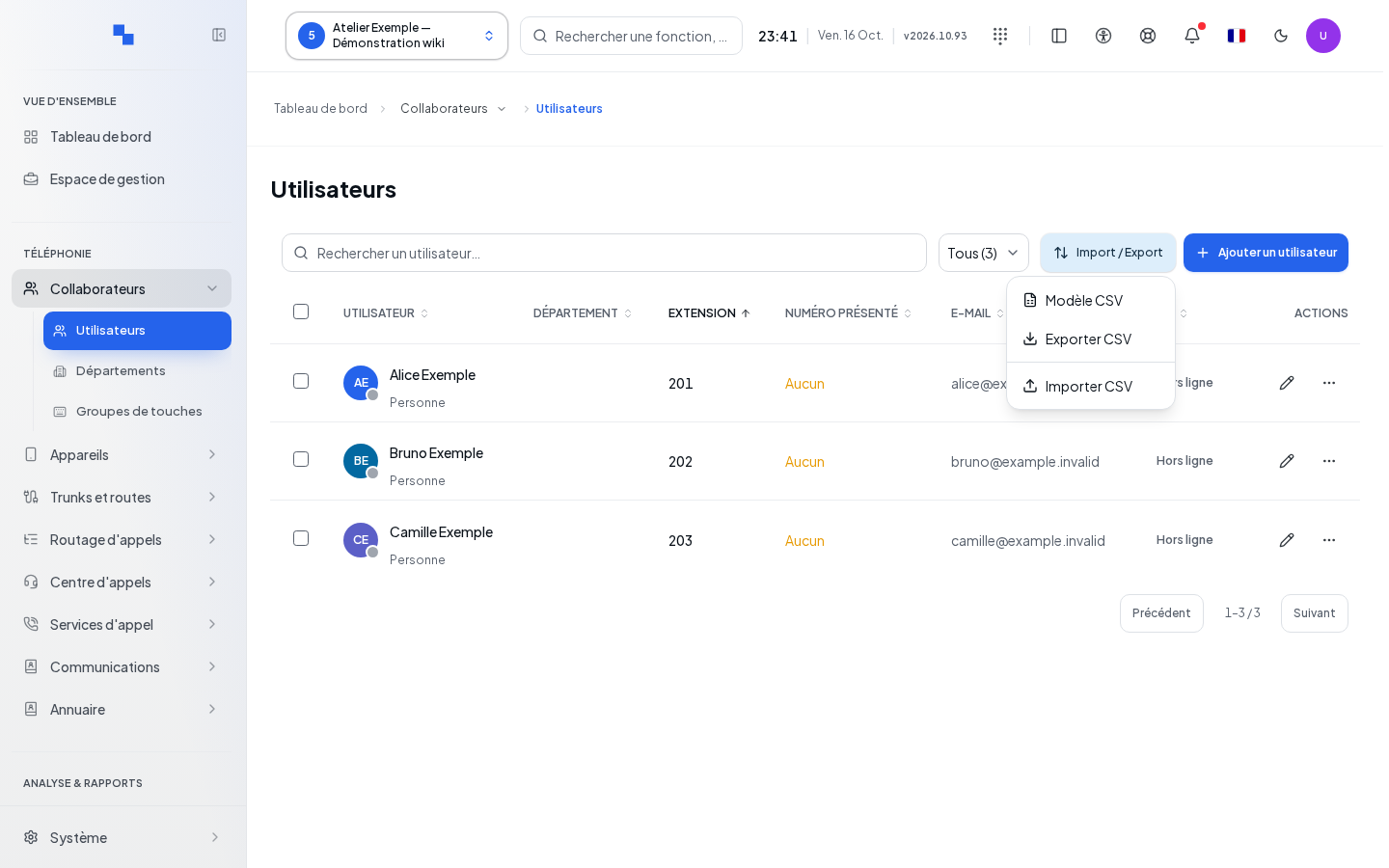
- Open Import / Export, then CSV template.
- Fill in the template columns.
- Choose Import CSV and a CSV or Excel file of 1 MiB maximum, at most 500 users per sheet.
- For a workbook with multiple sheets, choose Sheet to import.
- Click Preview and correct the rejected rows.
- Click Import CSV, then check the number imported and the errors.
Changing the file or sheet invalidates the previous report. Export CSV downloads the data for the requested export; exporting a selection applies to that selection. A file reading error requires checking size, columns, and sheet, then selecting it again.
Editing multiple users
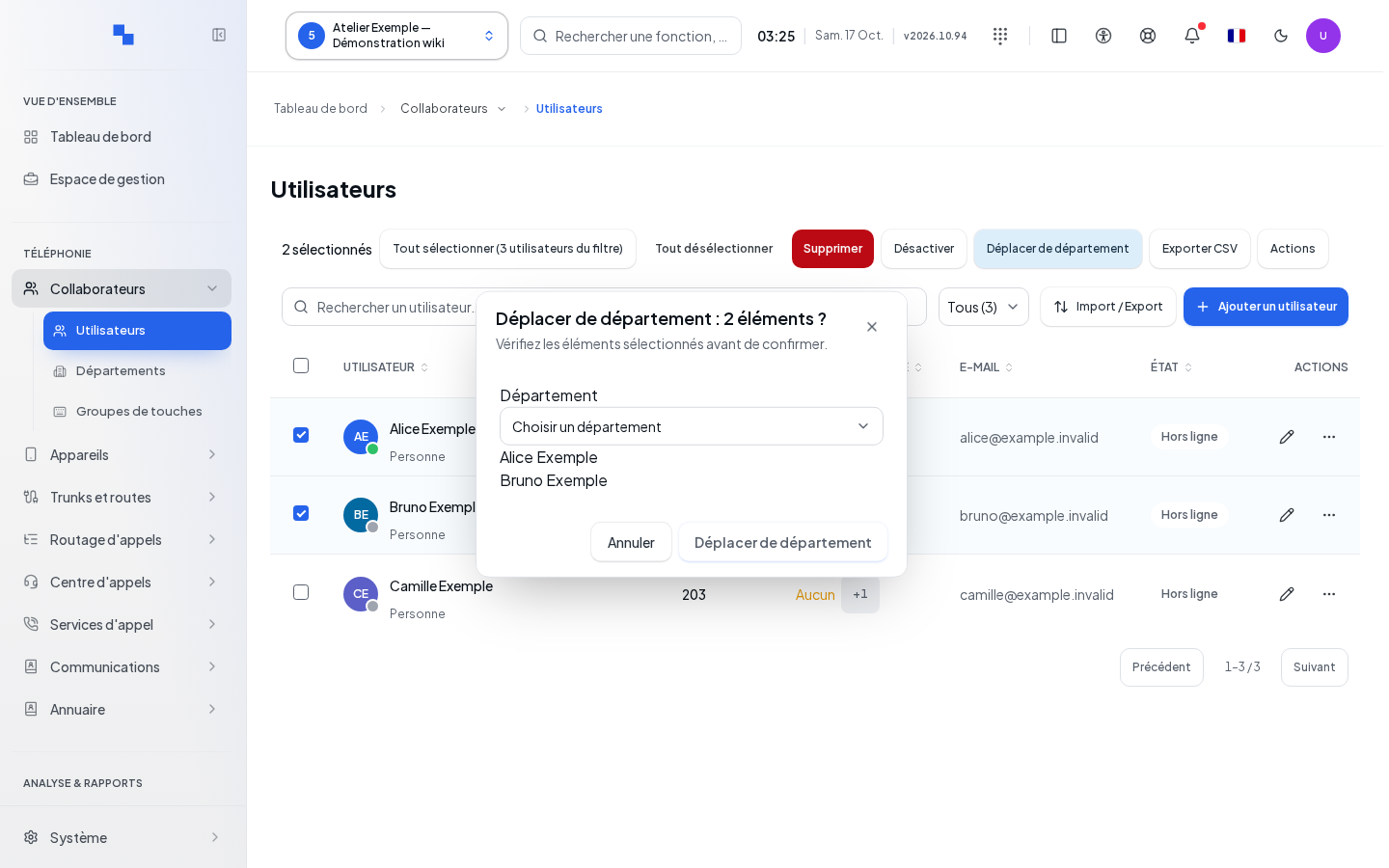
The row checkboxes prepare a selection. Check all on this page applies to the visible page; Select all indicates the number of users matching the filter. The global selection is limited when the inventory is truncated.
In Actions, Edit selection allows modifying the language and time zone. Enable only Edit language and/or Edit time zone, choose the values, then Apply. "Enable at least one field to edit." means no field was chosen.
Bulk actions also allow enabling or disabling accounts, moving people between departments, sending welcome messages, adding or removing a personal key group, and deleting. Groups inherited from a department are retained by personal group changes.
Review the confirmation, then follow the progress and the Report. Each welcome message replaces the previous link for its recipient. An unconfirmed result must be checked in the log before a new send.
Deleting a user
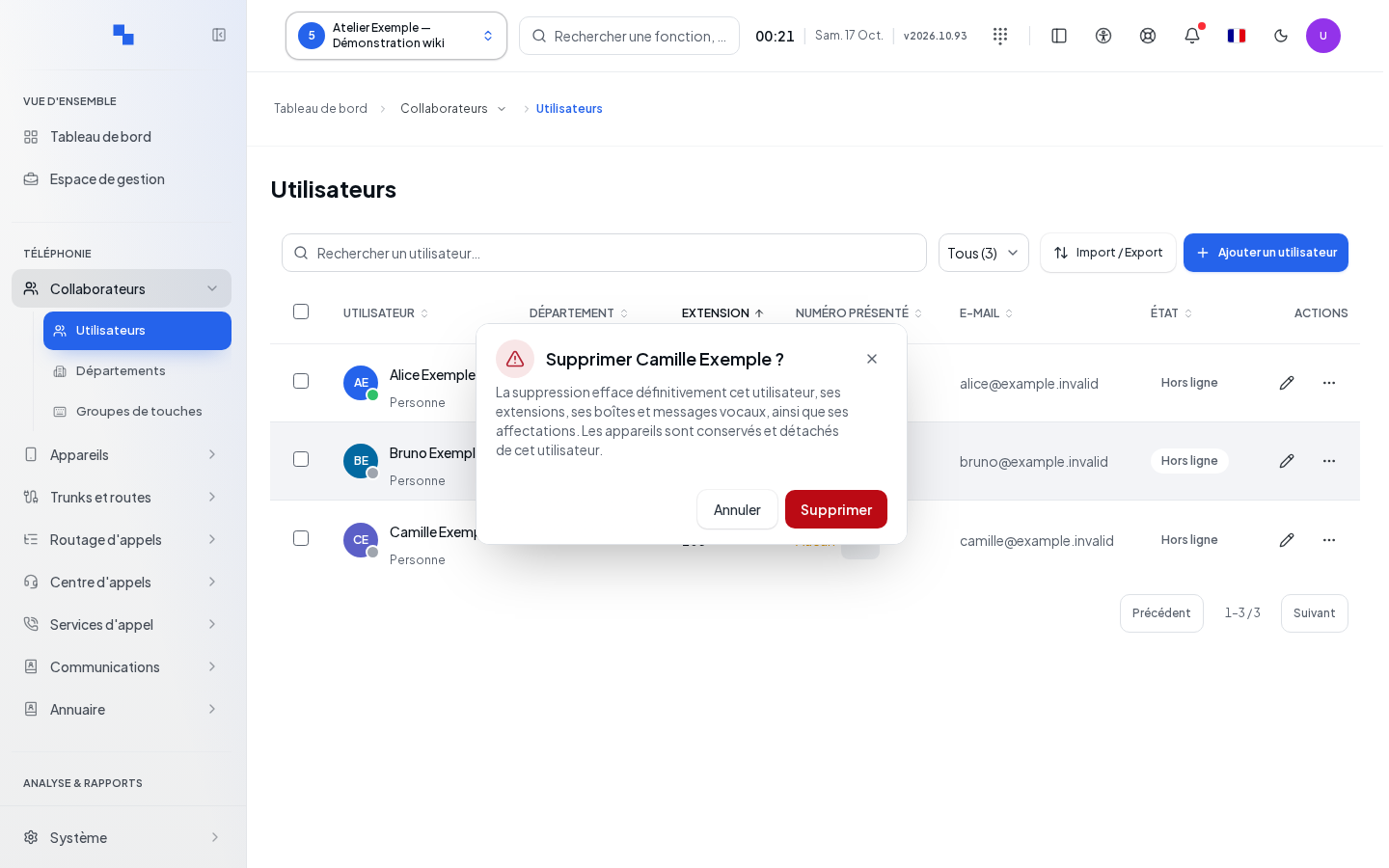
Delete opens a confirmation with their name. Deletion permanently erases the user, their extensions, voicemail boxes and messages, and assignments. Devices are kept, detached from this person. For a reversible suspension, disable the account instead of deleting it.
Verifying the result
Reopen the record, check the number and the customer. After an import or a bulk operation, check the successful rows and the rejected rows separately. Make a test internal call after a complete creation.
If this does not work
If creation is refused with "This customer's license is not yet synchronized. A synchronization has been requested; try again after its allocation is received.", the synchronization request is automatic. Wait for the customer's license allocation to be received, then retry the creation. If the wait persists, ask the platform administrator to check this customer's license in the ControlPlane and its last contact with the platform.
Check the licenses, the numbering range, and the write permissions. A reading error does not allow concluding that a customer is empty. An accepted send is not proof of receipt on the mobile device or in the e-mail inbox.