
Manage administrators for the selected customer. Check the customer name in the top bar before making any changes; this page is not the list of administrators for the entire installation.
Open and manage customer accounts
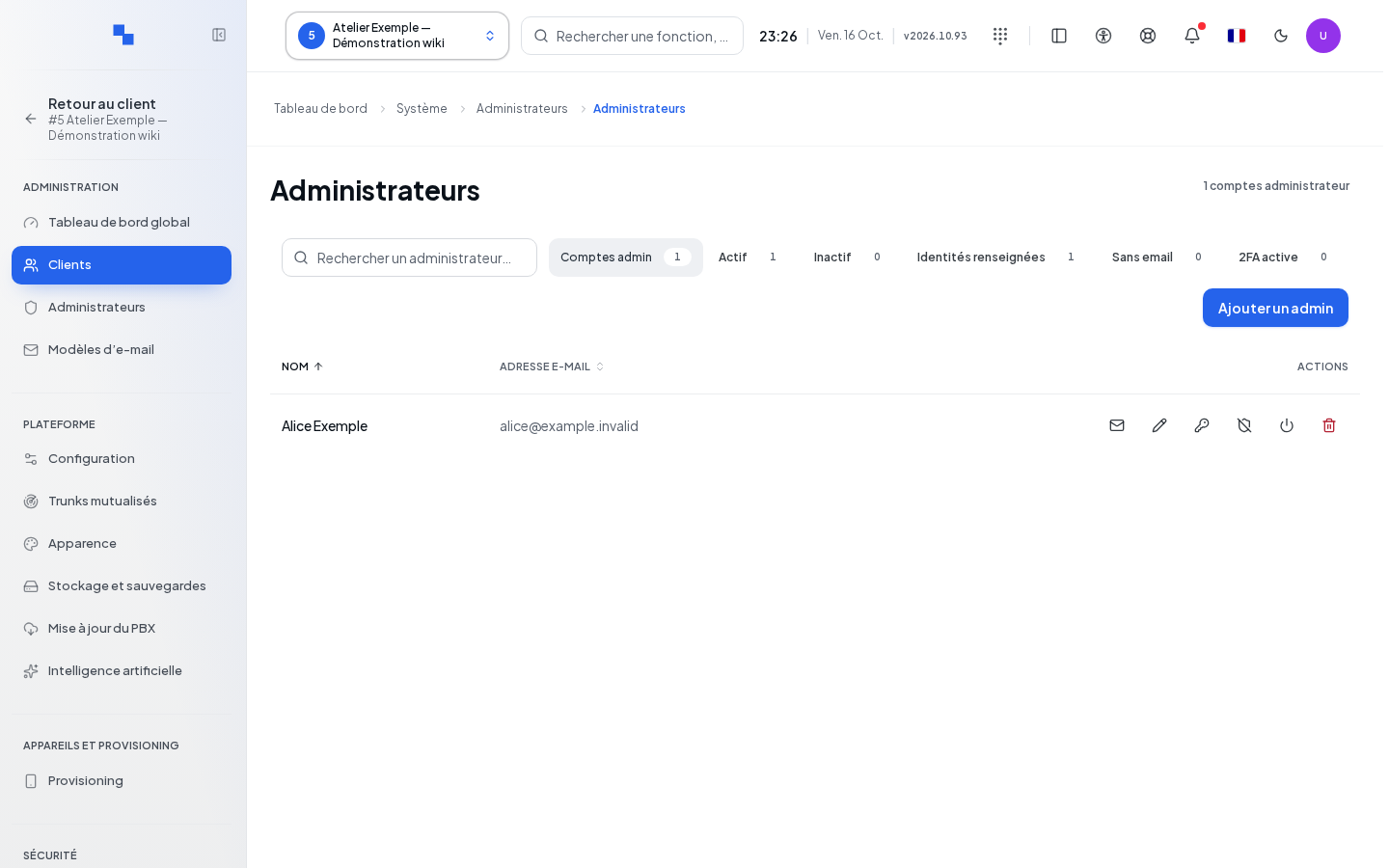
- Open Administrators, then the Customers · Administrators shortcut.
- Select the customer to administer.
- Use Search and the status filters to find the account.
- Click Add admin or Edit.
The form and confirmations follow the Administrators workflow: mandatory username of 3 to 64 characters, optional notification address, password of at least 8 characters when required. Sending by email is offered at creation. Changing the username requires confirmation.
The scope remains the open customer. Switching customers closes the dialogs and clears any entered secrets. Available actions include sending access credentials, editing, changing the password, activating or deactivating, resetting two-factor authentication for another account, and deleting another account.
Verify the result
Reopen the account under the same customer. Check the result of saving and the result of sending the message separately.
If it doesn't work
Wait for permissions verification. This management requires a full administrator of the installation. An inaccessible list does not prove the absence of accounts. Use Retry if reading fails; have your permissions checked if the denial persists.