
Locate a shared control
This page explains the controls that are reused across several Informatique Facile PBX screens. First open the relevant record and check the selected customer. Administration settings require the corresponding rights; a missing or greyed-out button cannot be unlocked simply by switching pages.
The following sections are organized by task: reading a list, editing a record, choosing a destination, preparing a schedule, configuring a phone, and administering services. The button text may reflect the name of the record or the number of selected items.
Read, search, and browse a list
- Enter your search in the bar above the list. The filters offered belong to the current screen; a search does not necessarily cover all pages on the server.
- Click a header that has a sort control. The arrow indicates the direction; clicking again reverses it. Headers without a control do not sort.
- Use Previous, Next, or the First page, Previous page, Next page, and Last page controls when they are present. A page number opens that page directly. A greyed-out control indicates a limit or that loading is in progress.
- In a row, open the actions on the right. On a narrow screen, some of them move into More actions. Read the name of the object before choosing an action.
An empty screen after loading means that no data is displayed for this scope. A read error is different: use Retry when it is offered. A clickable statistics card opens its details; its link does not make any changes. Expanding a chart or a section does not trigger an export.
Tabs change the visible content. Essential settings and Advanced settings split the fields of a single record. Do not assume that switching tabs saves the values.
Choose from a list and edit a selection
Open the selector, type a few characters if a search is available, then choose the result. In a single selector, the choice replaces the previous value. In a multiple selection, each choice adds or removes an item; the labels let you find the items you have kept. The small cross removes the corresponding item.
In an ordered list, Move up and Move down change the priority, Remove deletes the assignment, and Settings for… opens the options for that item. Removing an assignment does not necessarily delete the original user or resource. An unavailable option remains unselectable.
The country selector allows searching and quick selections. A quick selection may replace the entire list: review the selected countries before saving. An “all” option in a selector represents the scope indicated by that field, not necessarily an explicit list of every item.
For a date, open the calendar, go to the previous or next month, then click the day. The calendar closes with the chosen date. The current-day shortcut uses the time zone of this screen. Public holiday annotations help identify dates; on their own, they do not activate a telephone closure.
Save, cancel, and confirm
Save submits the form; wait for the result before leaving the record. Controls may be disabled while the request is being sent. An error generally keeps the dialog open so that you can correct the fields. Read the actual message: server errors may vary depending on the rights, the customer, and the value entered.
Cancel in a confirmation closes that confirmation without performing the action. In a creation panel, Close collapses the panel; do not confuse it with saving. When a warning about unsaved changes appears, explicitly choose whether to keep editing or to leave.
For a deletion or another sensitive operation, check the title, the name of the object, and the confirmation text. Confirm only once. While the operation is running, cancellation may be unavailable. In case of failure, the dialog may remain open with the diagnostic; closing this diagnostic does not fix the failure.
In a list of telephony resources, Create opens a new record and Edit reopens the selected record. Check Essential settings, then Advanced settings if necessary, in particular the Music on hold. Cancel closes the edit; saving validates the record. Delete asks for confirmation on the indicated resource. In parking lots, Create the default parking lot prepares the parking lot provided by this command: wait for it to appear in the list before trying again.
Temporary notifications may present an action or a close cross. Closing the notification hides the message; it does not cancel the operation that has already been executed. A tooltip or the information icon explains the field without modifying it. A toggle changes the proposed value; saving depends on the form that contains it.
Perform an action on multiple rows
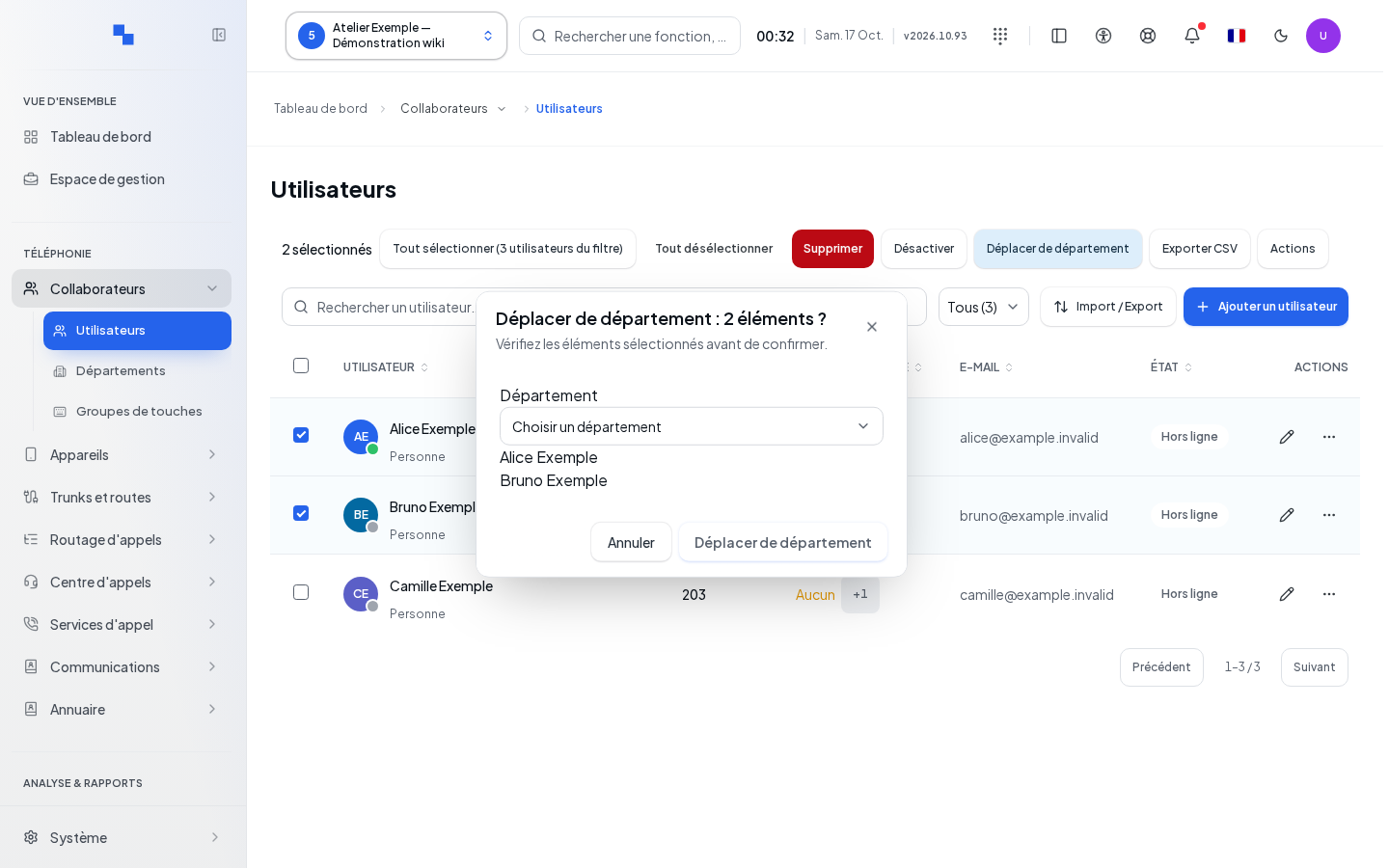
- Select the rows you want. Check whether the header checkbox selects the visible page or whether the screen offers a broader selection.
- Choose the bulk action. The confirmation shows the action and the number of items.
- Review the targeted objects, then confirm. Cancel returns to the selection without starting the process.
- Wait for the summary and distinguish successes from failures. Items are processed individually; a failure does not roll back changes that have already succeeded.
Permissions and the customer are rechecked during processing. If the scope changes, return to the correct list and review the results before running the action again. Do not repeat the action indiscriminately on rows that have already been processed.
Adjust the display and read notifications
Change theme switches between the light theme and the dark theme. The language selector shows the current language; open it, then choose another language. The checkmark identifies the active language, and the list closes after you make your choice.
Accessibility opens the reading preferences: adjust the available options, in particular reading spacing and color differentiation. These display preferences do not change permissions or telephony data.
Notifications opens the notifications panel. Click a link to go to the relevant object; Close notifications closes the panel. A missing counter or message is not proof that all services are working.
Accordions expand when you click their title. Segmented controls select only one option at a time. A help link next to a setting opens its documentation; it does not apply the setting.
Choosing a call destination
Start with Destination type or Type, then fill in the Destination target. The fields that follow depend on the type and on the screen. Choosing a type may replace the fields of the previous type; check the entire destination before saving the record.
| Field | Purpose | Possible values | Example |
|---|---|---|---|
| Target user | Ring a person | Suggested user | Reception |
| Target call group | Ring a group | Available group | Sales |
| Target queue | Distribute the call to a queue | Available queue | Support |
| Ring duration (sec) | Limit the ringing phase, when the type allows it | Number accepted by the field | 25 |
| Hold music | Choose the on-hold audio | Available music | Reception music |
| Skill rule | Select a queue''s rule | Available rule | French-speaking service |
| Skill variables | Provide the rule''s parameters | Pairs offered by the editor | Language and expected value |
| Target IVR menu | Open a voice menu | Available menu | Main menu |
| Target voicemail box | Leave a message | Available box | Reception |
| Voicemail greeting | Choose the message-drop greeting | Options offered | Busy greeting |
| Do not play message-drop instructions | Skip the instructions after the greeting | Enabled or disabled | Disabled |
| Target operator switchboard | Hand the call over to the switchboard | Available switchboard | Front desk |
| Target conference | Join a conference | Available conference | Internal meeting |
| Target outbound route | Choose the outbound route | Available route | Main outbound |
| Number to dial | Specify the external number | Number compatible with the route | 0215550100 |
| Sound to play | Choose an audio announcement | Available sound | Closing |
| Play without answering | Adjust how the sound is played | Enabled or disabled, depending on the type | Disabled |
| Skip if the call is not answered | Make playback conditional | Enabled or disabled | Disabled |
| Advanced application | Choose a specialized processing | Options displayed | Application approved by the administrator |
| Dial plan | Target the intended processing | Value provided by the administrator | Company plan |
| PIN | Provide the code requested by the application | Expected code | Code communicated to the recipient |
| Destination email | Send the result to the right recipient | Email address | accueil@example.test |
| Custom application | Choose a custom processing | Value provided by the administrator | Existing processing |
| Advanced custom command | Configure a technical processing | Command approved by the administrator | Do not copy an unknown command |
| Extension / number to dial | Reach an extension | Internal number or intended value | 100 |
| Hangup cause | Choose the hangup result | Causes offered | Cause suited to the flow |
| Delay before hangup (sec) | Delay the hangup | Number accepted by the field | 3 |
Add a variable creates a skill line; Remove the variable removes that line. An empty or inconsistent variable does not replace a configured rule.
For a fax destination that displays the following fields: Email addresses, separated by commas defines the recipients; Subject (optional) accepts a maximum of 200 characters; Format is fixed to PDF in this editor. Example recipients: accueil@example.test, archive@example.test.
"Unable to load destinations. Try again before changing this selection." means the list could not be read. "The destination list is incomplete. The target you are looking for may not appear in it." does not mean the target has been deleted. A destination that is kept but cannot be edited must be checked before it is replaced. "Choose a sound to play." asks you to complete the sound target.
For a personal forward, Forward destination chooses the target. A shared voicemail box requires you to choose the corresponding box. See also the phone call forwarding settings.
Edit a company contact
In a directory whose contacts you can edit, Add opens a new record; Edit loads the existing values.
| Field | Purpose | Possible values | Example |
|---|---|---|---|
| Display name | Identifies the contact; required | Non-empty text | Atelier Exemple |
| Number | Main number; required | Text representing the number | +41215550100 |
| Company | Name of the organization | Optional text | Atelier Exemple |
| Mobile | Additional mobile number | Optional text | +41795550100 |
| Contact''s address | Optional text | contact@example.test | |
| Job title | The person''s role | Optional text | Manager |
| Note | Additional information | Optional text | Call in the morning |
Click Save and wait for the list to reappear. If saving fails, the diagnostic is displayed in the dialog. Delete opens a confirmation showing the contact''s name; confirm only after checking it. Deleting removes the contact from the address book, not the calls already present in the history.
Assign members and features
In Members, select User to add, then Add to group. Members already in the group are excluded from the choice. Browse the members with Previous page and Next page. Remove opens a confirmation: Remove confirms, Cancel keeps the member. Without permission to read users, some names may be replaced by their identifiers.
A distribution list with no members cannot be used to start a useful announcement. In its options, Who can start the announcement determines the authorized callers, and Announcement sound selects the sound. For a conference, the available options include hold music, recording, and announcements for entry, exit, or participant count. Save the options; their availability depends on the service type.
In Feature access, choose All customer users or Selection. Add the authorized users, remove a tag if needed with Remove…, then click Save assignments. The link to the resource lets you check what you are making accessible.
Key groups and Departments associate sets of keys with the company''s services. A change to these assignments is saved by the selection control itself. Department members inherit the associated groups; review the order and the groups that are kept.
Build and move phone keys
In the key editor, choose the page and the position. Add a key, Add here, and Add to page… insert an entry at the right place. When all positions are occupied, adding is unavailable. Configure function codes opens the configuration required for service keys.
Presets offers prepared sets; Quick add makes adding easier; Import a list prepares several keys. Check the resulting keys before saving the record. Delete all keys applies to the entire set shown in the editor, not just the active row.
For an existing key, open More actions: Move up, Move down, Insert a key before, Duplicate, or Move to…. A key can also be moved by drag and drop or with Alt plus the up and down arrows. Appearances relates to the positions where this key appears.
| Field | Purpose | Possible values | Example |
|---|---|---|---|
| Location | Choose the destination area | Areas offered for the model | Phone keys |
| Key page | Choose the destination page | Available pages | Page 2 |
| Key | Choose the position | Model positions | Key 3 |
First free slot selects an available position. The final button reads Move or Swap depending on occupancy: check both positions before a swap. Closing the dialog without confirming keeps the original position.
For Maxwell keys, Position, Account, Type, and Destination define each row. Add creates a row; Delete removes that key. The types and accounts offered depend on the device.
Prepare business hours
A schedule can be shared across multiple records. Before modifying it, check its name and assignments. Customize for this record prepares a configuration specific to the record; Copy this schedule lets you start from the existing values. Create new schedules opens the creation form when this option is offered.
| Field | Purpose | Possible values | Example |
|---|---|---|---|
| Name | Identify the schedule | Text required by the record | Weekday reception |
| Number | Identify the telephone schedule, if present | Number expected by the screen | 700 |
| Schedule active | Enable evaluation of the schedule | Enabled or disabled | Enabled |
| Time zone | Interpret local times | Time zone offered | Europe/Zurich |
| Business hours | Define the open time ranges for each day | Start and end times | 08:00–12:00 |
| Closed-hours destination | Handle the call outside opening hours; required in the editor that requests it | Complete destination | Reception voicemail |
| Label | Name an exceptional closure | Text | Vacation |
| Start date / End date | Define the boundaries of a closure | Consistent dates | First and last dates of absence |
| Swiss public holidays · canton | Apply the proposed calendar | Canton or no calendar | Company''s canton |
| Permanent override / Manual override | Force a state instead of the usual calculation | States offered | Return to normal operation |
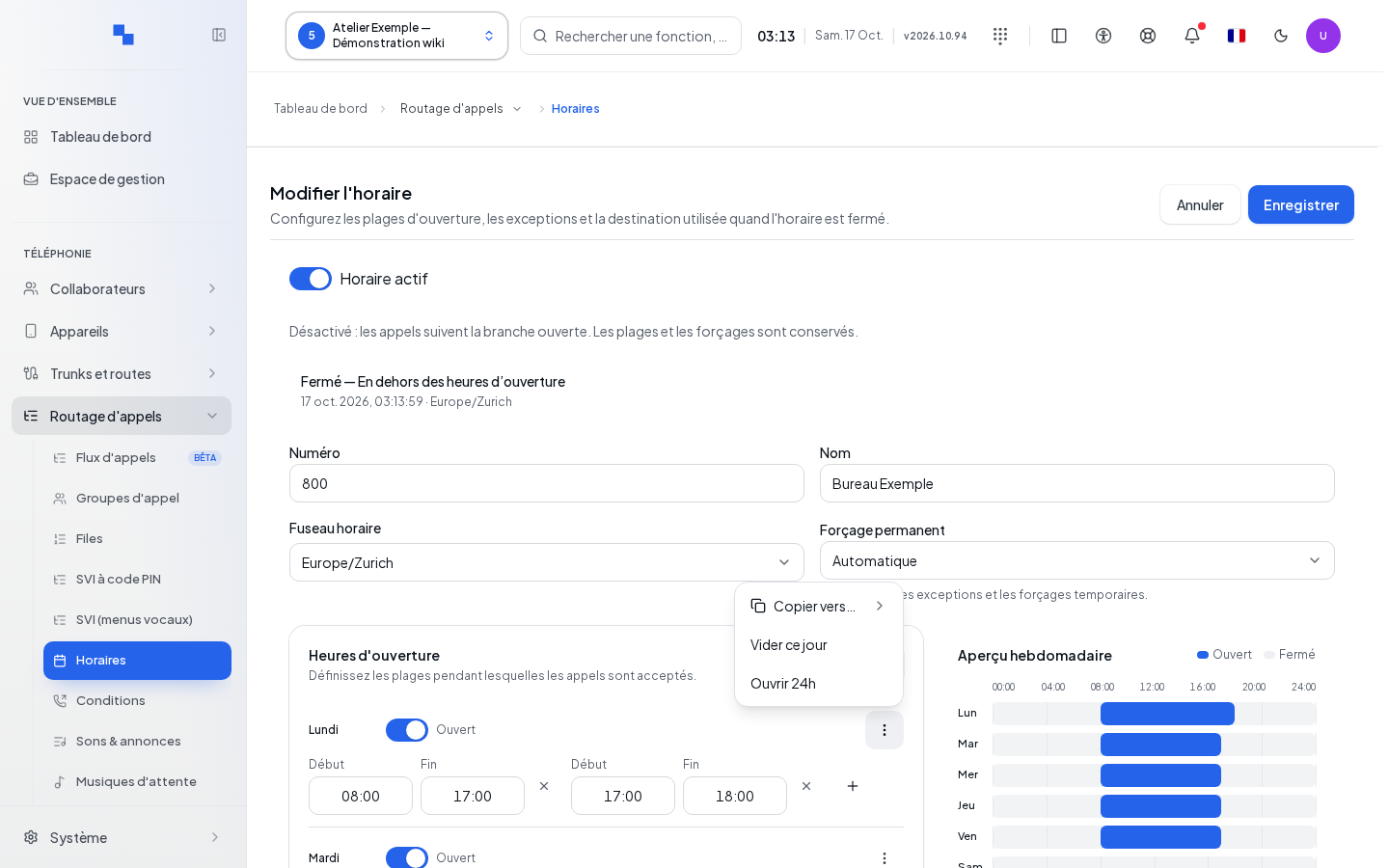
- Enable the working days, then set their time ranges. Add a second range for a lunch break. Delete removes a range, Add a time range adds one.
- In Quick actions, the Mon–Fri · 08:00–12:00 / 13:30–18:00 and Mon–Fri · 09:00–17:00 templates replace the week with the selected template. Close all clears the ranges.
- In a day''s actions, Clear this day removes its ranges; Open 24h covers the entire day. Copy to… copies the day to the target day. With Apply to multiple days, choose Copy from, the group of days, then Apply. The target days are replaced.
- In the grid with a copy dialog, select the destinations one by one or with Business days / All days. Copy confirms; Cancel closes without copying.
- Add the closure dates or periods. Check the dates, the time zone, and the open or closed effect. All day avoids a partial time range.
- Save with Save, Save schedule, Create schedule, or Apply these schedules, depending on the editor displayed. The Add, Delete, and Apply buttons for exceptions or overrides may save their own operation: canceling the record does not guarantee that they are undone.
The Temporary override has its own Apply button: check its state and duration before using it. Disabling Schedule active makes calls follow the open branch; the ranges and overrides are kept. This is not a general closure.
In Assignments, select the target then Assign. When the button reads Assign and publish the flow, it also publishes the flow: check the destination before continuing. Edit the flow opens the associated flow; Remove removes the assignment.
Choosing a sound and voice preferences
Listen plays the sound; Pause stops the playback in progress. Playback may fail if the file is not accessible: read the message displayed and try again after correcting the issue. Import a sound opens the file picker, starts preparing the file, then updates the selection if the import succeeds. Wait for this result before saving the destination. Selecting a sound does not, on its own, change the call flow yet.
| Field | Purpose | Possible values | Example |
|---|---|---|---|
| Name | Name the mailbox when the field is offered | Maximum 128 characters | Reception |
| Require PIN code | Require the code for voice access | Enabled or disabled | Enabled |
| Voice language | Choose the language of the announcements | Available language or inheritance | Inherit from the user or the customer |
| Time zone | Interpret date and time announcements | Time zone or inheritance | Europe/Zurich |
| Pager — email without audio or transcription | Receive a lightweight notification | Email address, maximum 254 characters | accueil@example.test |
| Maximum number of messages | Limit the mailbox storage | From 1 to 10,000; empty for no limit entered | 100 |
| Attach audio to emails? | Add the recording to the email | Enabled or disabled | Enabled |
| Delete after email is sent | Remove the message after the scheduled sending | Enabled or disabled | Disabled if you keep messages in the mailbox |
These fields are saved with the record that contains them. Check the addresses and the sending policy before enabling deletion after email.
Understanding a call and its recording
The call flow shows the available steps. View original call opens the call to which the flow refers. A missing step does not allow you to reconstruct an event that was not measured.
Click the quality indicator to read the details. The MOS score is estimated from 1 to 4.5 on the worst measured link. Jitter is expressed in milliseconds, packet loss as a percentage, and round-trip time in milliseconds. A dash means that no usable value is available. The rating changes at the thresholds 3.6 and 4; it does not guarantee the absence of audible impairment.
To download several recordings, select the files, check the count, then click Download (…). The selection follows the files available in the current scope. "Download failed. Try again." indicates a failure; no missing file should be considered as downloaded.
| Field | Purpose | Possible values | Example |
|---|---|---|---|
| Calls concerned | Define the scope of the recording | None, external, all, or inheritance if offered | Follow the customer |
| Capture mode | Choose when the audio exists and must be retained | Permanent, on demand, manual, or inheritance | Mode chosen by the administrator |
In on-demand mode, capture exists before the retention request and the announcement is played as soon as it starts; without a request during the call, the audio is destroyed when the call ends. In manual mode, no audio exists before the trigger; the announcement is played at that moment. Explicit queue or group scopes may override these choices.
In-depth analyses and charts must be read together with their period and scope. Export to CSV exports the data calculated by the relevant view; a missing measurement does not become zero. The contact recovery summary expands with View details; Recovery delay (1 to 720 h) defines the window for this calculation, not an automatic phone callback.
Configuring a physical phone
From the phone concerned, open Settings. The Settings — … title identifies the device. Wait for the settings to finish loading before changing any fields; Retry restarts a failed read. The available options depend on the phone''s brand, model, role, and capabilities.
| Field | Purpose | Possible values | Example |
|---|---|---|---|
| SIP server | Address of the telephony server | Address intended for the phone | telephonie.example.test |
| Port | SIP connection port | Port compatible with the server | Port provided by the administrator |
| Transport | SIP protocol of the account | Available choices | TLS if configured |
| Voice encryption (SRTP) | Media protection | Compatible choices; not affected if indicated | Choice made for the installation |
| Account label | Identifier of the account on the phone | Text | Reception desk |
| Display name | Name presented by this account | Text | Reception |
| LDAP directory for phones | Enable the compatible directory | Options offered | Company directory |
| Company directory / LDAP directory | Choose the directory source | Internal source or LDAP settings | Internal source |
| LDAPS connection | Use the secure LDAP connection | Enabled or disabled depending on the server | Enabled for a compatible server |
| Company directory filter | Restrict the search | Filter defined by the administrator | Company filter |
| Attribute, Label, Type | Define the LDAP fields displayed | Attributes compatible with the server | Business number attribute |
| Search in this attribute | Include an attribute in the search | Enabled or disabled | Enabled for the name |
| Lookup on incoming / outgoing calls | Look up the name matching the number | Enabled or disabled | Enabled |
| Maximum results | Limit the number of matches | Number accepted by the model | Limit suited to the directory |
| Search timeout (seconds) | Limit the wait for an LDAP response | Number accepted by the model | Value set by the administrator |
| Sort results / Exact match | Organize or restrict results | Enabled or disabled | Sorting enabled |
| Transfer mode | Choose the phone''s default transfer behavior | Attended (default), Blind, Phone setting | Attended |
| Expansion modules | Declare the key modules | Choices compatible with the model | Number actually connected |
| Language / Input language | Choose the device language | List offered or keep the current setting | French |
| Country tones | Adapt the telephone tones | Country offered or keep the current setting | Country of installation |
| Allow intercom and paging when the phone is idle (auto-answer) | Allow the intended automatic answering | Enabled or disabled | Depending on how the phone is used |
| NTP synchronization | Set the time over the network | Keep, configure the servers, disable | Configure the NTP servers |
| Primary / backup NTP server | Choose the time servers | Addresses provided by the administrator | ntp.example.test |
| Configure display format / 24-hour format / Date format | Customize the date and time display | Model options | 24-hour format |
| Configure time and NTP / Time zone | Define the model''s time handling | Time zone offered | Europe/Zurich |
| Configure voice VLAN / VLAN (0 = untagged) / Priority | Assign the voice network | Values compatible with the network | VLAN provided by the installer |
| Periodic configuration retrieval | Schedule configuration retrieval | Keep, none, regular interval, daily time window | At regular intervals |
| Interval, in minutes | Set the retrieval frequency | Number accepted | Value defined for the fleet |
| Window start / Window end | Define the daily retrieval window | Consistent times | Window outside business hours |
| Attempts before giving up / Wait between attempts, in seconds | Set the retrieval retries | Values accepted by the model | Installer''s policy |
Create the SIP identifier prepares the required access when it is missing. Save keeps the settings; Operation in progress… means you must wait. If there are unsaved changes, do not leave the page without choosing what to do with the draft.
For Fanvil, Fixed UTC offset requested can remain set to Do not manage the offset. Seasonal time change offers the options to keep the current setting, apply no change, or define a rule. This rule includes Month, Week, Day, Hour for the changes, and Applied offset, in minutes. The fixed offset and the seasonal rule are separate settings.
For Gigaset, enter the Role configured on the device and, when necessary, the Integrator MAC address. Indicate whether Internal telephony is already enabled on the base station. The Handset language (hosted profile) and the Handset profile address depend on the selected profile mode. LAN synchronization master identifies the reference base station; Add a base station and Remove modify the list.
Advanced Gigaset settings also include the web interface language, PC VLAN, VLAN priority (PC), IP address assignment (keep, DHCP, or static address), DNS, VLAN, VLAN priority, Syslog, Server, Port, UDP TCP protocol, and SFTP backup. "Keep the device setting" does not impose a new value. Do not replace an address or a VLAN without knowing the network configuration: the phone may lose its connection.
Resynchronize or restart a phone
- Check the phone and the announced effect. Restarting interrupts its calls; some resynchronizations also restart the phone, or the DECT base and its handsets.
- Select Confirm when prompted, then Resynchronize the phone or Restart the phone.
- Wait for the tracking to complete. "Phone unreachable" means you must check the phone''s registration and connection. If an automatic retry is announced, let it run its course.
- After a lost response, Resume the same order reuses the known order to avoid sending it a second time. Do not immediately create a new request.
- End tracking clears the local tracking; it does not cancel the order that was sent.
"The phone has accepted the restart request. Its actual restart remains to be verified." does not confirm that a restart was observed. Likewise, an observed configuration retrieval does not prove that the configuration was applied. If "The SIP trigger is not yet documented for this model." appears, the action is not available for this model.
Manage SIP access and codecs
The SIP access section lists the settings to use in the relevant software or device. Copy copies the indicated field. SIP password may be hidden; whether you can display or copy it depends on your permissions. Do not confuse this secret with your Informatique Facile PBX login password.
To create an authorized access, give it a non-empty name of no more than 120 characters, then select Create. Allow third-party SIP software sets the corresponding authorization when it is offered. Renew and Delete require confirmation: review the targeted access before confirming, then update the software that used the old secret.
In the internal codecs, choose to inherit or customize when this option is available. Enable the available codecs and order them with Move up… / Move down…. The mandatory G.711 fallback codecs cannot be disabled like an ordinary option. An unavailable codec cannot be enabled. Click Save, or use the record''s save action when the editor is embedded in it.
Configure automatic presence and call screening
Inactivity delay (minutes) sets the inactivity threshold used by automatic presence. The switches provided enable presence sources such as activity, media, or calendar. Save keeps your choices. A calculated presence depends on available sources; it is not proof that the person will answer the phone.
Connect, Connect Google, or Microsoft 365 opens the authorization flow provided. Verify the account in the provider''s window and return to Informatique Facile PBX to check the status. Disconnect removes the link used by this feature.
Call screening offers Welcome sound and Screening language, as well as its activation depending on the context. The action to return to the customer setting restores inheritance. In a record with a shared save action, save the record; in a standalone card, use its own save action. Do not assume that an inherited value belongs specifically to the user.
Managing email delivery
In the delivery settings, enable Enable email sending, then choose the Delivery method. The fields change depending on SMTP, the Microsoft or Google service, OAuth, or the relay offered. Documentation and the configuration guide explain the provider; their links open the help or configuration pages without saving the fields.
| Field | Purpose | Possible values | Example |
|---|---|---|---|
| Delivery method | Choose the delivery service | Methods offered by the installation | SMTP |
| Port | SMTP server port | Integer from 1 to 65,535 | Port provided by the provider |
| Security | Protect the SMTP connection | None, STARTTLS, SSL/TLS | STARTTLS if required |
| Application ID | Identify the provider application | ID provided when it was created | Company application ID |
| Application secret | Authenticate the application | Provider secret | Secret stored in the secrets manager |
Fill in the specific fields displayed by the method. A secret that is already configured is not displayed again in clear text. Clear requests removal of the relevant secret; leaving its field unchanged does not clear it. For a certificate-based method, the selector accepts the expected PEM, PFX, or P12 formats, up to 65,536 bytes.
Click Save, then Send a test. The test is unavailable until the necessary changes are saved. Read its result and check the recipient mailbox; saving a configuration does not prove that a message was delivered.
For a provider connection, Save keeps the ID and the secret; Test checks the proposed connection. The administration links and the New-ApplicationAccessPolicy command are used to prepare Microsoft permissions when they are required. Do not copy example identifiers in place of those of your organization.
Restricting report recipients
The Email recipients card requires read permissions to be displayed and write permissions to be modified. First choose the customer.
| Field | Purpose | Possible values | Example |
|---|---|---|---|
| Allowed domains | Restrict recipient domains; their subdomains are accepted | Up to 100 lowercase domains, separated by commas | example.test, filiale.example.test |
| Allow external recipients | Permit domains outside this list | Enabled or disabled | Disabled |
Suggestions drawn from accounts add the selected domain without removing the others. Active SSO domains are displayed separately. Enabling external recipients requires confirmation with the text "Allow sending reports containing personal data to external domains?". After this confirmation, click Save again to save the policy. "Policy saved." confirms this result.
"Unable to verify the allowed domains. Try again before saving." calls for a new read using Retry. An "External: …" label flags an external address; "recipients: domain not allowed: …" indicates the blocked domains to correct.
Using the assistant
AI Assistant appears when the service is available. In administration, the corresponding write permissions and the selected customer are required. How it works depends on the assistant configuration.
- Open AI Assistant, enter Message (up to 4,000 characters), then click Send. An empty message is not sent.
- Read the response and any links it contains. A link opens the relevant screen; a suggested voice message can be played in its player.
- If a Preview appears, check the action, the target, the values, and the validity date. Confirm executes this proposal; Cancel abandons it.
- While a proposal is pending, sending a new question is blocked. An expired proposal can no longer be confirmed.
- Clear all empties the displayed conversation. Close closes the window; neither of these commands cancels a change that has already been confirmed.
The dialog states that changes require your confirmation and that conversations are not saved. "Saved" corresponds to a positive confirmation response. In case of an error, review the status in the resource screen before requesting the change again.
Create and remove API tokens
System management tokens, customer tokens, and public application tokens have different scopes. Check the panel title and the selected customer before creating a key.
| Field | Purpose | Possible values | Example |
|---|---|---|---|
| Name / Application name | Identify the integration; required | Non-empty text, maximum 120 characters | Daily export |
| Expiration (optional) | Limit the lifetime of a management token | Date and time, or empty | End of the integrator''s engagement |
| Allowed IP addresses or networks (optional) | Restrict the origin of management requests | Addresses or networks separated by spaces or commas | Network provided by the integrator |
| Access | Define the level of the management token | Read-only initially, or read and write | Read-only |
| Requests per minute | Rate-limit a public application token | Integer from 1 to 600 | 60 |
| Application permissions | Limit the accessible functions | At least one of the available checkboxes | Only the required read permissions |
Create a token or Create generates the secret. Copy it immediately when the Copy command is available, then use I have saved the key or I have saved the secret. The secret is displayed only once. The table shows the name, access, creation date, expiration, or last use, depending on the panel.
Renew the key or Replace the secret generates a new secret; for public tokens, the old one becomes invalid immediately. Update the integration. Revoke requests confirmation; Confirm revocation permanently removes public access, and Cancel keeps the token. A revoked token no longer offers the same actions.
Webhooks and deliveries and Audit log open the related views when you have the required rights. They do not trigger a new delivery.
Read the API documentation and try a request
Download OpenAPI downloads the description of the operations in this scope. In the documentation, search for a path, a method, or a term, then choose the function group. Expand an operation to read its parameters, body, and possible responses. Fields marked with an asterisk are required.
| Field | Purpose | Possible values | Example |
|---|---|---|---|
| Key to try | Authenticate the test request | Key authorized for the operation | Organization test key |
| Target customer (identifier, optional) | Specify the customer in the system documentation | Actual identifier or empty | Customer intended for the test |
| Parameters | Complete the path, query, or headers | According to the operation schema | Identifier of the selected resource |
| Request body | Provide the values for creation or modification | JSON or text depending on the operation | Values reviewed before sending |
Try performs a real request. A GET or HEAD read is sent directly; other methods open a Try / Cancel confirmation. Confirm only after verifying the method, target, and body. Without a key or a required parameter, the button is disabled. Some operations cannot be tried from this screen.
The result contains the HTTP status and the received text, truncated for display. The example command uses a key placeholder; it is not a working key. Expanding a schema lets you read its properties without making a call.
Assign access profiles
In Management space access, search for profiles with Search for a resource or profile, then check the direct assignments you want. The Preview of rights and their sources distinguishes Direct assignment from Inherited from group. Editing also allows viewing the same data; sensitive actions require their own separate rights.
Save saves additions. If you remove assignments, a confirmation lists the removed profiles and the before/after count: Confirm applies the change; Close returns to the draft. Inherited rights remain in effect. Removing the last profile does not restore a former administrator role.
If "Another person has modified these rights. Your draft has been kept. Reload the current version to compare before reapplying your changes." appears, use Load current version, compare, then Reapply my draft if your changes are still appropriate. Review the preview again before saving. "You do not have the necessary rights for this action." requires an authorized account; resubmitting does not grant this right.
Manage HTTP accesses and external applications
The cards for the selected customer display the HTTP accesses and external applications. Refresh reloads the information on the card that offers it; Previous and Next browse through the lists.
| Field | Purpose | Possible values | Example |
|---|---|---|---|
| HTTP access | Declare an access address | Non-empty address validated by the server | https://telephonie.example.test |
| Name | Identify an application; required and locked when editing | Unique name intended for the integration | crm |
| Label | Readable name of the application | Text | Company CRM |
| Configuration — Key | Name of the parameter | Key expected by the application | Integrator parameter |
| Configuration — Value | Value of the parameter | Text or value represented by the editor | Value validated for the integration |
Create adds the entry; Edit loads its record; Update saves the changes; Cancel exits editing. In Configuration, Add creates a row and Delete removes the relevant row. These rows do not automatically define a feature if the application does not recognize the parameters.
Deleting an access opens Delete this HTTP access?; deleting an application opens Delete this external app?. Check the item, then confirm or cancel. Changing the address of an existing access keeps its default status unless it is explicitly changed by another command.
The location cards display their current values followed by Save. The System marker distinguishes platform settings from customer settings; do not change scope during an edit.
View the dashboard and reports
Refresh reloads the dashboard data. Telephony · View details expands the telephony metrics; Hide collapses them. The card links open their detail screens. In the call monitoring list, Duration ↓ / ↑ changes the duration sort order without affecting the calls.
Activity reports may require a start date and an end date. Enter the period, then click Display. Check the period actually returned and its time zone. CSV exports the data shown; for contact retrieval, Export this page (CSV) is limited to the current page. Previous and Next browse through these pages. A warning about incomplete data must be taken into account when interpreting the report.
Legacy administration addresses may display a transition page and a link to the replacement page. Use this link if automatic navigation does not succeed; the title of the legacy address does not imply that a former feature is still available.
Check mobile notifications
In Mobile notifications, search for the user and review their tokens. Log opens the events when logging is available. Test sends the supported test; if it is greyed out, the explanation specifies the missing capability. "Not measured" does not mean zero failures.
Remove tokens opens the confirmation "Remove all tokens from …? Notifications will resume after the mobile is re-registered." Confirm removes the tokens; Cancel keeps the tokens. The user will need to re-register their mobile to receive these notifications again. An identity that cannot be resolved in the directory may still be displayed by its identifier.
Prepare and apply a network configuration
For the Network plan panel and its Review the plan before applying dialog, follow Save and apply the plan. This panel automatically waits for calls to end and requests a connection confirmation within two minutes.
This procedure is intended for the platform administrator. Open the wizard takes you to the network workflow. Check how the box is reached from the Internet, choose the scenario presented, then fill in only the fields for that scenario. Detected addresses are hints that you should verify; Use the detected address fills in the corresponding field.
- Check the domain name, network addresses, connection mode, and TLS settings according to the scenario. The preview and the ports shown let you compare the request with the actual state.
- Click Save the request. "Correct the flagged fields before saving." asks you to fix the errors before anything is sent. Cancel changes restores the draft from the known values.
- Use Test reachability and read the result as well as the DNS status. Saving a request does not apply it to the box.
- Click Apply…. In Apply the network configuration?, review the changes and check I understand that calls in progress will be cut off. only when the intervention can take place.
- Apply now submits the operation; Cancel closes the confirmation without applying. If the request changed while you were reviewing it, reopen the dialog and check the new preview.
- Follow the steps through to their result. Open the phone fleet lets you handle the phones that need to re-register or resynchronize.
"Request sent to the box agent. Progress is shown below." does not confirm that the application has finished. While it is running, the API may restart and the page reconnects. An unreadable configuration is not replaced with assumed values: wait for a correct reading before taking action.
Install a SIP or mobile certificate
For a SIP certificate issued by your authority, Generate the CSR prepares a signing request. Send the Signing request to submit to your authority, then paste the Signed certificate chain (PEM) you received. Import the signed chain imports the certificate; do not paste a private key into it. Reread the status refreshes the result.
Configure and confirm the network request takes you to the activation preparation. Importing the chain and applying the network configuration are two separate operations; do not treat the import as proof that all phones are already using the certificate.
For the mobile notification certificate, Renew opens a confirmation. If the central service is unreachable, expand Manual renewal (ControlPlane unreachable), use Download the CSR, then 2. Paste the signed certificate received and Import the certificate. The pasted text is limited to 60,000 characters. Review Import this certificate? or Renew the certificate now? before confirming. "The certificate request received is not valid." means the request does not have the expected format; do not continue with this content.
Read the platform status and restart a service
The platform information panel is restricted to the authorized system scope. Refresh rereads the sources. Actions: … opens the actions for the value concerned; Copy: … copies that value, for example an identifier or a fingerprint. Show all expands the details and Collapse collapses them. Open the ControlPlane, Manage backups, and Documentation open their respective destinations.
Detailed metrics expands the measured values intended for support. An unknown value must not be read as a missing service. In the system status, Actions for… opens the service menu, View errors filters the corresponding errors, and Show all removes the filter. Events can be expanded to read the details. Configure takes you to the configuration; View security opens the relevant diagnostic.
To restart, open Restart on the service and review Restart … ?. Cancel closes the dialog without restarting; Restart confirms. When the panel offers Service, a reason, and Prepare the restart, choose the service and enter a reason of 10 to 500 characters. Then check the warning before Confirm the restart; the intervention may affect all customers. Wait for the tracking: request prepared, pending, in progress, success verified, or failure. An active operation or an unreadable state prevents a new start.
The webhooks card shows their status; View by customer opens Outbound webhooks by customer so you can read the distribution. This view is not a redelivery of webhooks.
Open the integration guides
The readiness cards for integrations, email delivery, and artificial intelligence providers offer links tailored to the configuration. Open the indicated documentation or console, prepare the required credentials, then return to the configuration form to save them. A guide link does not configure the provider for you. The options displayed depend on the selected provider; use the explanations on the corresponding card.
Verify the result
After making a change, check the result message and review the relevant record or list. A submitted request, a saved value, and an effect observed on a phone are separate steps. For a simple lookup, check the period, the customer, and the freshness status displayed.
If it does not work
Note the screen name, the object concerned, the time, and the exact text of the error. Use the read retry option when it is offered. If an action may already have been executed, check its status before repeating it. Ask your administrator to confirm your permissions or the current entry point when a command is missing.