
Key Groups are reusable sets for user and department phones. A BLF key notably allows you to see whether another person is available or busy.
Choosing and Creating a Group
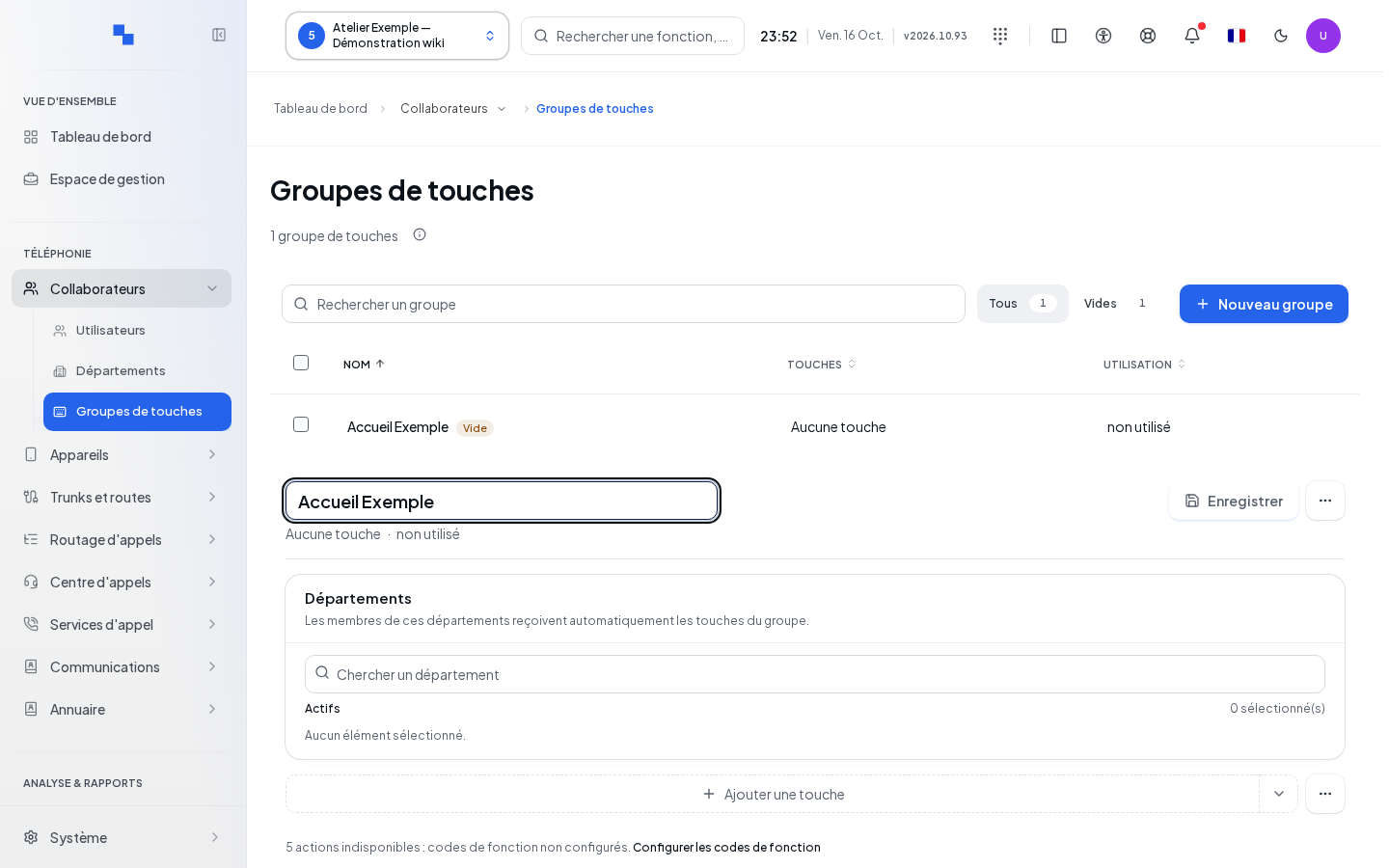
- Open Key Groups in the chosen client.
- Search for a group or use the All and Empty filters.
- Select a group to view its keys and usage.
- To create one, click New Group, enter a Group Name, then Create.
The name is required, limited to 128 characters, and must be distinct from other names. "A group already has this name." prompts you to choose another name. Cancel closes the creation.
Rename changes the name without rewriting the keys. In Group Actions, Duplicate creates a copy of the saved keys, not of the unsaved draft. Wait for the detail to load before duplicating.
Configuring the Keys
Add keys in the editor, choose their type, label, and destination according to the type. A monitoring key requires a target to supervise; a number key requires the number to dial. Use the removal controls to delete a key from the draft, then click Save to apply the layout.
| Field | Purpose | Possible values | Example |
|---|---|---|---|
| Type | Function of the key | Types offered by the editor | Call to a number |
| Label | Text shown on the handset | Text suitable for the phone screen | Reception |
| Destination / Monitoring | Target of the action | Target compatible with the selected type | Reception User |
The number of affected users is shown before saving. A warning may indicate positions where certain models do not support line keys. Check these phones instead of assuming the same layout applies everywhere.
Leaving a modified group triggers an exit confirmation: you can stay, discard changes, or save before proceeding, depending on the options shown. An unreadable detail blocks editing to avoid overwriting an unknown layout.
Assigning and Removing the Group
The Users and Departments selections define the recipients. Read and write permissions for these resources are required. If reading them fails, the screen cannot confirm that the group is unused.
Delete opens a confirmation showing the group name and the number of affected users. Its keys will be removed from these users. Cancel to keep the group; to remove it from a single person, modify their assignment instead.
Verifying the Result
Reopen the group and review the assignments. Then check the layout on a compatible phone once it has picked up the configuration.
If It Doesn't Work
An error may concern the list, the detail, or a target catalog. Retry the reported read before saving. Check the model's capabilities and key positions if a line key does not apply.