
Synchronization populates the client directory from a company source. Open Directory, then Synchronization. Prepare access to the source and contact management rights before starting.
Choosing a source
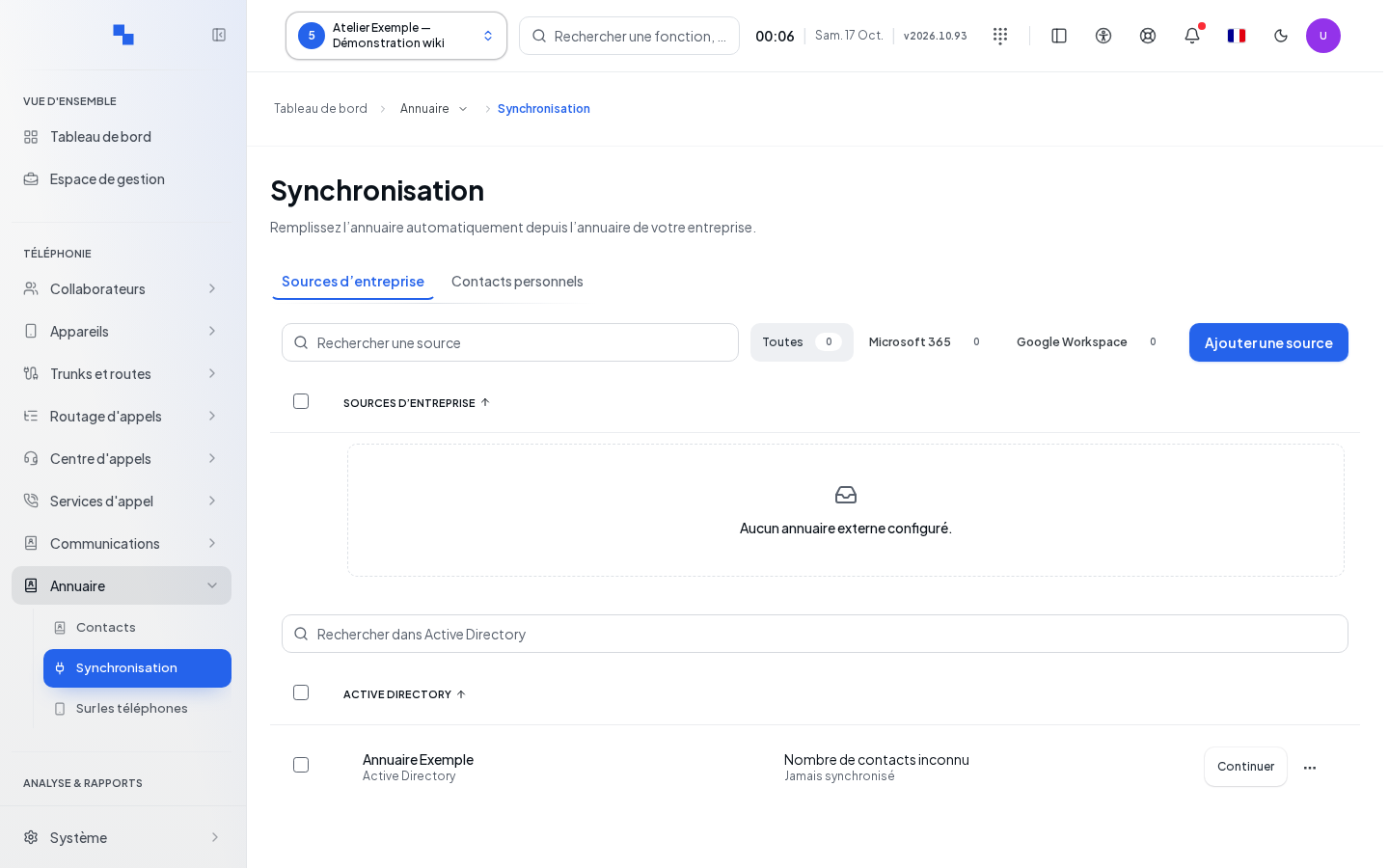
Add a source offers Microsoft 365, Google Workspace and Active Directory depending on your rights. Search for a source or filter by status: synchronization disabled, reconnection required, processing in progress, or failed. The contact count may be unknown; this is not the same as zero.
On a row, the main action offers to continue the setup, reconnect, or refresh depending on the status. Other actions opens Edit, pause or resume, Log and Delete. The log lets you distinguish between no run, success, and failure. Personal contacts are connected separately in the personal space.
Adding Microsoft 365 or Google Workspace
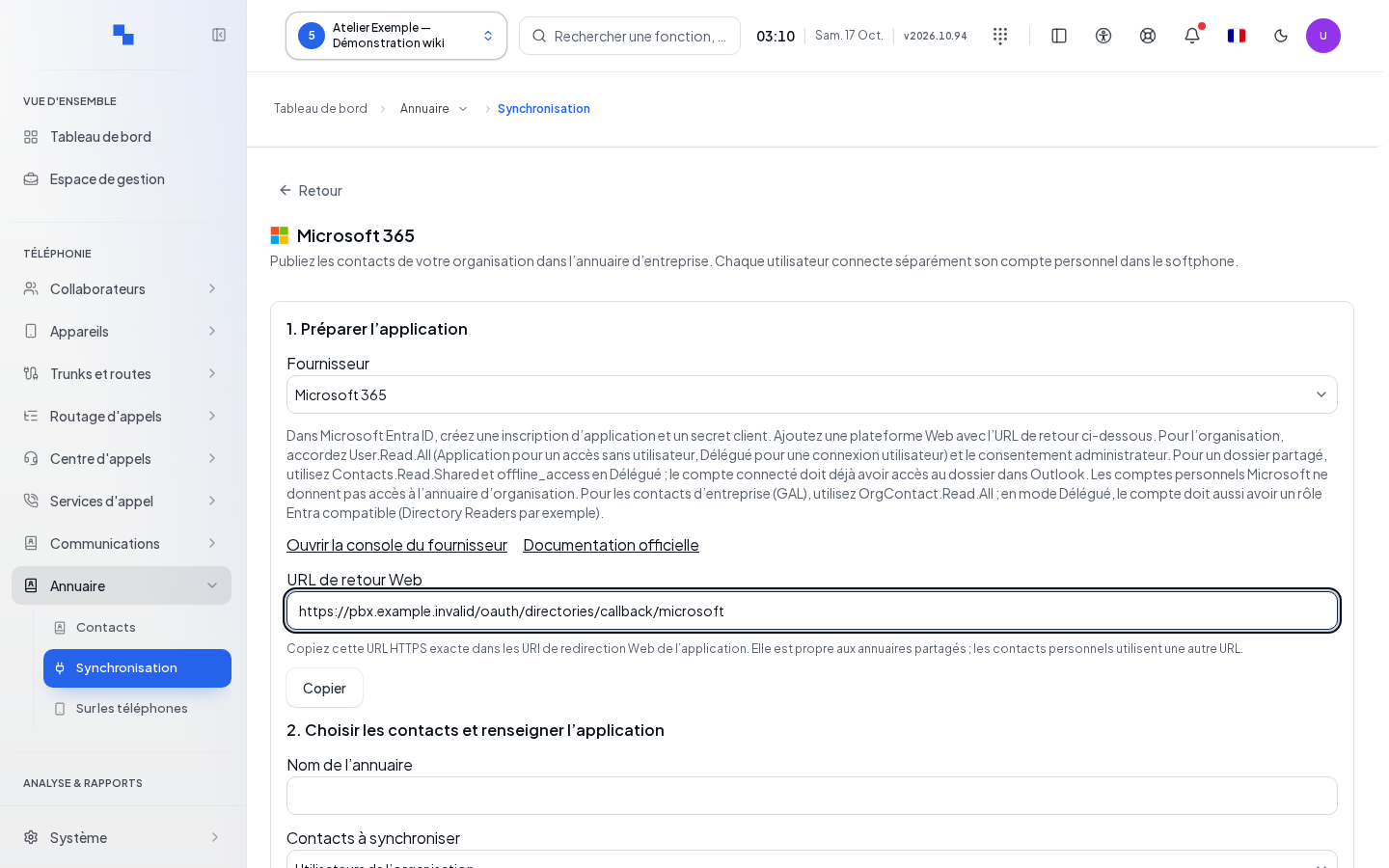
- Choose the provider in Add a source.
- Open the provider console suggested by the guide.
- Copy the exact Web return URL into the provider's application. It is specific to the shared directory.
- Fill in the source and click Save.
- Open Connect / consent, then complete the authorization in the provider window.
- Return to the source, use Test connection, then start synchronization from its row.
| Field | Purpose | Possible values | Example |
|---|---|---|---|
| Provider | Service to read | Microsoft 365 or Google Workspace; cannot be changed after creation | Microsoft 365 |
| Web return URL | Authorization return address; required | Exact HTTPS URL displayed for setup | Copy the displayed value |
| Directory name | Required label | Maximum 200 characters | Remote team |
| Contacts to synchronize | Population to import | Users, company contacts, or shared folder depending on the provider | Organization users |
| Shared folder owner address or ID | Owner of a shared Outlook folder | Required for this source type | reception@example.test |
| Shared folder ID | Folder to import | Selection completed after connecting | Choose the accessible folder |
| Connection mode | Microsoft authorization mode | Authorized account or application with admin consent | Application |
| Entra tenant ID | Microsoft organization | Required; UUID in Application mode | Identifier provided by your administrator |
| Client ID | Provider application; required | Identifier issued by the provider | Application value |
| Client secret | Application secret | Required at creation; leave blank when editing to keep it | Enter its confidential value |
| Synchronization interval (minutes, 5 to 1440) | Frequency | Integer from 5 to 1,440 | 60 |
| Synchronization enabled | Allows runs | Toggle | Enabled after review |
The test reads the provider without publishing any contact. For a shared folder, Choose a shared folder displays the accessible folders; selecting the folder saves the source and starts the first synchronization. If no folder is available, check the account's permissions, then Retry.
Changing the credentials requires saving again and renewing consent. "Allow pop-ups to connect the account." means the browser blocked the authorization window.
Preparing Active Directory
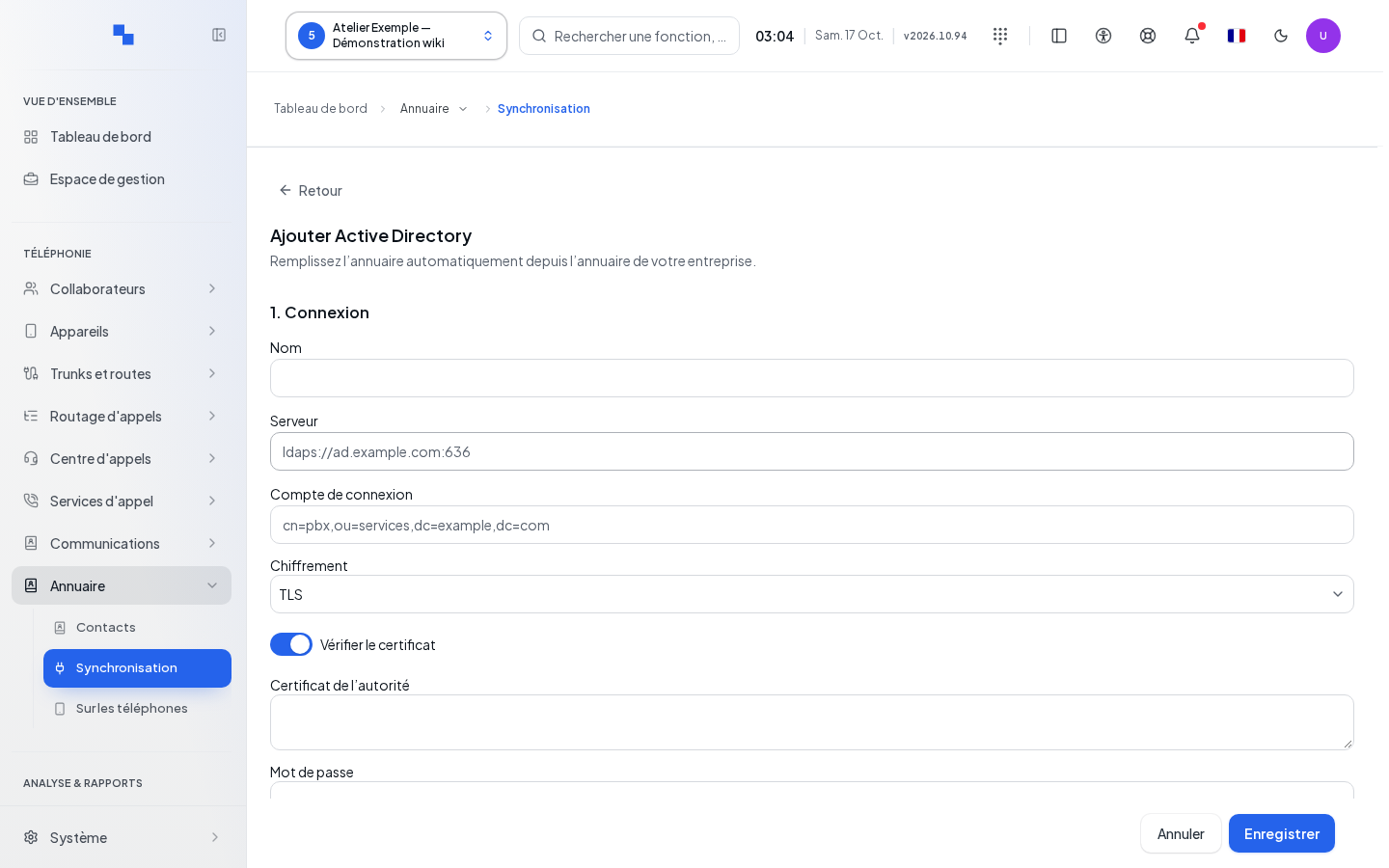
Active Directory is read via the LDAP protocol. The form groups 1. Connection, 2. Search, 3. Fields and 4. Synchronization.
| Field | Purpose | Possible values | Example |
|---|---|---|---|
| Name | Source label | Descriptive name | Headquarters directory |
| Server | Directory address | Address consistent with the chosen encryption | ldaps://directory.example.test |
| Connection account | Read account | Identifier accepted by your directory | Dedicated technical account |
| Encryption | LDAP transport | LDAPS, StartTLS, or LDAP depending on the source | LDAPS |
| Verify certificate | Checks the remote certificate | Toggle | Enabled with the correct authority |
| Authority certificate | Authority that validates the server | Certificate provided by the directory administrator | Company certificate |
| Password | Account secret | Not blank when replacing the protected configuration | Read account secret |
| Where to search | Search starting point | LDAP search base | dc=example,dc=test |
| Active Directory filter (optional) | Limits the objects read | LDAP filter provided by the administrator | Filter validated on the source |
| Fields | Attribute mapping | Attributes for names, numbers, and other displayed contact details | Keep the suggested values only if they match the source |
When editing, protected settings are kept as-is. Replace protected configuration requires re-entering everything needed: password, certificate, filter, and mappings. An unreadable vault does not reveal whether a secret exists. The stored transport is reread; an ldap:// address does not automatically mean StartTLS.
Save keeps the configuration. "The password is required: the server refuses an empty value." requires a password when you replace protected settings. Save before testing synchronization; commands remain blocked while a draft or replacement is in progress.
Previewing and applying Active Directory
- Click Preview.
- Review the additions, changes, deletions, and number conflicts.
- Check that the search base, filter, and source match what you expect.
- If a significant drop in volume is reported, fix the source or check the explicit confirmation only after verification.
- Click Apply, then review the counters.
Synchronization goes from the source to the PBX; it does not write back to Active Directory. Contacts removed from the source disappear from the PBX. An empty read after a non-empty import, or a drop to 20% or less of the previous volume, suspends automatic runs and requires human confirmation. Changing the schedule does not lift this protection. Ordinary deletions continue to be applied automatically.
If "Number … belongs to …" appears, check the record or the other source that owns the number. Do not blindly delete a manual contact to force the import.
Scheduling LDAP runs
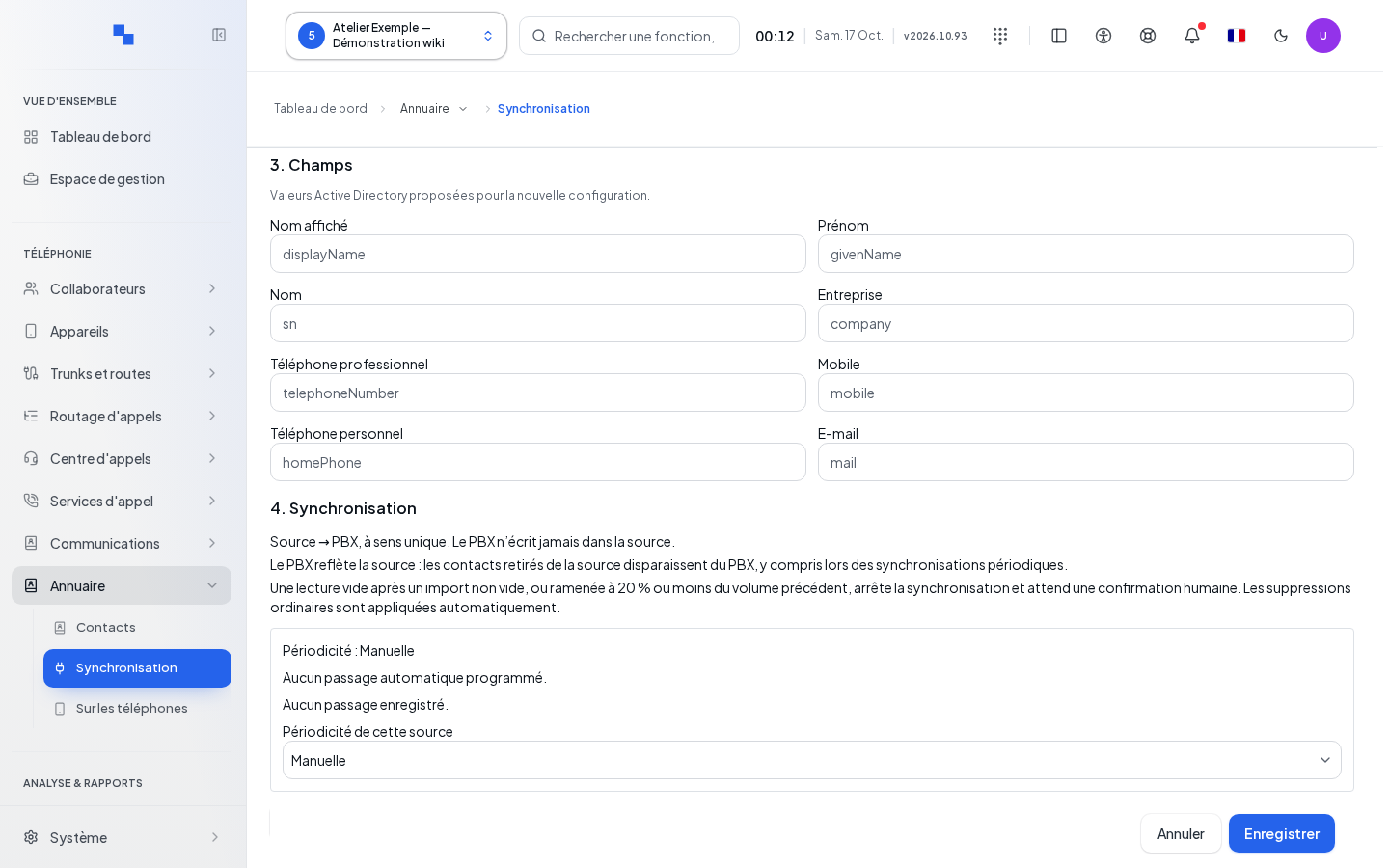
In Schedule for this source, choose the offered mode. The daily mode shows Daily time (UTC): this is not your personal time zone. Save the schedule or the form containing it. Then check the next run and the last run. The service checks the schedule every minute.
Pausing puts the source in manual mode. Resuming opens its configuration to choose the desired schedule. "Schedule and last run unavailable. Their status is unknown." requires a new read, not a blind reschedule.
Deleting a source
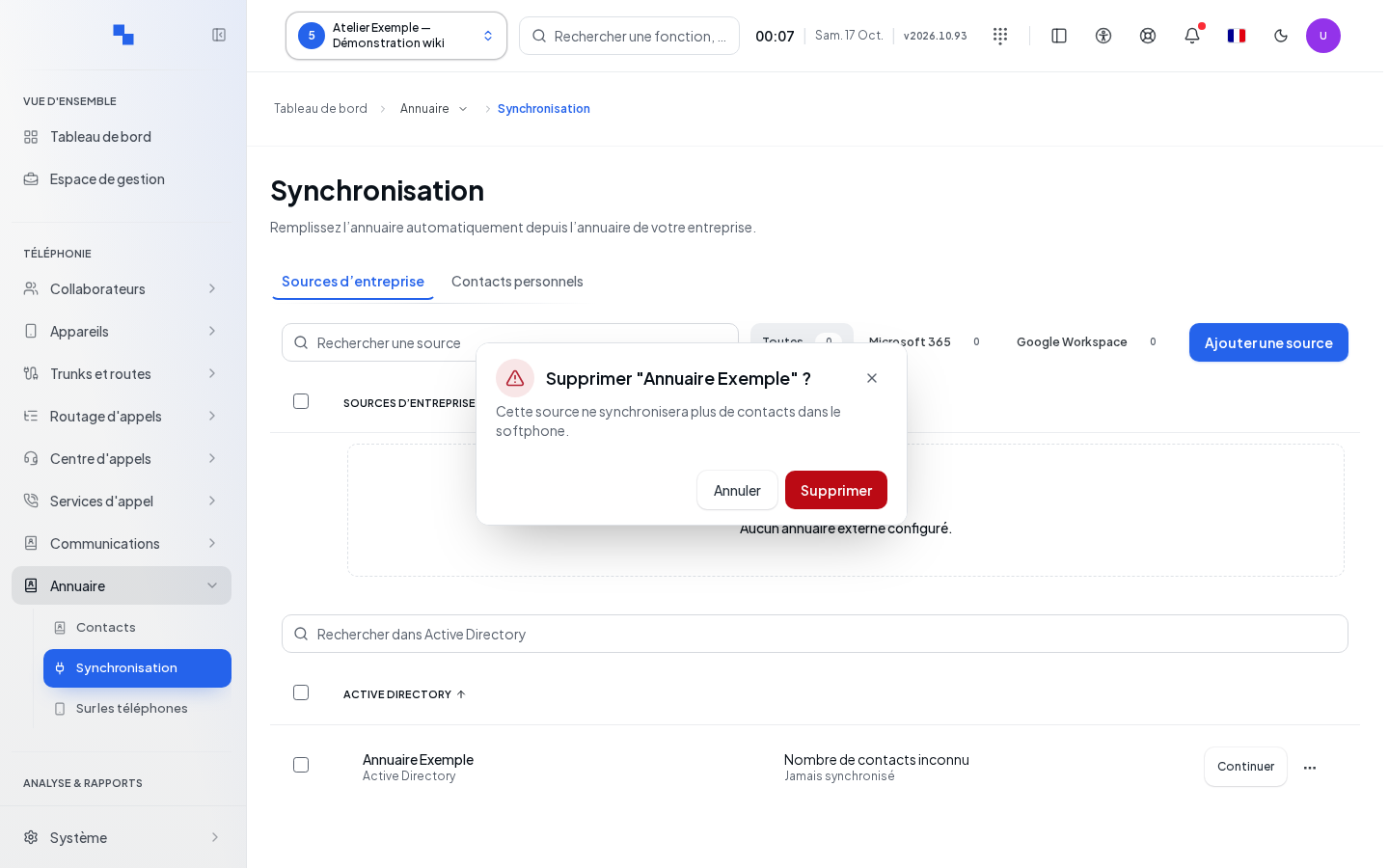
For Microsoft or Google, Delete removes the source, its secrets, and its imported contacts; other contacts are kept. Also revoke consent in the provider's portal. Deleting an LDAP source announces that synchronizations from this source will stop. Read the confirmation specific to the chosen type; Cancel keeps the source.
Checking the result
Check the log, the published and skipped contact counters, then search for a few contacts in Contacts. An accepted synchronization request is not yet a success report.
If it doesn't work
A reconnection requirement means you need to renew consent or credentials. A successful test with no published contact is normal: then start the synchronization. After a volume drop, first check the filter and access to the source before allowing deletions.