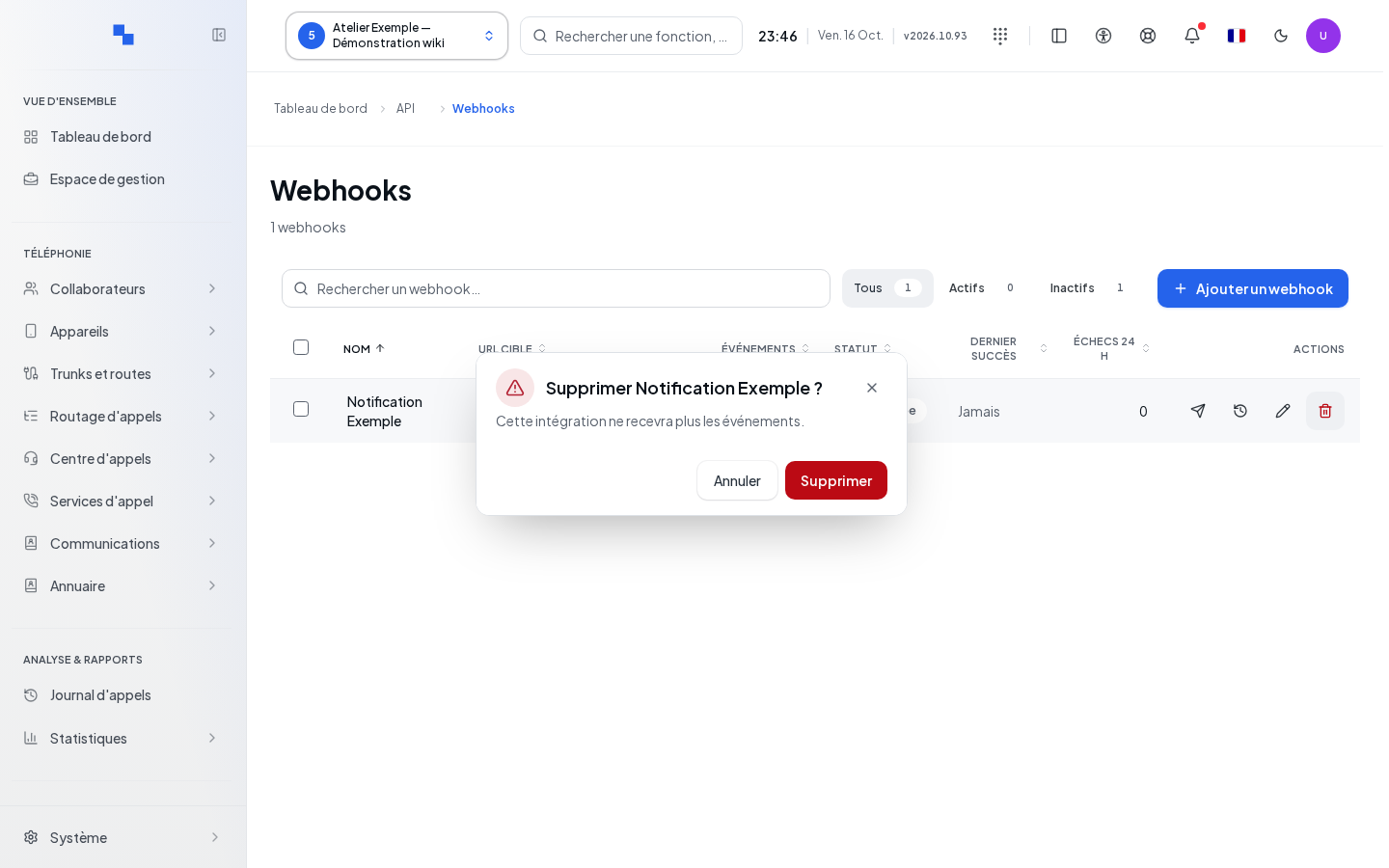
Opening webhooks
A webhook sends an event to the address of an external application. This screen is intended for the integrations administrator of the selected customer. Open Webhooks, either directly or from the tab on the API page. Reading and editing have separate permissions.
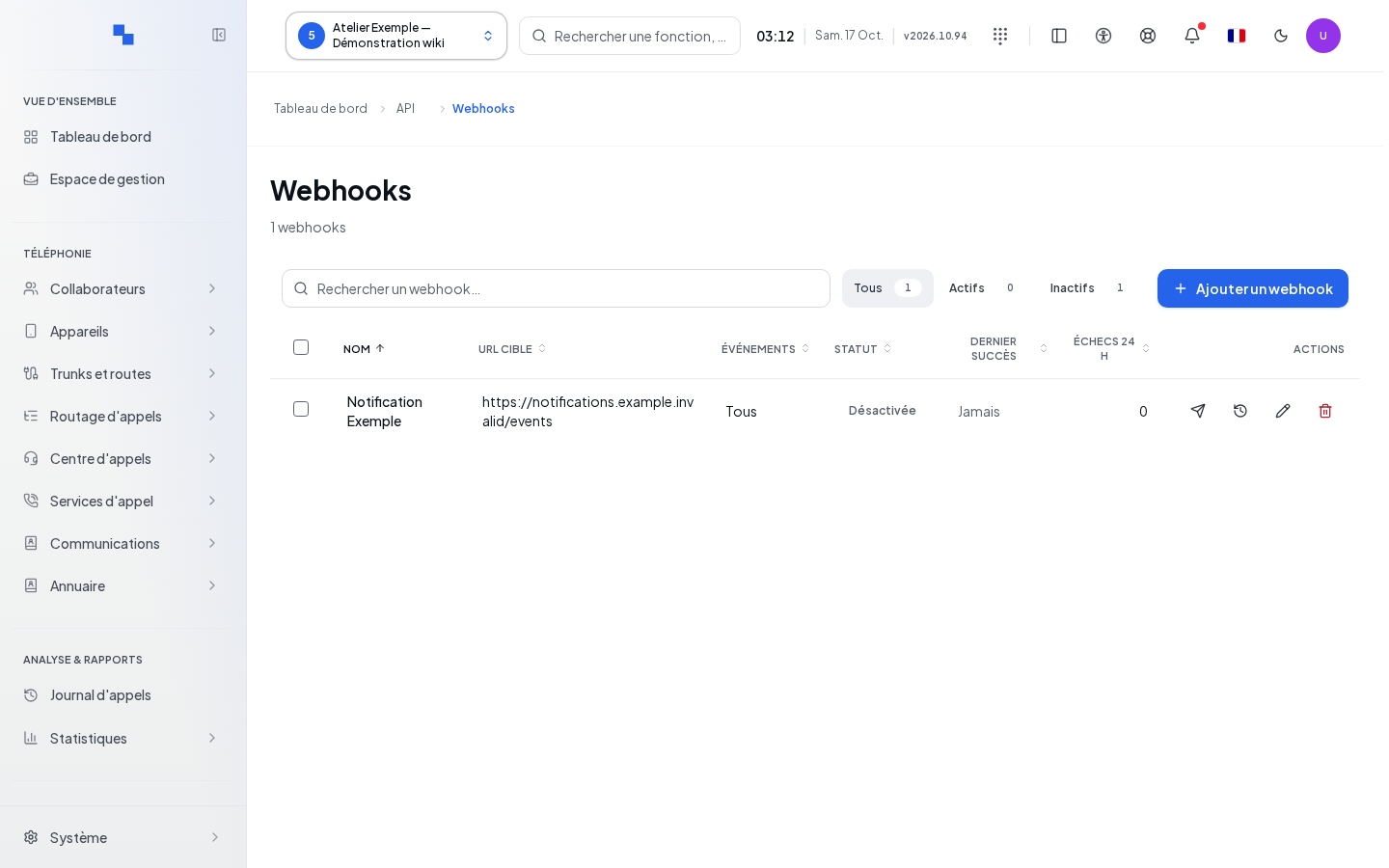
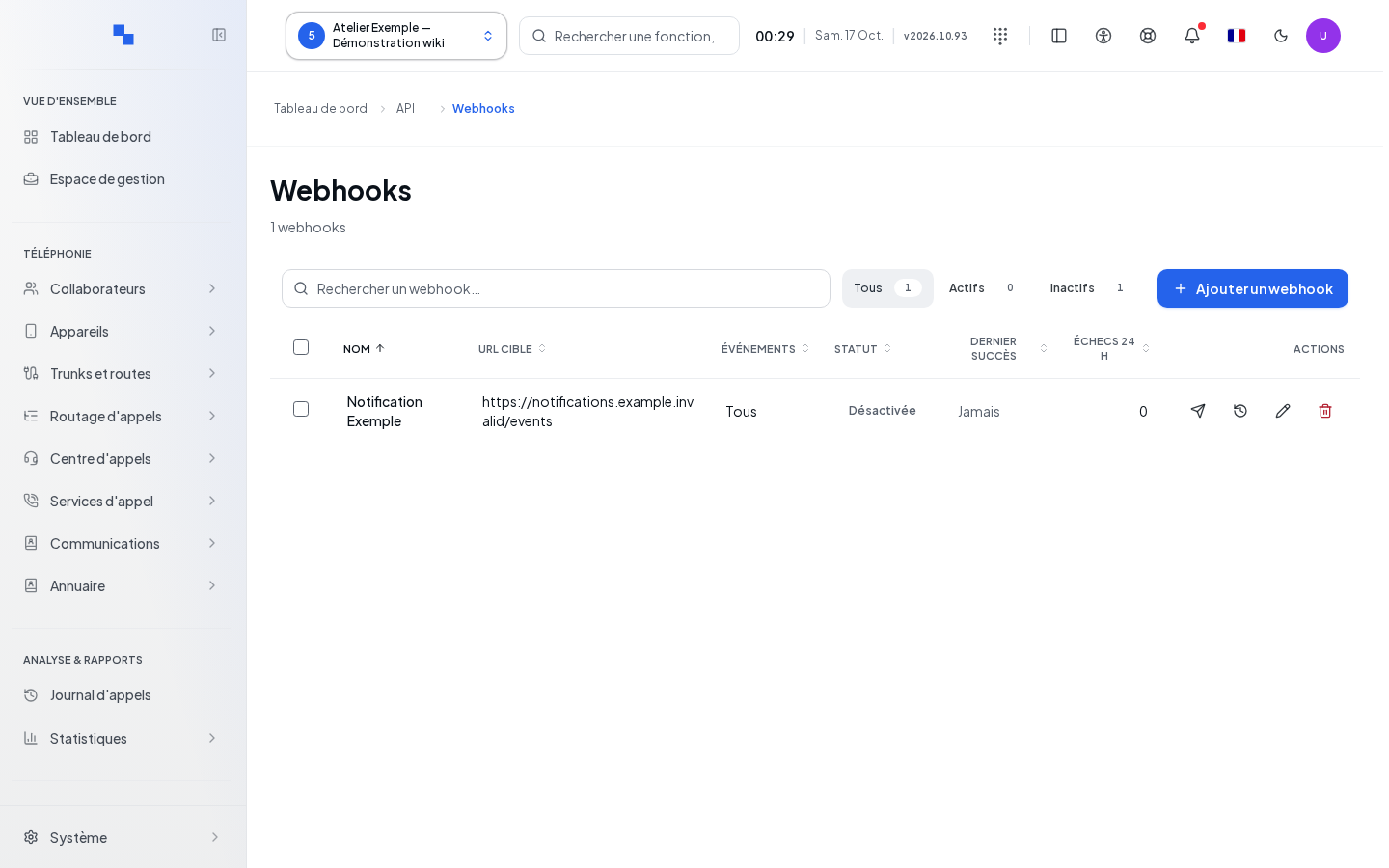
The list displays name, target URL, events, status, last success, and failures over 24 hours. Search by name, URL, identifier, or event; choose all, active, or inactive. These filters apply to the loaded page, with a maximum of fifty destinations. Browse other pages if needed.
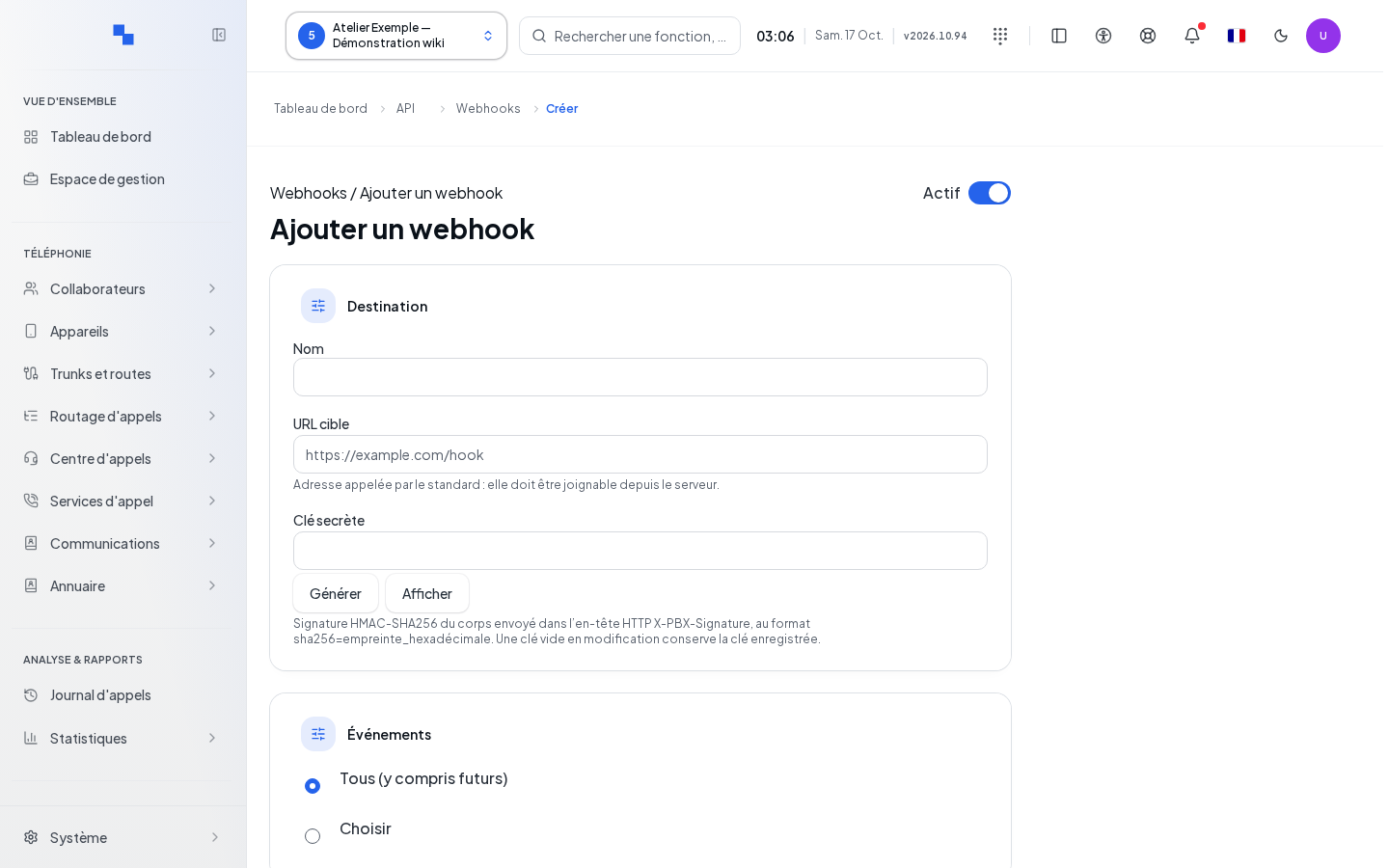
Creating or editing a destination
- Click Add a webhook, or Edit on a row.
- Fill in the destination and choose the events.
- Open the advanced options only if your recipient requires them.
- Click Save and wait for the return to the list. Cancel returns to the list without saving the draft.
| Field | Purpose | Possible values | Example |
|---|---|---|---|
| Active | Allow sending | Enabled by default | Disabled during setup |
| Name | Identify the destination; optional | Text, maximum 120 characters | Call tracking |
| Target URL | Recipient address; required | HTTP or HTTPS URL with host, no username or password in the URL | https://integration.exemple.test/evenements |
| Secret key | Secure the signature of outgoing requests | Secret; leaving it empty when editing keeps the saved value | Secret stored in your password manager |
| All (including future) | Receive all offered events, current and future | Selected by default | All |
| Choose | Limit the events | At least one event checked | Required call events |
| Method | HTTP verb used | POST by default, PUT or PATCH | POST |
| Content type | Request format | application/json by default, text/plain | application/json |
| Custom body | Optional body template | Text, maximum 32,768 characters | Template prepared by your integrator |
Generate prepares a random key in the field but does not save it. The display command lets you reveal and then hide the entry. The existing secret is never prefilled. In Choose, search for an event, expand a topic, and check a row or Entire group. An event flagged as not emitted should not be considered a source of active notifications.
An invalid URL or an empty event selection blocks saving. Click the displayed explanation to return to the field that needs correction.
Sending a test
Send a test actually contacts the recipient. From the record, the button is only available for a destination that has already been saved, with no pending changes. It tests the saved version, never the draft. The results window shows the HTTP status, duration, response, and any error. Close it after reading; a status with no response is not a success.
Viewing history and resending a delivery
- Open the history from the destination row.
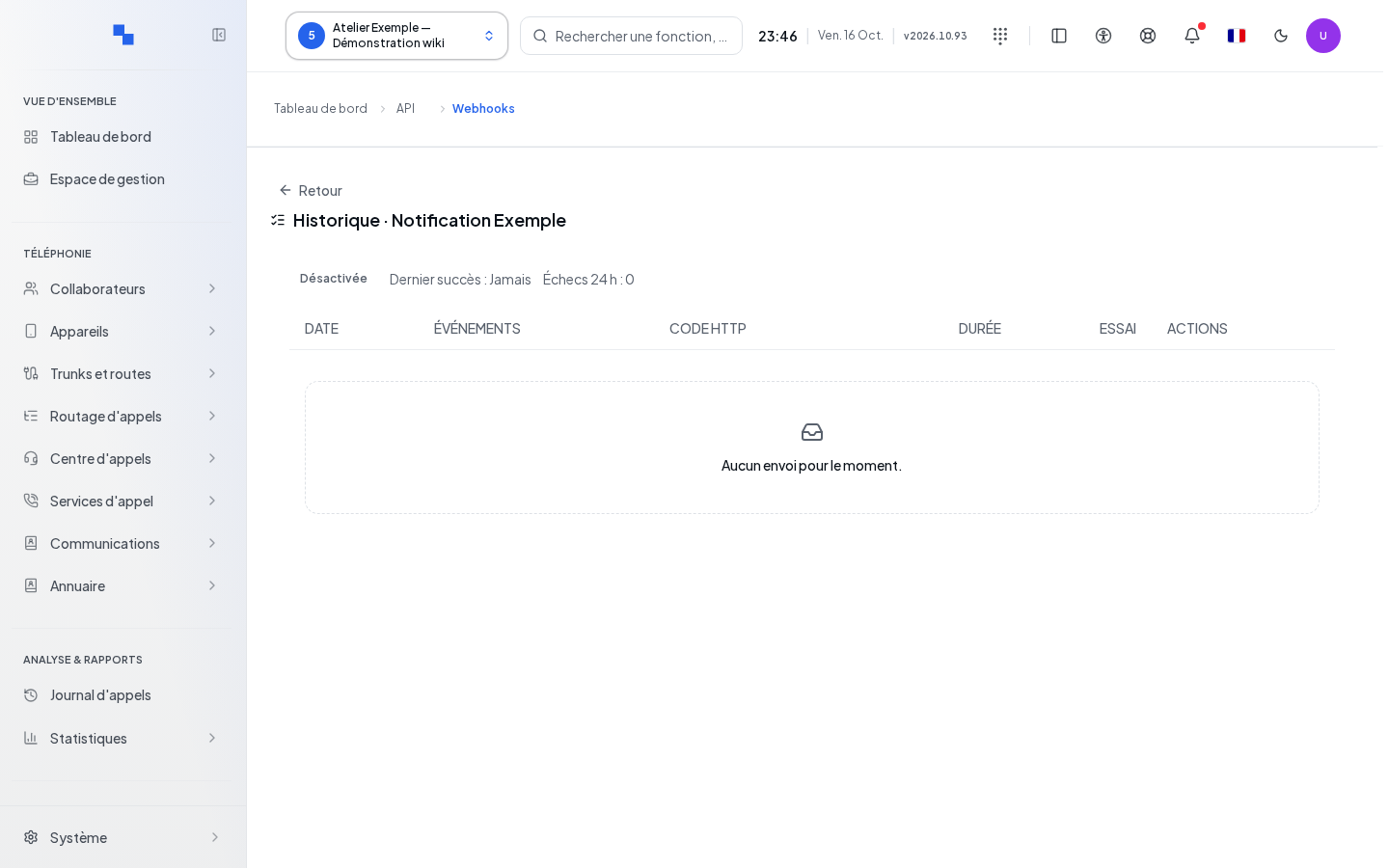
- Note the date, event, HTTP code, duration, and attempt number.
- If needed, use Copy delivery references to pass the references to the integrator.
- Use Resend only when it is offered on a replayable delivery. An already scheduled retry is flagged.
- If the delivery has already been sent, review Resend an already delivered message?: confirming may create a duplicate on the recipient's side. Cancel to avoid the new send.
The history is paginated by fifty attempts. Disable the destination requires confirmation; after success, the badge becomes inactive. This keeps the destination available for a later correction.
Deleting and checking the result
Delete requires confirmation with the name or target address. Review the destination before confirming; an error keeps the confirmation open and lets you read the reason. Selecting multiple rows also offers deletion, provided you have write permissions.
If the list fails to load, use the retry option shown. If a search returns nothing, remove the filters. If a test fails, correct the recipient based on the code and response, save, then test again. Do not conclude that an integration is working solely because the save succeeded.