
Finding an Email Submission
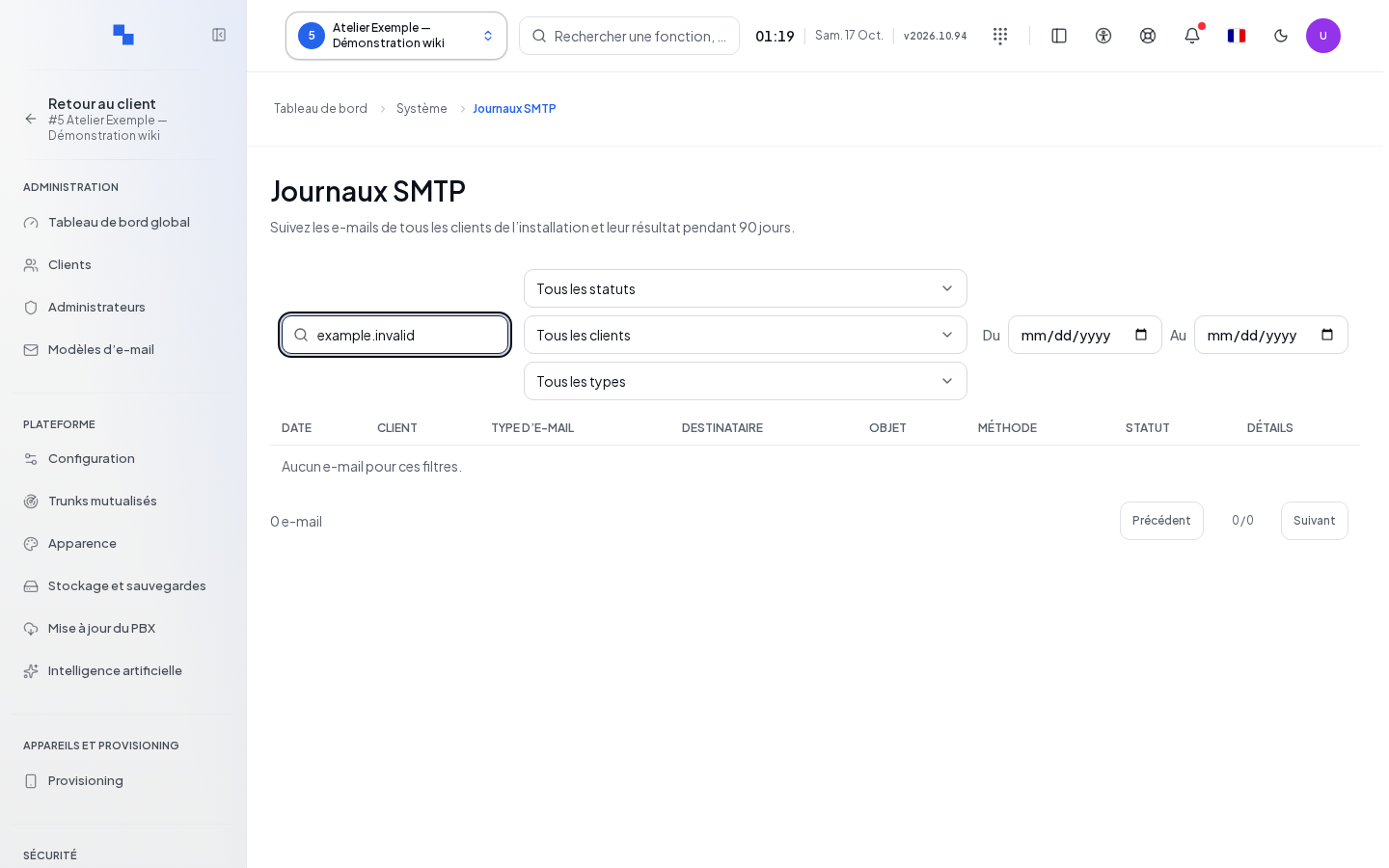
Open System → E-mails → Sending Log. The logs are intended for the installation administrator. They bring together SMTP, Microsoft Graph, and Gmail submissions. They help distinguish a message that is pending, sent, or failed. Prepare the recipient and the time period you are looking for.
Filtering the List
| Field | Purpose | Possible Values | Example |
|---|---|---|---|
| Search | Find a message | Text, 500 characters maximum | Recipient address |
| Status | Limit the delivery status | All, pending, sent, failed | Failed |
| Client | Select the relevant client | All or a proposed client | Example Workshop |
| Type | Select the origin of the submission | Welcome, activation, reset, voicemail, report, invitation, alert, urgent, support, test, system | Report |
| From | Start of the search; optional | Date | Day of the report |
| To | Last day searched; optional | Date at least equal to the start | Same day |
Each change returns to the first page and closes any open detail view. The list refreshes every fifteen seconds and displays fifty rows per page. Dates are shown in the effective time zone of the screen.
Reading the Details
- Identify the row by its date, client, recipient, and subject.
- Check the sending method and status.
- Click Details to read the number of attempts, the message ID if available, and the reported error.
- Click Details again to collapse the row.
- Browse through the pages if the message you are looking for does not appear.
Checking the Result and Resuming the Search
A reversed time period blocks the display: correct the dates. If loading fails, click Retry. An empty result list may be due to the filters; broaden the time period or remove the status filter. A sent status describes the result known to the sending service; if the recipient does not see the message, provide their email administrator with the date and message ID. This page does not offer manual resending of the email.