
Preparing a Call Trace
The System → SIP Traces screen is intended for the system administrator. It controls the temporary sending of traces to a HOMER collector. Prepare the collector address and its certificate configuration with your integrator. The setup guide in the screen opens the HOMER documentation.
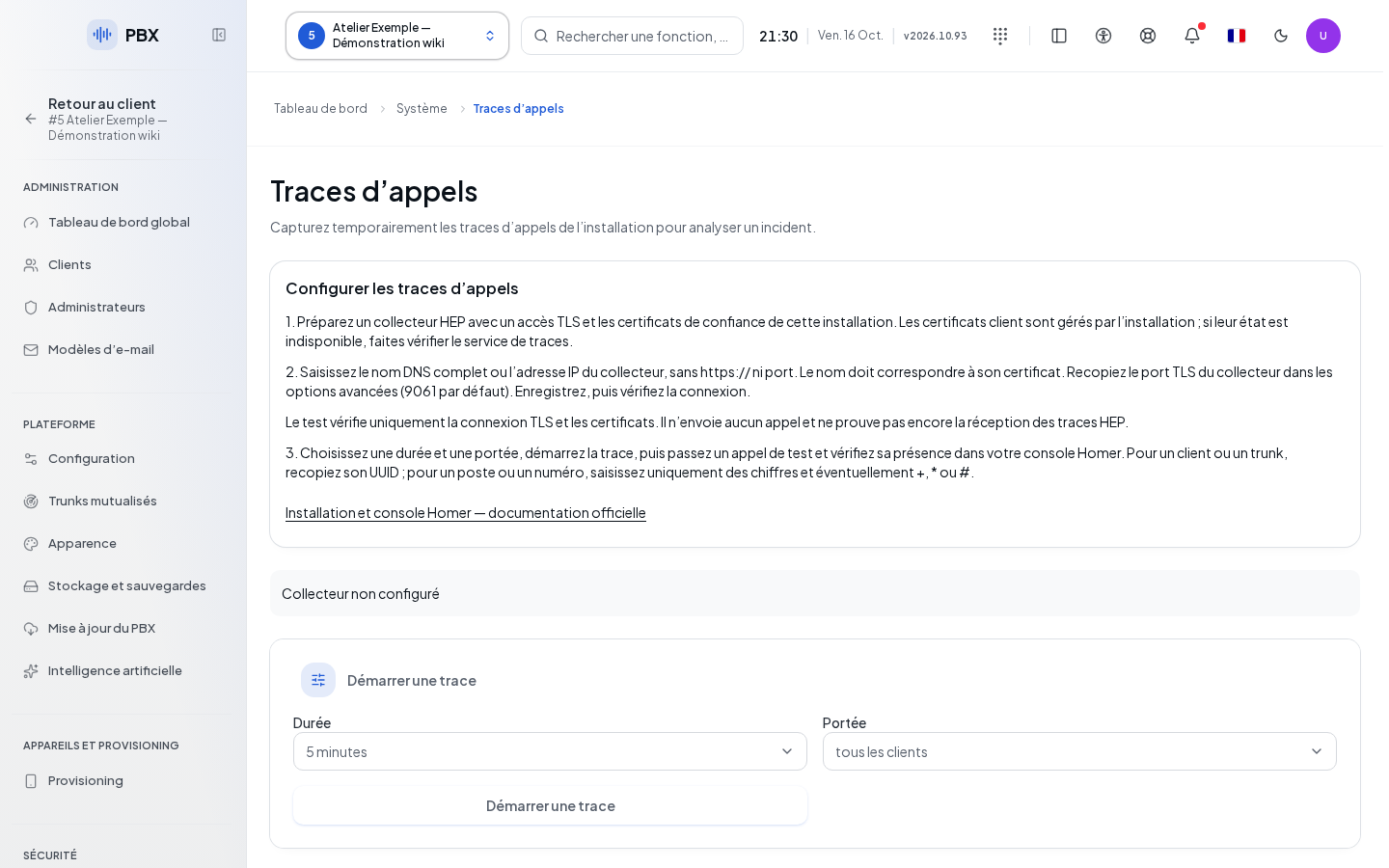
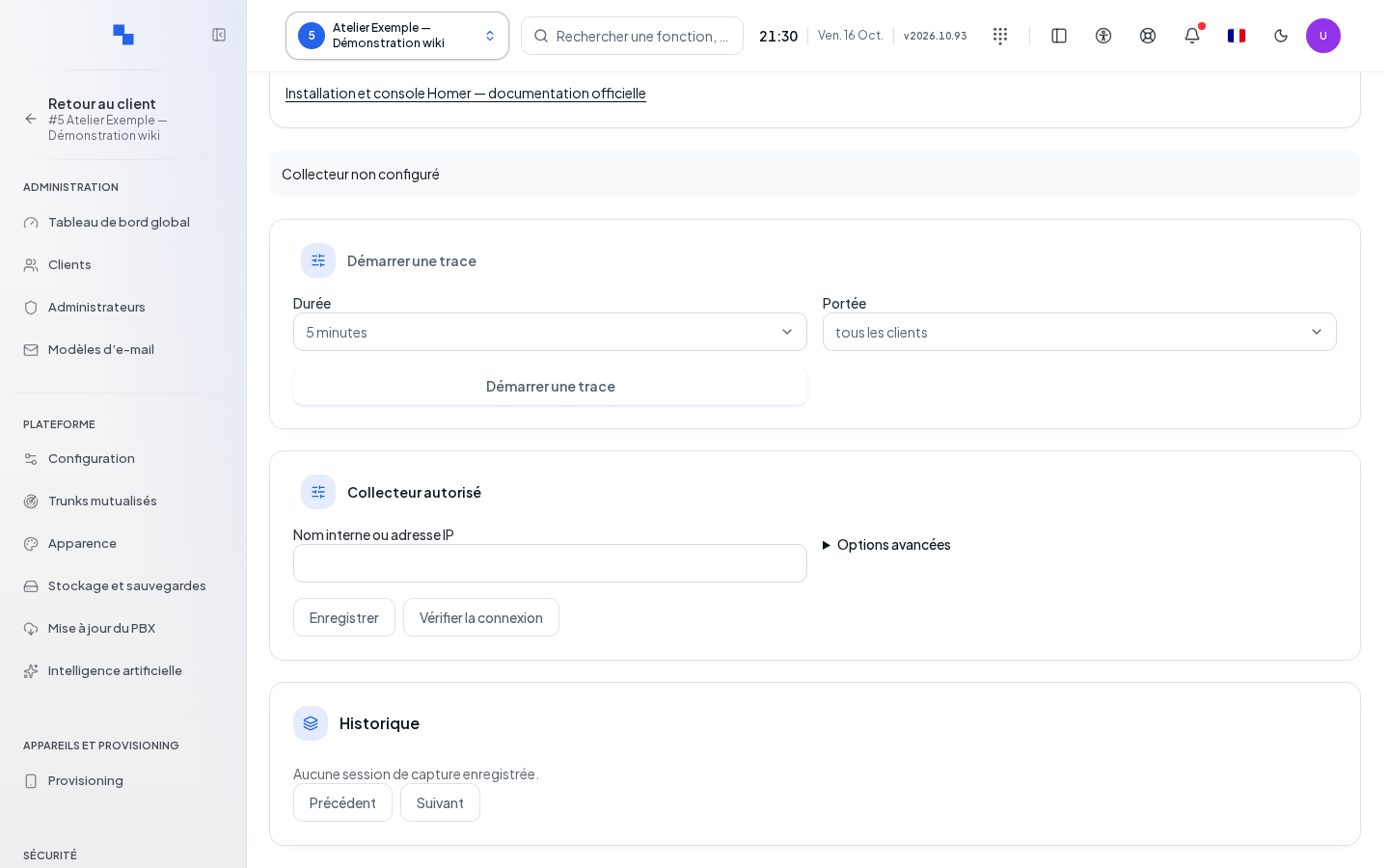
Without an active collector, the Collector section is shown first. Otherwise, Start a Trace, Collector, and History organize the workflow. An active trace displays its status and its stop command at the top. The start button explains why it is unavailable.
Configuring the Collector
| Field | Purpose | Possible Values | Example |
|---|---|---|---|
| Internal name or IP address | Specify the collector; required to save | Name or address matching your configuration | collecteur.exemple.test |
| Port | Collector port, under the options | Integer from 1 to 65,535; 9061 by default | 9061 |
- Enter the address and, if necessary, the port.
- Click Save to activate this configuration.
- Click Check Connection. This test applies to the saved configuration and remains unavailable until changes are saved.
- Check the connection and certificate result before starting a trace.
The configuration cannot be modified while a capture is active. The deactivation command requires confirmation and uses the saved values. Cancel the confirmation to keep the collector active.
Starting and Stopping a Trace
| Field | Purpose | Possible Values | Example |
|---|---|---|---|
| Duration | Set the automatic stop | 5, 15, 30 minutes; 1, 2, 6, 12, 24, or 48 hours | 5 minutes, initial value |
| Scope | Limit the calls involved | All clients, Client, SIP Trunks, Extensions, Number | Number |
| Details | Specify the chosen scope; required if targeted | Identifier or value expected for this scope | Number involved in the incident |
- Save any changes to the collector.
- Choose the duration and scope.
- Fill in Details if you chose a target.
- Click Start a Trace. A capture for all clients requires an additional confirmation.
- Reproduce the call to be diagnosed.
- Click Stop Capture as soon as the relevant data has been collected, or wait for the deadline.
Only one active session is shown. Starting is unavailable if the collector is deactivated, incomplete, in error, or if a capture is already active. The counter shows the remaining time; session data is refreshed every five seconds.
Checking History and Resolving a Failure
The history shows the collector, scope, duration, author, start, and end. Previous and Next navigate through batches of one hundred sessions. A closed trace may have ended manually, at the deadline, or due to an incident.
If the collector is unreachable, have the address, port, and network access checked. If the name or certificate is invalid, have the certificates and expected name corrected. A saved configuration does not guarantee that sending is ready: the screen separately indicates this condition. After a startup error, review the sessions before retrying.