
Building a custom report
Select the client and open Custom Reports. This screen distinguishes the report definition, its one-time execution, and its scheduling. Reading allows you to calculate and view results; writing allows you to save definitions and schedules.
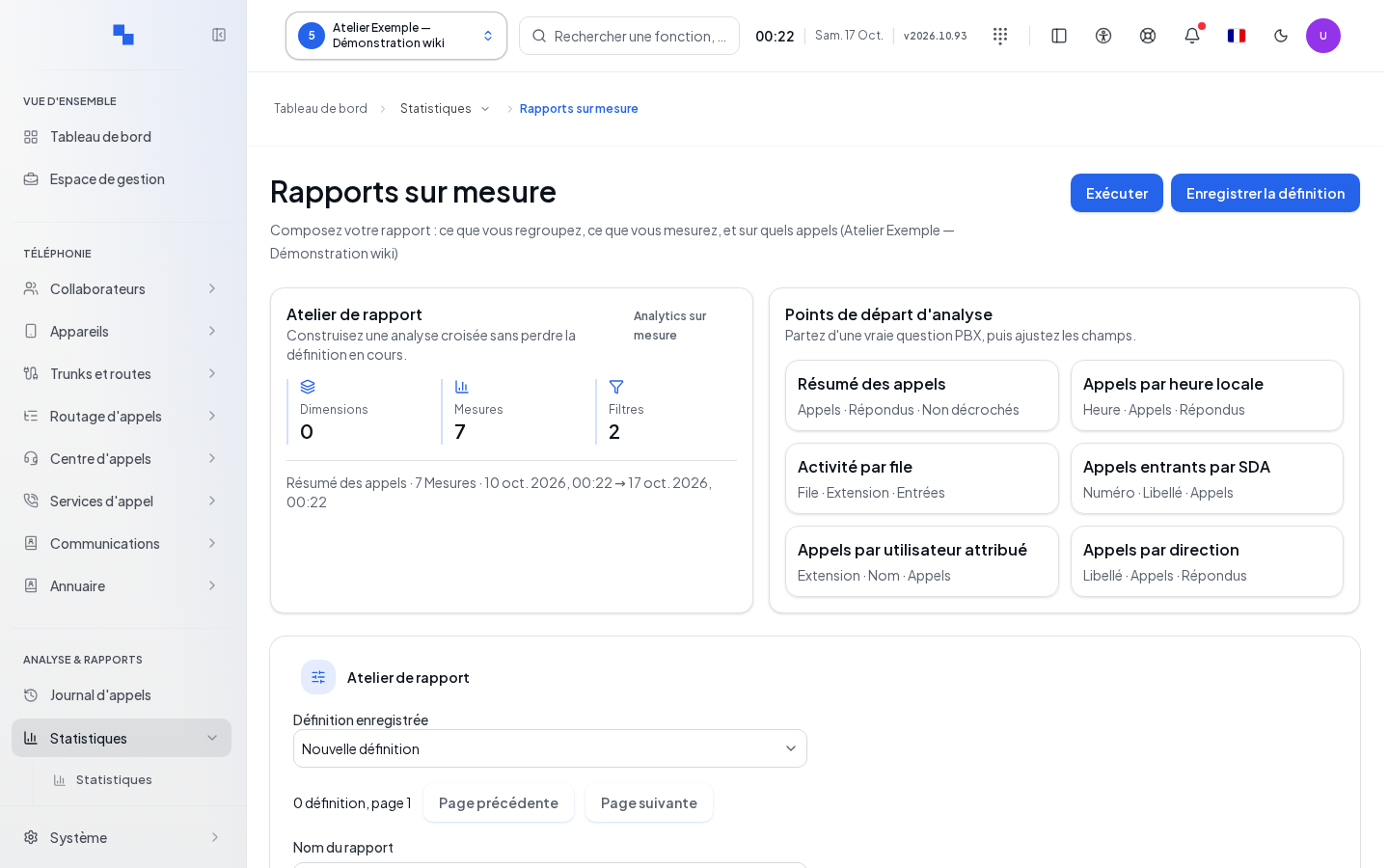
Defining the data
- Choose New definition, a saved definition, or a suggested view.
- Name the report and set its period.
- Select the columns and sorting.
- For a dimensional view, select the groupings and filters.
- Click Run to calculate the result.
- Click Save definition or Save changes to keep the configuration.
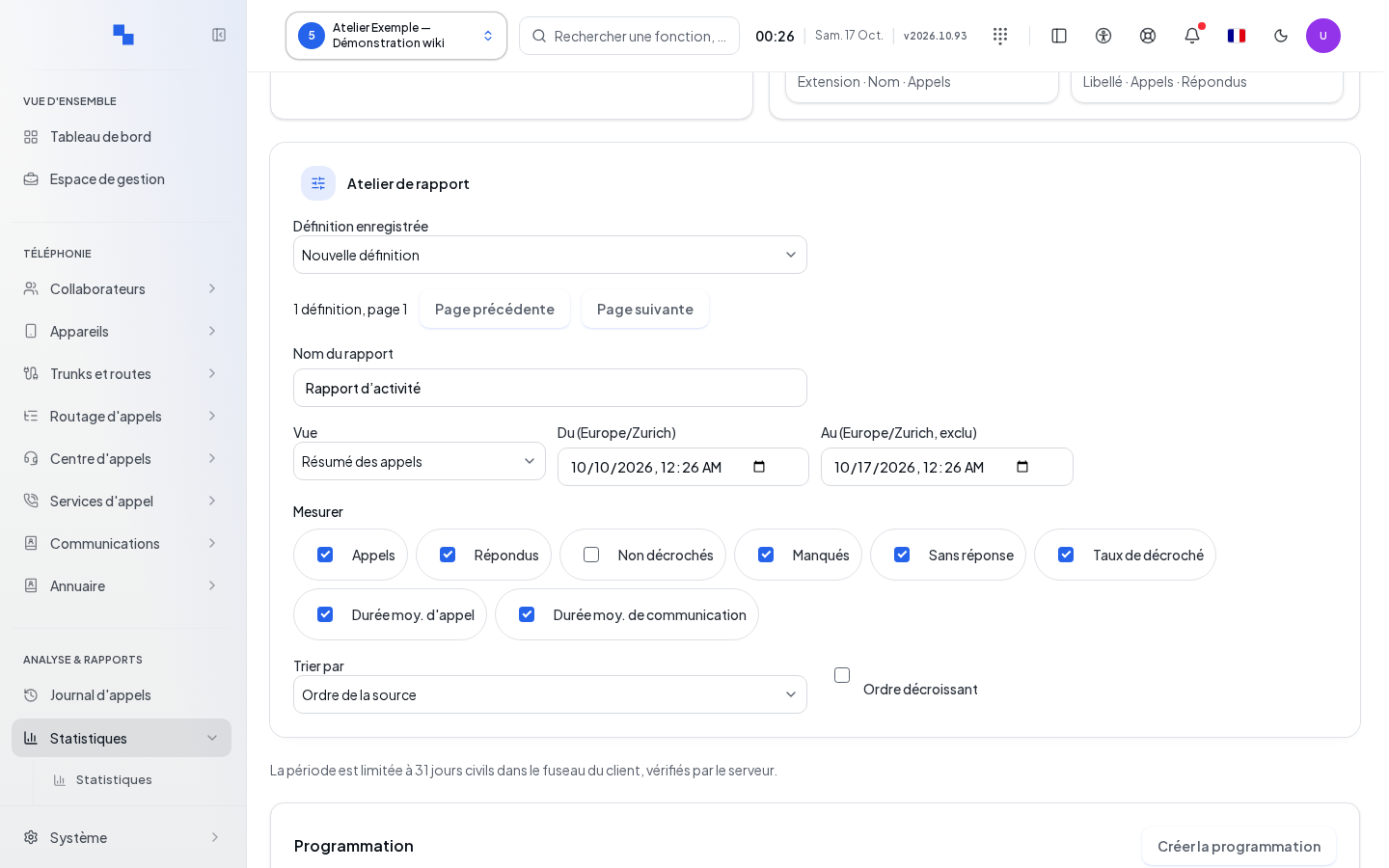
| Field | What it's for | Possible values | Example |
|---|---|---|---|
| Saved definition | Reuse a report | New definition or available report | Front desk summary |
| Report name | Name the definition; required to save | Maximum 120 characters | Morning summary |
| View | Choose the data displayed | Suggested views: calls, hours, queues, and available breakdowns | Calls |
| From (displayed time zone) | Set the inclusive start | Valid date and time | Start of day |
| To (displayed time zone, exclusive) | Set the exclusive end | Instant after the start, within the displayed period limit | Start of the next day |
| Measures | Choose the columns | Columns of the view | Count and duration |
| Sort by | Choose a selected column | Source order or result column | Number of calls |
| Descending order | Reverse the sort | Checkbox | Checked |
| Dimensions | Group the corresponding view | Up to three among day, hour, number, direction, calling user | Day and direction |
| Directions | Filter calls | All, inbound, outbound, internal | Inbound |
| Status | Limit the status | Text, maximum 64 characters | Expected status of the source |
| Contains | Search for a value | Text, maximum 100 characters | Searched number |
| Minimum duration (s) | Exclude short calls | 0 to 86,400 seconds | 10 |
Changing the view resets its columns and may change the sorting options. Dimension filters appear in the corresponding view. Previous page and Next page browse saved definitions one hundred at a time.
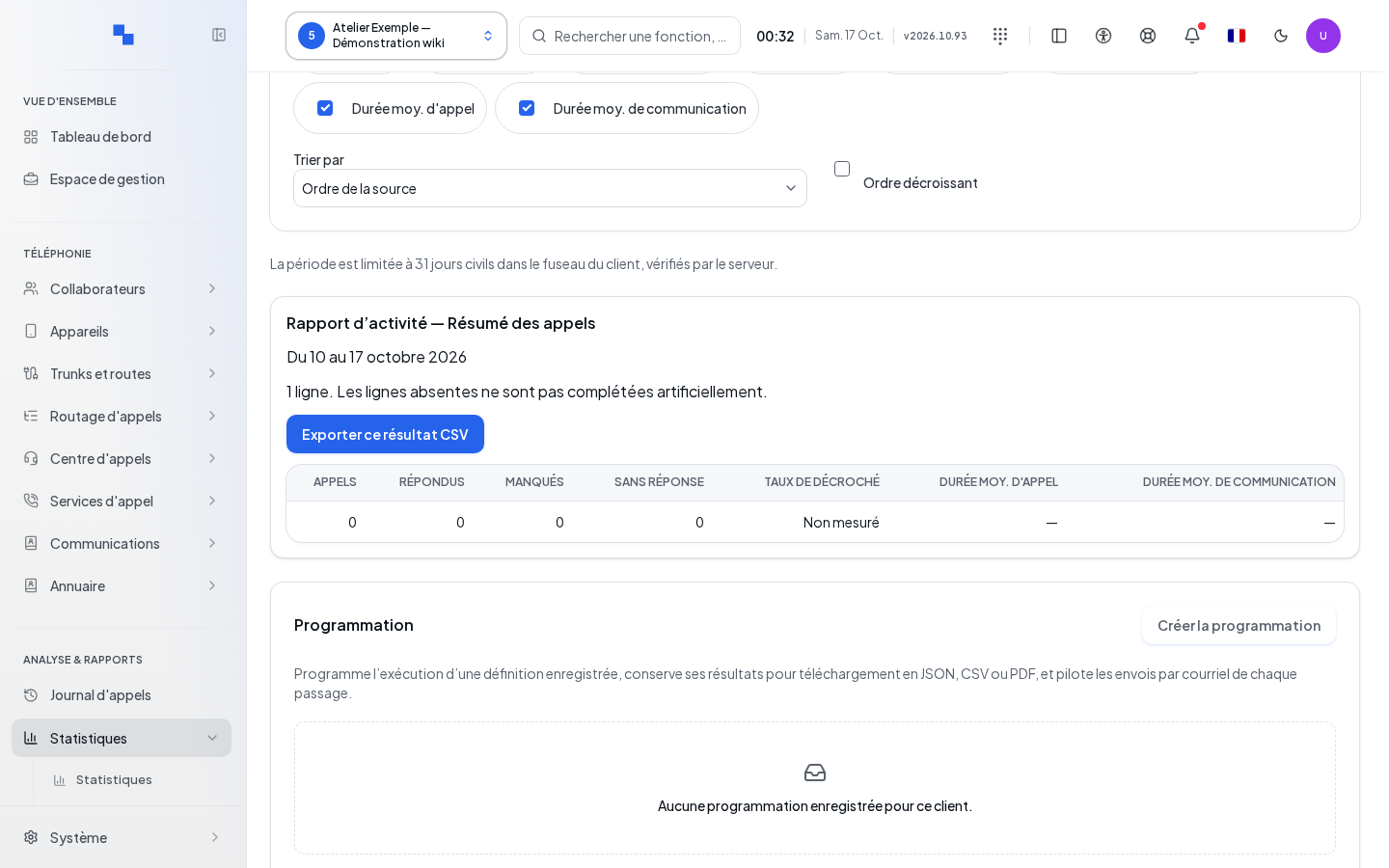
Reading, exporting, and replaying
The result displays its period, coverage, and number of rows. Export this result as CSV exports this result with its columns and order. Unmeasured data is not converted to zero. The hourly view explains the particularities of time changes.
Replay the saved definition reloads and calculates the version stored on the server; this is not the execution of the currently edited draft. Delete definition requires confirmation; Cancel keeps it and Confirm deletion removes it. If a read fails, Retry read resumes the data.
Scheduling a saved definition
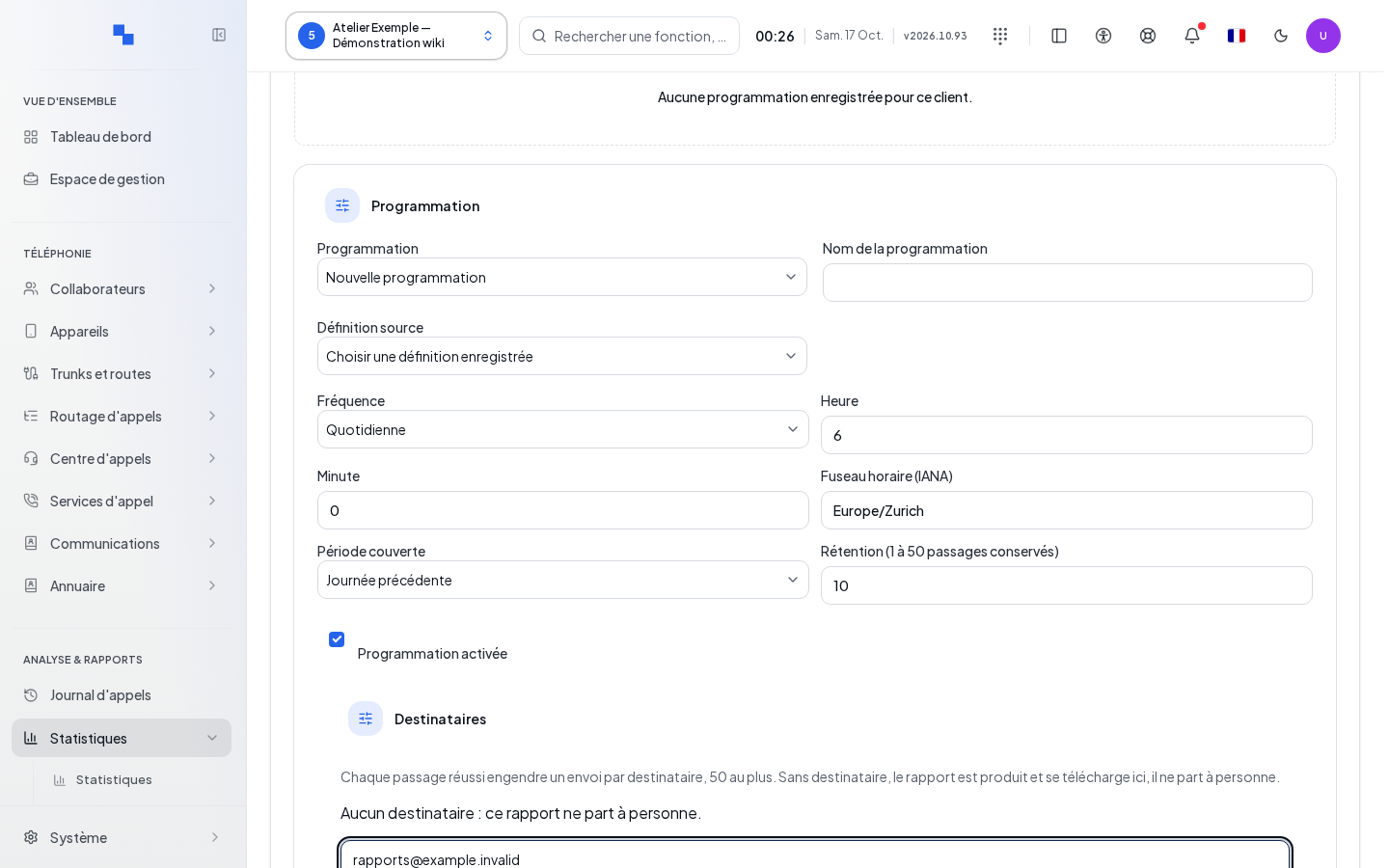
In the scheduling panel, choose a new schedule or open an existing row. The source definition must already be saved.
| Field | What it's for | Possible values | Example |
|---|---|---|---|
| Name | Identify the schedule | Text within the indicated limit | Weekly summary |
| Source definition | Choose the calculation | Saved definition | Front desk summary |
| Frequency | Repeat the calculation | Suggested frequencies | Weekly |
| Day | Specify the cadence | Day of week or day of month depending on frequency | Monday |
| Hour / Minute | Set the trigger time | 0 to 23 / 0 to 59 | 08 / 00 |
| Time zone | Interpret the cadence | Valid time zone | Europe/Zurich |
| Period | Choose the calculated relative period | Suggested periods | Previous period matching the summary |
| Retention | Limit the retained runs | Integer within the displayed bounds | Suggested value |
| Activation | Allow scheduled runs | Checkbox | Enabled |
| Recipients | Delivery addresses | Authorized addresses; empty list allowed | manager@example.test |
| Delivery format | Choose the attached file | Suggested formats | CSV |
Add each address using the add command; typing alone does not add it to the list. The remove command removes only the selected address. Without a recipient, the report is produced and downloadable but is not sent to anyone. Save and review the next due date. Warnings about the clock or scheduling make this due date uncertain and must be resolved.
Tracking runs and deliveries
The immediate run command records a run. If the response is not confirmed, use the dedicated command to resume this request: it retrieves the same run instead of creating a second one. During an operation, Cancel stops the local wait; then check the log to find out the server result.
The log shows the time slot, trigger, status, period, rows, size, and coverage. The previous and next pages browse the runs. Missed due dates and pending runs are flagged.
After success, the JSON, CSV, and PDF download commands appear as long as the file is available. An expired file does not become available again by reloading the page. If the PDF is rejected due to an unsupported character, use the suggested CSV. A CSV with no exportable rows is distinct from a failure.
Open a run's deliveries to view recipients, statuses, and attempts. The refresh command updates this list; the hide command collapses it. Resume and decision actions are only offered for the relevant statuses. For a delivery with an uncertain result, verify its receipt before confirming a resend or considering it received: avoid duplicate emails.
Fixing an error and deleting a schedule
A missing field is named near the form. Correct it, then save. A recipient rejection must be resolved according to the client's policy. An unreadable run list offers its own retry; it does not mean that no run occurred.
Deleting a schedule requires confirmation and resets the panel to a new entry after success. It is distinct from deleting the definition. Check the relevant name before confirming.