
The System area brings together the common settings of the Informatique Facile PBX installation. Changing the selected client does not turn these global settings into settings specific to that client. Access to them depends on the installation's administration rights.
Finding a setting
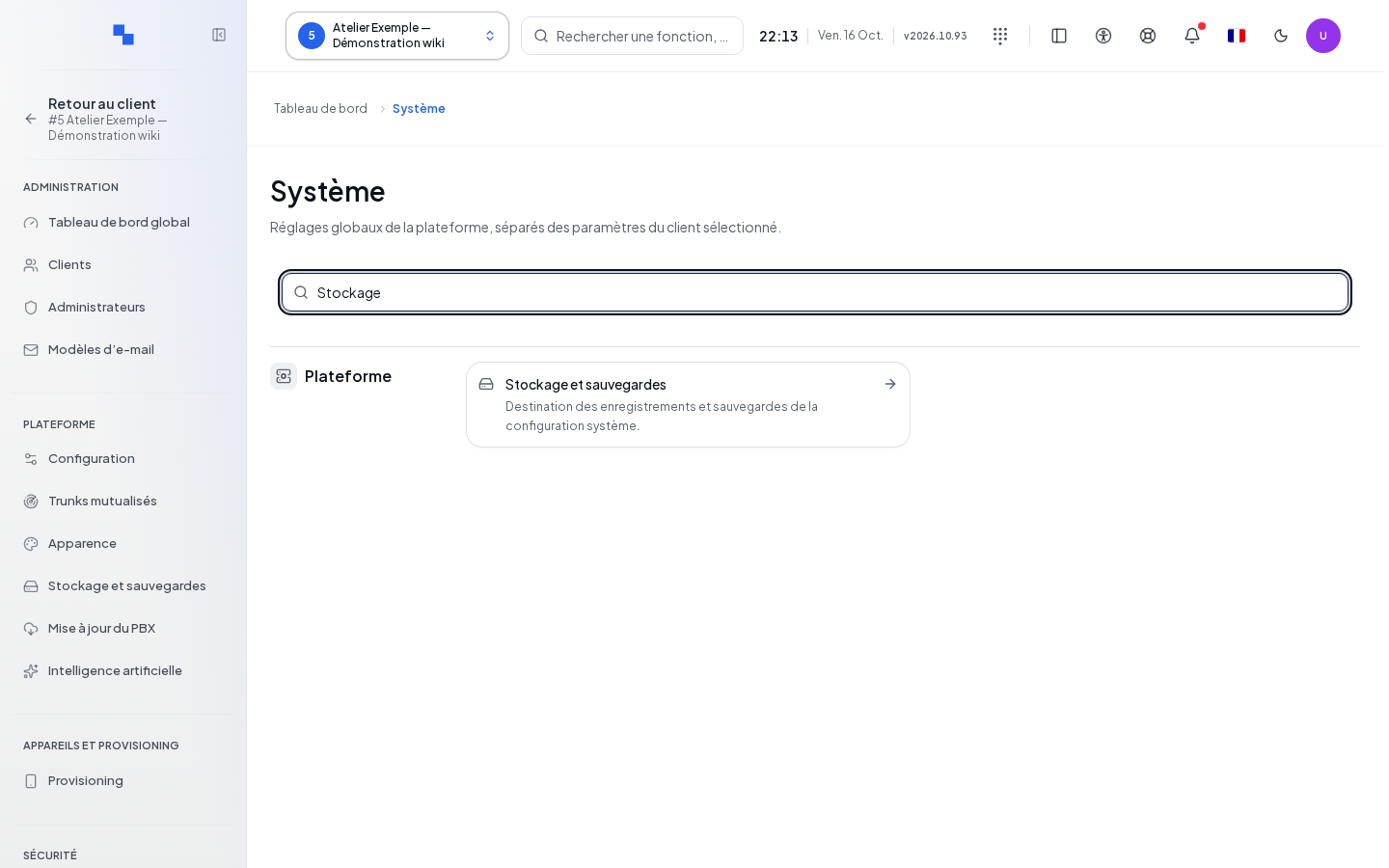
- Open System.
- Wait for the rights check.
- Choose an entry from the menu or use Search for a setting.
- On the page, choose the desired section. On small screens, use the section selector.
The menu has 21 entries in six groups. Authorized entries are visible without expanding the groups. The search also finds some older names, such as Configuration or SMTP.
| Group | Entry and guide |
|---|---|
| Overview | Overview |
| Monitoring | Services and incidents |
| Monitoring | Trunks |
| Monitoring | Ongoing calls |
| Monitoring | Activity and capacity |
| Monitoring | Alerts and external monitoring |
| Clients and access | Clients |
| Clients and access | Administrators |
| Clients and access | Security |
| Clients and access | Installation API |
| Platform | Updates |
| Platform | Network |
| Platform | Backups and storage |
| Platform | Emails |
| Platform | License and information |
| Services | Phone provisioning |
| Services | Appearance |
| Services | Integrations |
| Diagnostics | SIP traces |
| Diagnostics | Diagnostic console |
| Diagnostics | Queues and webhooks |
The AI settings for the installation are now located in AI Integrations, and their former address redirects to this page.
PBX status applies to a client. Open it from the desired client; it does not replace monitoring for the entire installation.
Reading the overview
The Overview home page has no sections. Read the status banner and the measurement date. The figures specify their meaning: critical incidents affecting service, incidents affecting service, incidents to acknowledge. Their buttons open the corresponding filtered list.
To do suggests the necessary actions based on available data: view incidents to acknowledge, choose alert recipients, or configure backups. The indicators provide ongoing calls, registered trunks, registered extensions, and disk usage. An unknown measurement is indicated as such.
Priority incidents displays incidents and their date. View incident opens the list of unresolved incidents. Deadlines offers access to the license, certificates, and updates. In this summary, "Deadline not available" prompts you to open the detail; no date is inferred.
Saving settings
Pages with sections provide a single Save for their draft settings. Changing sections preserves the entered data. Cancel discards unsaved changes. Leaving the page is protected when a draft remains present.
After saving, read the result for each section. If only one fails, correct its draft; the success of the others does not make the entire operation successful. Dialogs retain their own confirmation. Technical commands and explicitly immediate switches are not cancelled by Cancel.
Authorizing support interventions
Open System → Security → Support access. This panel is reserved for the system administrator, outside of a support intervention session. It distinguishes:
| Field | Purpose | Possible values | Example |
|---|---|---|---|
| Allow support admin access | Support access to administration | Toggle | Depending on the agreed intervention |
| Allow support SSH access | Remote intervention on the server | Toggle with applied status | Depending on the agreed intervention |
Enabling the toggle immediately saves the authorization. Disabling it opens Confirm and asks you to confirm the removal of this access; Cancel keeps it. While saving, wait before toggling again.
The SSH badge indicates whether the policy has been applied or remains pending. A saved value is not automatically proof of its application on the server.
Verifying the result
Reopen the desired setting. For support, check both authorizations separately and the SSH applied status.
If it doesn't work
Check your role and the section's message. An unknown or pending agent status requires restoring its communication before concluding that the policy is applied. See License and information.