
Define the branding and base appearance of the Informatique Facile PBX installation. Tenant customizations can complement these values. You must have system management rights.
Open and prepare
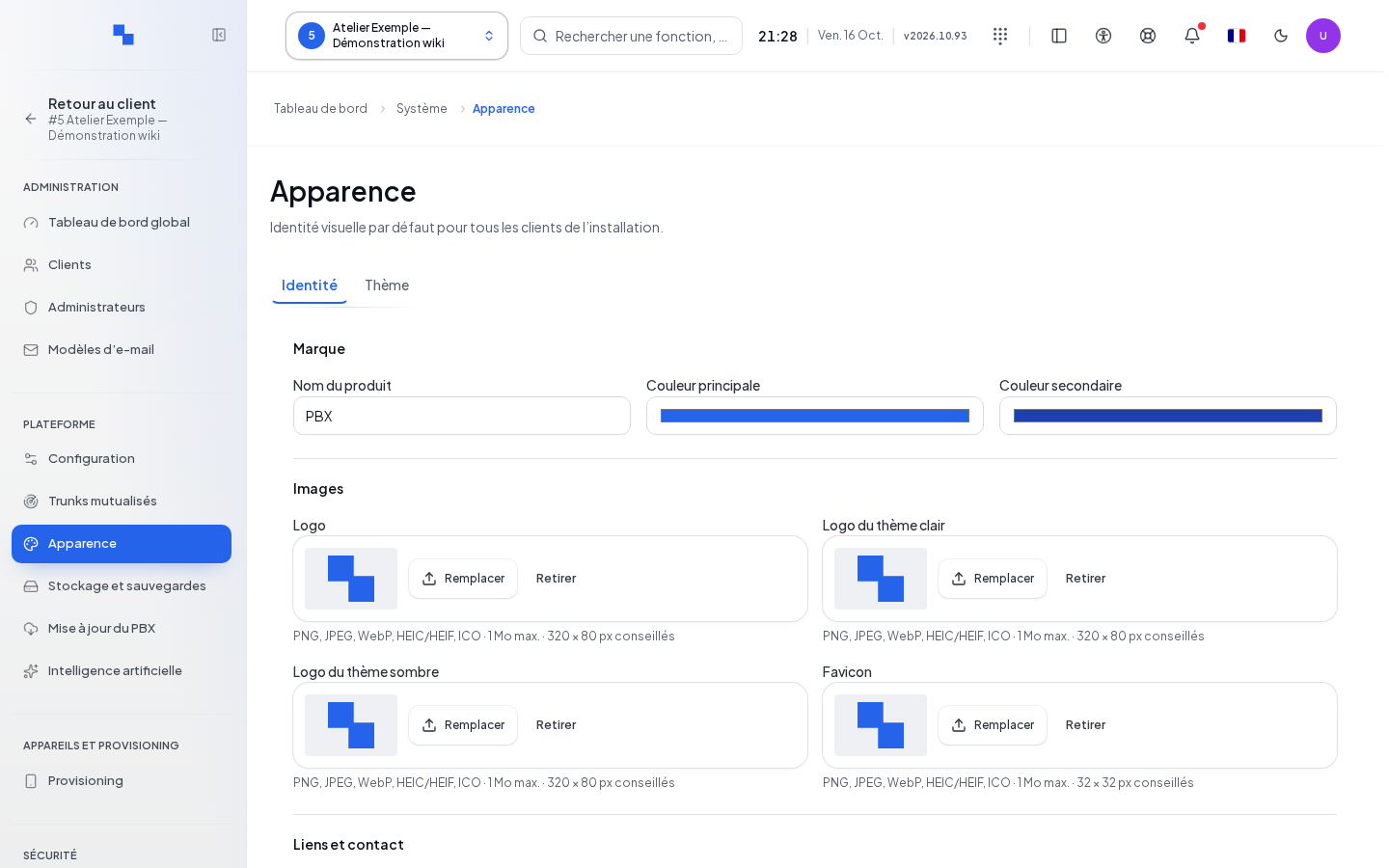
Open System, then Appearance. The sections are Identity, Images and links, Login page, Theme, and Component preview. Text and theme use a single Save; Cancel discards their draft. Wait for values and media to load. Prepare files whose content you have the right to use, along with your organization's public contact details.
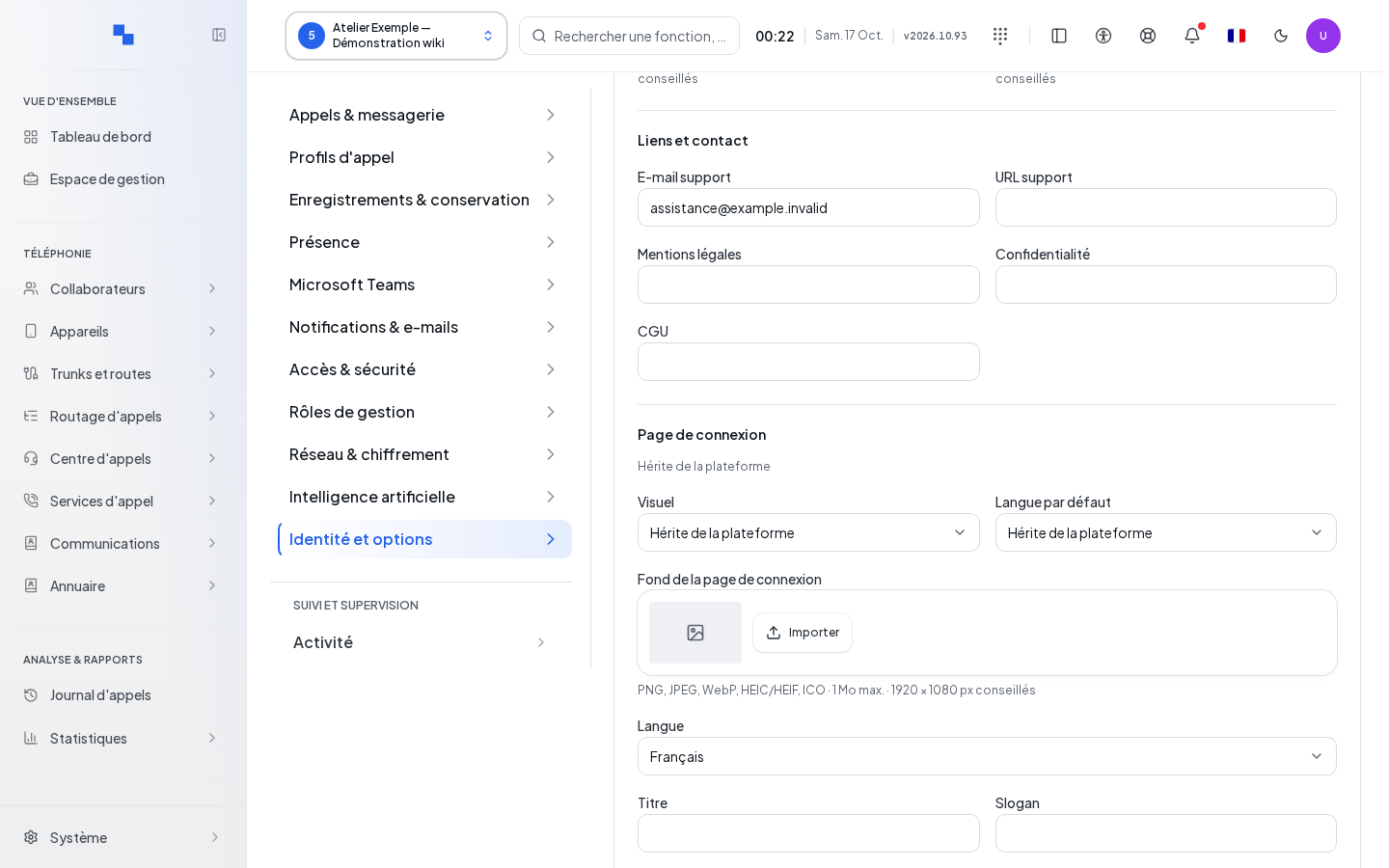
Identity, contact details, and links
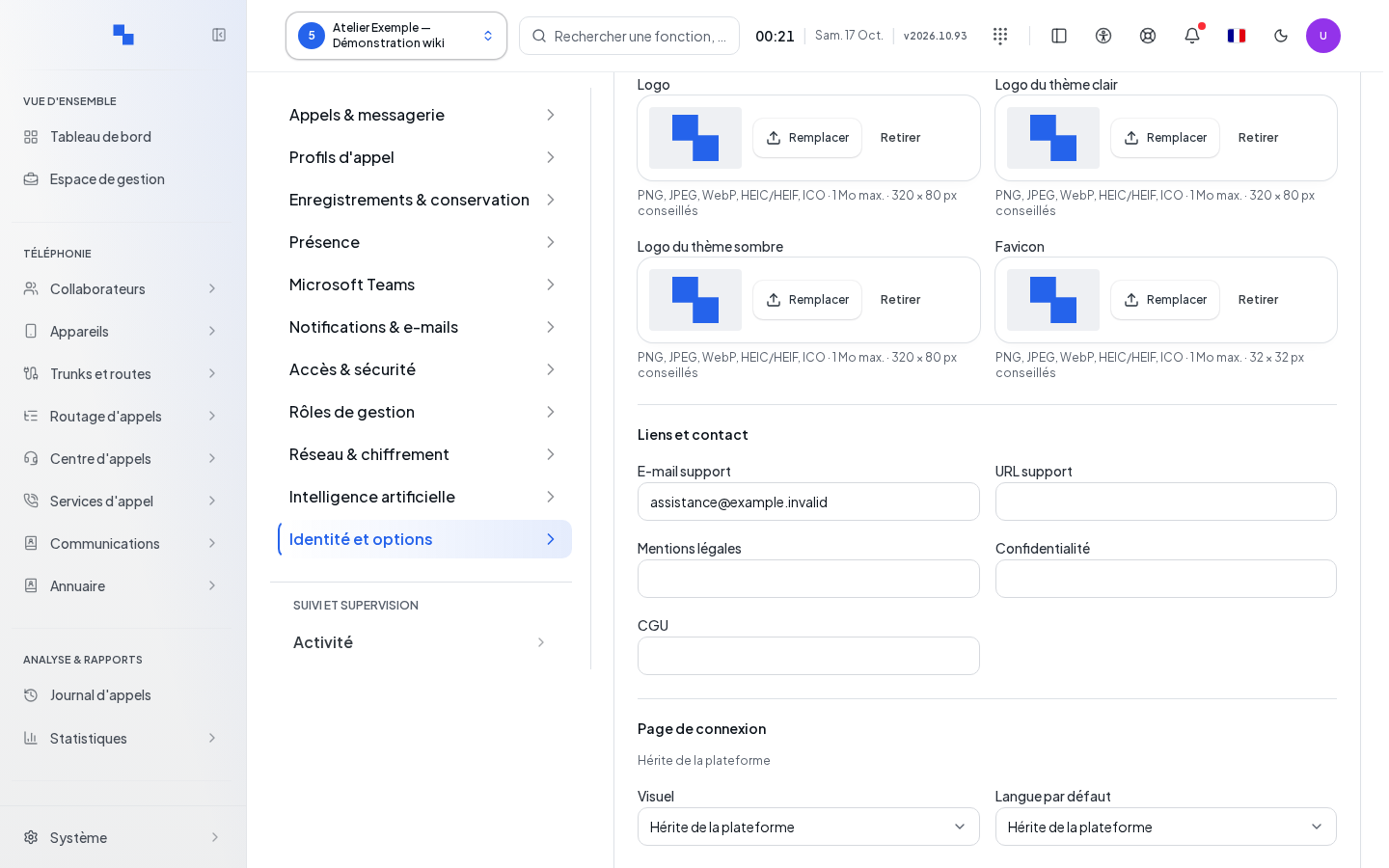
| Field | Purpose | Possible values | Example |
|---|---|---|---|
| Product name | Name displayed in the interface | Text | Workshop Telephony |
| Primary color / Secondary color | Brand colors | Color chosen via the control | Colors from your brand guidelines |
| Support e-mail | Support contact | E-mail address | support@example.test |
| Support URL | Destination of the support link | Your website address | Public address of your help page |
| Legal notice / Privacy / Terms | Institutional links | URL of each page | Pages from your organization |
Edit the values, then click Save. The preview lets you review text and color changes before saving them. Custom domains are managed at the tenant level; the system editor does not offer the option to enable one. Component preview opens the interface demo.
Logos, icon, and media
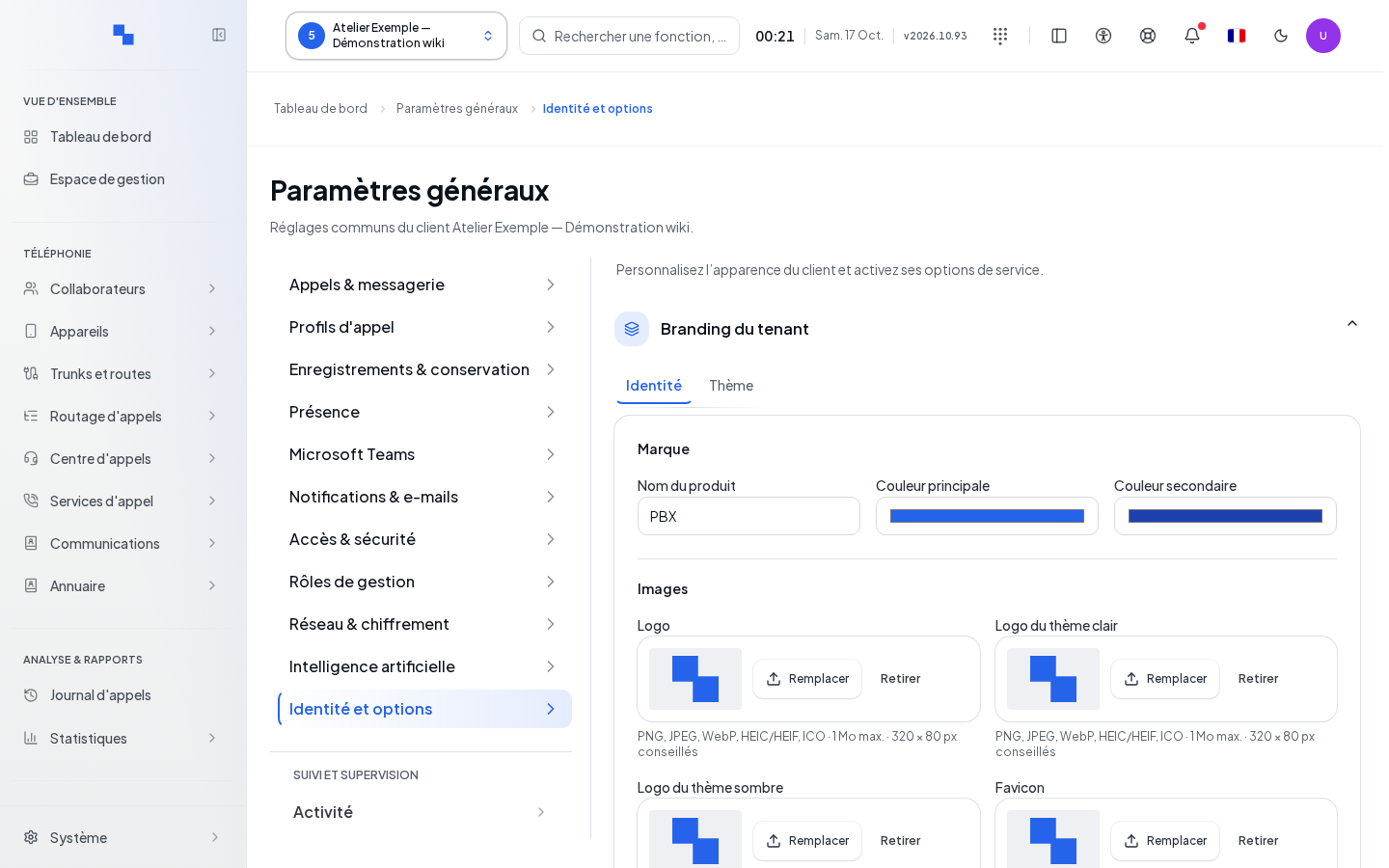
- In the media frame, choose the file corresponding to the light logo, dark logo, icon, or login background.
- Wait for the upload to finish.
- Check the result in the preview.
- Use Remove in this frame to remove the corresponding media.
Accepted image formats include PNG, JPEG, WebP, HEIC, HEIF, and ICO, up to 1 MiB. Preferably prepare a logo of 320 × 80 pixels, an icon of 32 × 32, and a background of 1,920 × 1,080. Login videos accept MP4 and WebM up to 20 MiB; upload progress is displayed on screen.
Uploading and deleting a media file is saved immediately. The Save button for text does not undo a media file that has already been uploaded or deleted.
Login page
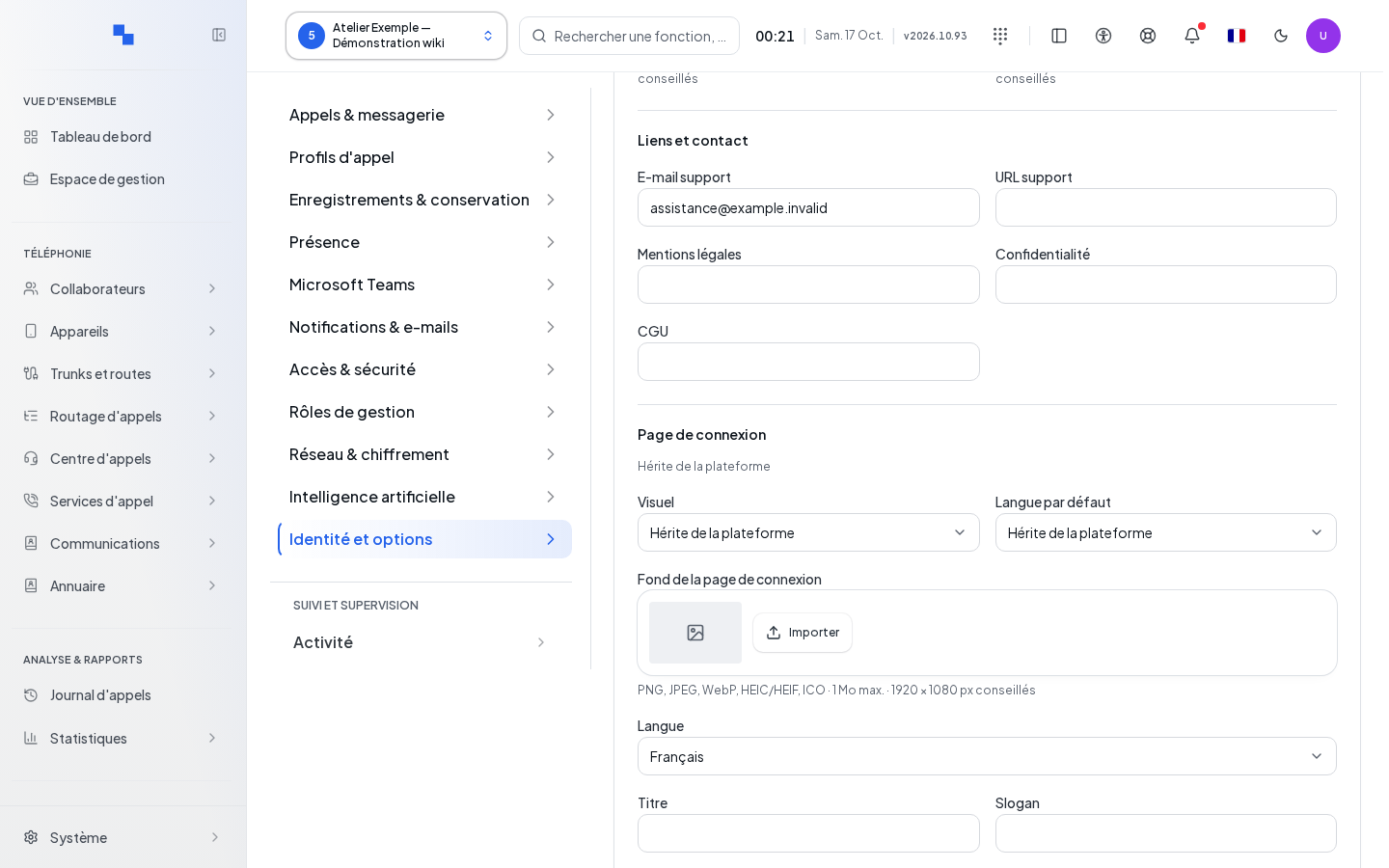
Choose the media mode: default video, custom video, custom image, or no media. An uploaded file must match the chosen mode to be used.
Enter the title and tagline in the available languages. The title accepts up to 200 characters and the tagline up to 500. Choose the default language and use the hide options if you do not wish to display one of these texts. Save your choices, then open the login page to verify them.
Light and dark theme
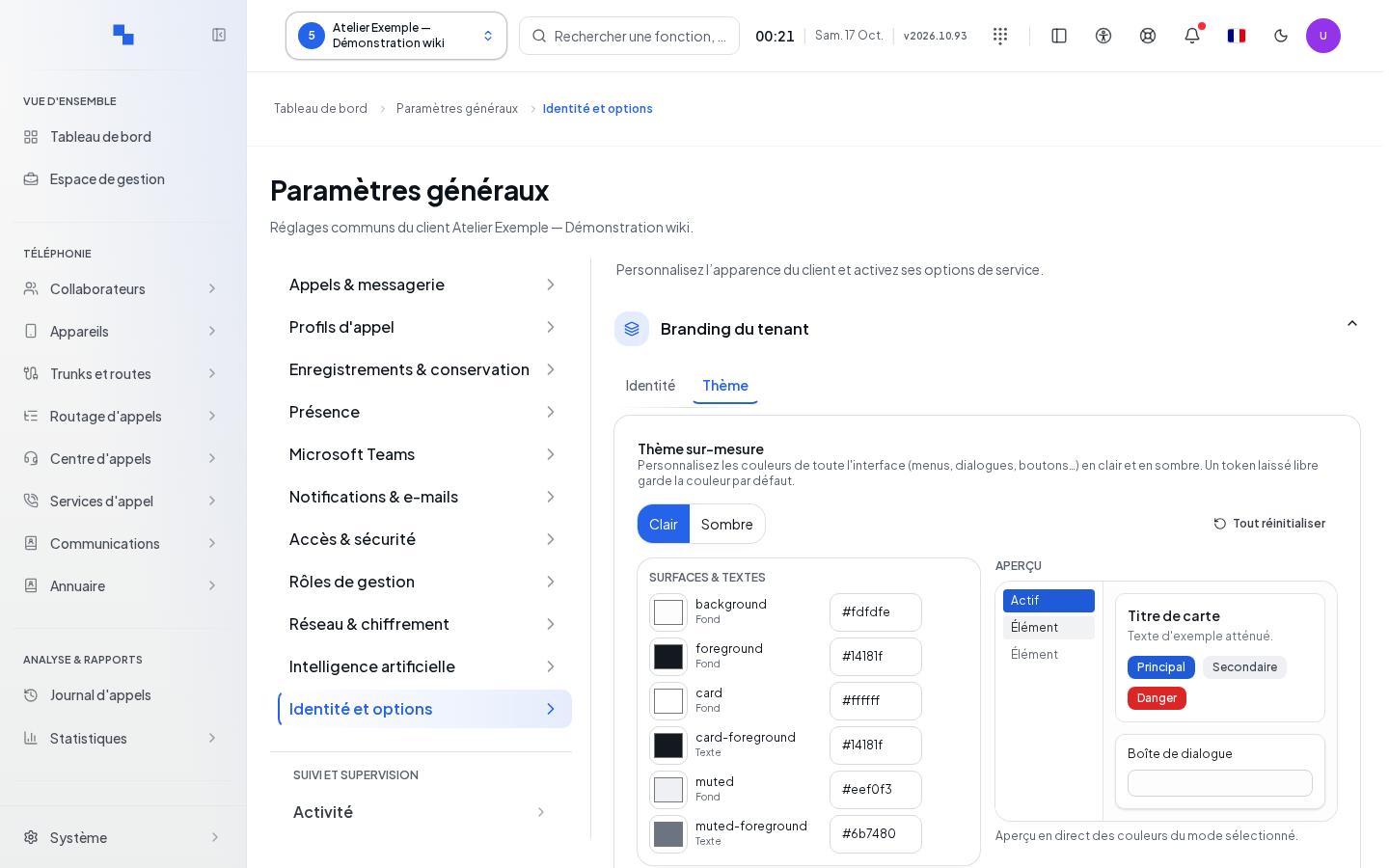
Open the theme settings, choose light or dark mode, and adjust the interface colors. Check the contrast of text, borders, fields, and buttons in the preview. Resetting a color or the entire theme prepares a change; save it to keep it.
Restoring the theme opens a confirmation dialog. Review it before confirming; cancel to keep the current theme. Save the draft to keep the changes.
Specifics of the tenant editor
The same editor can be opened from a tenant's advanced settings. Check the selected tenant before taking action. Enabled selects whether its customization is used. Inherit from platform allows reverting to the base texts or media; save text changes.
| Field | Purpose | Possible values | Example |
|---|---|---|---|
| Custom web domain | Tenant-specific login name | Domain name configured to reach the installation | telephony.example.test |
Enter the domain, then click Enable. This action immediately requests its activation; wait for the final status. A pending or in-progress request blocks a new submission. A failure requires checking the domain and its diagnostics; it does not prove that the new address is usable. Refresh reloads the displayed values; keep your changes before triggering a new read.
Mobile tab colors
The mobile color configuration accepts three additional roles: tab_icon, tab_active, and tab_selection. They are optional in both the light and dark palettes and accept a color in #RRGGBB format, for example #2458A6. These roles are part of the configuration sent to the mobile app; no corresponding field is provided in the web editor described here.
Reset identity
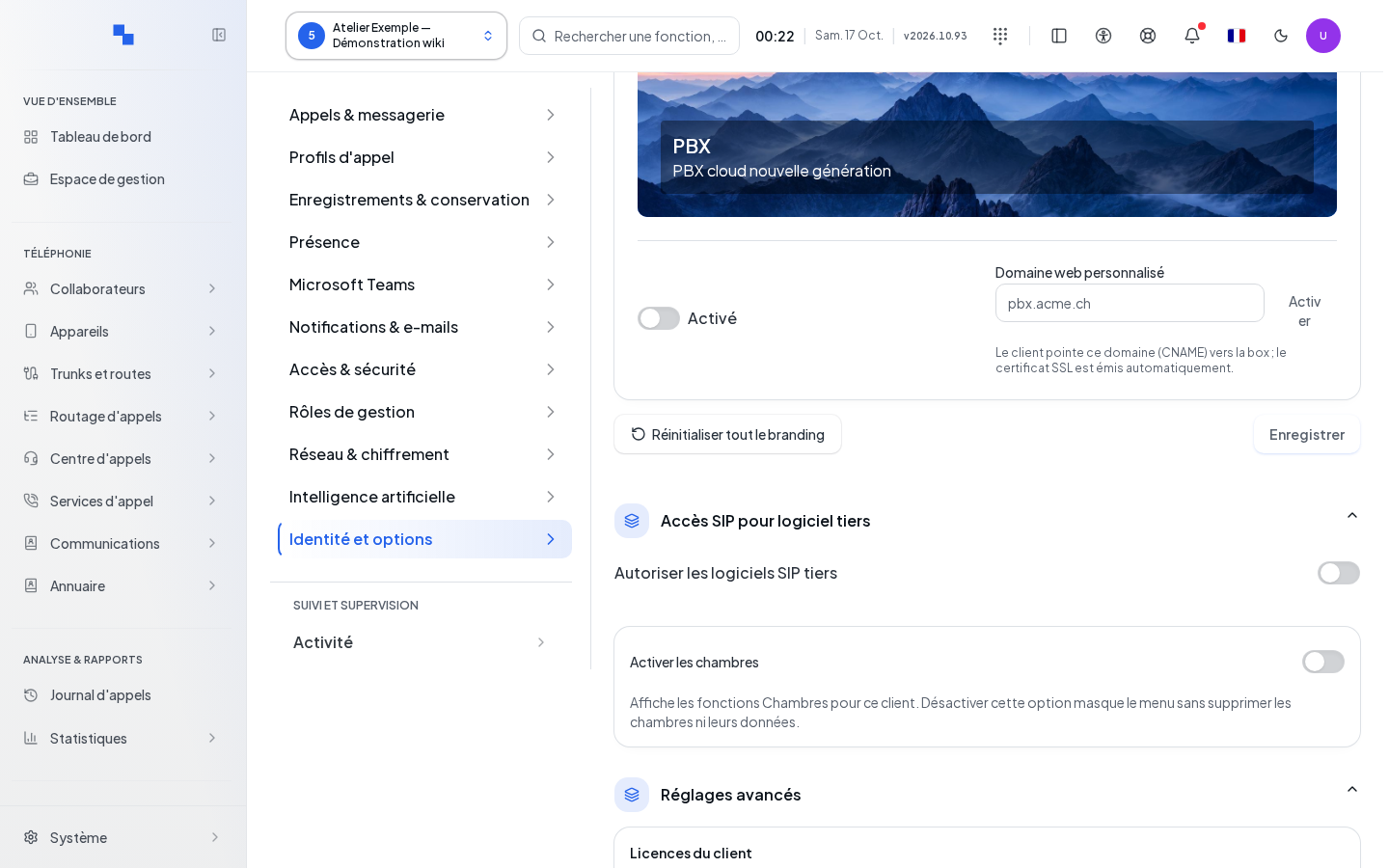
The full reset opens a confirmation dialog. Review it before confirming: custom texts, colors, links, themes, and media are restored to their base state. This operation is saved immediately. It preserves a tenant's custom domain; it is not a procedure for removing a domain. Cancel closes the confirmation without resetting.
Verify the result
Reload the editor, then check the interface in both light and dark modes, as well as the login page. Verify the support links. A tenant retaining a customization may display values different from the system base.
If it doesn't work
A rejected file must comply with the type and size limits of the control. If the image still appears old after a failed upload, review the message before trying again. A read-only page requires checking the account's permissions. Do not include internal information in public texts or links.