
Enter the manufacturer accounts used for automatic phone enrollment. The manufacturer's redirection service, often called RPS, tells the phone where to retrieve its configuration; it does not replace its assignment to the correct customer.
Reading the Table
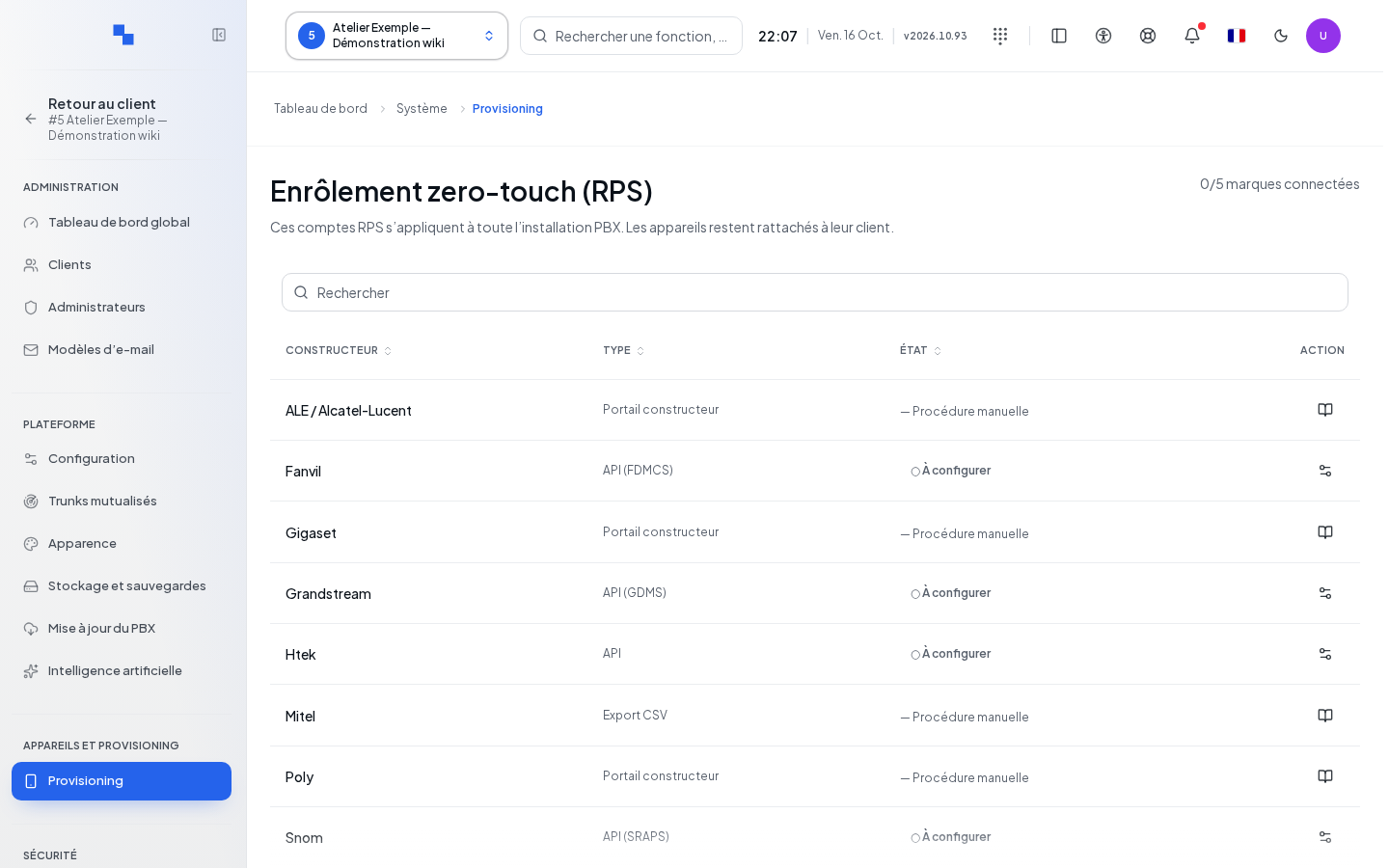
Open System → Phone Provisioning. Manufacturer Accounts (RPS) displays one row per manufacturer. Search filters brands; headers allow sorting. On a narrow screen, information and actions are grouped by manufacturer.
Types distinguish between an API connection, a Manufacturer Portal, a CSV Export, and a Closed service. Statuses distinguish Connected, Error, Credentials Saved, To Configure, Manual Procedure, and Not Enrollable. Saved credentials do not prove that a test has succeeded.
The accounts on this page apply to the entire installation. Old customer configurations may be kept but are no longer used; explicitly set up the system account. The count of connected brands is Not Measured until the registry has been read successfully.
Configuring Yealink
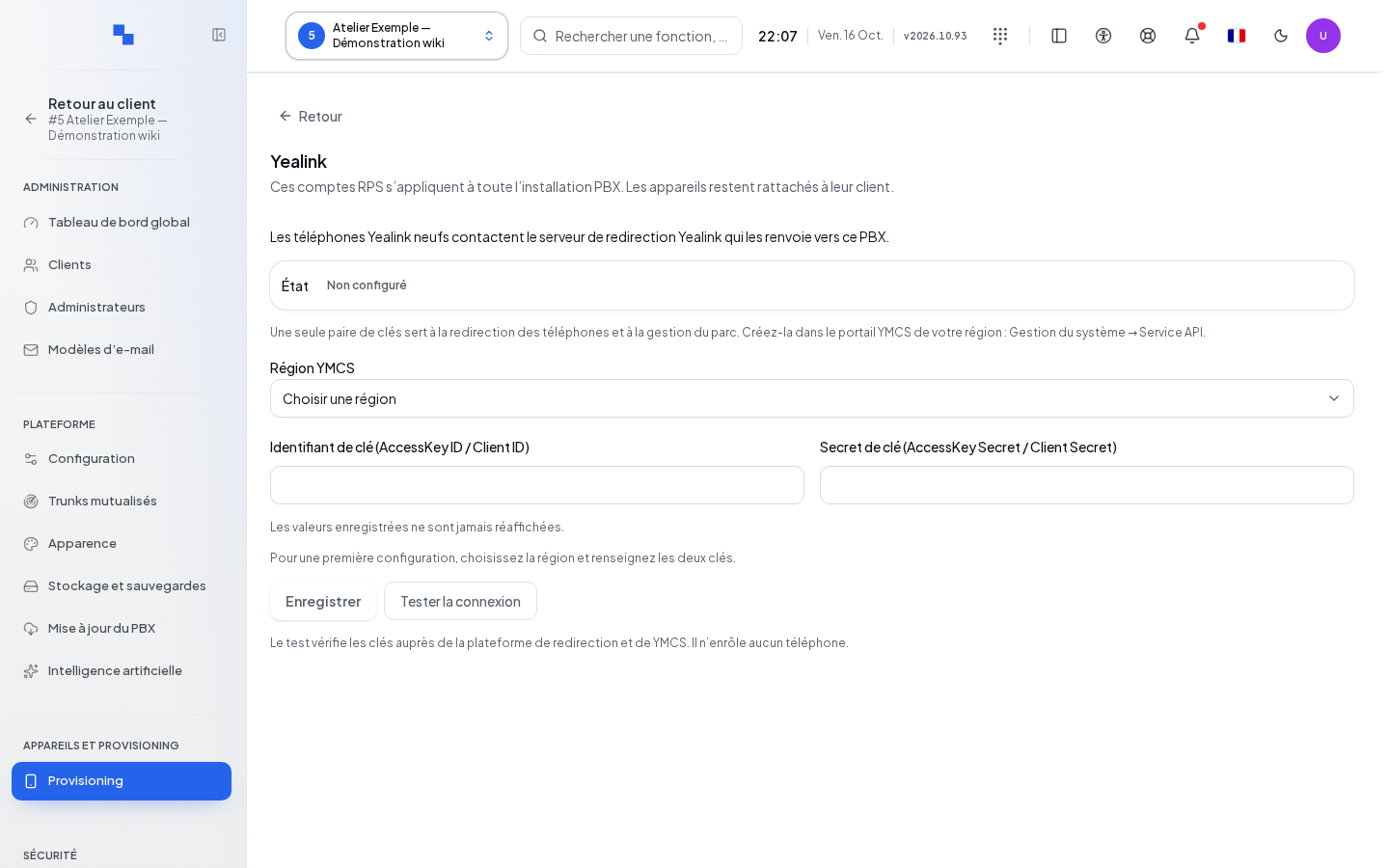
- Click Configure on the Yealink row.
- Choose the Region, then enter the AccessKey ID and AccessKey Secret. Use the same key pair for the Yealink redirection and account management services.
- Click Save once the entry is complete and modified.
- Click Test Connection after saving.
- Review the result before closing.
Leave secrets already saved unchanged to keep them. The test is unavailable until a change has been saved or the account is configured. If the result cannot be stored, the form displays "Result displayed but not saved: it will no longer be visible after reloading." Only in this case, record the verdict before leaving. A test error requires checking the region, account, and permissions with the manufacturer.
Configuring Fanvil FDMCS
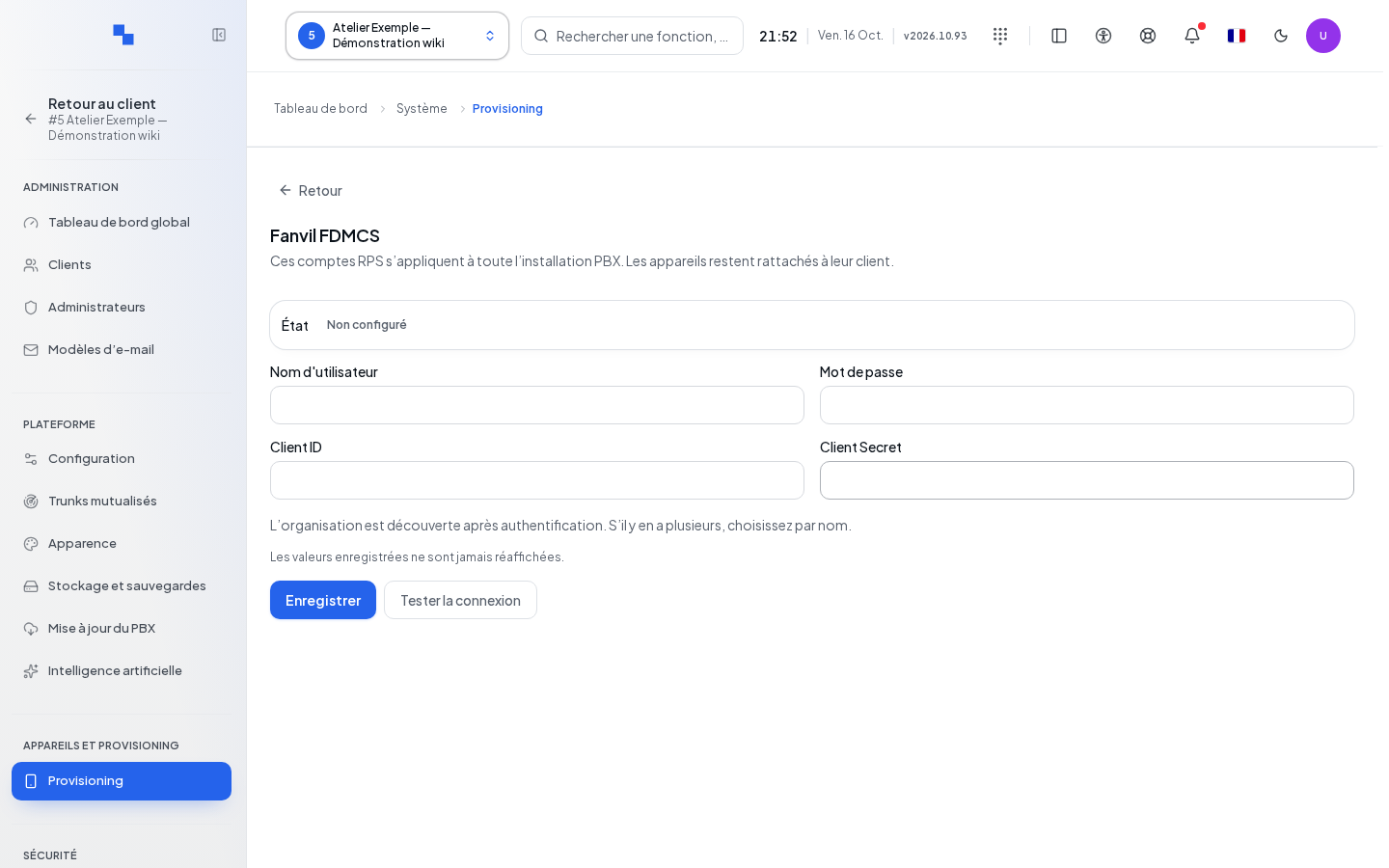
Open Configure on the Fanvil row. Enter the four FDMCS account credentials: username, password, client ID, and client secret. They are required for initial setup and limited to 2,048 characters each. When editing, a secret left blank keeps the one already saved.
Save, then test the saved configuration. If multiple organizations are found, choose the one that should contain the phones based on its name. Review the result and the selected organization before closing. Validating the account does not constitute enrollment of a specific device.
Other API Connections
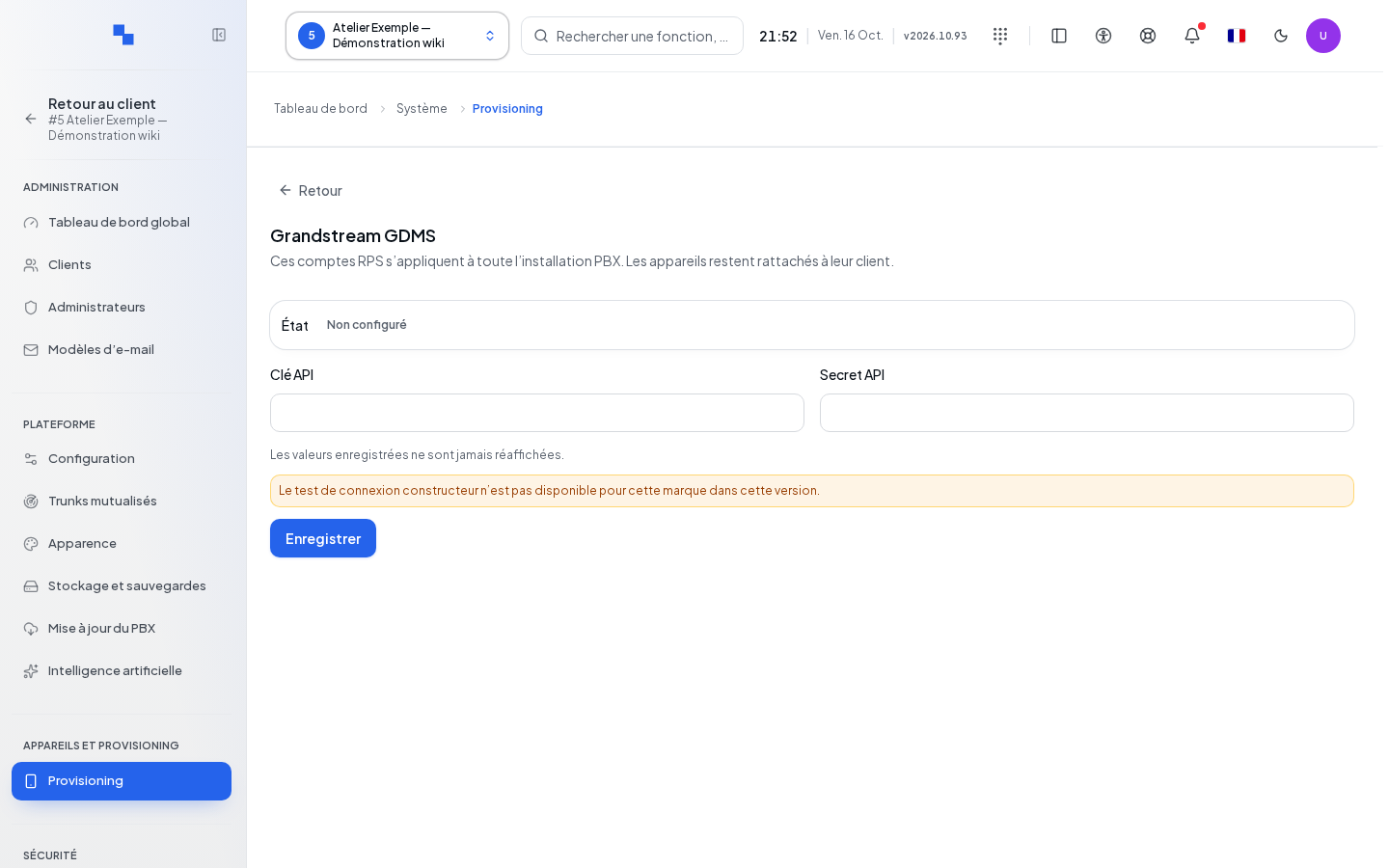
Each Configure row opens the manufacturer's form. Prepare the values in its portal:
| Manufacturer and fields | What it's for | Possible values | Example |
|---|---|---|---|
| Snom: API Key ID (Hawk ID), API Key Secret (Hawk Key) | SRAPS authentication | Hawk key pair | Reseller account keys |
| Grandstream: API ID (Client ID), Secret Key (Client Secret), GDMS Account (email), GDMS Password | GDMS authentication | API application and GDMS account | Account authorized to manage devices |
| Gigaset: API Key ID, API Secret | GRAPE authentication | Portal key pair | Installation's GRAPE access |
| ALE: Access Key ID, Access Key Secret | EDS authentication | EDS key pair | Installation's EDS access |
| Htek: Username (reseller account), Password | Reseller authentication | Account and password | Reseller account |
Fill in the fields, save, then use Test Connection if the form offers it. Do not confuse an application ID with an account name. Masked secrets must not be copied into a screenshot. Close exits the window; review the save confirmation before closing it.
Portal, Export, and Closed Service
View Procedure opens the manufacturer's instructions when enrollment goes through a portal or a CSV export. Follow the indicated process; the presence of this row does not mean an API call will be made automatically. A Not Enrollable row does not offer a usable automatic connection.
Verifying the Result
After configuring the account, return to Devices to assign the phone to the customer and launch the available RPS action. Check the manufacturer result for this device. Removing a registration locally does not prove that the manufacturer has removed its redirection.
If It Doesn't Work
If the table shows Error, open the account and review the diagnostic. If credentials are only saved, run a test before concluding anything. "Read not authorized." requires checking system permissions. After a change, save before testing; old customer values do not serve as an automatic replacement for the system account.