
This page is used to review visual components and their states in the current appearance. The demonstration actions do not create any account, call, or business configuration.
Opening the demo
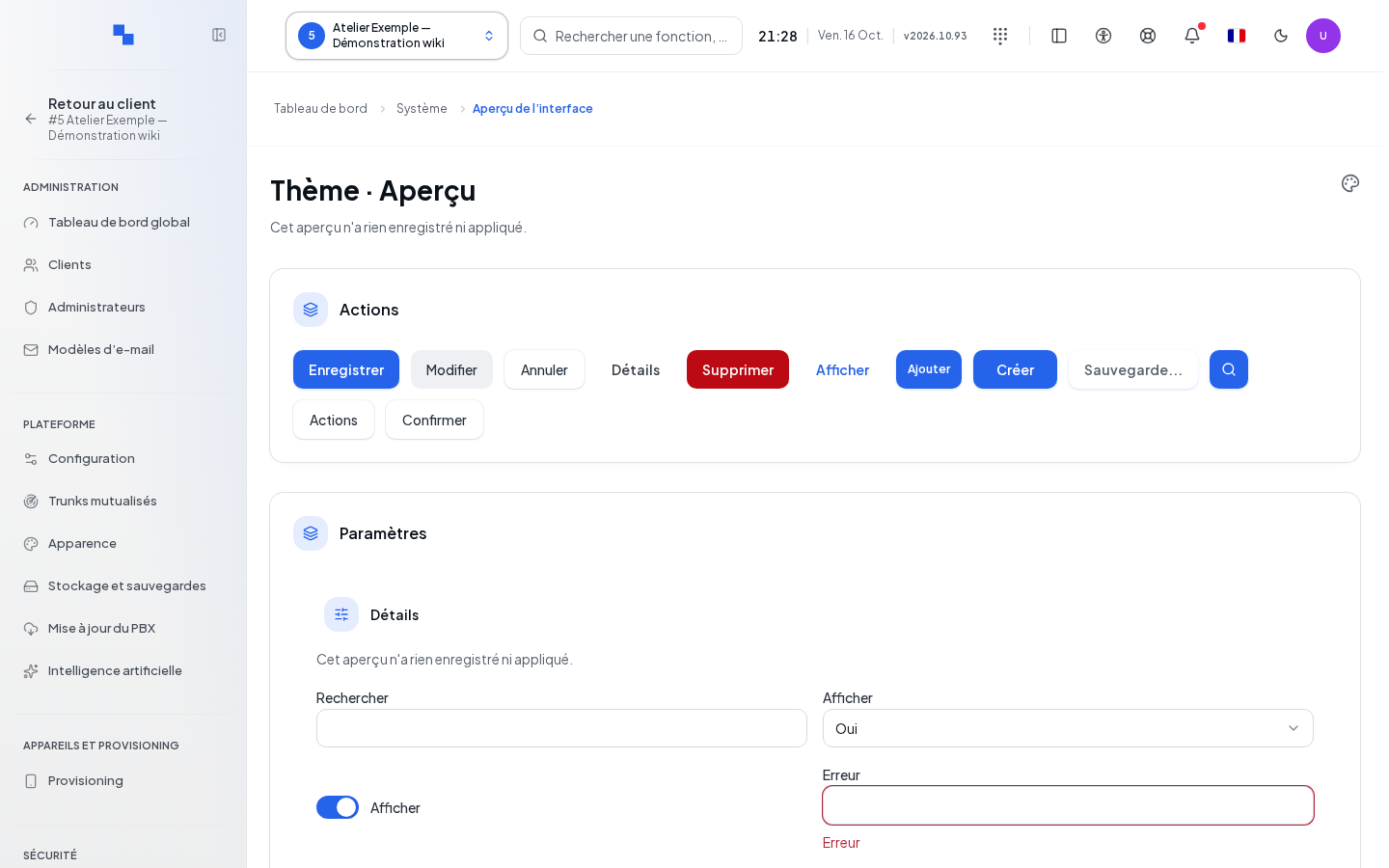
Open System → Appearance → Component Preview. It presents examples of buttons, fields, and windows. To actually modify the branding, use Appearance.
Trying the controls
Browse through the example buttons, their sizes, and variants. Observe the normal, disabled, and loading states. In Settings, Search filters the states table. Display offers Yes or No, and the adjacent switch changes its local state. The Error field illustrates invalid input; it does not validate any actual data.
| Demo field | Purpose | Possible values | Example |
|---|---|---|---|
| Text field | Review input and focus | Mock text | Example |
| Dropdown list | Review opening and selection | Options offered in the example | An option from the control |
| Switch | Review the selected state | Enabled or disabled | Enabled |
Use the keyboard to verify that focus remains visible. Check the tables and messages in both themes. A disabled command in an example illustrates this state; it does not indicate a permission issue with your account.
Opening dialogs and messages
Actions opens the Edit and Delete menu without any business operation. Confirm opens a dialog containing Search; both Confirm and Cancel close it. The Save, Edit, Cancel, Details, Delete, Display, Add, Create buttons and the magnifying glass illustrate their appearance without writing any data. The Saving... button illustrates a disabled button.
In Details, the Details tab presents states filtered by the search; No results shows an empty state with a filter reset. Refresh, in the Theme frame or its fixed bar, clears the search and re-enables the switch. The text "This preview did not save or apply anything." describes the scope of the entire page.
The delete and save examples do not involve production data. For an actual operation, return to the corresponding management page and review its confirmation.
Verifying the result
Check readability, contrast, alignment, and button accessibility on desktop and then on a narrow screen. Values entered on this page do not constitute saved settings. Return to Appearance to retain a theme modification.
If this does not work
If an example is difficult to read, note the control, theme, and screen size. If you expected a branding change, open the appearance editor: the controls in this demo do not save a theme.