
This screen searches for and installs updates for the installation. Open System, then Updates with an authorized account. Schedule a maintenance window and check phone activity.
The sections are Version, Automation, and History. Version shows the installed version, the proposed update, and the last check. An outdated proposal is hidden; no “Outdated proposal” message is displayed. Use the search to refresh the available updates. Automation uses Save and Cancel for its settings; the Update timezone is independent from the one proposed to new customers.
Reading the version and searching
The installed version, its date, and the Component details describe the known state. A component that is not installed or a version that is unavailable remains explicitly indicated.
- Click Search for updates.
- Wait for the search requested from the server.
- Read the result, the last check, and the Release notes.
- If a mandatory step is announced, take the intermediate version proposed.
During a search or an installation, the button may be disabled. If the installed version has changed since the check, search again. A failed search does not confirm that the installation is up to date.
Install now
In automatic mode, the message states: “The PBX is in automatic mode. Switch to manual mode to install now, or wait for the next update window.” With write permissions, Change update mode leads to the setting. Switch to Manual, then Save, before returning to the immediate installation. A mode change left in draft is not sufficient.
- Click Install update.
- Check the version in the confirmation.
- Read the notice about backing up the database and configuration.
- Click Update or Cancel.
- Follow Verification, Backup, Deployment, Restart, and Completed.
The installation waits for calls to end. If the number of calls is unavailable, it also waits. The page refreshes every four seconds during the search and the operation; a temporary interruption during the restart is expected.
Install without waiting… opens Interrupt calls?. Drop calls and install explicitly authorizes their interruption. Cancel if this interruption is not planned.
Schedule for later
In manual mode, Schedule for later opens the date and time in the installation’s timezone.
| Field | Purpose | Possible values | Example |
|---|---|---|---|
| Date | Maintenance day | Selected date | Next maintenance date |
| Time | Start time | Time in the announced timezone | 22:00 |
| Installation timezone | Appointment reference | Installation configuration, required | Europe/Zurich |
Review the sentence summarizing the version, date, and time, then click Confirm scheduling. Postpone modifies an existing appointment; Cancel scheduling removes it. If the server is down, the appointment remains valid for thirty minutes, then becomes Missed. Schedule a new date in that case.
Automatic mode and windows
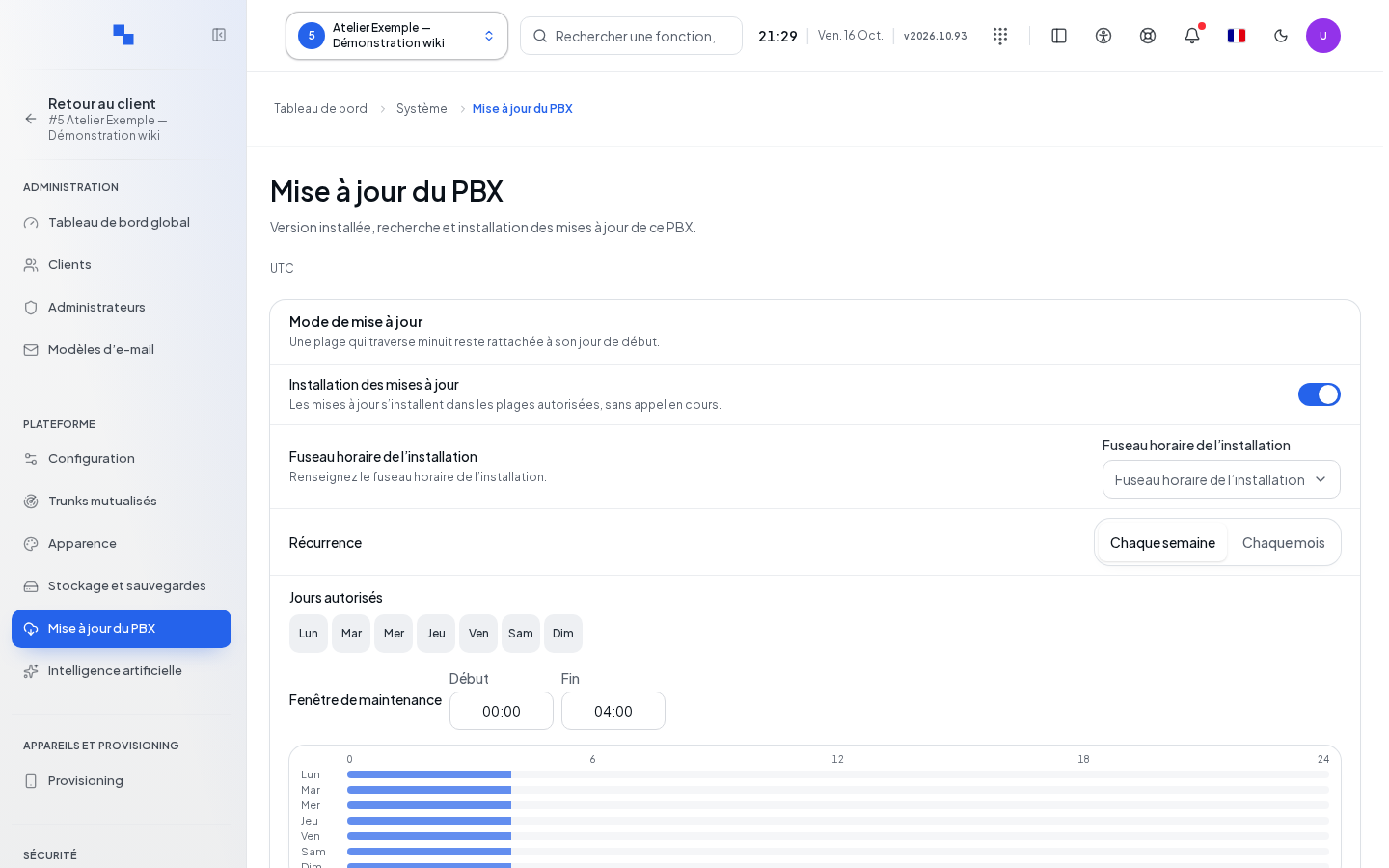
In Automatic mode, the next window message indicates when an installation can take place, in the timezone displayed. Check this window before letting the PBX install a version. If no window is allowed, correct the days and times; if the next window is unknown, do not consider the installation as scheduled.
The timezone specific to updates takes priority. If it is not set, the system falls back to the installation’s location timezone; failing that, it uses Europe/Zurich. It does not infer this choice from the browser or machine timezone. Check the displayed timezone before saving a window.
Manual mode leaves the choice of searches and installations to you. Automatic allows installation within the allowed windows, with no calls in progress.
In Manual mode, a version proposed by the platform is never installed on its own: it waits for you to start the installation, either immediately or at a scheduled date. Switching from automatic to manual, entering a window, or receiving the proposal again does not start anything. Only an installation already underway before switching to manual continues. During deployment, the media relay restarts before the SIP server: phones may briefly re-register, without lasting errors.
- Choose the mode.
- Set the timezone and the proposed days or dates.
- Use Add a window for each interval.
- Set the start and end; an empty end may represent the end of day depending on validation.
- Check the next allowed window, then click Save.
Start and end must be different. A window crossing midnight remains tied to its starting day. Remove deletes a window from the draft. Without an allowed day, no window is possible. The mode cannot be changed during an ongoing installation.
History and licenses
The history shows start, end, versions, origin, requester, and result. Show message gives step-level detail. Search this page only searches the current page; changing pages clears this search. States distinguish success, failure, unknown outcome, postponed, missed appointment, and cancellation.
License commands can lead to configuration: New license key followed by Save applies a local key; Reload licenses requests a synchronization and re-reads quotas per customer. A lack of confirmation requires checking the agent. A reload may have succeeded for some customers before failing; review the quotas.
Checking the result
After reconnecting, compare the installed version and the history. Check the services and make a test call. An accepted command or a completed restart does not replace the final result of the installation.
If it does not work
“The proposed version has changed: restart the search.” requires a new search and validation. If the release is incomplete, the signature cannot be verified, or the server is unavailable, keep the reason before retrying. Unknown outcome requires an actual check of the server; do not immediately restart a concurrent installation.