
Manage carrier connections shared across multiple customers. A SIP trunk is a telephony connection with a carrier; direct numbers, or DIDs, are assigned to a specific customer.
Open the list
Open System, then Trunks → Shared Trunks. Wait for the connections and customers to load. Use Search and the recording filters to locate a connection. An empty result after filtering does not mean that no trunk exists.
The trunk record offers Connection, Assignments and Usage. Choose the desired section from the vertical menu, or from its selector on small screens. To monitor all connections, open Trunks.
Add a carrier connection
- Click Add a SIP trunk.
- Choose Country, then Carrier template.
- Click Continue.
- Give it a Name and fill in the fields of the template provided by your carrier.
- Enable Create disabled if you want to prepare the connection without registering it immediately with the carrier.
- Click Save. Back returns to the template selection; Cancel abandons the creation.
| Field | Purpose | Possible values | Example |
|---|---|---|---|
| Country / Carrier template | Chooses the form of the connection | Choice from the catalog; template required to continue | Template provided by the installer |
| Name | Identifies the trunk; required | Non-empty text | Main carrier |
| Connection fields | Address, identifier and secret according to the template | Comply with required fields and displayed formats | Values from the carrier contract |
| Create disabled | Prepares without activating registration | Enabled or disabled | Enabled during preparation |
The template describes the expected parameters; its presence does not certify compatibility with the carrier's network. A mode marked unavailable cannot be used on this server. The numbers displayed are set in the customers' assignments or their outbound routes.
If the server does not respond after submission, the connection may have been created: check the list before trying again. A confirmed refusal that announces complete cancellation allows you to correct the form and then resubmit it.
Modify and check a connection
Modify opens the current values. A password left blank keeps the existing secret. Check the advanced settings: SIP transport, called number format, presented identity, additional numbers and custom inbound routing. Values imposed by the template cannot be changed.
Audio offer shows the delivered configuration. It does not measure remote capabilities. Only change inbound routing or technical identity on the carrier's instruction. If old values are flagged as retained but not applied, Resume from record allows you to deliberately reuse them; the current record remains the reference.
Test after saving checks the saved connection. Test connection in the list launches a check of the current version. Other actions provides access to, among other things, activation, deactivation and deletion.
Deletion displays the affected routes when usage can be measured. Unmeasured usage does not prove the absence of dependencies. Confirming deletes the connection and its registration, reloads telephony and cuts any ongoing calls using it.
Assign numbers to a customer
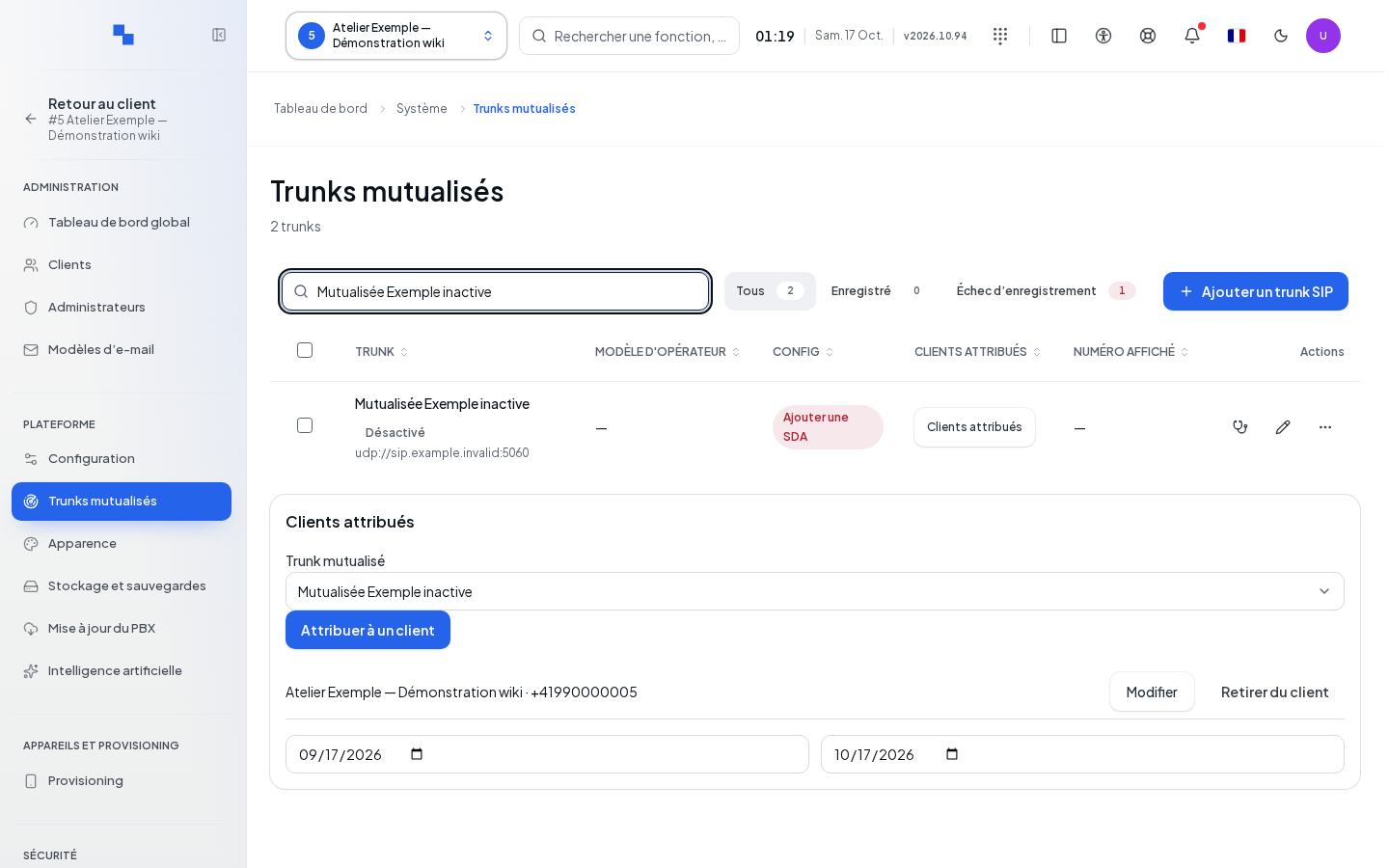
- In the assignments, select the trunk.
- Click Assign to a customer.
- Choose the customer and enter their numbers.
- Check the presented number, outbound call authorization and both caps.
- Save, then review the created line.
| Field | Purpose | Possible values | Example |
|---|---|---|---|
| Customer | Recipient of the assignment | Existing customer; not editable when editing | Example Workshop |
| Numbers | Numbers reserved for this customer | Numbers separated by line, comma or semicolon; ranges allowed | +33123456010 – +33123456019 |
| Displayed number | Main identity for outbound calls | Must belong to the assigned numbers | +33123456010 |
| Allow outbound calls | Allows the customer to make outbound calls via this connection | Enabled or disabled | Enabled |
| Concurrent calls | Cap specific to the customer | Integer from 0 to 2,147,483,647; 0 = unlimited | 10 |
| Trunk · Concurrent calls | Global cap for the shared connection | Same range; 0 = unlimited | 30 |
Use valid national numbers for the customer's country or complete international numbers. A range must be increasing and consistent; its expansion and the total number of numbers are limited to 10,000. A normalized international number contains 7 to 15 digits. The first number populates the main number as long as you have not deliberately replaced it.
A validation message places focus on the field to correct. Cancel closes the form without writing. Displayed origin conflicts must be resolved in the indicated configuration before proceeding.
Modify or remove an assignment
Open the line's edit view to change the numbers and caps. The customer remains fixed; to assign to another customer, use a separate assignment after checking for number conflicts.
The assignment removal command acts directly, without a confirmation dialog on this screen. Check the line, the trunk and the customer before clicking. Removal deletes the assignment for this customer; it does not delete the shared trunk.
View usage
Fill in From and To for the consumption period. The list shows, per customer, the calls and minutes returned for this period. A read failure is flagged: do not interpret it as zero consumption.
Verify the result
Review the numbers and caps from the relevant customer. Make an inbound call to an assigned number and an authorized outbound call. Check the presented number and the outbound routes; an assignment does not replace their configuration.
If it doesn't work
If carrier fields are rejected, correct those named by the message. If a write received no response, check the status before repeating it. A connection that is saved but not applied requires reading the remaining warning on the page and the affected fields.