
Configure the artificial intelligence providers and the values offered to Informatique Facile PBX customers. Prepare access to the chosen services and check their data processing terms before activating a function.
Open the configuration
Open AI Integrations › Installation AI Settings, with an authorized installation administrator account. The old system address redirects to this page. The AI Functions section sets up usages; Providers manages connections. Permissions by customer displays each customer's permissions. A provider present in the catalog is not necessarily configured. Wait for loading to complete before making changes; if it fails, retry loading with Retry.
Add a provider
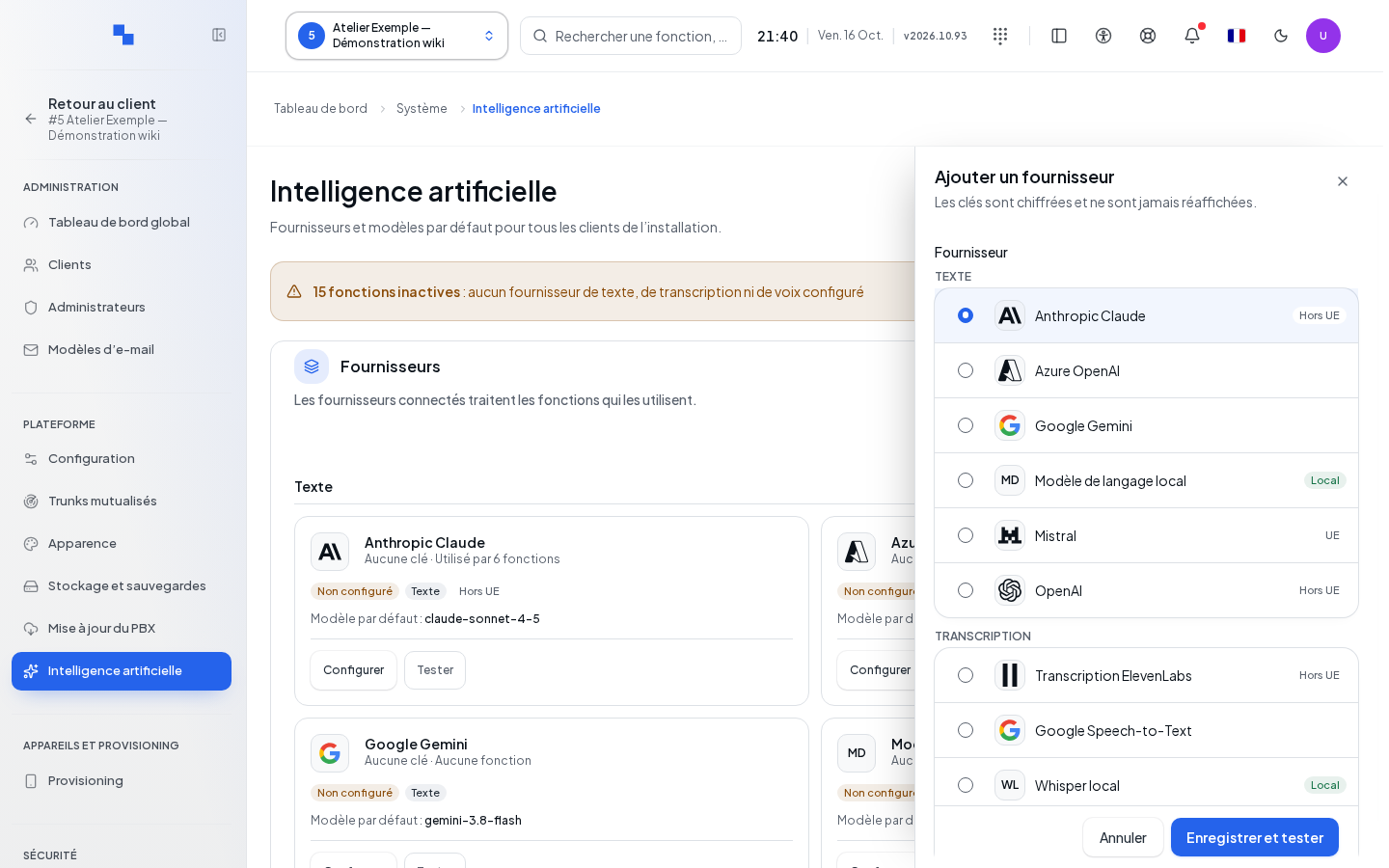
- Open Providers and add a provider.
- Choose the service from the catalog.
- Fill in the fields offered for this service. They vary depending on the provider; do not copy settings from another service.
- Click Save and test in the dialog.
- Read the result before using this provider for a function.
| Field | Purpose | Possible values | Example |
|---|---|---|---|
| Access key | Authenticates requests; required depending on the service | Secret provided by the service; leaving it empty when editing keeps the one saved | Key created in the provider's account |
| Service account JSON key | Authenticates services that require a service account | Content of the service account JSON file | File provided by your administrator |
| Service address | Endpoint address, if required | 512 characters maximum; follow the indicated format | Address provided by the provider |
| Region | Account or deployment region | Text depending on the service | Region listed in the account |
| Voice / Language | Text-to-speech values offered by the service | Identifier from the provider's catalog | Voice suited to French |
| Deployment name | Identifies the deployed model, if required | Text, 128 characters maximum | Name of the existing deployment |
A failed test leaves the diagnostic visible. Save anyway, when offered, keeps a configuration whose operation is not confirmed. Fix the access credentials before selecting it for users. Cancel closes the dialog without saving form changes.
Edit, test, and delete
Open the provider's menu to edit or test it. A masked key indicates that a secret exists; its content is not displayed again. Distinguish between the incomplete, untested, test failed, and operational states. An unreadable configuration requires a correction; it does not prove that the remote service is down.
Remove displays the affected functions before confirmation. Check their replacement provider. Cancel to keep the connection. After confirmation, review the list of functions again: a function pointing to a removed provider no longer has this connection.
Assign functions
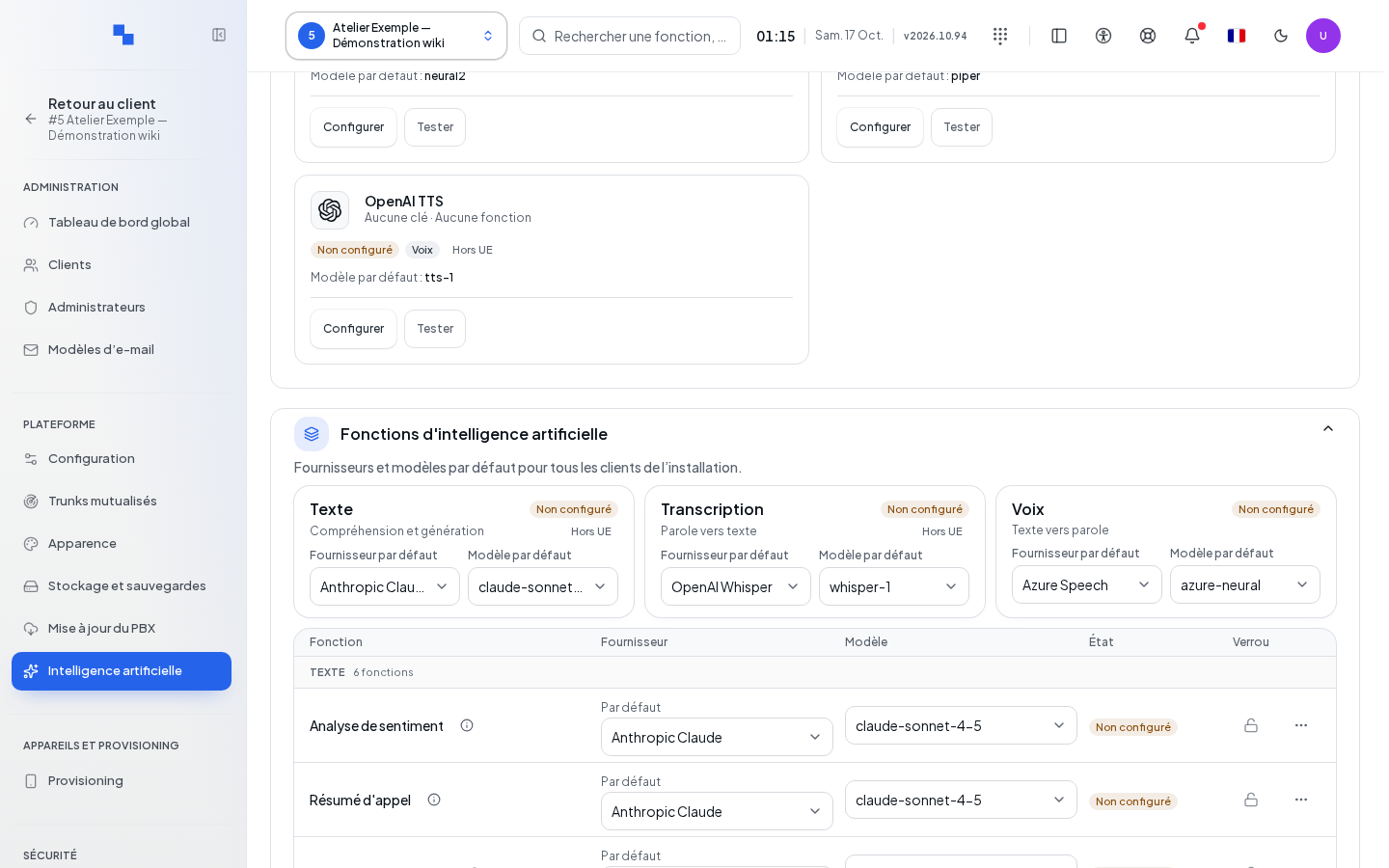
The Text, Transcription, and Voice families correspond respectively to text generation, speech-to-text conversion, and text-to-speech synthesis.
- In AI Functions, open Function Settings and locate the usage to configure.
- Open its provider and model selection.
- Keep the default value or choose a configured provider and then an available model.
- Check the other functions then click Save on the page.
The provider and model selectors prepare the choices in the form. Save makes them persistent. Cancel discards pending changes. The save button remains unavailable without changes or during writing.
Locking a function prevents customers from overriding the system choice. Before locking, check that the provider and model are suitable for all affected customers. The menu allows reverting to default values and viewing customers who deviate from the system setting; these deviations do not apply when a function is locked.
Permissions by customer
Open Permissions by customer and find the customer by name. Check their permissions before modifying them. These rights remain specific to the customer; they are not a general switch for all customers. The settings remain also accessible in their profile.
Verify the result
Reload the configuration. Check the providers, models, and locks. Test the connection then an actual authorized usage: a successful access test does not guarantee the expected transcription or voice quality.
If it does not work
Note the test diagnostic without transmitting any key. Check account, address, region, and deployment. If a model is missing, check the capabilities of the chosen provider. If a customer cannot change the model, check the system lock before modifying their permissions.