
Opening your profile
In Informatique Facile PBX, My Profile allows an administrator to modify their information and protect their login. Log in with your own account, then open My Profile from the console's account menu. Wait for My Information to load; if it fails, use the retry option provided.
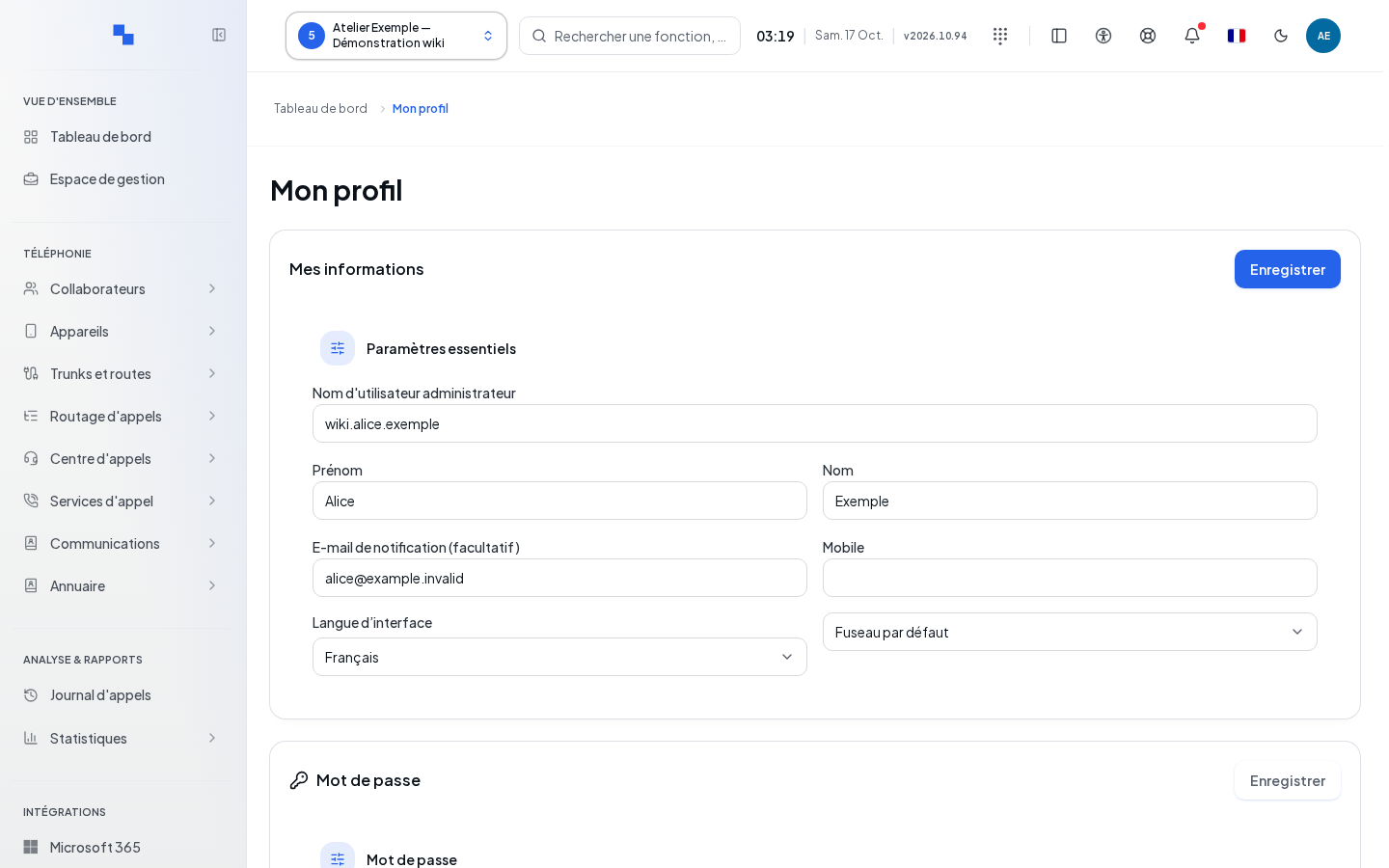
Updating your information
| Field | Purpose | Possible values | Example |
|---|---|---|---|
| Login ID | Identifies the account; read-only | Only a system administrator can rename it | front-desk-admin |
| First name, Last name | Account identity | Text, maximum 120 characters each | Camille, Example |
| Notification email | Address for receiving notifications | Email address, maximum 254 characters | camille@example.test |
| Mobile | Mobile contact detail | Phone text, maximum 40 characters | Number provided by your organization |
| Language | Interface language | A language from the list | English |
| Time zone | Interpretation of displayed times | Suggested time zone or inheritance | Europe/Zurich |
| Current password | Authorizes the email address change | Required when the address changes; empty initially | Your password, kept secret |
- Edit the relevant values.
- If you change the email address, enter the Current password in the section that appears.
- Click Save in My Information.
- Wait for confirmation and the reloaded values. The new language applies to the interface.
Saving is unavailable while the request is pending or if the address has changed without a password. An error reading the time zones does not mean your account has been deleted: use the catalog retry option.
Changing the password
| Field | Purpose | Possible values | Example |
|---|---|---|---|
| Current password | Verifies your identity | Required | Your current secret |
| New password | Replaces the secret | Different from the current one; minimum of at least 8 bytes checked | A long, personal phrase |
| Confirm password | Prevents a typing error | Identical to the new password | Re-type the same phrase |
The indicators below the fields show the conditions met. With common unaccented letters, eight characters represent eight bytes; choose a longer phrase to avoid any ambiguity.
- Fill in the three fields.
- Click Save in the password card.
- Wait for confirmation. The fields are cleared upon success.
Other sessions are logged out after the change. An error appears in the card; correct the indicated issue before trying again.
Enabling or disabling two-factor authentication
Two-factor authentication adds a temporary code to your password. Prepare an authentication app.
- In Two-Factor Authentication (2FA), click Enable 2FA.
- Scan the QR code with your app, or manually enter the key into it.
- Enter the Verification code: exactly six digits, including any leading zero.
- Click Confirm and enable. Cancel closes this setup without validating the activation.
- Immediately save the Recovery codes in a secure location. They will not be displayed again.
"Invalid code, please try again." asks you to enter a current code from the app. "Unable to start enrollment." indicates that the setup failed; retry once the service is available.
To disable the protection, enter your password in the active card, click Disable 2FA, then confirm the dialog "Disable two-factor authentication for your account?". Canceling the dialog keeps the protection active. Commands wait for the request to complete.
Checking the result
Check the reloaded information, the password change confirmation, and the two-factor authentication status. The number of remaining recovery codes appears when it is active.
If this does not work
Read the exact message below the relevant form. A save error does not validate the changes. Do not share your password, QR code, key, or recovery code. Return to Login if your session has expired.