
Understanding the Displayed State
This guide is intended for all users of Informatique Facile PBX. Some repair actions require an administrator. Before restarting an operation, read the error title and check your account, the selected client, and the screen in question.
A list in progress of loading, an empty list, and a failed read are three different situations. Wait for Loading… to finish. If no results match a search, clear the filter or change page. An error does not prove that the data has been deleted.
Reading an Error and Resuming a Read
| Message or title displayed | What it means for you | Action |
|---|---|---|
| "Connection failed" | The communication did not succeed | Check the network then use Retry if available. |
| "Session expired" | The session needs to be renewed | Resume Login. |
| "Access denied" | The account does not have the required permission | Request verification of the profile and the client. |
| "Resource not found" | The requested item was not found | Return to the list and verify it still exists in the correct client. |
| "Conflict with current data" | The current state no longer allows the requested operation | Review the current data before resuming. |
| "Check the indicated fields" | An input has been rejected | Correct the flagged fields, then save again. |
| "Service unavailable" or "Server error" | The read or action could not complete | Retry later if available; contact the administrator if this persists. |
| "Operation failed" | The issue requires reading the details | Open Details and share the relevant information with support. |
The Details block may show Status, Code, and the original diagnostic. Open it to understand a failure; close it after reading. Mask personal data and secrets before sharing a screenshot.
Retry relaunches the read expected by the screen. It is disabled while the request is in progress. If there is another failure, the message remains visible. An access denial does not necessarily offer a new attempt.
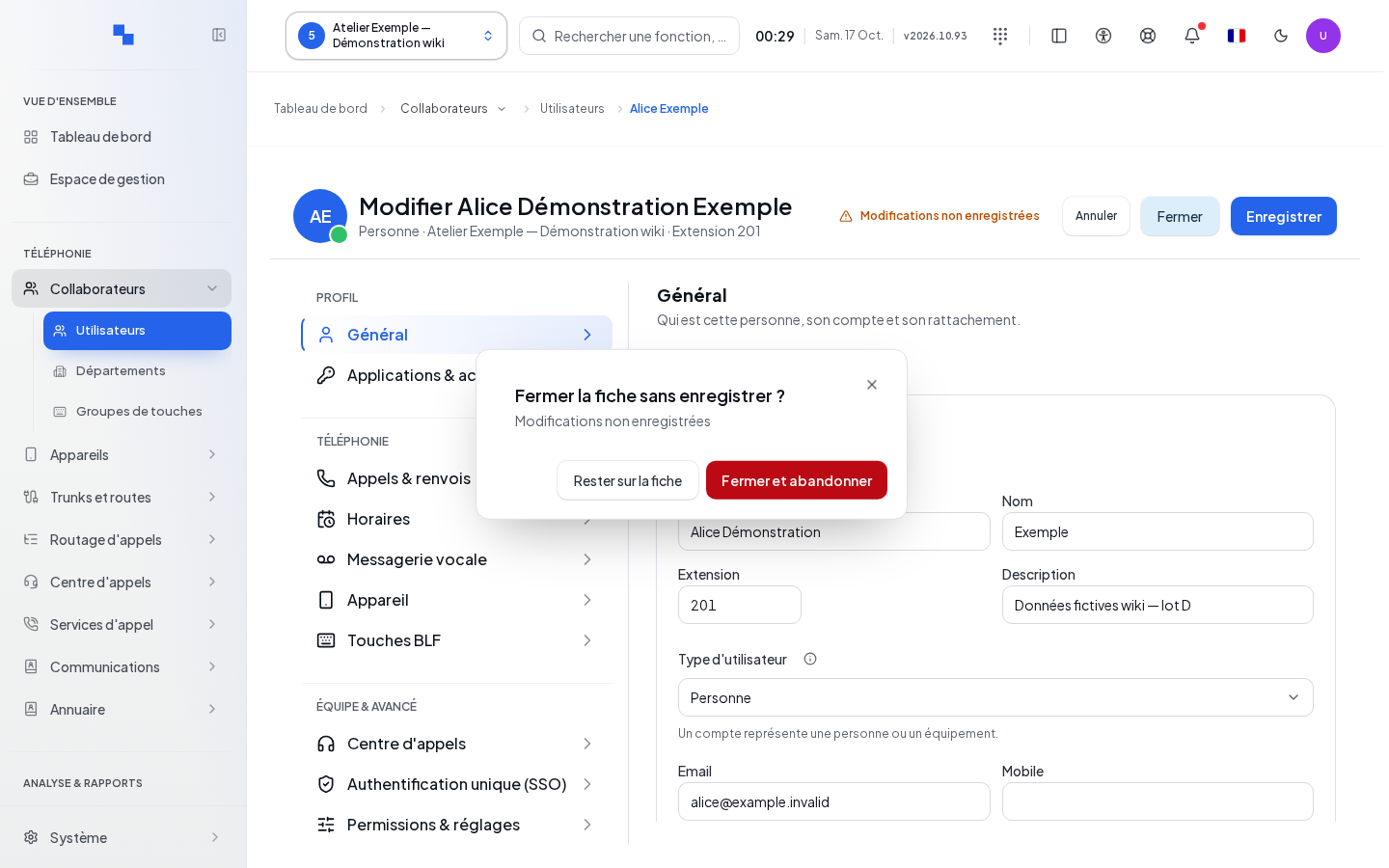
Leaving a Modified Form
Forms that track changes may display Leave this page? with "Your changes have not been saved. If you leave this page, they will be lost."
| Button | Effect | When to use it |
|---|---|---|
| Stay on page | Cancels the navigation and keeps your input | You want to continue or review the form. |
| Leave without saving | Discards the tracked changes and continues navigation | You have decided not to keep the input. |
| Save and continue | Attempts to save before navigating | Only present if the form allows saving from this dialog. |
- Review the changes and your intended destination.
- Choose the button matching your intention.
- During a save, wait; the discard and save actions are disabled.
- If "Changes could not be saved. Check the form before continuing." appears, stay on the form, correct it, and save.
This protection depends on the form. Its absence does not mean your input has already been saved. Switching clients or closing the tab requires the same caution: check the result of Save before leaving.
Use Case: Preparing Google and Microsoft Contacts
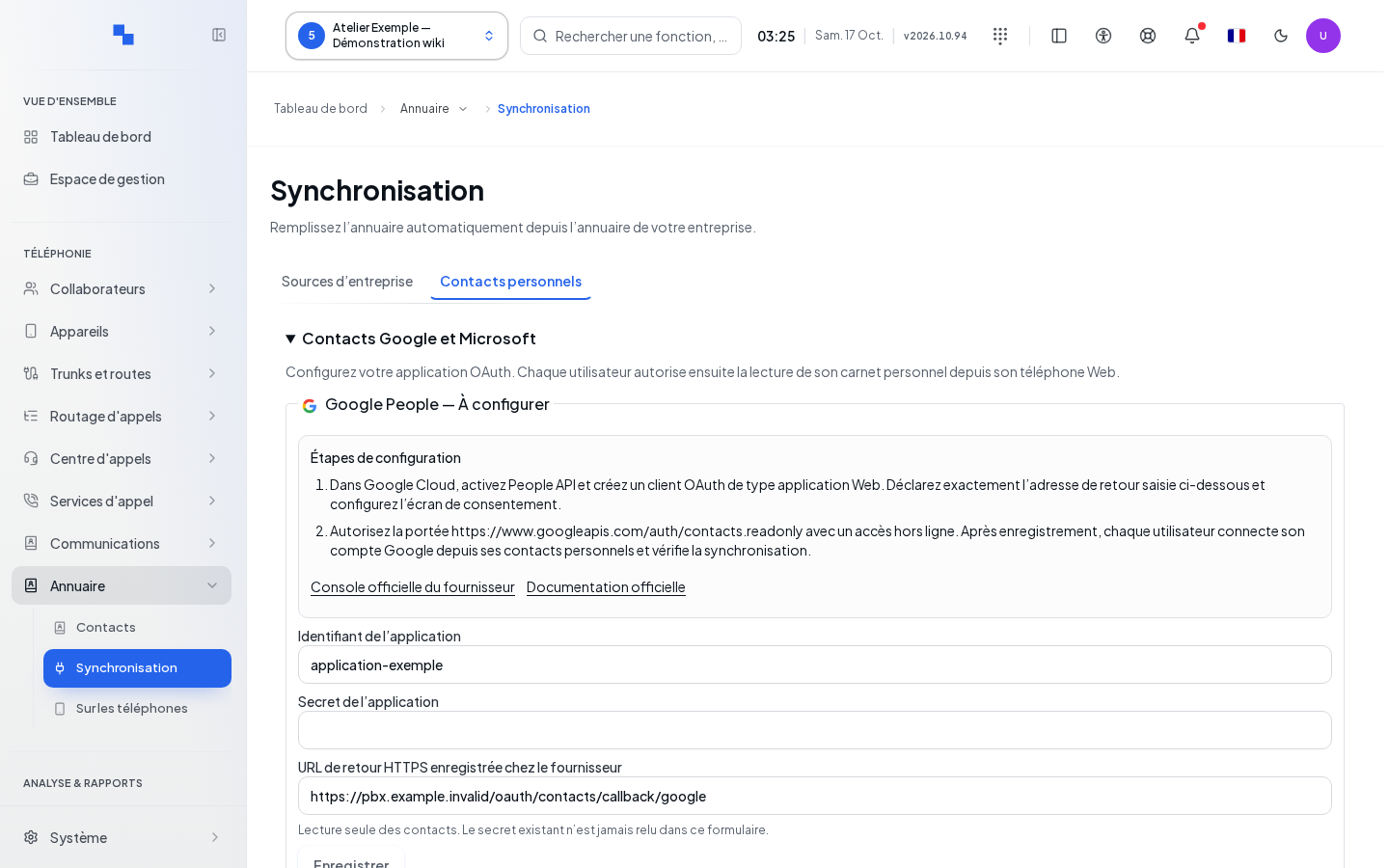
This configuration is part of the help topics grouped here. It is intended for the administrator authorized to modify the client's address book. OAuth refers to the authorization granted to an application to read contacts from an external account.
- Select the correct client in the administration panel.
- Open Directory, then Synchronization.
- Expand Google and Microsoft Contacts.
- Locate Google People or Microsoft Graph and wait for the configuration to load.
Without a client, this panel is not displayed. Without write permission, during loading, after a read error, or during saving, the fields remain disabled. Retry relaunches a failed read.
| Field | Purpose | Possible values | Example |
|---|---|---|---|
| Entra Tenant ID (optional for personal address books) | Specifies the Microsoft organization in the form when this option is displayed | Identifier provided by the Microsoft administrator, or blank for the personal case described on screen | Leave blank for the expected personal case |
| Application ID | Identifies the application registered with the provider | Exact value provided during its registration; required to save | Copy your application's ID |
| Application Secret | Authorizes the application with the provider | Confidential secret; required for initial setup; never shown again in the form | Paste the provided secret without publishing it |
| HTTPS Redirect URL registered with the provider | Returns the user to the phone after authorization | Exact address registered with the provider; suggested from the current address | Address suggested by your own installation |
For Microsoft, Microsoft Documentation opens the permissions reference displayed by the product. Use it together with your organization's administrator to verify permissions and policy. The on-screen text covers the case of personal address books and an application accepting multiple organizations; do not assume from the optional field alone that another connection type is available.
- Enter the values provided by the provider's administrator.
- Click Save. The button requires the ID, the return address, and, if no configuration exists yet, a secret.
- Wait for Saved. The secret field is cleared and the state is reloaded.
- Each user must then authorize access to their own address book from their Web phone.
The existing secret is never shown again in this form. An empty field does not prove that no secret is saved. Do not share this secret with support in a screenshot.
Checking the Result
After resuming a read, check that the error has disappeared and that consistent data is present for the displayed client. After a save, verify the confirmation and the reloaded values. After reconnecting, make sure you are back in the correct workspace.
If This Does Not Work
Prepare for your administrator the screen name, the client involved, the time, the exact message, and the action attempted. Do not include passwords, license keys, or recovery codes. If the result of an import or deletion is uncertain, have the state verified before repeating an action.
Resume Login, Navigation, or Clients as needed.