
Choosing the right space
Informatique Facile PBX distinguishes between your personal space, the administration of a client, and the administration of the installation. A client here refers to a company or a workspace, not the person you are calling.
Your personal space brings together your communications. The client administration manages the resources of the selected company. System concerns the installation and its clients. Menus are filtered according to permissions, account capabilities, and certain enabled features. A section visible to a colleague may be absent from your screen.
- Log in with the account suited to your task.
- Check whether you are in the phone or in the administration.
- In the administration, verify the client before entering data.
The supervisor role does not automatically grant all administration rights. A read permission does not guarantee a modification permission.
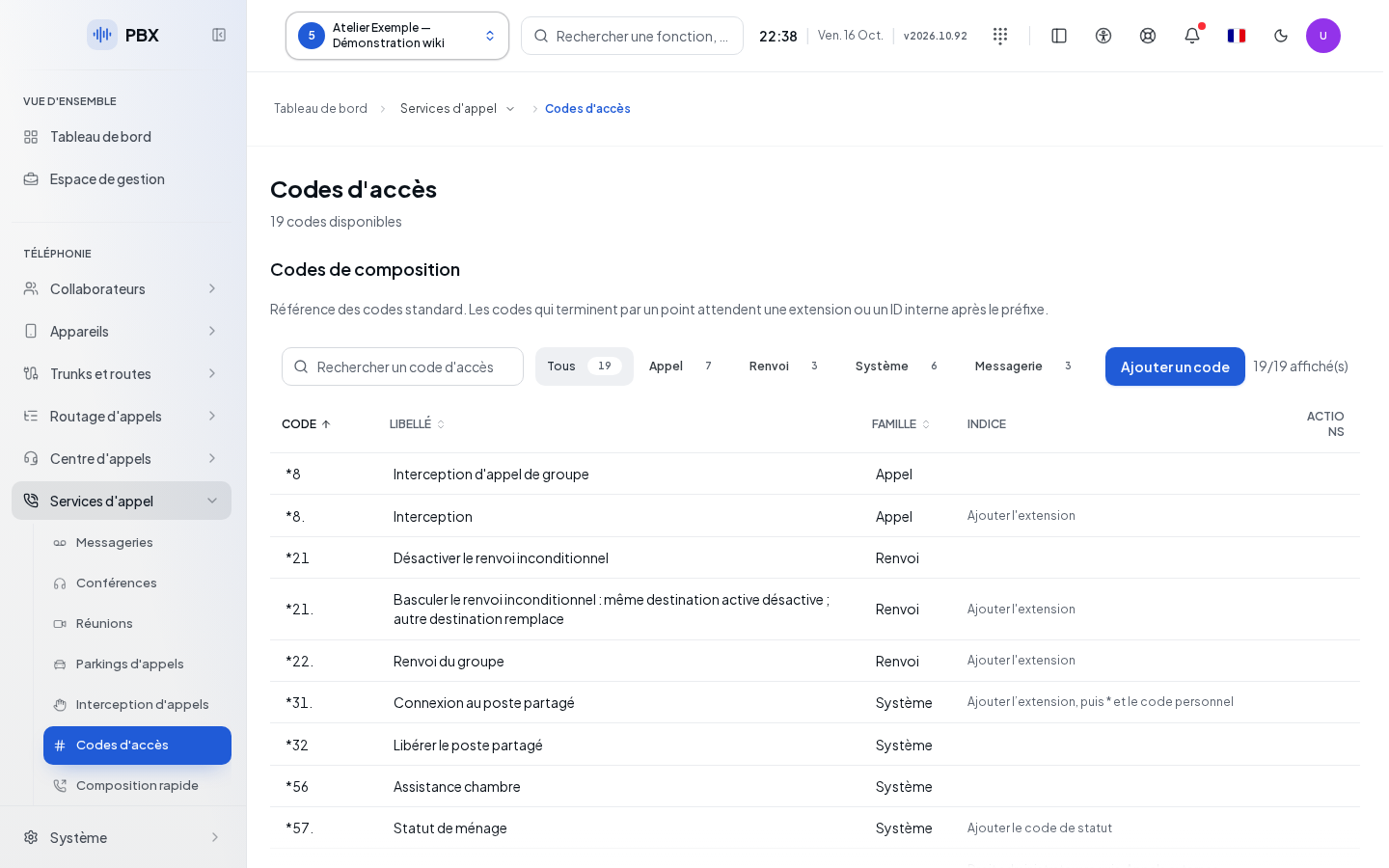
Selecting the working client
- Click on Select a client or on the client identity already displayed in the top bar.
- Locate the number and the company name in the list. A user count appears only if this data is known.
- Click on the desired client. The list closes and the checkmark indicates the active client.
- Verify the new name before opening a record or saving.
A previous selection can be restored if it is still permitted. The system administrator does not get a randomly selected client. An account limited to a single client may automatically return to that space.
Unavailable clients indicates a failed read and disables the selector. No client may appear while data is missing; wait for loading to finish before concluding. If no client exists and you are a system administrator, Add a client opens the creation form. This command also exists at the bottom of the list for this profile.
Changing clients changes the scope of the screens. Explicitly finish or discard your form before switching spaces. A delayed response from an operation should not cause you to work in the wrong client.
Opening, moving, and collapsing the menu
On small screens, Menu opens or closes the navigation. On a computer, Menu position offers Menu on the left, Menu on the right, Menu at the top, and Menu at the bottom. Choose the desired position; the checkmark indicates the active choice. This layout does not grant you any additional rights.
In the side menu, Collapse menu keeps the icons and Expand menu restores the labels. A section with sub-sections unfolds to show the choices. Then click on the specific label. In an icon bar or horizontal menu, groups open a selection menu; with the keyboard, place focus on the group then use Enter or Space.
System opens the authorized installation sections. Back to client returns to the client navigation; always verify its name. The logo leads to the personal space. Open the softphone also opens the phone. Support goes to the support screen when you are authorized.
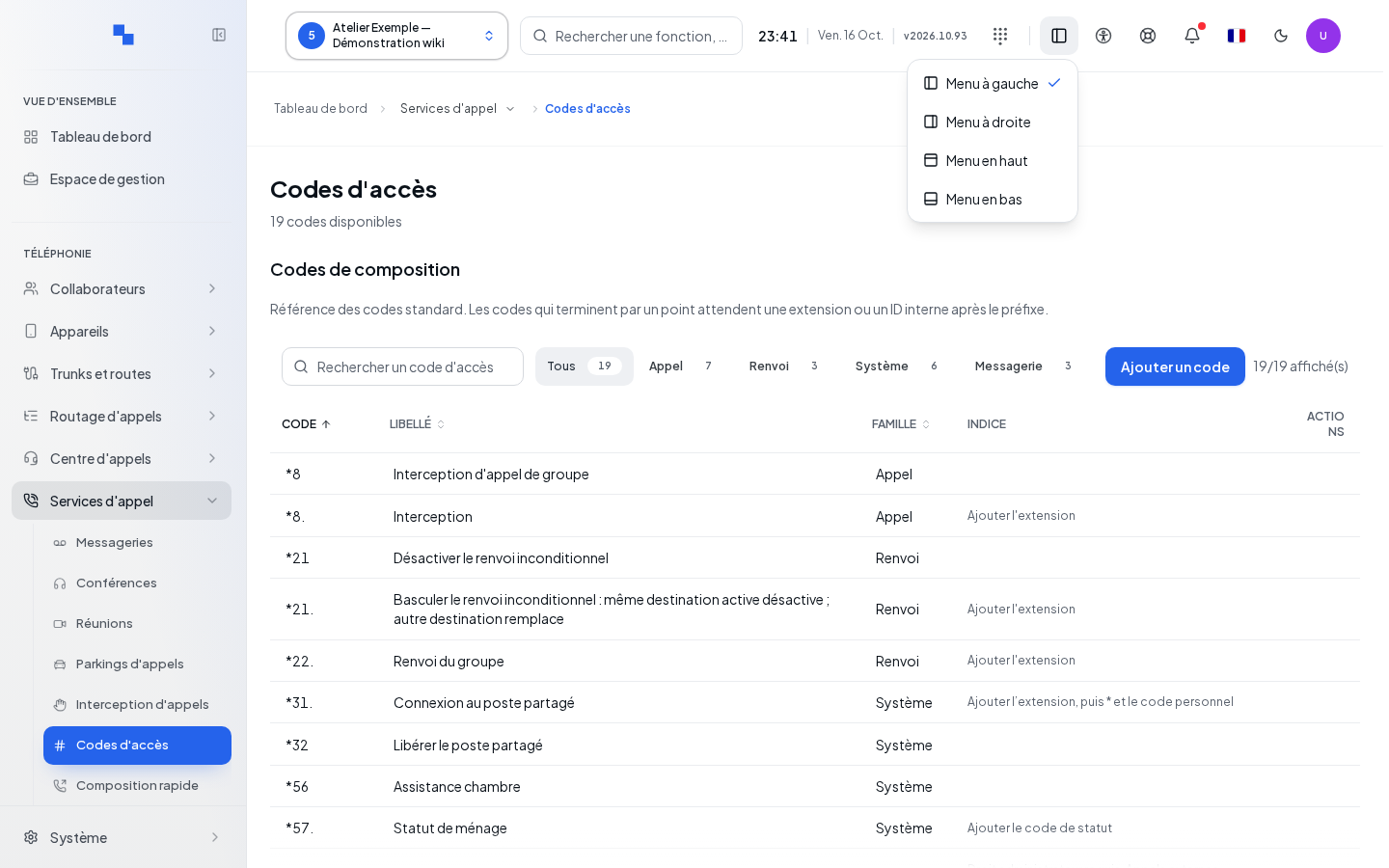
Using the breadcrumb
The breadcrumb is the sequence of markers placed above the page. It lets you understand where you came from and return to a section by its name. A marker with an arrow opens the destinations of its group; then choose the desired label. The current marker is distinguished from the others. From a user, device, queue, or group record, click on the list name in the breadcrumb to close the record and return to the list. This return respects unsaved changes: handle the proposed confirmation before leaving; if you cancel the return, the record remains open.
The same page may be accessible from several groups. The navigation path keeps the origin used to help you return to the correct group. This return does not automatically save a record: read the unsaved changes dialog.
Finding a feature in the administration
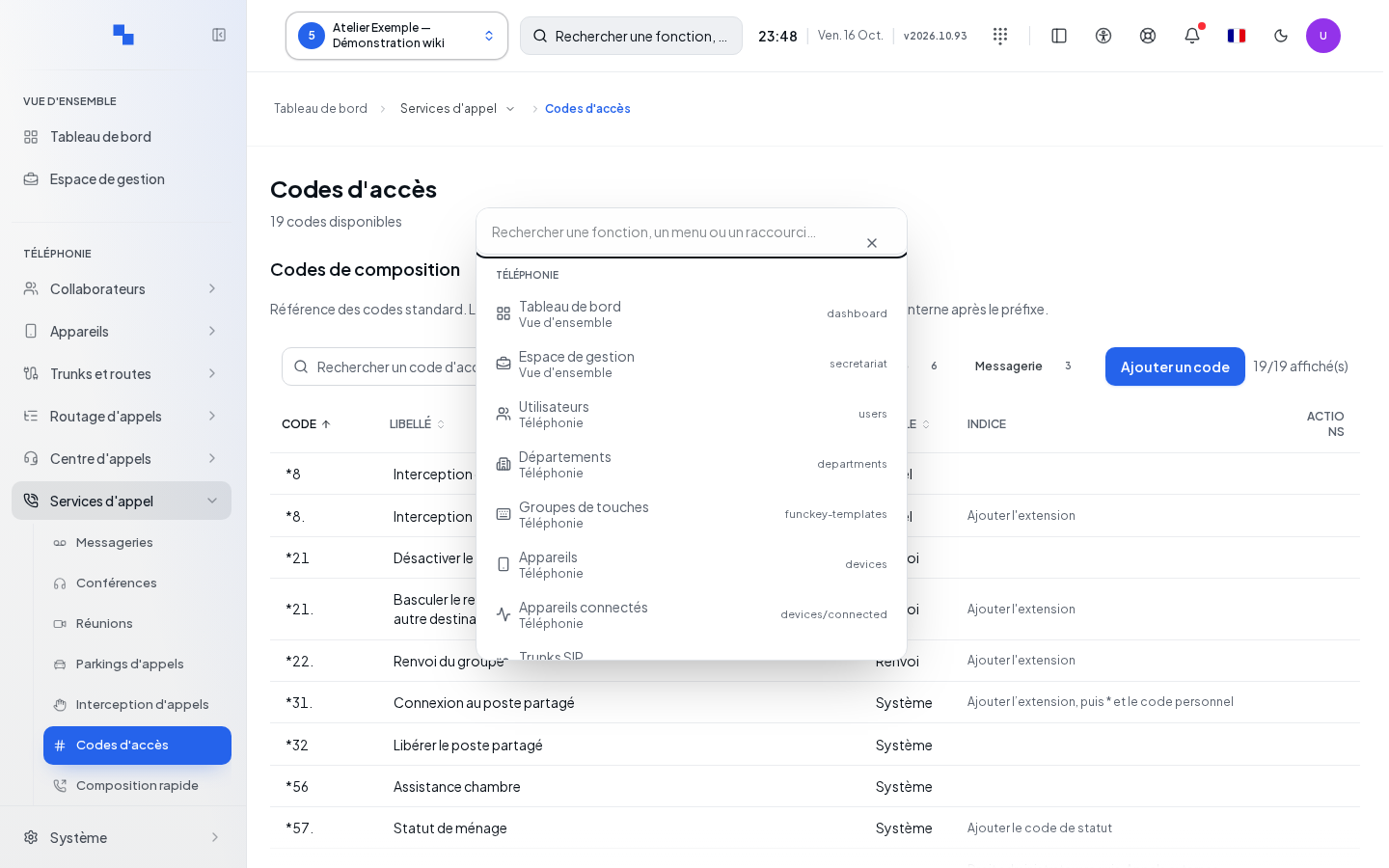
- Click on Search, represented by the magnifying glass. Its placeholder is Search for a feature, menu, or shortcut….
- Enter a name or a word related to your need.
- Choose a result to open its destination.
- Close the window if you no longer wish to change pages.
The search respects the account's permissions. Its shortcuts include Users, Call groups, Queues, IVR (voice menus), SIP trunks, Shared numbers, Devices, Voicemails, AI settings, and Conferences, when authorized. Artificial intelligence settings open within the client's general settings.
If no result matches your need, check the searched word and your permissions before concluding that the feature does not exist. Opening a result may trigger the exit confirmation for a modified form.
Identifying the administration menus
The entries below constitute the navigation landmarks. Click on the section or expand its group, then choose the indicated submenu. They open the corresponding screens; their presence depends on permissions. The descriptions help you choose the screen, detailed operations are performed within that screen.
An internal number is an extension. An external number provided by the carrier may be called a DID. A SIP trunk is the connection to the carrier. An IVR is a voice menu where the caller makes a choice. These terms may appear as such in the menus.
| Menu | What it is for |
|---|---|
| Dashboard | View the client's overview and its indicators. |
| Management space | Open the space authorized for your profile in a separate tab. |
| Collaborators | Find the company's people. |
| Users | Open user accounts and their records. |
| Departments | Organize the team's departments. |
| Key groups | Find the key groups of the extensions. |
| Devices | Open the list of devices. |
| Connected devices | View connected devices. |
| Trunks and routes | Group carrier connections and their routes. |
| SIP trunks | Open connections to the carrier; this menu entry is reserved for the system profile. |
| Numbering ranges | Open the available number ranges. |
| Dial plan | View the internal numbering plan. |
| Shared numbers | Find shared numbers. |
| DID numbers | Open received numbers and their destinations. |
| Outbound routes | Open the rules for routing to the outside. |
| Emergency numbers | Access emergency numbers. |
| Call monitoring | View call monitoring. |
| Call routing | Group call paths and destinations. |
| Call flows | Open call flows; the navigation marks this entry as beta. |
| Call groups | Open the groups that distribute a call to multiple extensions. |
| Queues | Open the call queues. |
| PIN-coded IVR | Open voice menus protected by a PIN code. |
| IVR (voice menus) | Open voice menus and their options. |
| Schedules | Find the schedules used by calls. |
| Conditions | Open routing conditions. |
| Sounds & announcements | Find sounds and announcements. |
| Hold music | Open hold music. |
| AI voice agent | Open the management of voice agents using artificial intelligence. |
| Call center | Group call center tools. |
| Supervisor | Open the supervisor view. |
| Call center stats | View call center statistics; also accessible via Analytics & reports. |
| Wallboard | Open the call center's shared display board; also accessible via Analytics & reports. |
| Agent schedules | Find agent schedules. |
| Operator switchboards | Open operator switchboards. |
| Campaigns | Find calling campaigns. |
| Call services | Group additional call services. |
| Voicemails | Open voicemails. |
| Conferences | Open audio conferences. |
| Meetings | Open meetings. |
| Call parking | Find shared call hold locations. |
| Call pickup | Open the rules for intercepting a call intended for another extension. |
| Access codes | Find access codes. |
| Speed dial | Open dialing shortcuts. |
| Intercom / paging | Open paging and intercom functions. |
| Delegates | Open delegation to assistants. |
| Communications | Group communication tools. |
| Omni | Open the Omni conversations space. |
| Email support | Find email support. |
| Directory | Group directory functions. |
| Contacts | Open the contacts book. |
| Synchronization | Open contact sources and synchronizations. |
| On phones | Open directory settings on phones. |
| Rooms | Open rooms if the hospitality module and permissions are active. |
| Call log | View the call log. |
| Statistics | Group statistics and reports. |
| Statistics | Open the client's statistics. |
| Custom reports | Open custom reports. |
| Scheduled reports | Find scheduled reports. |
| Office integrations | Open the connection to the office suite provider offered to your organization. |
| CRM | Open integrations with customer relationship management, called CRM. |
| General settings | Open the client's general settings. |
| API | Open access intended for external software; API refers to their communication interface. |
| Support | Open support. |
Identifying the menus in your personal space
In Settings › My profile and display › Menu position, choose Menu on the left, Menu on the right, Menu at the top, or Menu at the bottom. At the top and bottom, the icons form a horizontal dock. The choice is applied immediately and remains saved in this browser for your account and your organization. Below 768 px, the mobile navigation remains unchanged.
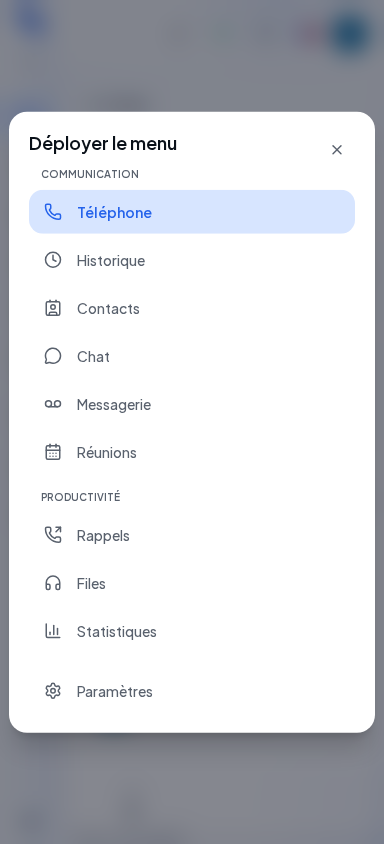
Click on a phone entry to switch sections. On small screens, open its menu first. Your account's capabilities filter the choices; some sections concern agents or supervision.
| Menu | What it is for |
|---|---|
| Phone | Find your phone. |
| Fax | Open faxes. |
| History | View your recent calls. |
| Contacts | Find your contacts. |
| Chat | Open your written exchanges. |
| SMS | Open SMS messages. |
| Voicemail | Find your voicemail. |
| Meetings | Open meetings. |
| Reminders | Find call reminders. |
| Recent transcriptions | Find available transcriptions. |
| Omni | Open conversations on available channels. |
| Support | Open support tracking. |
| Queues | Find queues authorized for your account. |
| Recordings | View the recordings you have access to. |
| Dialer | Open the call dialer. |
| Campaigns | Find accessible campaigns. |
| Supervision | Open supervision according to your profile. |
| Statistics | View your authorized statistics. |
| Settings | Find personal settings. |
Depending on your permissions, Management space or Administration opens a separate tab. In the desktop application, a second application window opens. The phone remains open and the ongoing call continues; keep its tab or window to control the call. A new click may bring the already-open management tab back to the foreground.
If "The browser blocked the window." appears, click Open in a new tab and allow the opening for your platform if necessary. In the management space, wait for permissions to load; in case of failure, use the retry command. Your account's permissions continue to limit the accessible pages.
Using the phone's global search
Search is located at the top, except when you choose Menu at the bottom: it then appears at the bottom, to the right of the logo, and results open above it. Click in the field or on the magnifying glass if space is limited. Ctrl+K or ⌘ K also places the cursor in the search field. No results are displayed before typing; clearing the field hides them.
- Enter a name, a number, or a section name. The search ignores accents and capitalization in loaded lists.
- Read the Contacts, Sections, Shortcuts (BLF), Favorites, and Settings groups that match your input. Contacts, shortcuts, and favorites each display up to five results. Colleagues' presence appears when known.
- Select a contact to expand its actions, then choose Call. For an identified colleague, Send a message opens their direct conversation and Create a meeting opens the meeting creation form. This form does not pre-fill any participant and does not send an invitation to the selected colleague.
- Use the up and down arrows then Enter, or click on the result or action. Esc first collapses open actions; pressing again clears the search and closes the results.
Check the displayed number before Call, especially if the contact has multiple numbers. Favorites and shortcuts associated with a colleague also offer actions; other phone shortcuts call directly. Forwarding and condition keys are not offered as calls. A number composed only of digits, with a possible leading +, also offers Call.
Sections opens a section displayed for your account; Settings opens the chosen settings section directly. View all contacts, when offered below the contacts, opens this section with your search. Results close after the action; if opening a conversation fails, the error message appears and the search remains open to retry.
Data is loaded on first use, then typing filters the available lists. A loading or failure message does not mean that no contacts exist. If a result is missing, refine the search, check the sources in Contacts, the account's permissions, and the menus displayed by its roles.
The client's fax log is located in Communications › Fax, on a dedicated page, and no longer in DID numbers. See Fax log.
Opening help for the right screen
The help button with a question mark opens the documentation in another tab. It follows the active screen, record, or tab when the corresponding help is available. The current form remains in its tab.
- Open the section or record causing an issue.
- Click on its question mark.
- Read the indicated part in the wiki.
- Return to the phone tab to continue your input.
If your provider's wiki is not configured, this button may be absent. If specific help is not yet published, the wiki may take you to a more general section or to its home page. See your documentation and search for the menu name.
Checking the result
The screen title, the active menu, and the displayed client match your intent. Before Save, check the client and the modified fields again. To start a new team, open Clients.
If it doesn't work
A missing menu may correspond to a missing permission, a disabled capability, or another space. First expand the group, check your account and your client, then ask the administrator to verify your access. A layout change does not restore permissions. For an error, an empty list, or an exit confirmation, see States and access.
AI integrations
The AI integrations menu groups call and voicemail transcriptions, voice agents, the conversational agent, providers, live transcription, unknown caller identification, text-to-speech, and the assistant. Installation settings are reserved for its administrator. Visible entries depend on your permissions. AI settings have moved out of General settings; see the AI integrations guide.